
Viewing All Patients Assigned to My Unit

When logging into Mirah, the Dashboard screen will appear. It is important to note that the Dashboard screen shows only patients who have recently completed measures or upcoming appointments. To view all patients that are in a program (examples include outpatient, substance use disorder, primary care, etc.) or all patients seen at a specific location of your organization, click "Clients" at the top of the page.
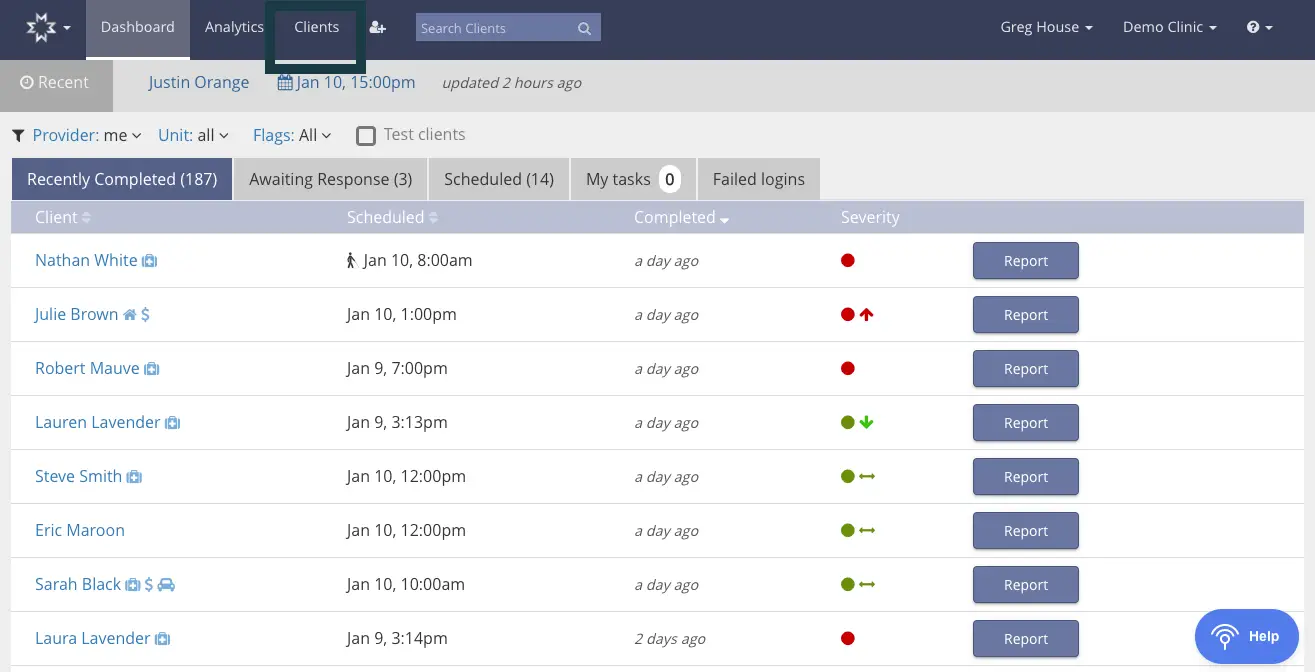
The screenshot displays the 'Clients' section of the Mirah Measurement-Based Care platform, specifically showing a list of patients assigned to a unit. The top navigation bar includes tabs for Dashboard, Analytics, and Clients, with the Clients tab highlighted. A search bar labeled 'Search Clients' is present on the right. The user is identified as Greg House, associated with Demo Clinic. The screen is divided into tabs: Recently Completed, Awaiting Response, Scheduled, My tasks, and Failed logins, with the Recently Completed tab active. Below, a table lists clients with columns for Client name, Scheduled date and time, Completed status, and Severity. Each client row includes a 'Report' button on the right. Severity is indicated by colored icons: red, green, and arrows, representing different levels of urgency or status. The bottom right corner features a 'Help' button.

Once directed to this complete list of patients, filter names by selecting which groups you would like to view. This can be done by selecting groups in the sort feature labeled "units." By selecting your location or unit, you will see all patients assigned.
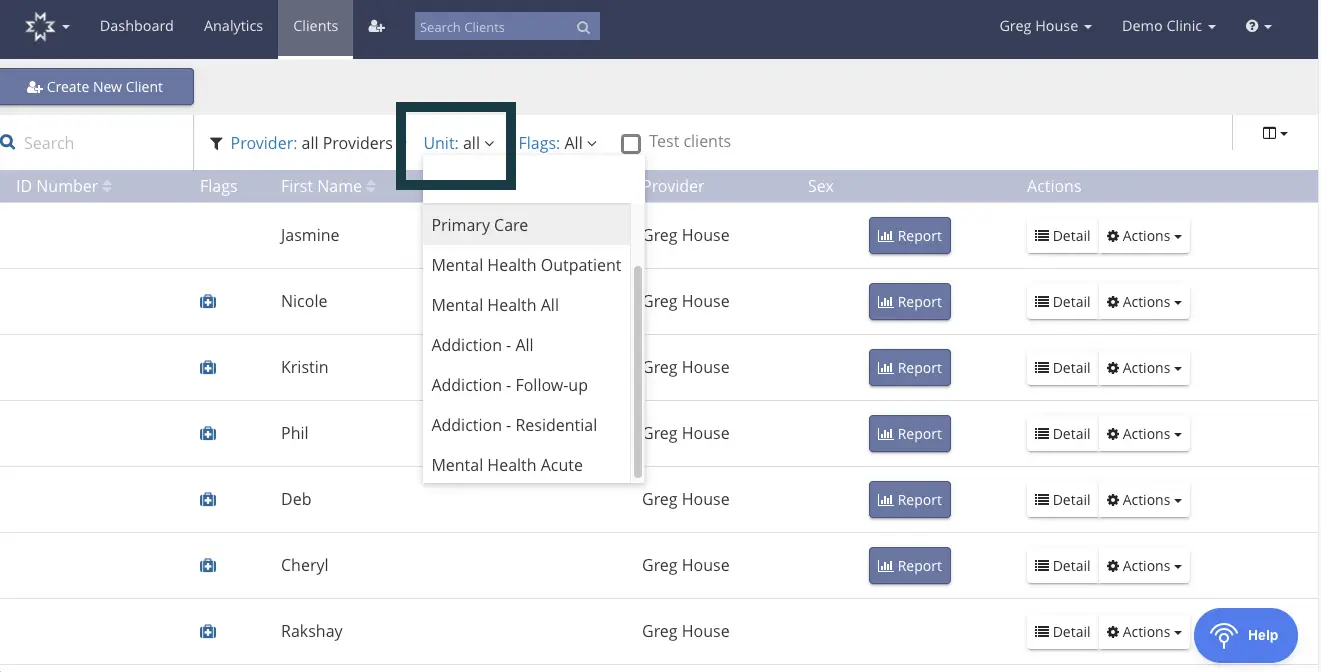
The screenshot displays the 'Clients' tab within the Mirah Measurement-Based Care platform, specifically showing a list of patients assigned to a unit. At the top, there is a navigation bar with options for Dashboard, Analytics, and Clients, along with a search bar labeled 'Search Clients'. Below, there is a button labeled 'Create New Client' on the left. The main section of the screen shows a table with columns for ID Number, Flags, First Name, Provider, Sex, and Actions. Each row represents a patient, with their first name and provider listed. The 'Actions' column contains buttons for 'Report', 'Detail', and a dropdown labeled 'Actions'. Above the table, there are filters for Provider and Unit, with the Unit filter currently expanded to show options such as Primary Care, Mental Health Outpatient, and Addiction - Residential. There is also a checkbox labeled 'Test clients'. The bottom right corner features a 'Help' button.