
Creating a New Episode of Care (Manual)

Please Note: If your EHR is integrated with Mirah, episodes of care should be automatically created. If your EHR is not integrated with Mirah, please follow the steps below to create a new episode of care.

Starting a new episode of care​

1). To begin a new episode of care, scroll down and click "+ Begin new episode of care" in the "Episodes of Care" box on the patient's Detail page.
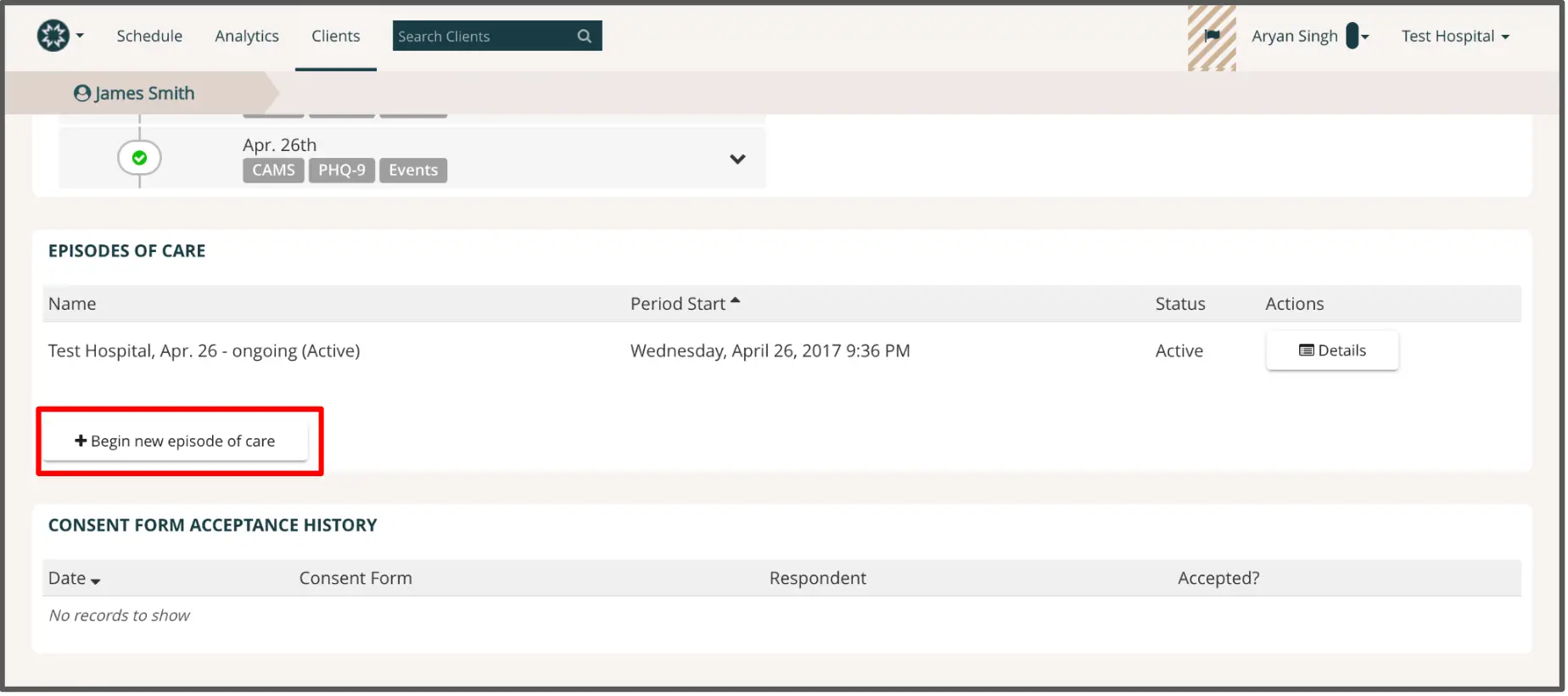
The screenshot displays the 'Episodes of Care' section for a patient named James Smith within the Mirah Measurement-Based Care platform. At the top, there is a navigation bar with options for Schedule, Analytics, and Clients, along with a search bar labeled 'Search Clients'. The user's profile, Aryan Singh, and the current organization, Test Hospital, are shown on the right. Below, the patient's timeline is visible, indicating an event on April 26th with associated assessments CAMS and PHQ-9. The 'Episodes of Care' section lists an active episode for Test Hospital starting on April 26, 2017, with a status of Active. To the right of this entry is a 'Details' button for more information. Below this, a prominent button labeled '+ Begin new episode of care' is located, allowing users to start a new care episode. The 'Consent Form Acceptance History' section is also visible, but it currently shows 'No records to show'.

2). When prompted, select the appropriate treatment service, unit, care team, and start date for the new program or "episode of care," and click "Save". You can add multiple care team members by choosing a provider from the drop down menu in the "Care Team" box and clicking the "+" button.
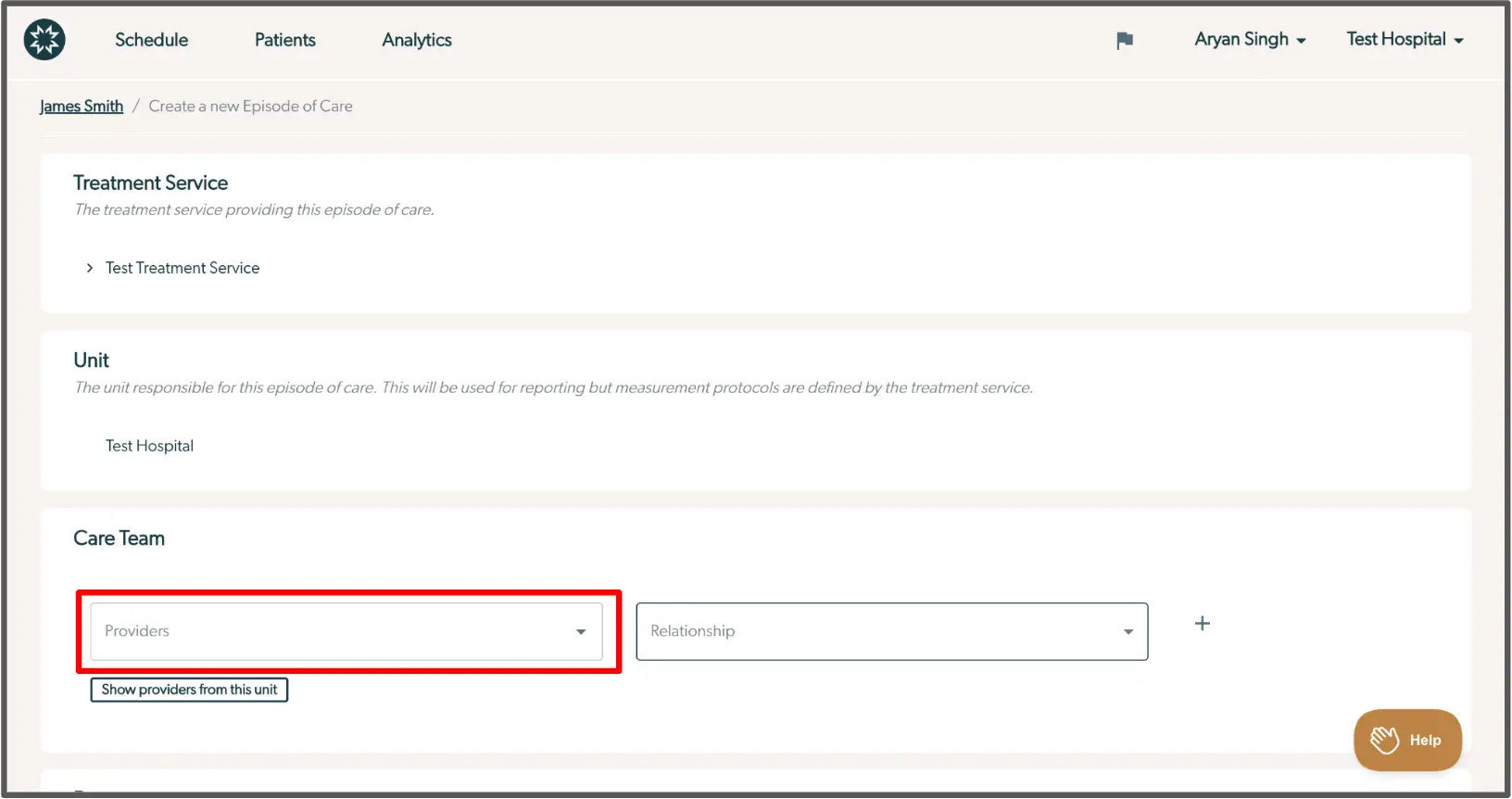
The screenshot displays the interface for creating a new Episode of Care in the Mirah Measurement-Based Care system. At the top, there is a navigation bar with options for Schedule, Patients, and Analytics. The breadcrumb trail indicates the user is on the 'Create a new Episode of Care' page for patient James Smith. Below, the 'Treatment Service' section shows the selected service, 'Test Treatment Service,' which provides the episode of care. The 'Unit' section specifies 'Test Hospital' as the responsible unit for reporting purposes. The 'Care Team' section includes a dropdown menu labeled 'Providers' for selecting care providers, and another dropdown labeled 'Relationship' for defining the relationship of the selected provider to the patient. A button labeled 'Show providers from this unit' is located below the dropdowns, allowing users to view available providers. The interface also features a help button in the bottom right corner for user assistance.

3). After saving the new episode of care, you will see it appear on the patient's Detail page, alongside any previous episodes of care (or other ongoing episodes of care, if the patient is in concurrent programs).
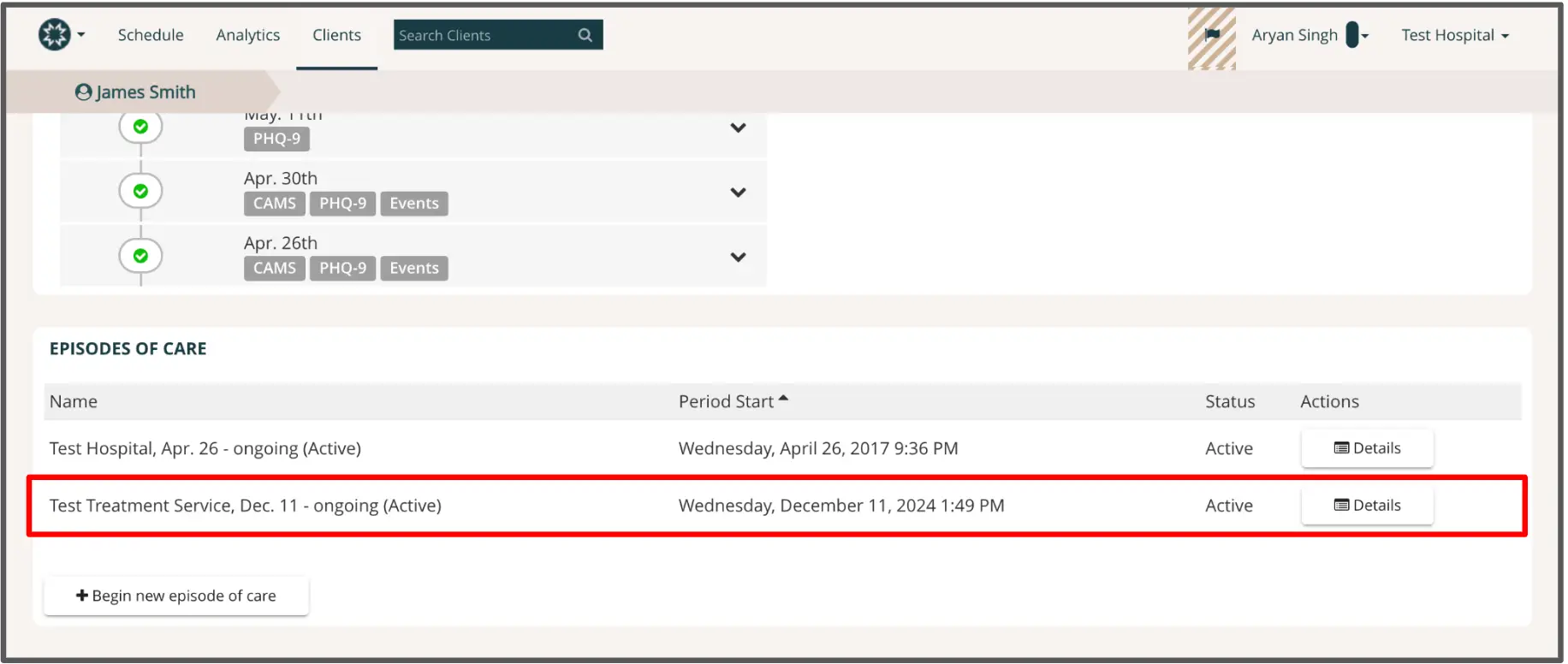
The screenshot displays the 'Episodes of Care' section for a patient named James Smith within the Mirah Measurement-Based Care platform. At the top, there is a navigation bar with options for Schedule, Analytics, and Clients, along with a search bar to find clients. The user, Aryan Singh, is logged in under Test Hospital. Below the navigation bar, the screen shows a timeline of assessments with dates and types, such as PHQ-9 and CAMS, with expandable event details. The 'Episodes of Care' section lists ongoing care episodes, including 'Test Hospital, Apr. 26 - ongoing (Active)' and 'Test Treatment Service, Dec. 11 - ongoing (Active)'. Each entry includes the name, period start date, status, and an 'Actions' column with a 'Details' button for more information. The 'Begin new episode of care' button is located at the bottom of the section, allowing users to initiate a new care episode.

Changing a patient's care team and/or primary provider​

While creating a new episode of care, you are given the opportunity to add all members of the care team associated with the patient's new program. If you need to update this care team, click "Edit care team" on the patient's Detail page. Note that creating a new episode of care does not update the primary provider information for the patient. If you would like to change this information, please change the primary provider name using the "Edit Demographics" button on the patient's Detail page.

For detailed instructions about this process, please view this support article on updating care teams.