
How to Add and Edit a Related Person

Each youth patient (a patient under 18 years old) requires a related person be added to their account. Depending on how your organization's electronic health records (EHR) integration with Mirah, related persons may be automatically added when youth patients are added but, in some cases, a related person may need to be added manually.

1). To add a related person, whether it is a teacher or caregiver, locate the youth patient's Detail page through the Dashboard, Patients tab, or the search function.

The screenshot displays the 'Patients' section of the Mirah Measurement-Based Care platform, where users can manage patient information. At the top, there is a navigation bar with options for Dashboard, Analytics, and Patients, along with a search bar labeled 'Search Clients' on the right. The 'Create New Patient' button is prominently located on the left side below the navigation bar. The main section shows a search result for the patient 'Sammy,' with columns for Flags, First Name, Last Name, Provider, Sex, and Actions. The patient's first name, 'Sammy,' is highlighted, indicating a search match. The provider is listed as 'Greg House,' and the sex is 'M.' Under the Actions column, there is a dropdown button labeled 'Actions' with an adjacent 'Detail' button, allowing users to view more information or perform actions related to the patient. The top right corner displays the current user 'Greg House' and the clinic 'Demo Clinic.'

2). Next, click "Add a related person." If you would like to edit the information of a current related person listed on the youth patient's account, click "Edit related people."

The screenshot displays the profile page of a client named Sammy Test within the Mirah Measurement-Based Care platform. The page is part of the 'Clients' section, as indicated by the breadcrumb navigation at the top. The left side of the screen features a vertical menu with buttons for 'Report', '[BETA] New Report', '[INTERNAL] Old Report', 'Measurement Protocol', 'Schedule Session', 'Edit Demographics', and 'Disable Notifications', each serving different functions related to client management. The main section of the page provides detailed information about the client, including full legal name, preferred name, preferred pronouns, flags with an edit option, date of birth, sex, gender identity, ID number, email, phone number, and the last four digits of the SSN. Below this information, there are two highlighted buttons: 'Add a related person' and 'Edit related people', which are used to manage the client's related contacts. The care team is listed as Katie Beam, and there are no care units assigned. The bottom section of the screen shows past sessions with details such as date, time, and clinician name, and an upcoming sessions section, both of which currently have no records to display. A 'Help' button is located at the bottom right corner for user assistance.

3). Fill in the next screen with the information of the related person. Remember, you can edit or add information later by using the "Edit related people" button.
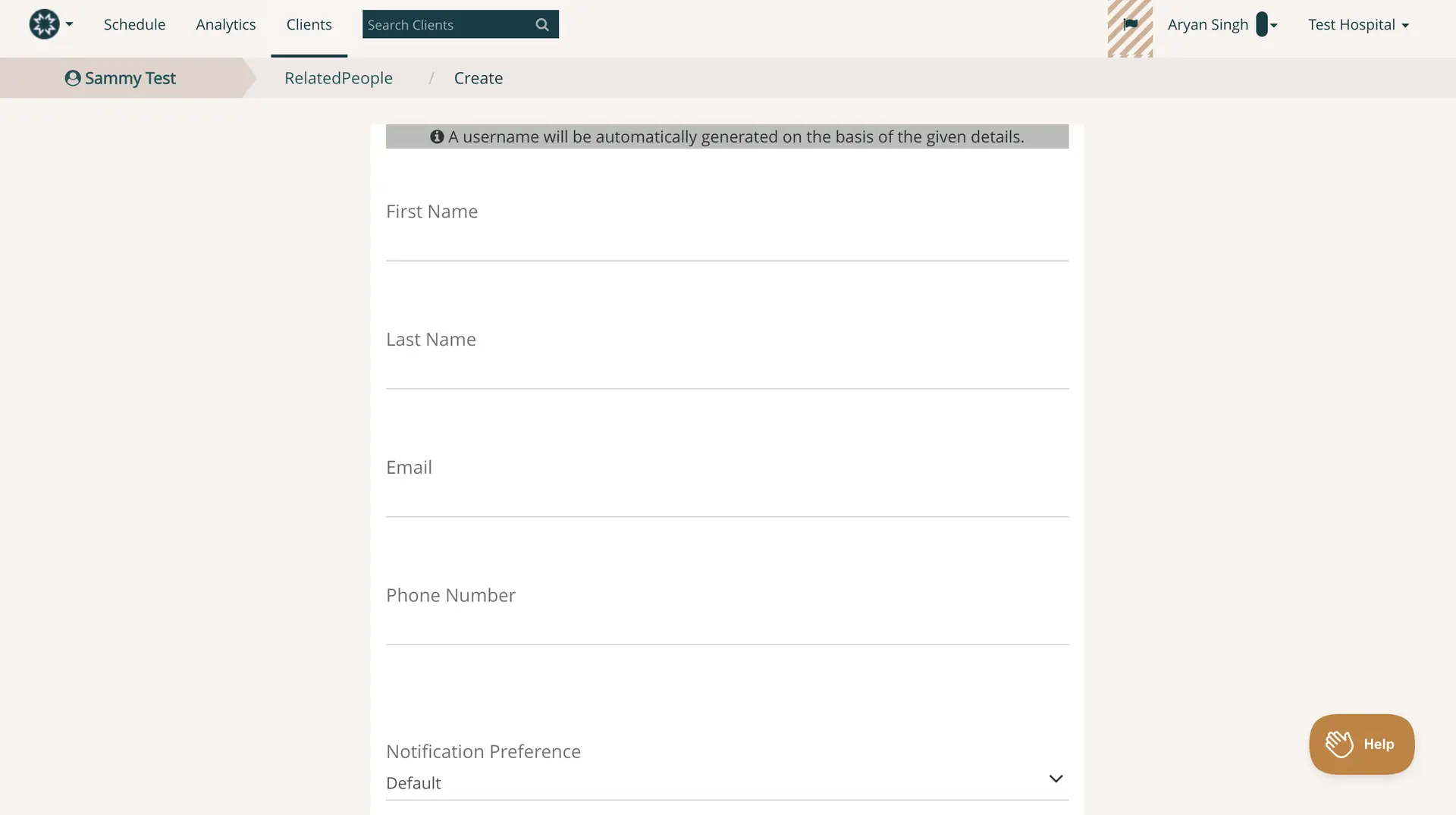
The screenshot displays the 'Create Related Person' interface within the Mirah Measurement-Based Care platform, specifically under the 'Clients' section. The breadcrumb navigation at the top shows the path 'Sammy Test > RelatedPeople > Create'. The page is designed for adding a new related person to a client's profile. It includes input fields for 'First Name', 'Last Name', 'Email', and 'Phone Number', allowing the user to enter the relevant details. Below these fields, there is a dropdown menu labeled 'Notification Preference' with 'Default' as the selected option. A note above the fields indicates that a username will be automatically generated based on the provided details. The top navigation bar includes options for 'Schedule', 'Analytics', and 'Clients', with a search bar for finding clients. The user profile, 'Aryan Singh', and the organization, 'Test Hospital', are displayed in the top right corner. A 'Help' button is located at the bottom right corner of the screen, providing access to assistance.

4). Prior to clicking "Submit," make sure the related person is "active" or "inactive." If this button is toggled to "active" the related person will receive measures prior to sessions just as the youth patient will.
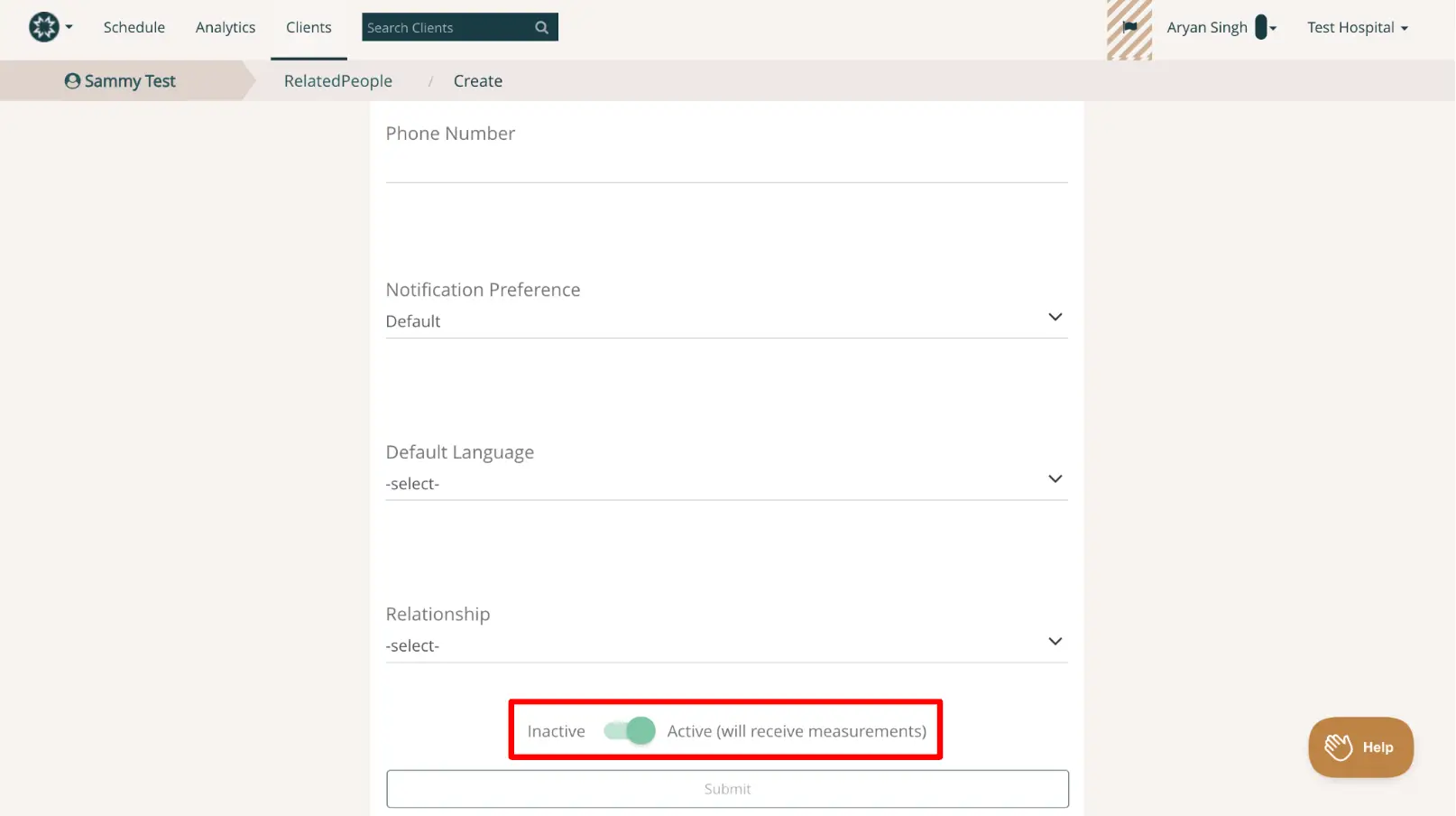
The screenshot displays the 'Create Related Person' interface within the Mirah Measurement-Based Care platform, specifically under the 'Clients' section. The page is designed for adding or editing a related person for a patient named Sammy Test. It includes fields for entering a phone number, selecting notification preferences, choosing a default language, and defining the relationship type. Each field has a dropdown menu or input area for user interaction. At the bottom, there is a toggle switch to set the status as 'Inactive' or 'Active (will receive measurements)', indicating whether the related person will receive measurement updates. The toggle is currently set to 'Active'. Below the toggle, there is a 'Submit' button, which is currently disabled, likely until all required fields are completed. The top navigation bar includes options for 'Schedule', 'Analytics', and 'Clients', with a search bar for finding clients. The user profile, identified as Aryan Singh, and the organization, Test Hospital, are displayed in the top right corner. A 'Help' button is located at the bottom right corner of the screen for user assistance.