
How to Edit a Patient's Demographics

Note: For youth patients (under 18 years old), caregiver information can be added and edited from the patient's Detail page by clicking "Add a related person" or "Edit related people." See more about working with youth patients.

Overview​

Editing a Patient's demographic information can include updating the following:

  • First name
  • Last name
  • Email address
  • Phone number
  • Notification preference
  • Sex
  • Default language
  • Primary clinician

Dependent on the security preferences of your organization and the electronic health records (EHR) integration relationship your organization has with Mirah, you may be able to edit the following details by editing a patient's demographic information as well:

  • Patient ID number
  • Last 4 SSN Digits

How to Edit Patient Demographics​

1). To edit a patient's demographic information, locate the Detail page of the patient whom you'd like to update via the Client tab, or search function. Then, click "Edit Demographics' under the patient's name.
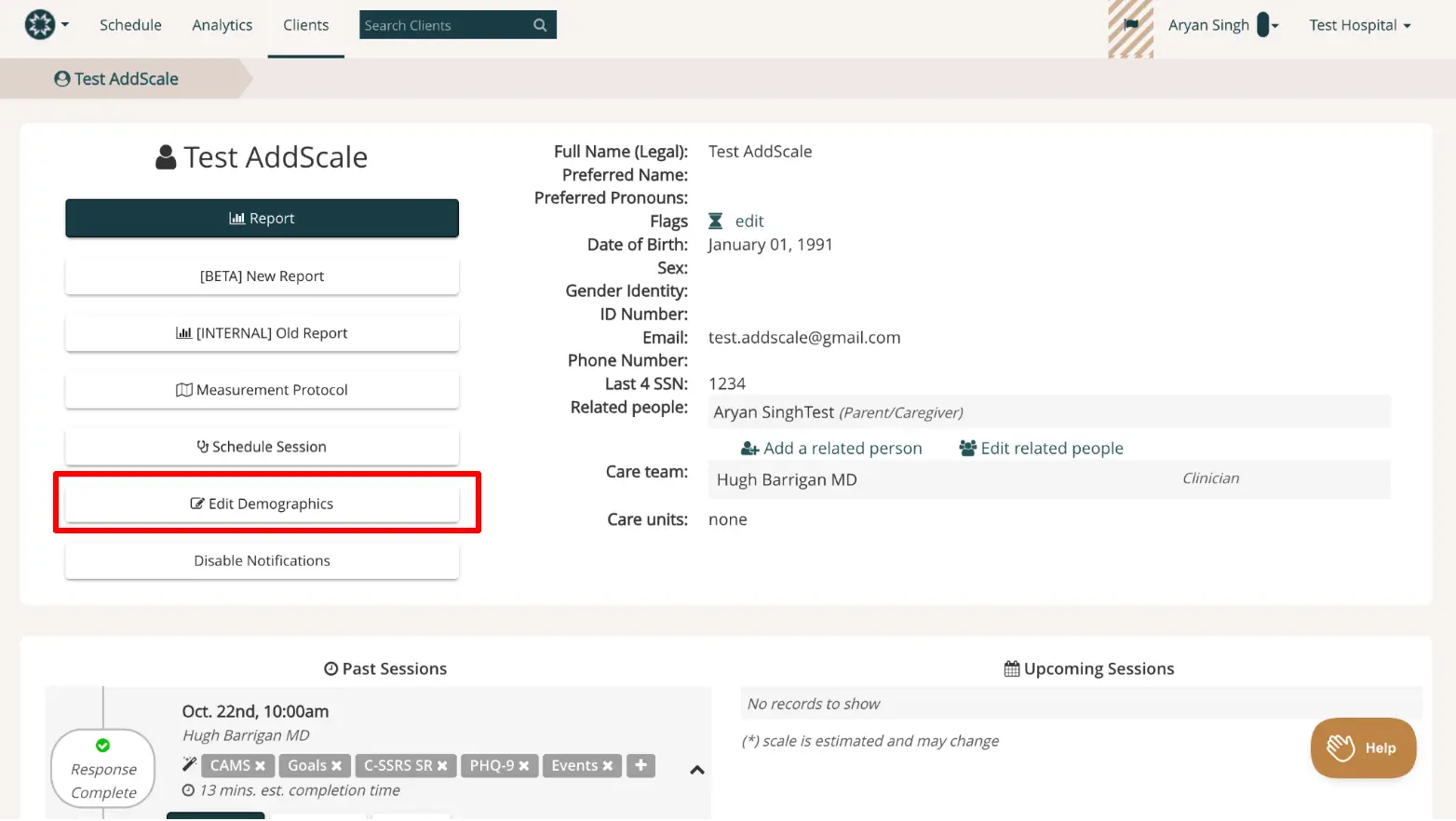
The screenshot displays the patient profile page for 'Test AddScale' within the Mirah Measurement-Based Care platform. The page is part of the 'Clients' section, accessible from the top navigation bar which includes options for Schedule, Analytics, and Clients. A search bar is available for finding specific clients. The breadcrumb trail shows 'Test AddScale' as the current client. The left side of the screen features buttons for generating reports, setting measurement protocols, scheduling sessions, editing demographics, and disabling notifications. The 'Edit Demographics' button is highlighted in red, indicating its importance in the current task. On the right, detailed patient information is provided, including legal name, preferred name, preferred pronouns, flags with an edit option, date of birth, sex, gender identity, ID number, email, phone number, last four digits of SSN, related people with options to add or edit, care team, and care units. The bottom section shows past sessions with details such as date, time, clinician, and session components, along with estimated completion time. Upcoming sessions are listed but currently show no records. A 'Help' button is located at the bottom right corner.

2). You will be taken to the "Edit Demographics" page. Change the information desired, then click "Submit" to save changes. You will be redirected to the patient's Detail page after saving changes.
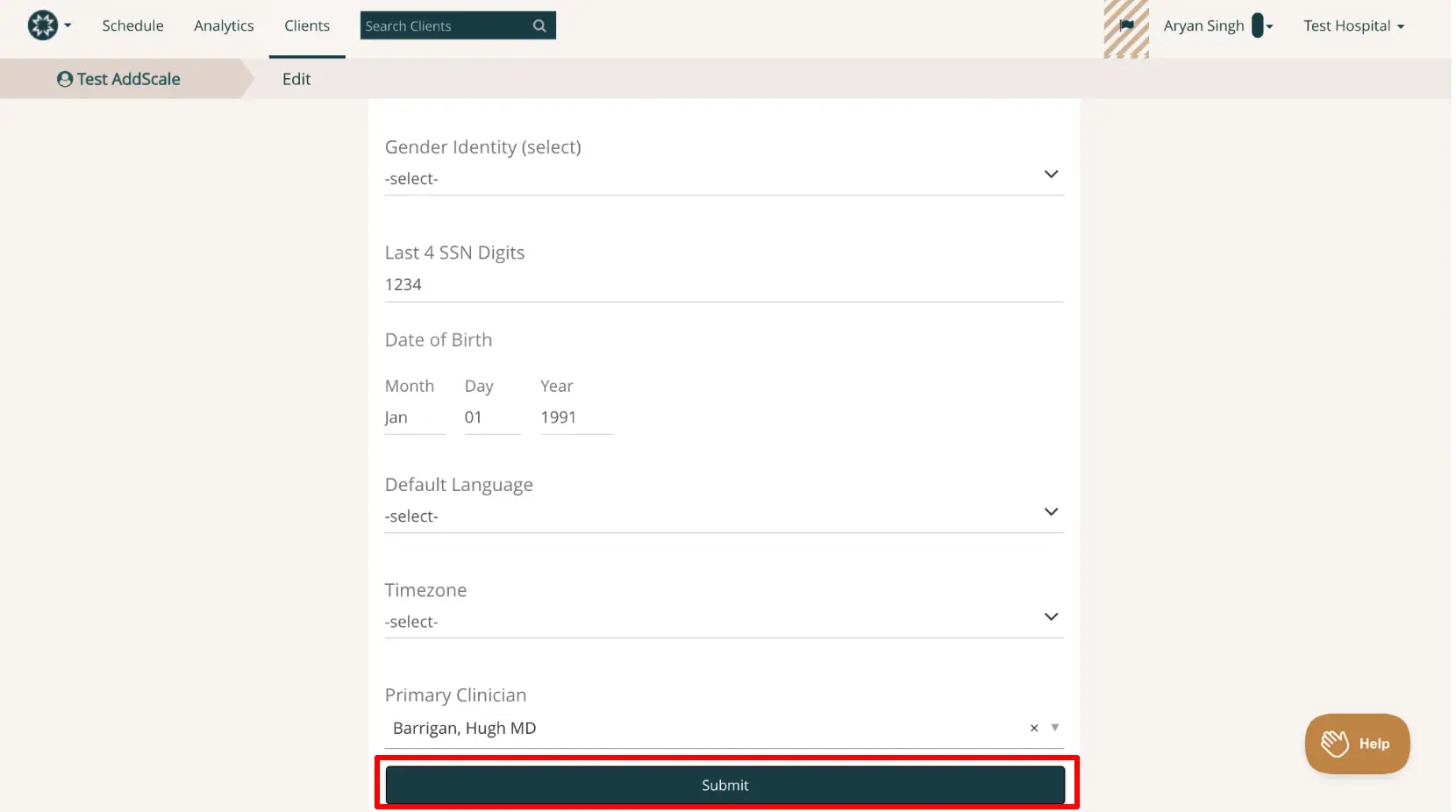
The screenshot displays the 'Edit' page for a patient's demographics within the Mirah Measurement-Based Care platform. At the top, there is a navigation bar with options for Schedule, Analytics, and Clients, along with a search bar labeled 'Search Clients'. The breadcrumb trail indicates the user is in the 'Test AddScale' section under 'Edit'. The page includes fields for editing patient information: 'Gender Identity' with a dropdown to select options, 'Last 4 SSN Digits' showing the number 1234, 'Date of Birth' with fields for Month, Day, and Year set to January 1, 1991, 'Default Language' with a dropdown to select options, 'Timezone' with a dropdown to select options, and 'Primary Clinician' displaying 'Barrigan, Hugh MD'. At the bottom of the form, there is a 'Submit' button highlighted in red, indicating its importance for saving changes. The 'Help' button is located in the bottom right corner, providing assistance if needed.

3). Once changes have been saved, look at the demographic information and make sure that the updated information has been saved. Check other parts of the application too to ensure that the updates have been saved correctly. If you do not see the updated information in the demographics field of your profile, go through the steps again to edit and save the information.

Additional Resources​

How to view a Patient's Details Page