
Troubleshoot Guide: Determining Assessment Date

When sending measurements, it is important to note that assessment logic takes into account the date the measure was completed rather than the day it was sent. Therefore, billing is dependent on the month the assessment was completed even if it was sent in an alternative month. To find the date assessments were completed, follow the steps below.

1.) Locate the patient and go to their Detail page by clicking their name.

The screenshot displays a section of the Mirah Measurement-Based Care interface, specifically within the Troubleshooting Guides feature. It shows a series of colored circles indicating a status or progress, with the first circle in red, the second in yellow, and the third in white, connected by lines. Next to these circles is a semi-circular gauge with the number 13 in the center, highlighted in red, possibly indicating a critical metric or alert. To the right, there is a brown button labeled 'Quick Track' for quick access to tracking features. Further to the right, text indicates '2 years ago', likely referring to the time since an event or assessment. The name 'Doe, Jane' is highlighted in red, suggesting it is the subject of the assessment or troubleshooting. Additional information includes the letter 'F', a date '10/10/2000', and names 'Van helsing, Alice' repeated twice, possibly indicating related individuals or practitioners involved in the care process.

2.) On the right side, there is a panel titled "Measurement Administration" that lists all of the past and upcoming measurements. The third column records the status of the measure. Within this column, it displays the date and time in which the measure was completed.
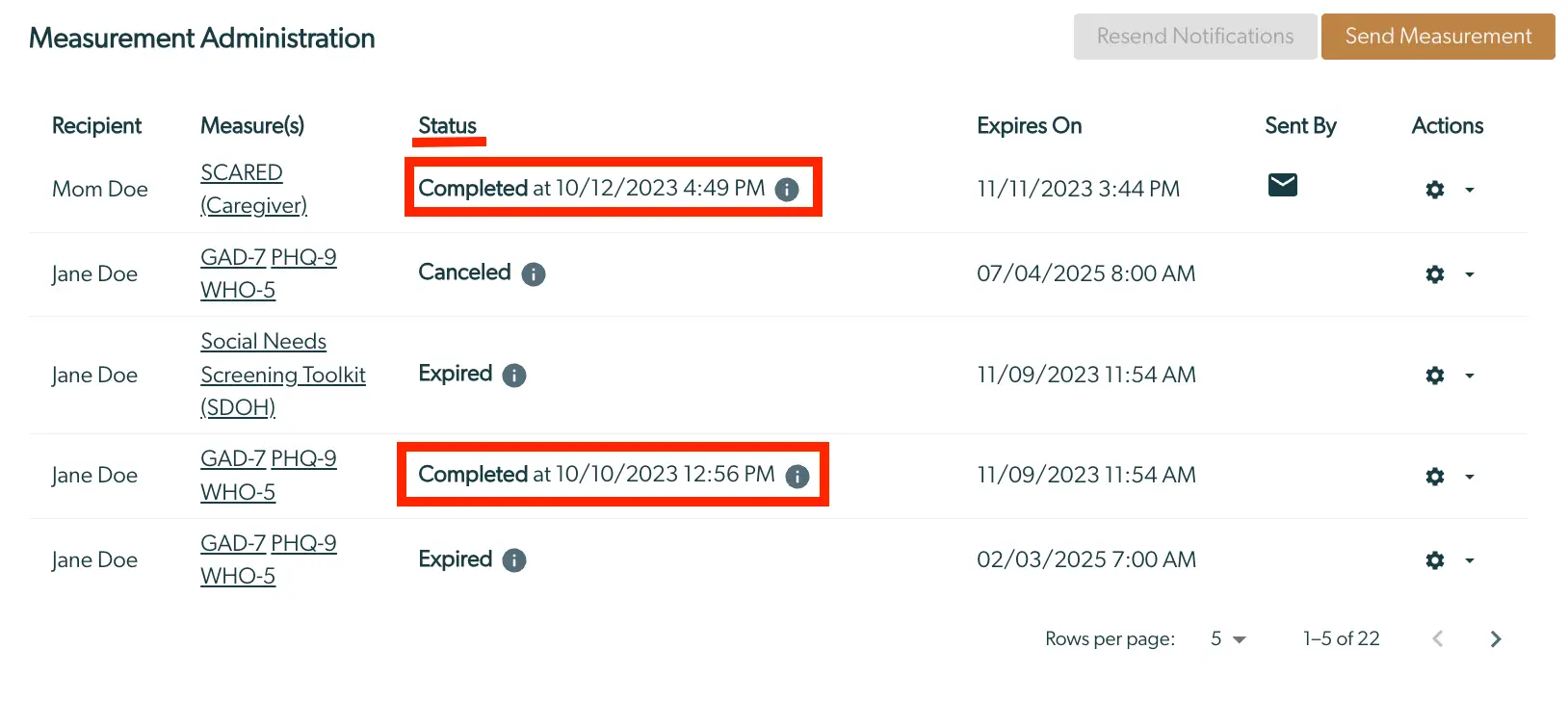
The screenshot displays the 'Measurement Administration' section of the Mirah Measurement-Based Care platform, which is used for managing and tracking assessments. The table lists assessments with columns for Recipient, Measure(s), Status, Expires On, Sent By, and Actions. Each row represents an assessment assigned to a recipient, showing the measure name, current status with a timestamp, expiration date, and the sender's icon. The Status column includes various states such as 'Completed', 'Canceled', and 'Expired', with 'Completed' entries highlighted in red. The 'Expires On' column provides the expiration date and time for each assessment. The 'Sent By' column features an envelope icon indicating the method of sending. The 'Actions' column includes a gear icon for additional options. At the top right, there are two buttons: 'Resend Notifications' (disabled) and 'Send Measurement' (enabled). Pagination controls are located at the bottom, allowing navigation through the list of assessments.