
How to Discharge Patients via the Episode of Care

Please note that discharging patients may happen automatically if your electronic health records (EHR) system is integrated with Mirah. You will learn more about your specific EHR system's relationship with Mirah in training.

1). To end an episode of care for a patient, navigate to their Detail page and scroll down to "Episodes of Care"
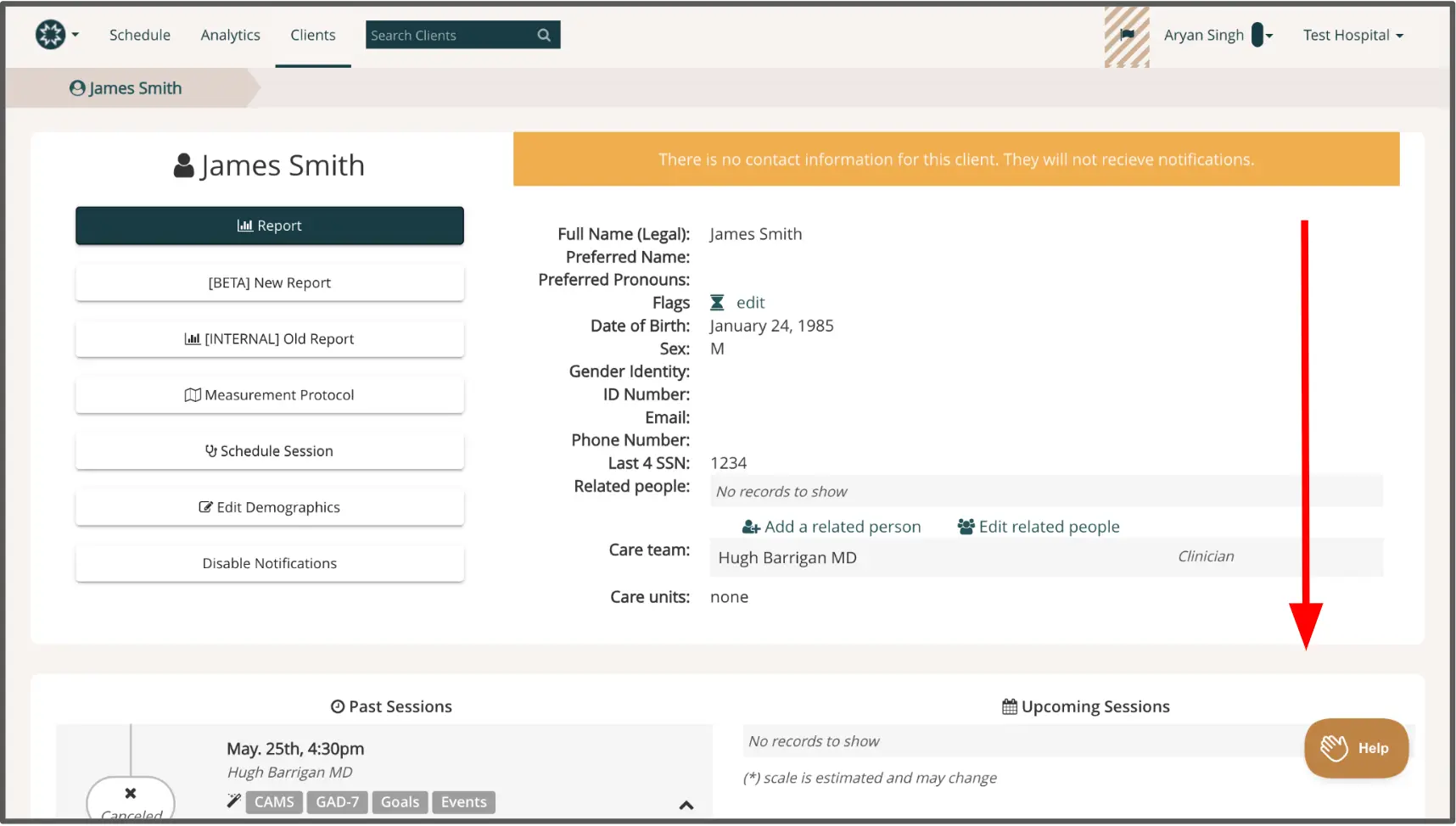
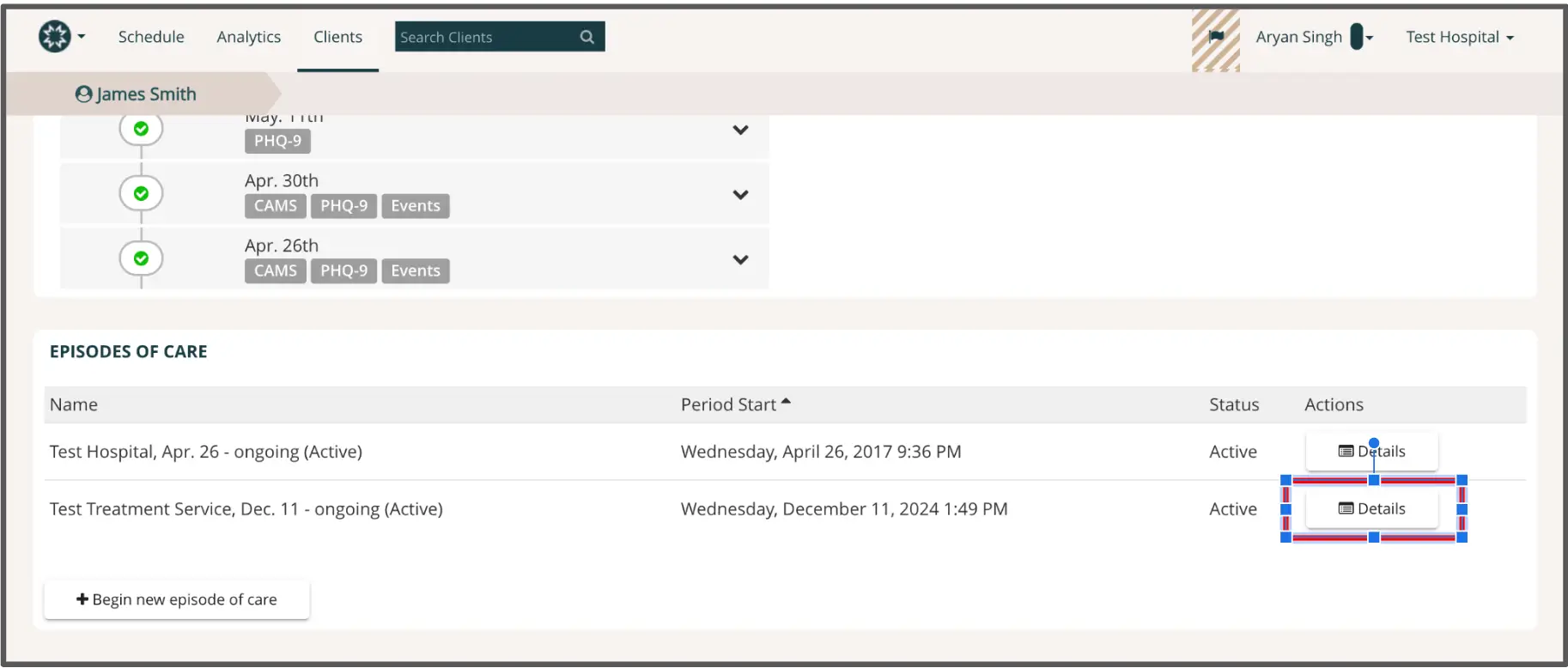
The screenshot displays the client profile page for James Smith within the Mirah Measurement-Based Care platform. At the top, there is a navigation bar with options for Schedule, Analytics, and Clients, along with a search bar labeled 'Search Clients'. The breadcrumb trail shows 'Clients > James Smith', indicating the current location within the application. The page is divided into sections, with the left side featuring buttons for generating reports, setting measurement protocols, scheduling sessions, editing demographics, and disabling notifications. These buttons are designed to facilitate various actions related to client management. On the right side, client details are listed, including full name, preferred name, preferred pronouns, flags, date of birth, sex, gender identity, ID number, email, phone number, last four digits of SSN, related people, care team, and care units. The 'edit' link next to flags allows for modifications. Below the client details, there are sections for past sessions and upcoming sessions, with options to add or edit related people. The 'Help' button is located at the bottom right corner, providing assistance when needed.The screenshot displays the 'Episodes of Care' section for a patient named James Smith within the Mirah Measurement-Based Care platform. At the top, the navigation bar includes options for Schedule, Analytics, and Clients, with a search bar labeled 'Search Clients' for finding specific client records. The user profile is shown on the right with the name Aryan Singh and the associated facility, Test Hospital. Below the navigation bar, a timeline of assessments and events is visible, showing completed assessments such as CAMS and PHQ-9 on specific dates. The 'Episodes of Care' section lists two active episodes: 'Test Hospital, Apr. 26 - ongoing (Active)' and 'Test Treatment Service, Dec. 11 - ongoing (Active)', each with their respective start dates and times. The 'Period Start' column is sortable, indicated by the arrow icon. The 'Status' column shows both episodes as 'Active'. The 'Actions' column contains 'Details' buttons for each episode, located to the right of the episode name, allowing users to view more information about each episode. A button labeled '+ Begin new episode of care' is located at the bottom of the section, enabling users to initiate a new episode of care.

2). To end the current episode of care, click "Detail" within the "Episodes of Care" box. After you are directed to the Details page for the episode of care, click "Discharge," and confirm the action when prompted. This will end the patient's current episode of care.
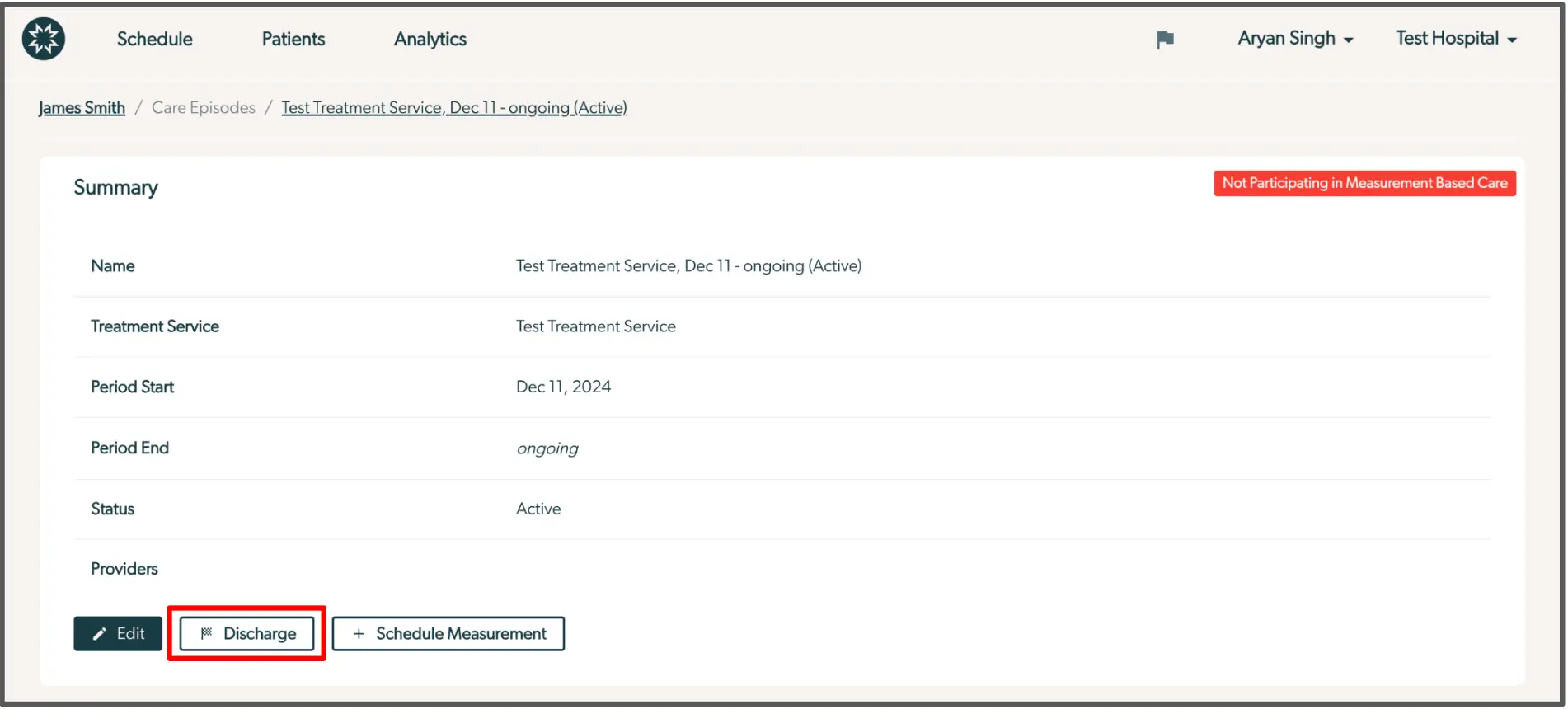
The screenshot displays the Episode of Care summary page for a patient named James Smith, focusing on the Test Treatment Service, which is ongoing and active. The page includes a breadcrumb trail at the top indicating the navigation path: James Smith > Care Episodes > Test Treatment Service, Dec 11 - ongoing (Active). The summary section lists details such as the Name of the treatment service, Treatment Service type, Period Start date as Dec 11, 2024, Period End status as ongoing, and the current Status as Active. A red label indicates that the patient is not participating in Measurement-Based Care. At the bottom of the summary, there are three buttons: 'Edit' on the left for modifying details, 'Discharge' in the center for discharging the patient from the treatment service, and '+ Schedule Measurement' on the right for scheduling a new measurement.