
How to Create a New Patient

Creating a New Patient​

To create a new patient:

1). Under the Patients tab, click the “Create New Patient” button.

The screenshot displays the 'Patients' section of the Mirah Measurement-Based Care platform, where users can manage patient information. At the top left, there is a prominent 'Create New Patient' button, which allows users to add a new patient to the system. The button is highlighted with a red border and arrow pointing towards it, indicating its importance in the workflow. Below the button, there is a search bar for finding existing patients, and filters for providers, units, and flags, which help in narrowing down patient lists. The table below these filters includes columns for ID Number, Flags, First Name, Last Name, Provider, Sex, and Actions, which organize patient data for easy access and management. The top navigation bar includes options for Schedule, Analytics, and Patients, with a search field for clients, and user information displayed as 'Gregory House' and 'Test Hospital'.

2). Fill in the patient details, then click “Submit."
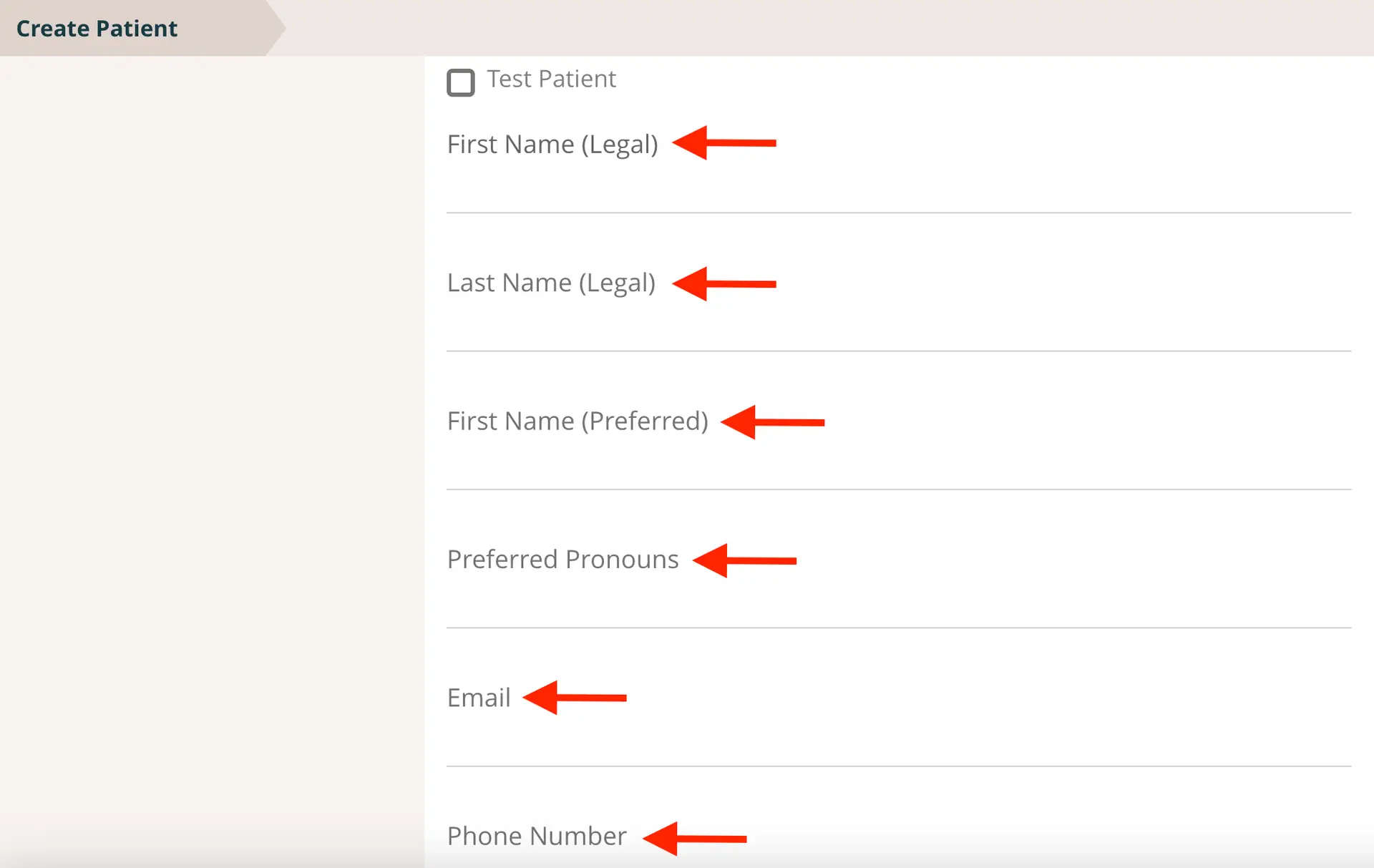
The 'Create Patient' screen is part of the process for adding a new patient in the Mirah Measurement-Based Care system. It includes fields for entering patient information such as 'First Name (Legal)', 'Last Name (Legal)', 'First Name (Preferred)', 'Preferred Pronouns', 'Email', and 'Phone Number'. Each field is accompanied by a text box for input. At the top of the form, there is a checkbox labeled 'Test Patient' which can be selected to indicate the patient is for testing purposes. This screen is designed to capture essential patient details for care management and is part of the workflow for setting up a new patient profile.

Editing an Existing Patient​

To input additional information or correct former details:

1). Click on the “Edit Demographics” button on the patient’s record.
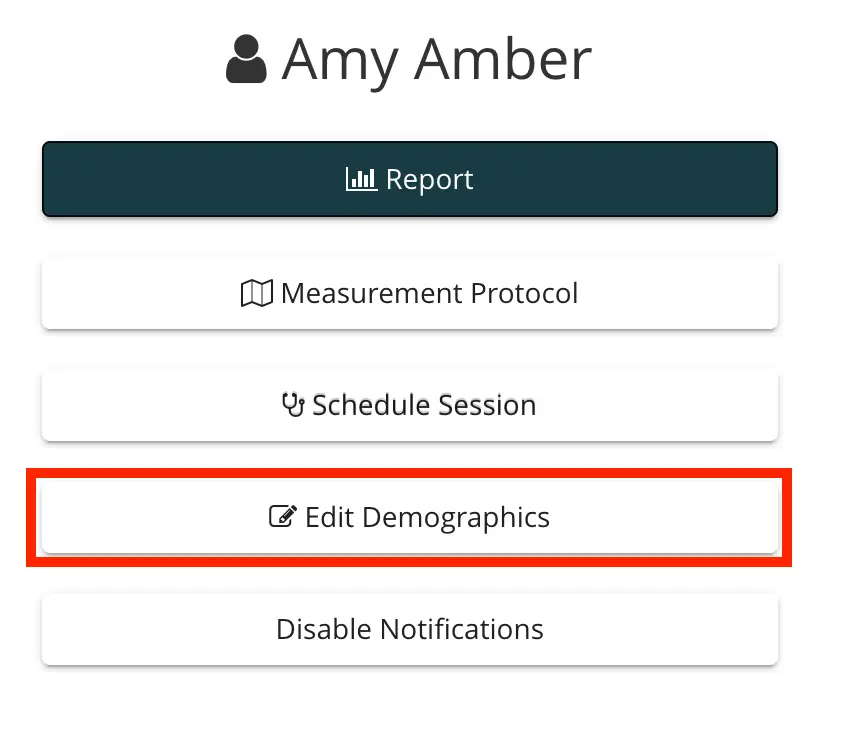
The screenshot displays the patient profile page for Amy Amber within the Mirah Measurement-Based Care platform. At the top, the patient's name is shown alongside a user icon. Below the name, there is a dark green button labeled 'Report' which likely provides access to patient reports and analytics. Underneath, there are several white buttons for different actions: 'Measurement Protocol' for setting or reviewing care protocols, 'Schedule Session' for arranging appointments, 'Edit Demographics' for updating patient information, and 'Disable Notifications' for managing alert settings. The 'Edit Demographics' button is highlighted with a red border, indicating it is the current focus or selected action.

2). Fill in the accurate information, then click “Submit."
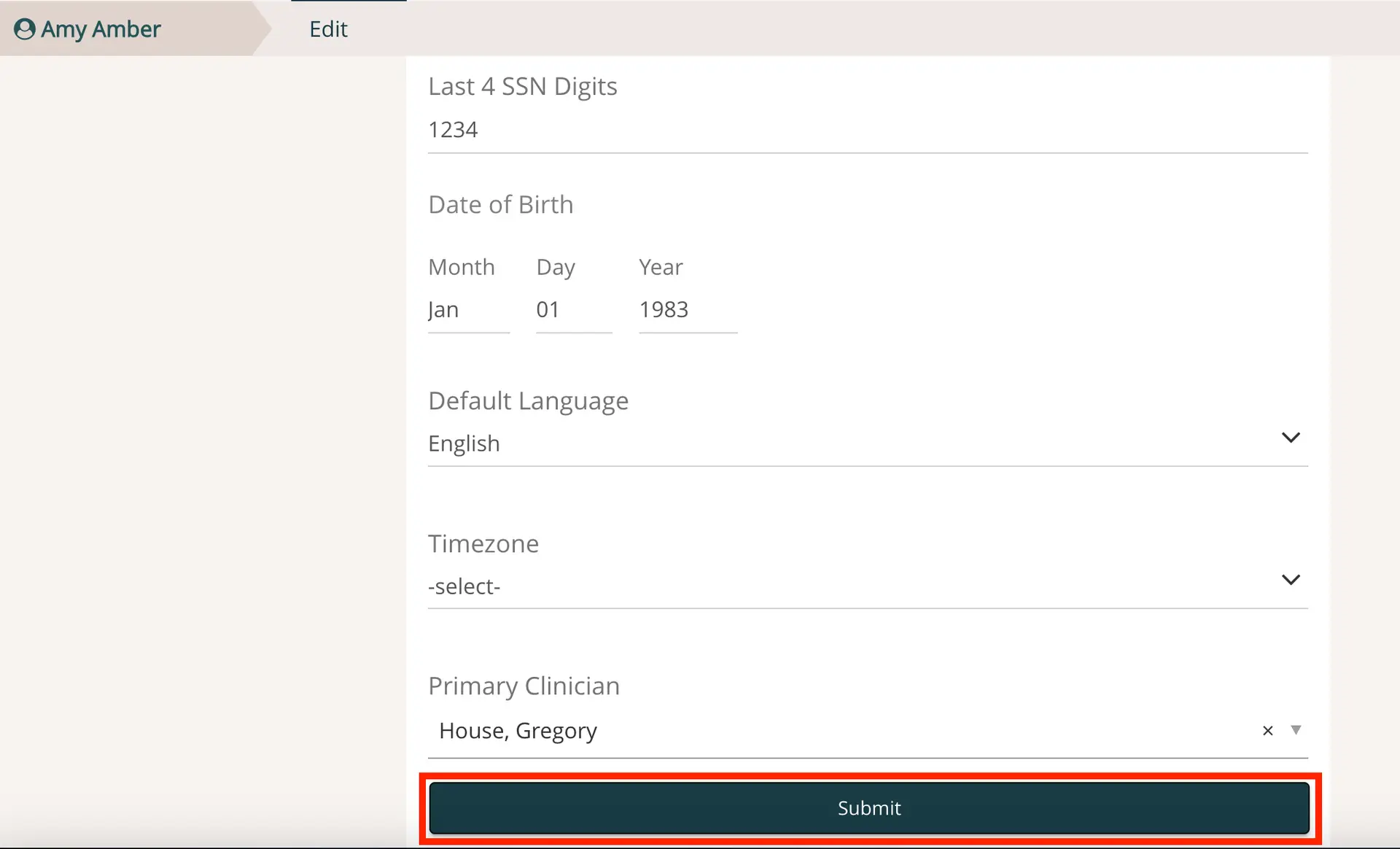
The screenshot displays a section of the Mirah Measurement-Based Care platform where a user can input and review patient details. The top of the screen shows a breadcrumb navigation with 'Amy Amber' and 'Edit', indicating the user is editing patient information. The fields visible include 'Last 4 SSN Digits' with the value '1234', 'Date of Birth' with dropdowns for 'Month', 'Day', and 'Year' set to 'Jan', '01', and '1983' respectively, 'Default Language' set to 'English', and 'Timezone' with a dropdown currently showing '-select-'. The 'Primary Clinician' field is filled with 'House, Gregory'. At the bottom of the screen, there is a prominent 'Submit' button, outlined in red, which is used to save the entered information.