
Multiple Caregivers/Parents

You can add multiple Related People to a clients detail page. It is recommended to have only ONE related person Active to receive measures for child/adolescent client.

1). Related People can be added or edited from the Client's Detail Page.
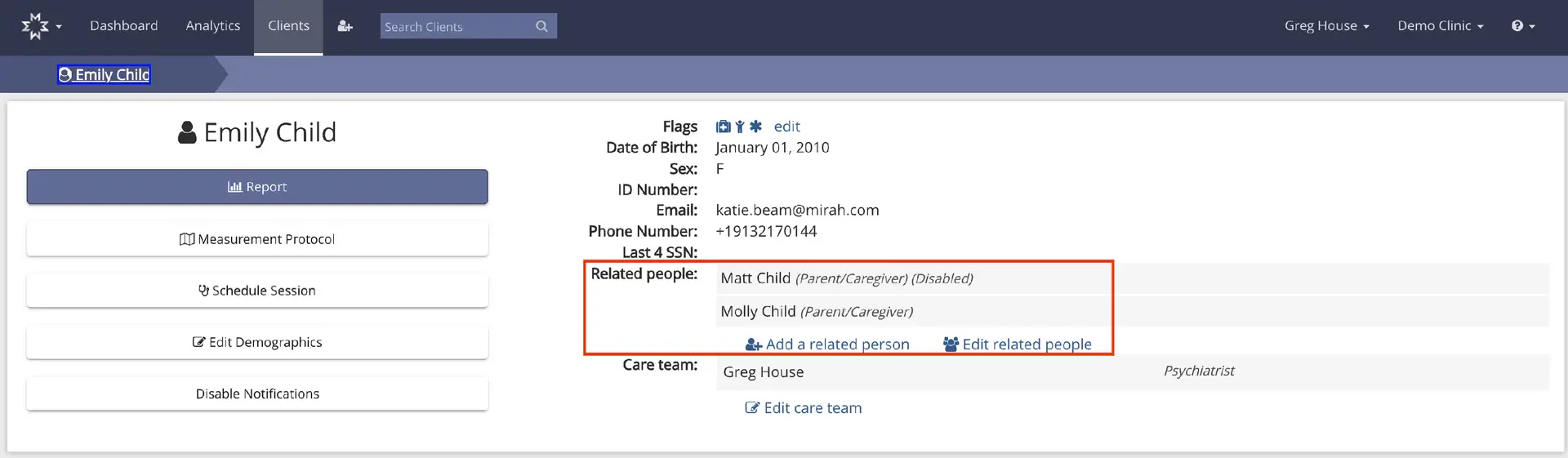
The screenshot displays the profile page of a client named Emily Child within the Mirah Measurement-Based Care platform. The page is part of the 'Clients' section, as indicated by the breadcrumb navigation at the top. The main section shows Emily Child's personal information including flags, date of birth, sex, ID number, email, phone number, and the last four digits of her SSN. Below this information, there is a section titled 'Related people' which lists Matt Child as a parent/caregiver who is disabled, and Molly Child as a parent/caregiver. There are two buttons located next to the related people section: 'Add a related person' and 'Edit related people'. The care team section lists Greg House as the psychiatrist, with an option to 'Edit care team'. On the left side, there are buttons for 'Report', 'Measurement Protocol', 'Schedule Session', 'Edit Demographics', and 'Disable Notifications', each serving different functions related to client management and care coordination.

2). Click "Add a related person" or "Edit related people". At the bottom of the next page is an Inactive/Active toggle. Toggle the related person to inactive or active and click Submit. Inactive related people will have "(Disabled)" noted next to their name on the Details Page.
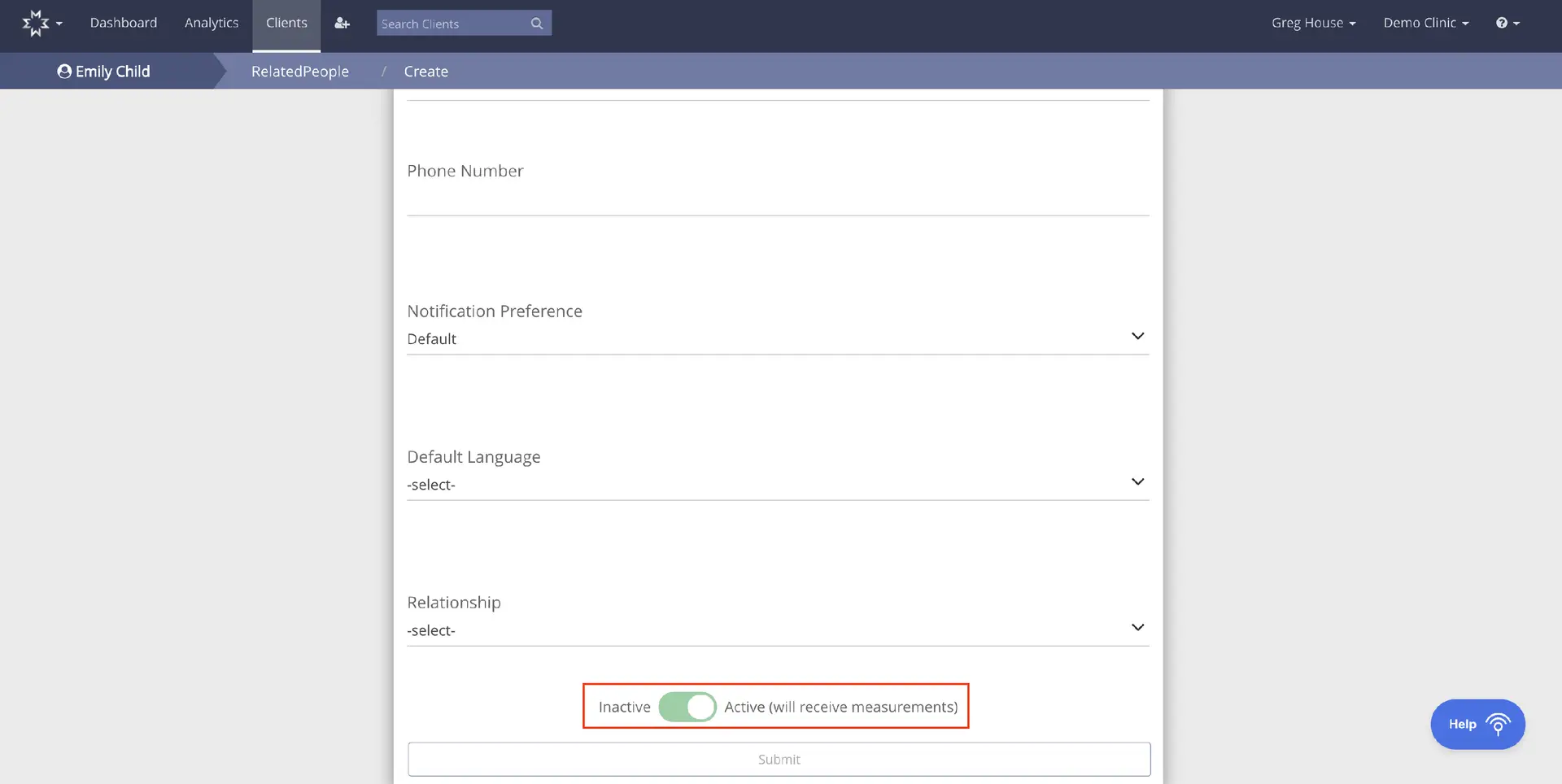
The screenshot displays a user interface for managing patient information within the Mirah Measurement-Based Care platform. The screen is part of the 'Clients' section, specifically under 'Related People' for a client named Emily Child. It includes fields for entering a phone number, selecting notification preferences, default language, and relationship type, each with dropdown menus for selection. At the bottom right, there is a toggle switch labeled 'Inactive' and 'Active (will receive measurements)' to set the status of the caregiver or parent, indicating whether they will receive measurement updates. The 'Submit' button is located below the toggle switch, allowing users to save changes. The top navigation bar includes options for Dashboard, Analytics, Clients, and a search bar for searching clients. User information is displayed on the top right, showing 'Greg House' and 'Demo Clinic'. A 'Help' button is located at the bottom right corner of the screen.