
Utilizing the Goals/Top Problems Feature

Goals and top problems help both patient and provider track progress throughout treatment. Creating goals and top problems must be done in-session with the patient. Once a goal or top problem is created, the patient will be asked about the status of that goal or problem when responding to measures. You can enter each goal or problem using the words of the patient, and they will be asked about that topic using their own words during assessment.

1). To create a goal or problem, navigate to the patient's most recent clinical report (the report for the session currently occurring). Click "Create New Goal/Problem."
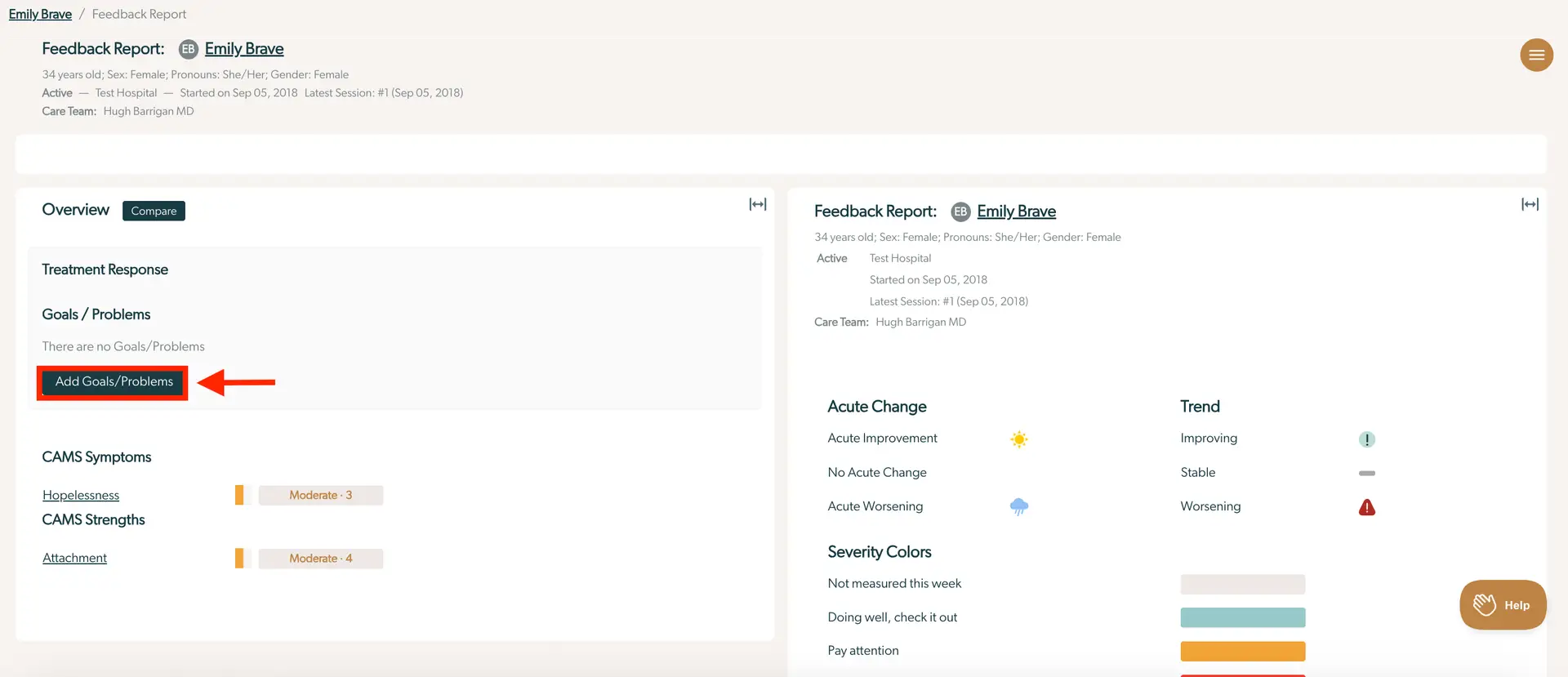
The screenshot displays the Feedback Report page for a patient named Emily Brave within the Mirah Measurement-Based Care platform. At the top, the breadcrumb navigation shows 'Emily Brave / Feedback Report'. The page is divided into two main sections. On the left, under 'Overview', there is a 'Treatment Response' section with a 'Goals / Problems' subsection indicating that there are currently no goals or problems listed. Below this, a prominent 'Add Goals/Problems' button is available for users to click and add new entries. Further down, 'CAMS Symptoms' and 'CAMS Strengths' are listed with 'Hopelessness' and 'Attachment' respectively, each rated as 'Moderate' with corresponding numerical values. On the right side, the 'Feedback Report' section provides patient details such as age, sex, pronouns, gender, and care team information. It also includes 'Acute Change' indicators with icons for improvement, no change, and worsening, as well as 'Trend' indicators for improving, stable, and worsening conditions. Severity colors are displayed at the bottom, and a 'Help' button is located in the bottom right corner.

2). A pop-up will appear on your screen prompting you to choose a goal type, respondent, and text.

The screen is part of the Mirah Measurement-Based Care platform, specifically under the 'Patient Info' section for adding a goal or problem. It allows users to define a patient's top problem. At the top, there is a breadcrumb navigation indicating the current location: 'Patient Info / Add Goal / Problem'. Below, there are two dropdown menus: 'Goal Type' with the default selection 'Top Problem', and 'Respondent' with the default selection 'Emily Brave'. Beneath these dropdowns is a text input field labeled 'Enter Text' where users can type in details about the top problem. At the bottom, there is a button labeled 'Create Top Problem', which is currently disabled, indicating that the user must enter text before it can be activated. The button is located at the bottom left of the screen.

3). Choose which Goal Type the statement falls under:

  1. Top Problem: The primary issue a patient wants to address in treatment.
  2. 7-point Likert Goal: Addresses a treatment objective using a 7-point Likert Scale (typically from "Strongly Disagree" to "Strongly Agree") to assess the patient's confidence of achieving the goal.
  3. Goal Attainment Scaling: A 5-point scale (measured from -2 to +2) that offers a structured method for setting personalized goals. The screenshot displays a dropdown menu for selecting a goal type within the Mirah Measurement-Based Care platform. The dropdown is currently expanded, showing three options: 'Top Problem', '7-point Likert Goal', and 'Goal Attainment Scaling'. The 'Top Problem' option is highlighted, indicating it is the current selection. This feature is part of the Goals/Top Problems functionality, which allows users to choose how they want to set and track patient goals. The dropdown is located under the 'Goal Type' label, which is positioned at the top of the menu.

4). In the "Enter Text" category, describe the goal/problem in more detail.

The screenshot displays a text input field labeled 'Enter Text' at the top left corner. This field is designed for users to input information related to patient goals or top problems as part of the measurement-based care process. The input area is large, allowing for detailed entries, and is bordered by a thin line to indicate the active area for text entry. This feature is part of the workflow for working with patients, enabling healthcare providers to document and track patient-specific goals or issues.

5). Click "Create [Goal Type]" to submit the goal/problem.
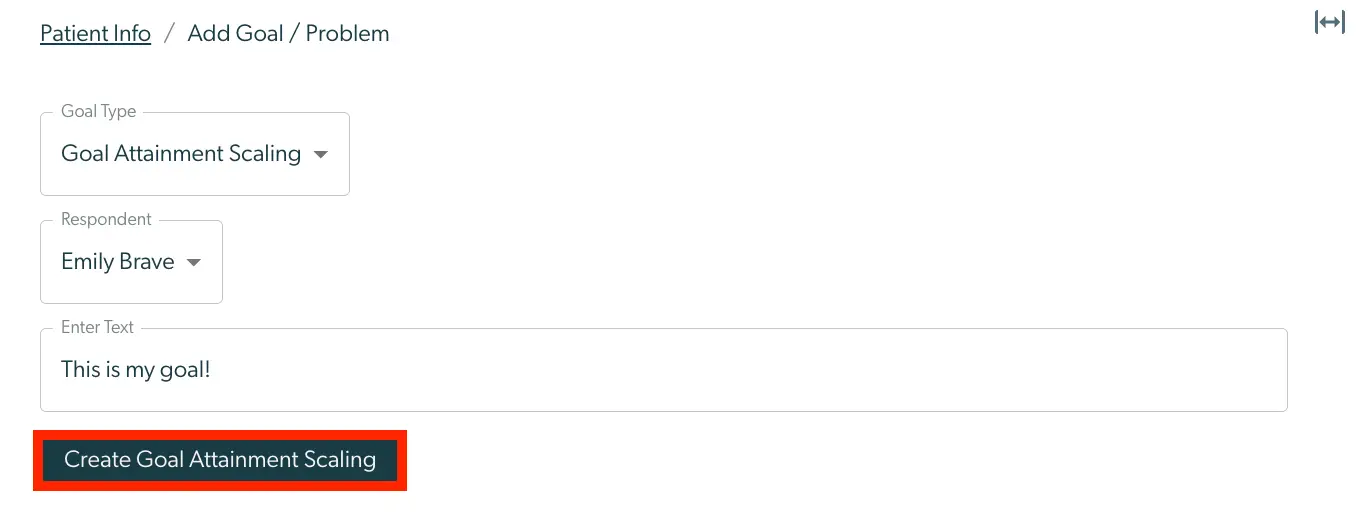
The screenshot displays the 'Add Goal / Problem' page under 'Patient Info' in the Mirah Measurement-Based Care platform. It allows users to set goals for patients using the Goal Attainment Scaling method. The page includes a dropdown menu labeled 'Goal Type' with 'Goal Attainment Scaling' selected, another dropdown labeled 'Respondent' with 'Emily Brave' selected, and a text field labeled 'Enter Text' containing the text 'This is my goal!'. At the bottom of the page, there is a button labeled 'Create Goal Attainment Scaling' highlighted in red, which is used to save the entered goal information.

Ending a Goal/Problem​

1). Select the desired goal by clicking the hyperlink in a patent's feedback report.
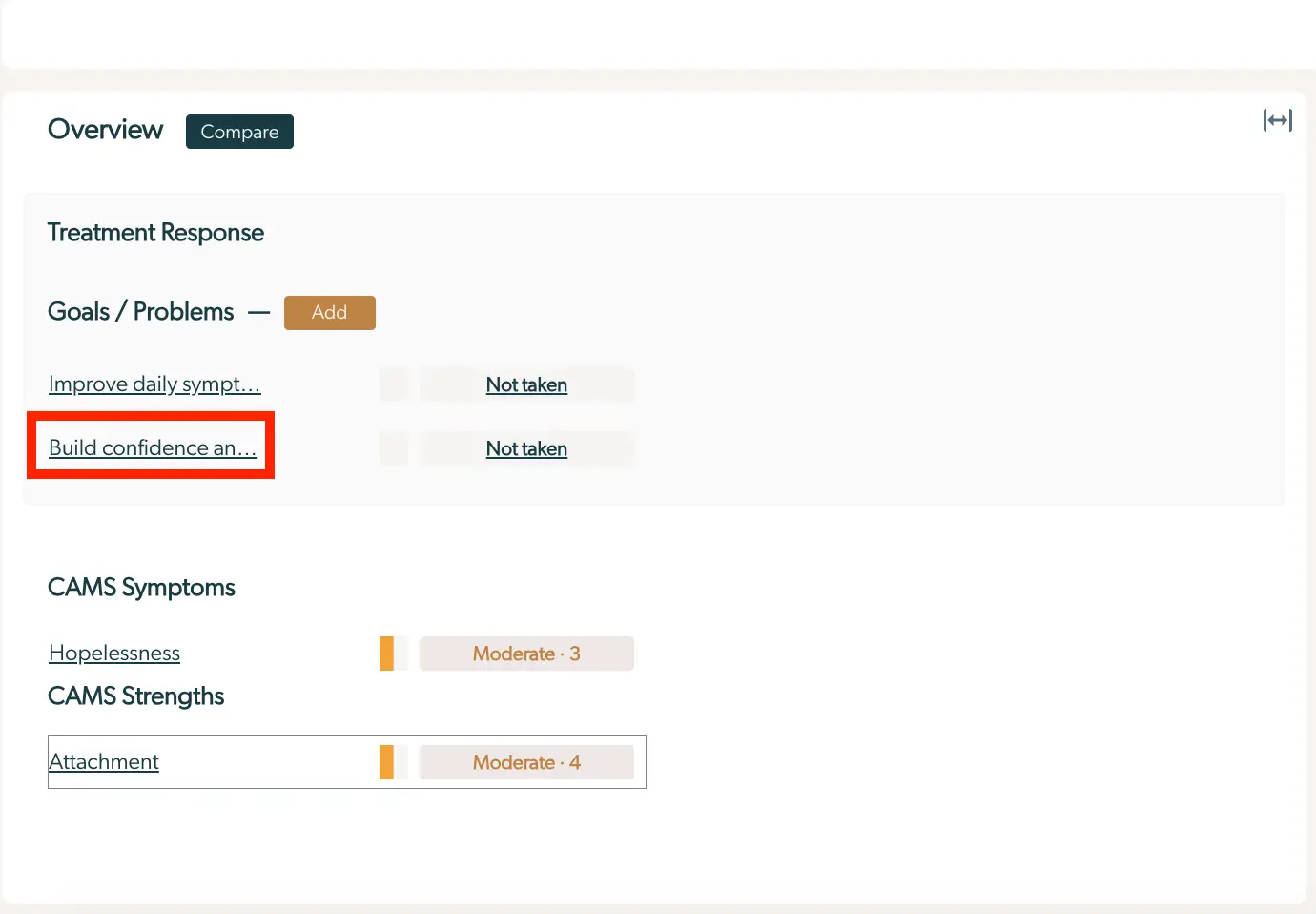
The screenshot displays the 'Overview' section of the Mirah Measurement-Based Care platform, focusing on the 'Treatment Response' area. It includes a 'Goals / Problems' section where users can add new goals or problems by clicking the 'Add' button located to the right of the section title. Two goals are listed: 'Improve daily symptoms' and 'Build confidence and...', both marked as 'Not taken', indicating that these goals have not yet been addressed. Below this, the 'CAMS Symptoms' section shows 'Hopelessness' with a moderate severity level of 3, and the 'CAMS Strengths' section shows 'Attachment' with a moderate severity level of 4. The 'Compare' button is located at the top right of the 'Overview' section, allowing users to compare different treatment responses.

2). To end the goal, press the "Delete" button. The patient (or caregiver) will no longer be asked about that goal when receiving measures.
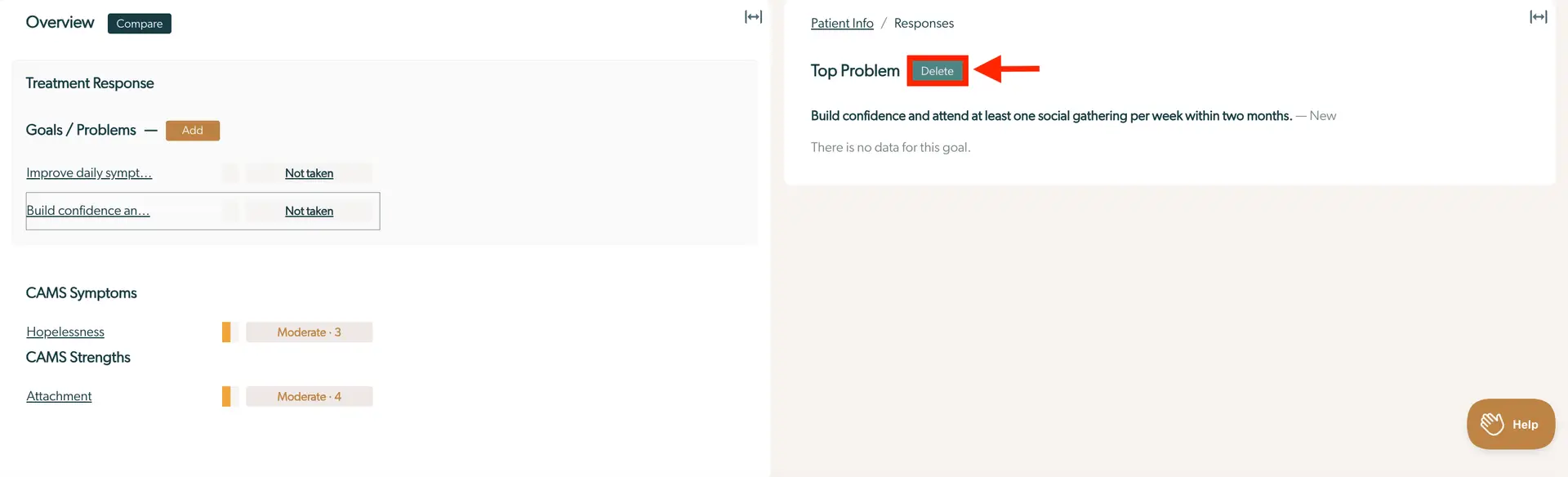
The screenshot displays the Mirah Measurement-Based Care interface, focusing on the Goals/Top Problems feature. On the left side, under 'Overview', there is a section titled 'Treatment Response' with a subsection 'Goals / Problems'. This section includes an 'Add' button for adding new goals or problems, located next to the section title. Below, two goals are listed: 'Improve daily symptoms' and 'Build confidence and attend at least one social gathering per week within two months', both marked as 'Not taken'. The 'CAMS Symptoms' section lists 'Hopelessness' with a moderate severity level of 3, and the 'CAMS Strengths' section lists 'Attachment' with a moderate level of 4. On the right side, under 'Patient Info / Responses', the 'Top Problem' is displayed with a 'Delete' button next to it, allowing users to remove the problem. The goal description 'Build confidence and attend at least one social gathering per week within two months' is shown, with a note indicating 'There is no data for this goal'. A 'Help' button is located at the bottom right corner of the screen.

3). Once the "Delete" button is selected, a text prompt will confirm stating "This item has been deleted". If you accidentally delete a Top Problem and would like to restore it, please submit a ticket, and we will restore it for you.
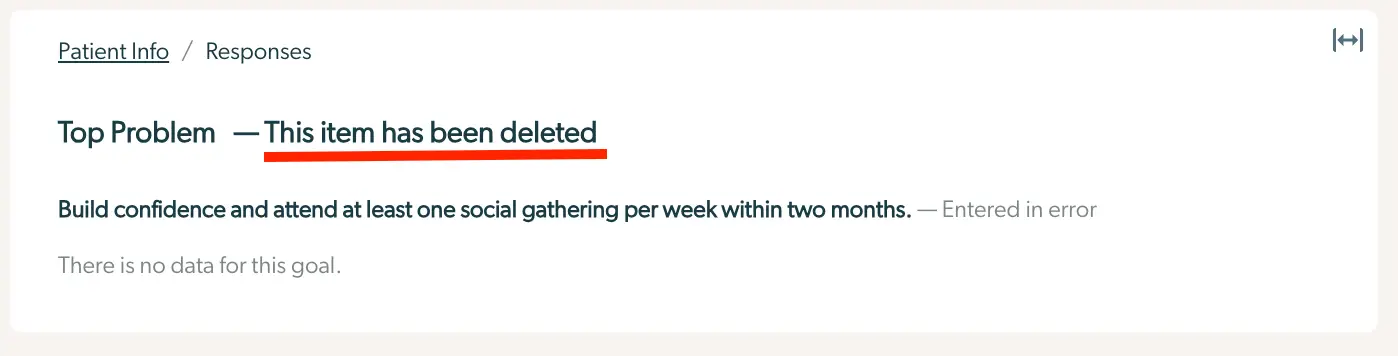
The screenshot displays a section of the Mirah Measurement-Based Care platform under the 'Patient Info' and 'Responses' breadcrumb trail. It shows a notification that a 'Top Problem' item has been deleted, indicated by a red underline. The deleted item is a goal statement: 'Build confidence and attend at least one social gathering per week within two months,' which was marked as 'Entered in error.' Below the goal statement, there is a message stating 'There is no data for this goal,' indicating that no progress or data has been recorded for this particular goal.