
Adding an Individual Measure to an Upcoming Session

Overview​

Measures are applied to a session based on the Measurement Protocol. You can manually add measures to an existing session if they have not already been processed for sending and if the session is scheduled for a future date. You will know if you can add a measure if there is a grey plus sign on the session.

Instructions​

1). From the client detail page, locate the current session under "Upcoming Sessions". Click the gray "+" sign.
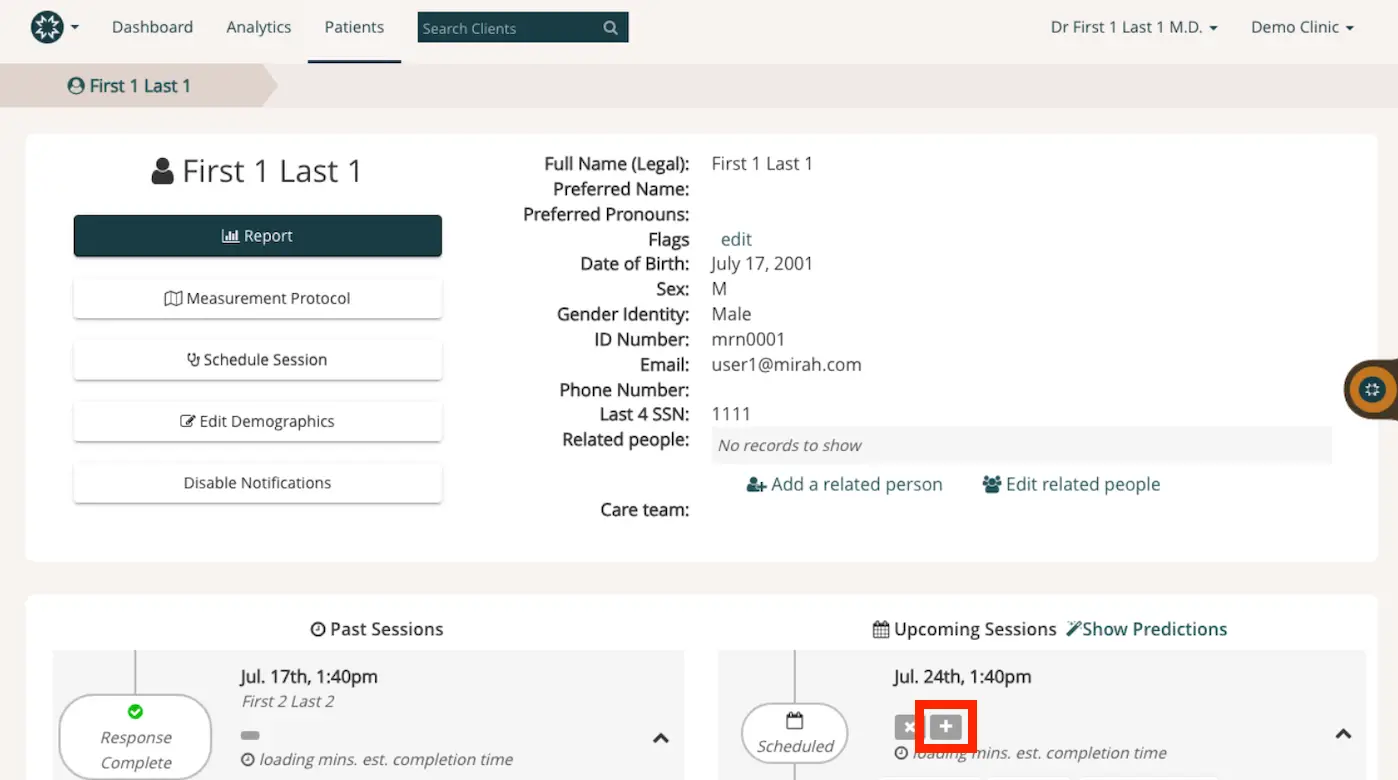
The screenshot displays a patient profile page within the Mirah Measurement-Based Care platform. At the top, there is a navigation bar with options for Dashboard, Analytics, and Patients, along with a search bar labeled 'Search Clients'. The breadcrumb trail indicates the current page is for a patient named 'First 1 Last 1'. The main section shows the patient's details, including full name, preferred name, preferred pronouns, flags, date of birth, sex, gender identity, ID number, email, phone number, last 4 SSN, related people, and care team. There are buttons for 'Report', 'Measurement Protocol', 'Schedule Session', 'Edit Demographics', and 'Disable Notifications'. Below, there are sections for 'Past Sessions' and 'Upcoming Sessions'. In the 'Upcoming Sessions' section, there is a session scheduled for July 24th at 1:40 pm, with a '+' button highlighted in red for adding an individual measure to the session. The '+' button is located to the right of the session details.

2). Start typing the name or acronym of the scale in the search bar. Select the appropriate scale, and click "Add to session".
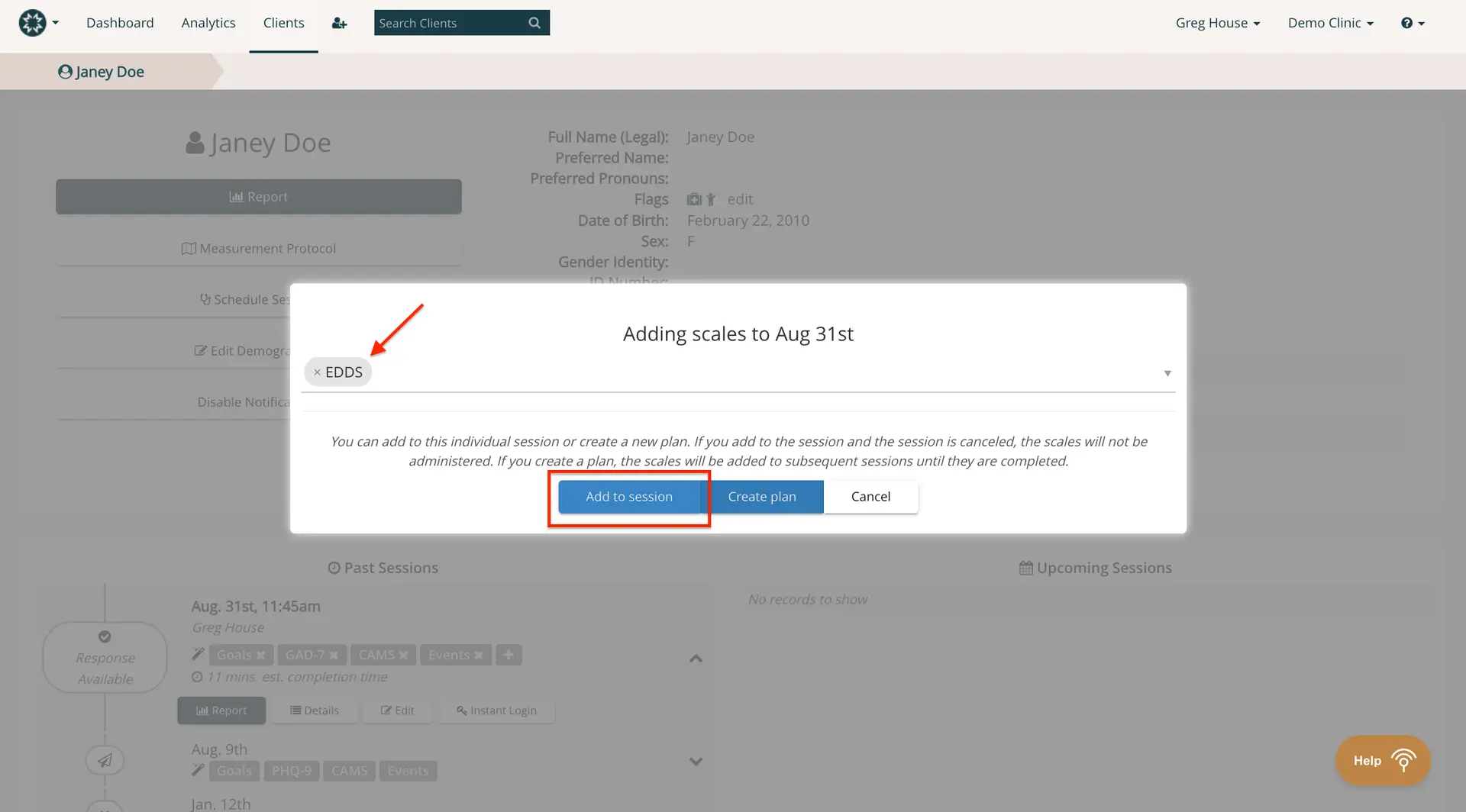
The screenshot displays a user interface for adding scales to a session scheduled for August 31st within the Mirah Measurement-Based Care platform. At the top, the navigation bar includes options for Dashboard, Analytics, and Clients, along with a search bar for finding clients. The breadcrumb trail shows the user is viewing details for Janey Doe. The main section of the screen is a modal window titled 'Adding scales to Aug 31st,' which allows the user to add the EDDS scale to the session. Below the title, there is a dropdown menu for selecting scales, currently showing 'EDDS.' The text explains that scales can be added to an individual session or a new plan, with a note on the administration of scales if the session is canceled. Three buttons are located at the bottom of the modal: 'Add to session' on the left, 'Create plan' in the center, and 'Cancel' on the right. The background shows details of past sessions, including dates, times, and associated scales, with options to view reports, details, and instant login.

3). The scale has now been added to today's session. The client should receive a new notification to take the assessment.

4). If they do not receive the notification, you can manually push the notification out. In the session, click "Details".

5). Click "Send notifications now". The client will receive a notification to complete the added the measure on their cell phone or computer.
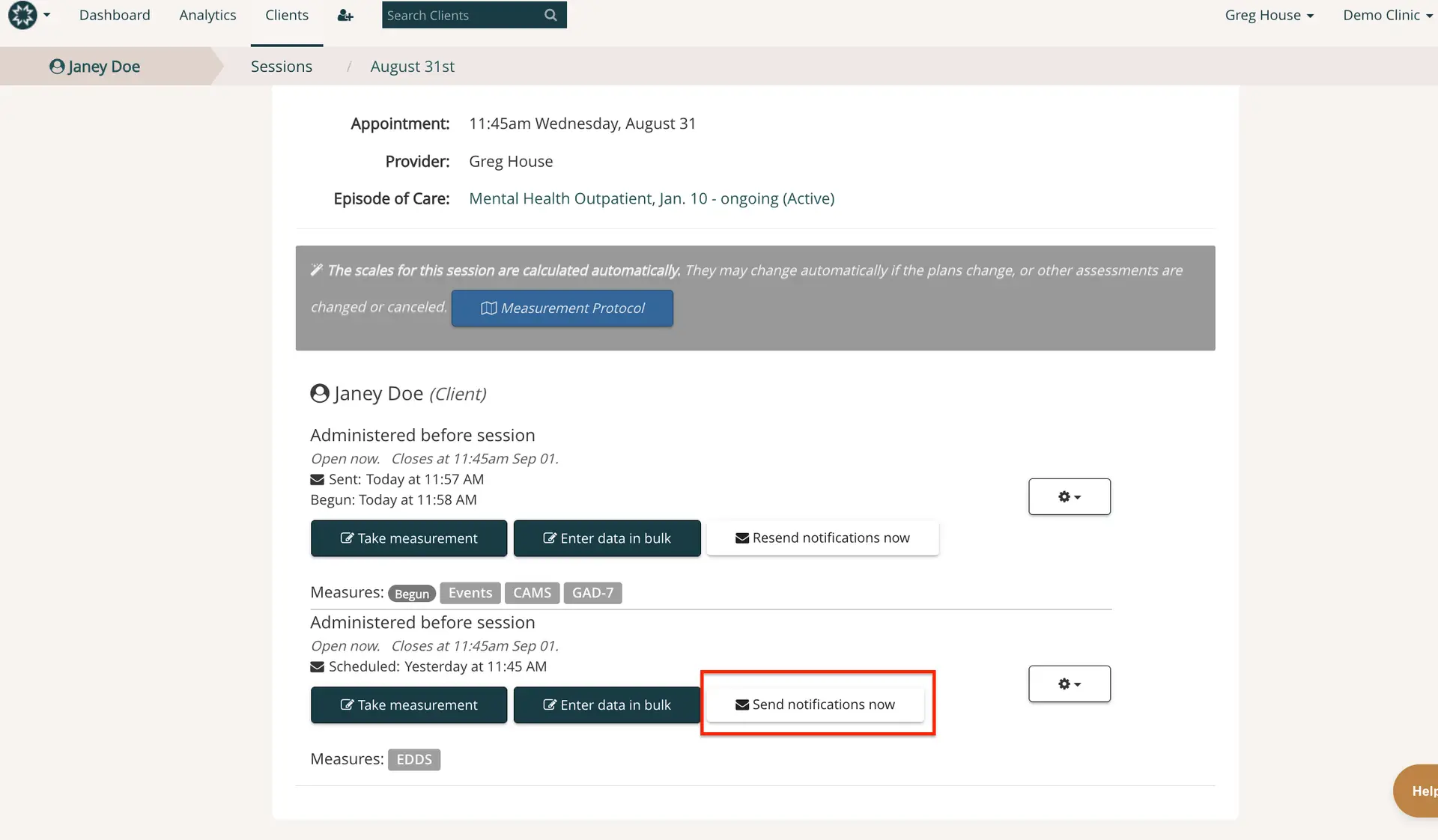
The screenshot displays the Mirah Measurement-Based Care interface for sending clients measures in-session. At the top, there is a navigation bar with options for Dashboard, Analytics, and Clients, along with a search bar to find clients. The breadcrumb trail shows the path 'Sessions / August 31st', indicating the current session date. The session details include the appointment time at 11:45 am on Wednesday, August 31, the provider's name, Greg House, and the episode of care, 'Mental Health Outpatient, Jan. 10 - ongoing (Active)'. Below this, a notification states that scales for the session are calculated automatically, with a 'Measurement Protocol' button available for more details. The client section for Janey Doe shows measures administered before the session, with timestamps for when they were sent and begun. There are buttons for 'Take measurement', 'Enter data in bulk', and 'Resend notifications now', located below the timestamps. Another section lists additional measures with a 'Send notifications now' button highlighted in red, indicating its importance. The interface is designed to streamline the process of managing and sending assessments to clients.

6). You can also complete the added measure with the client during session by clicking "Take measurement" from the same screen. This will log you out of provider mode, and the client can complete the measures on your device (if you are in person), or you can read the questions to your client in interview format (if Telehealth).
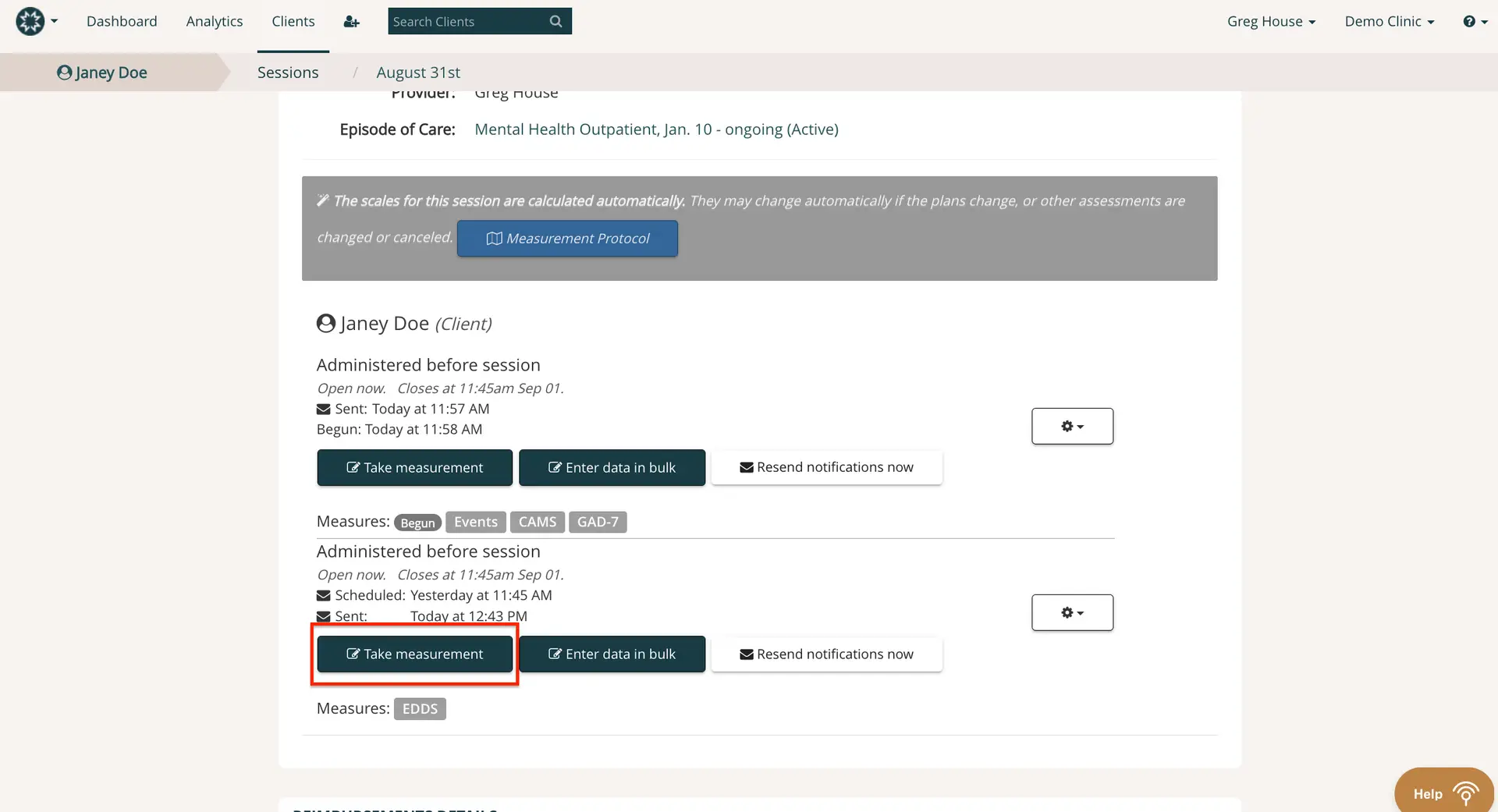
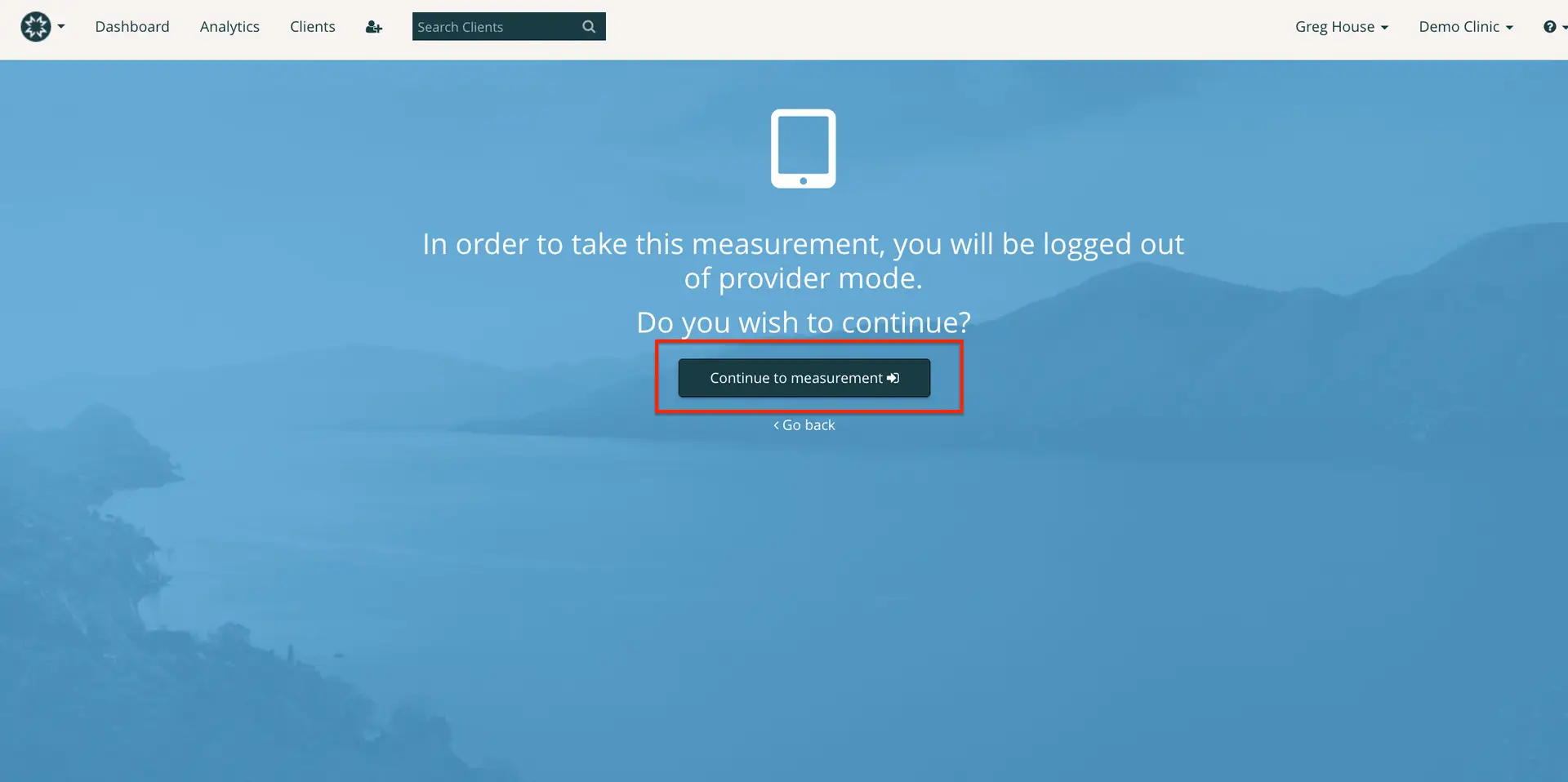
The screenshot displays the interface for managing client measures in the Mirah Measurement-Based Care platform. At the top, the navigation bar includes options for Dashboard, Analytics, Clients, and a search bar labeled 'Search Clients'. The breadcrumb trail shows the path 'Janey Doe > Sessions > August 31st', indicating the current session details for the client Janey Doe. The session is associated with the provider Greg House and is part of the 'Mental Health Outpatient, Jan. 10 - ongoing (Active)' episode of care. A notification states that scales for the session are calculated automatically, with a button labeled 'Measurement Protocol' for further details. Below, the section for Janey Doe shows measures administered before the session, with timestamps for when they were sent and begun. There are three buttons: 'Take measurement', 'Enter data in bulk', and 'Resend notifications now', each serving specific functions for managing client data. The 'Take measurement' button is highlighted, indicating its importance in the workflow. Measures listed include Begun, Events, CAMS, GAD-7, and EDDS. The interface also includes a settings button represented by a gear icon, and a 'Help' button located at the bottom right corner.The screen prompts the user with a message indicating that to take the measurement, they will be logged out of provider mode. It asks if the user wishes to continue. The screen features a prominent 'Continue to measurement' button located centrally, which allows the user to proceed with the measurement. Below this button, there is a 'Go back' link that enables the user to return to the previous screen. The top navigation bar includes options for Dashboard, Analytics, Clients, and a search field labeled 'Search Clients'. The user profile is displayed on the top right corner with the name 'Greg House' and the clinic name 'Demo Clinic'.

6). Alternatively, you can complete the measure in interview format directly from the client's feedback report using the "Edit Response" feature.