
How to Reset a Related Person's Password

If a related person is not able to log in to complete assessments, you can reset the related person's password by following the below instructions.

1). Go to the Detail Page of the client who's caregiver is not able to log in and click "Edit related people"

The screenshot displays the client profile page for 'Test AddScale' within the Mirah Measurement-Based Care platform. The page is part of the 'Clients' section, as indicated by the highlighted tab at the top. The profile includes fields such as Full Name (Legal), Preferred Name, Preferred Pronouns, Flags with an 'edit' option, Date of Birth, Sex, Gender Identity, ID Number, Email, Phone Number, Last 4 SSN, Related people, Care team, and Care units. The 'Related people' section lists Aryan SinghTest and Mary Poppins as Parent/Caregiver, with options to 'Add a related person' and 'Edit related people', the latter being highlighted in red. The left sidebar contains buttons for 'Report', '[BETA] New Report', '[INTERNAL] Old Report', 'Measurement Protocol', 'Schedule Session', 'Edit Demographics', and 'Disable Notifications', each serving different functionalities related to client management and care measurement.

2). Click "Reset Password" for the related person who cannot log in.
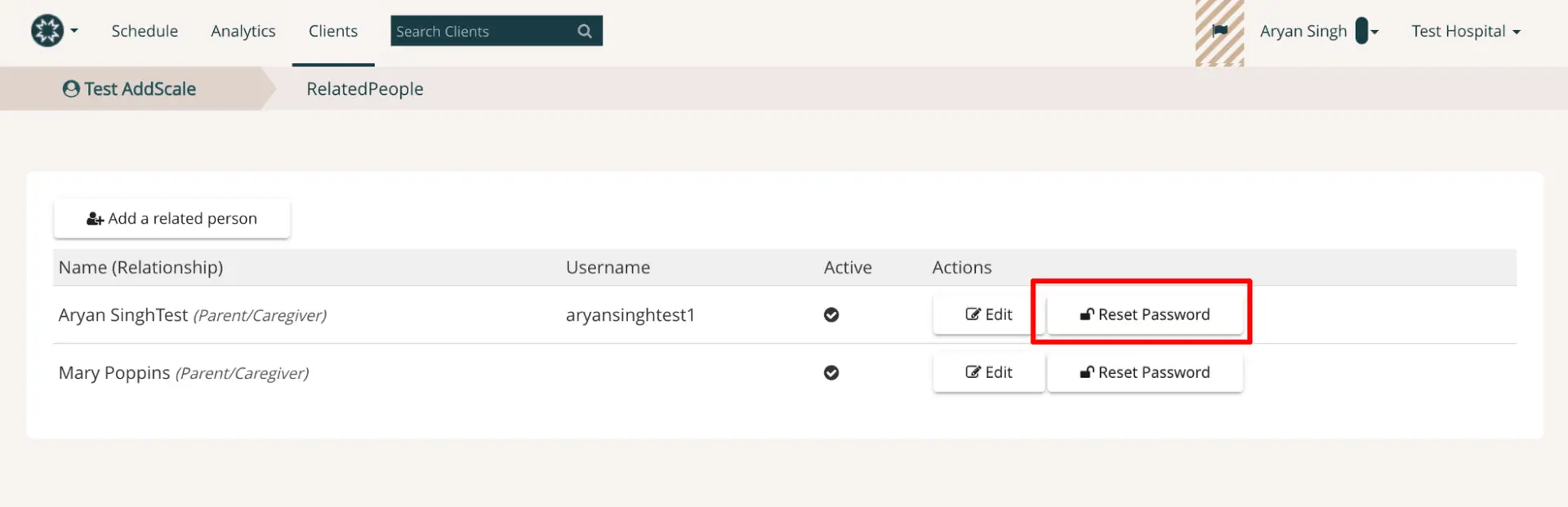
The screenshot displays the 'Related People' section under the 'Clients' tab in the Mirah Measurement-Based Care platform. It shows a list of related persons associated with a client, including their names, relationships, usernames, and active status. Each entry has two action buttons: 'Edit' and 'Reset Password'. The 'Reset Password' button is highlighted in red, indicating its function to reset the password for the selected related person. The 'Add a related person' button is located at the top left of the list, allowing users to add new related persons.

3). Take note of the username and provided temporary password. You will need to send this information to the caregiver. Click "Finish" once you are ready and you will be returned to the client Detail Page.
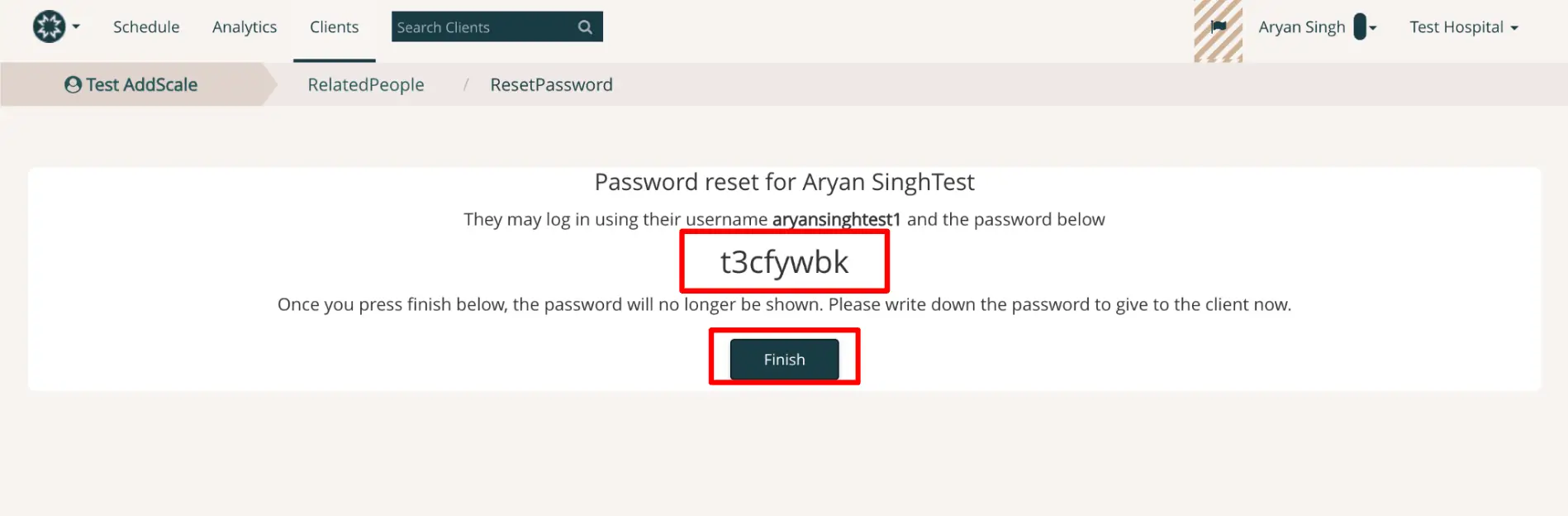
The screenshot displays the password reset confirmation page for a user named Aryan SinghTest within the Mirah Measurement-Based Care platform. The page informs the user that Aryan SinghTest can log in using the username aryansinghtest1 and the newly generated password t3cfywbk, which is prominently displayed in the center of the screen. Below the password, there is a message instructing the user to write down the password to provide it to the client, as it will no longer be visible once the 'Finish' button is pressed. The 'Finish' button is located at the bottom right of the password display area. The top navigation bar includes options for Schedule, Analytics, and Clients, with a search bar for searching clients. The breadcrumb trail at the top indicates the current page is under 'RelatedPeople' and 'ResetPassword'.

4). Email the caregiver the username and temporary password. When the caregiver clicks on the assessment link this window will pop up to fill out the username and temporary password you provided:

The screenshot displays the login screen for Mirah Measurement-Based Care. At the top, there is a logo featuring a stylized star within a circle. Below the logo, there are two input fields: one labeled 'Username/Email' for entering the user's credentials, and another labeled 'Password' for entering the user's password. Beneath these fields are two buttons: 'Log in' and 'Log in discreet mode'. The 'Log in' button allows users to access their account, while the 'Log in discreet mode' button provides an option for logging in with privacy considerations. Both buttons are centered below the input fields.

5). Once the caregiver enters the username and temporary password, a window will pop up prompting the caregiver to reset their password:
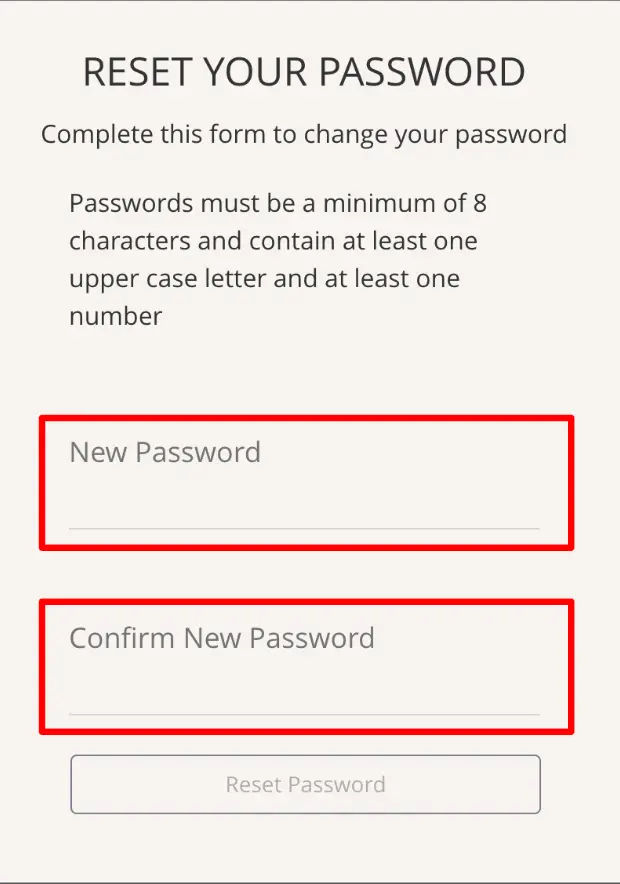
The screen is designed for users to reset their password within the Mirah Measurement-Based Care platform. It includes a header titled 'RESET YOUR PASSWORD' followed by instructions to complete the form to change the password. The password requirements are specified, indicating that passwords must be a minimum of 8 characters and contain at least one uppercase letter and one number. Below the instructions, there are two input fields: 'New Password' and 'Confirm New Password', both outlined in red, where users can enter and confirm their new password. At the bottom of the screen, there is a 'Reset Password' button, which is disabled until the form is correctly filled out, located centrally below the input fields.

6). Once the caregiver updates the password and clicks "Change Password" they will be able to begin the assessment.