Deleted Appointments Still Showing Up in Mirah

When either the patient or someone on their care team deletes an appointment, there is a chance that the appointment will still show up under the "Scheduled" section in Mirah. This can be due to a variety of factors. The following troubleshooting steps highlight some common issues.

Common Reasons/Troubleshooting:​

1). For scraper integrations, appointments deleted in the EHR will not automatically be deleted in Mirah. To prevent this from happening either:

  • Cancel appointments in your EHR but do not delete it. This will ensure Mirah gets the notice that the appointment was canceled, and it will be canceled in Mirah. Additionally, we recommend canceling instead of deleting for the sake of data quality.
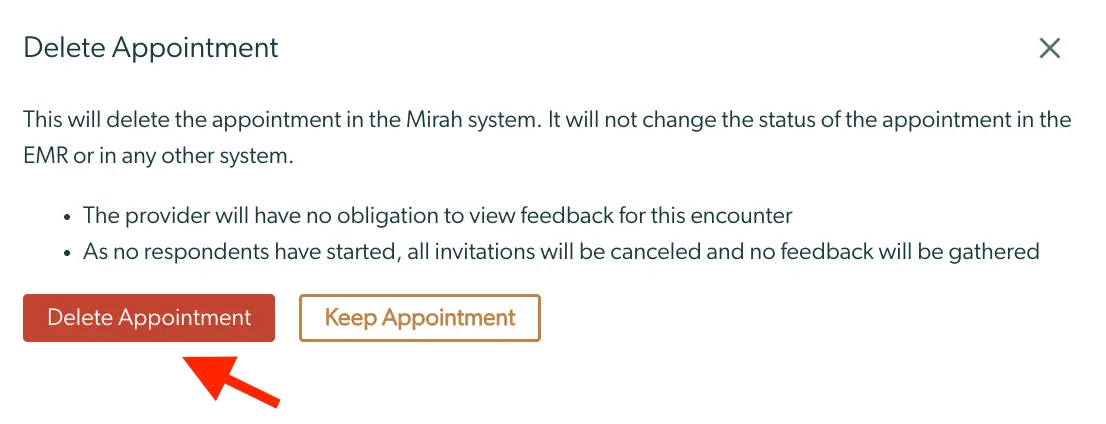
  • Delete appointments in both places: manually delete the appointment in your EHR and manually delete the appointment in Mirah. To delete the appointment in Mirah, follow these steps:
    • Locate the patients Detail page by clicking the patient's name via the Dashboard or Patient tab. The screenshot displays a section of the Mirah Measurement-Based Care interface, specifically focusing on patient information. It shows an hourglass icon, which may indicate a pending action or status, followed by the patient's name 'Brave, Emily' highlighted in a red box. Next to the name, the date '01/01/1991' is displayed, likely representing the patient's date of birth. The letter 'F' follows, which could denote the patient's gender. On the far right, there is an icon resembling a bar chart, possibly used for accessing detailed analytics or reports related to the patient. This layout is part of the patient management feature, assisting users in tracking and managing patient data effectively.

2). Navigate to the "Upcoming Appointments" panel. Either click on the appointment hyperlink or press "Cancel".
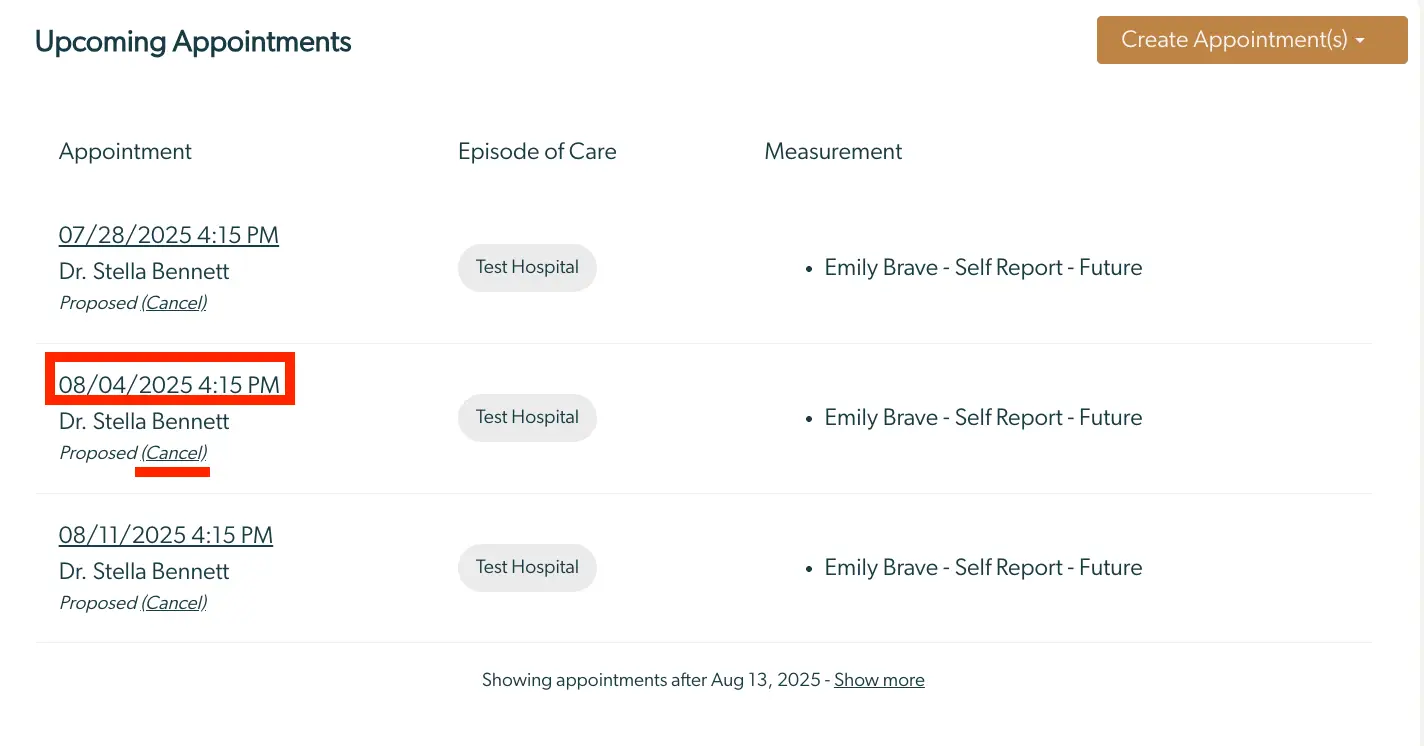
The screenshot displays the 'Upcoming Appointments' section in the Mirah Measurement-Based Care platform. It lists appointments with details such as date and time, provider name, and the status of the appointment. Each appointment entry includes the date and time, for example, '08/04/2025 4:15 PM', followed by the provider's name, 'Dr. Stella Bennett', and the status 'Proposed' with a 'Cancel' option in parentheses. The 'Episode of Care' column shows 'Test Hospital', and the 'Measurement' column indicates 'Emily Brave - Self Report - Future'. At the top right corner, there is a 'Create Appointment(s)' button for scheduling new appointments. The bottom of the screen notes that appointments after August 13, 2025, are being shown, with a 'Show more' link to view additional appointments.

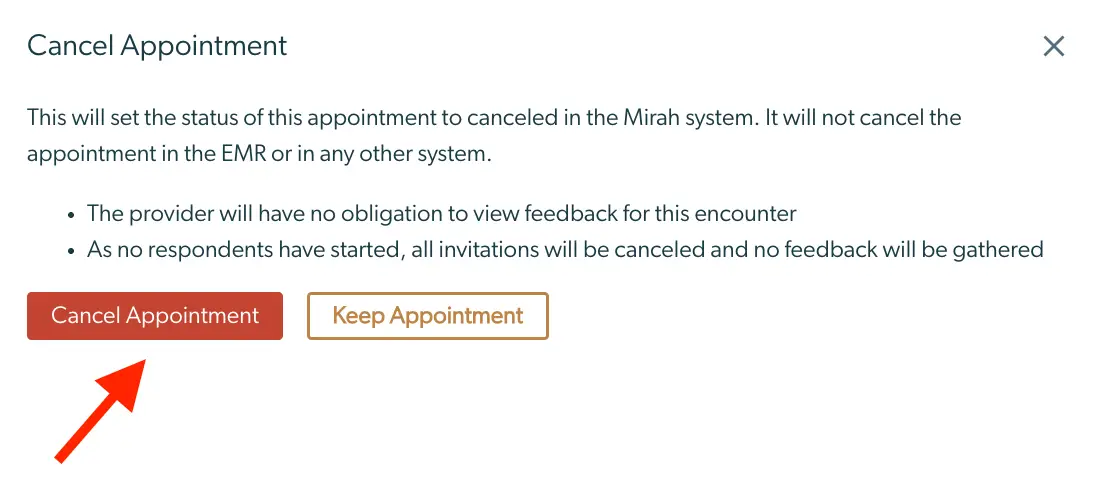
3). If you pressed "Cancel", confirm the action. If you went to the Appointment's Detail page, select either "Cancel Appointment" or "Delete Appointment".
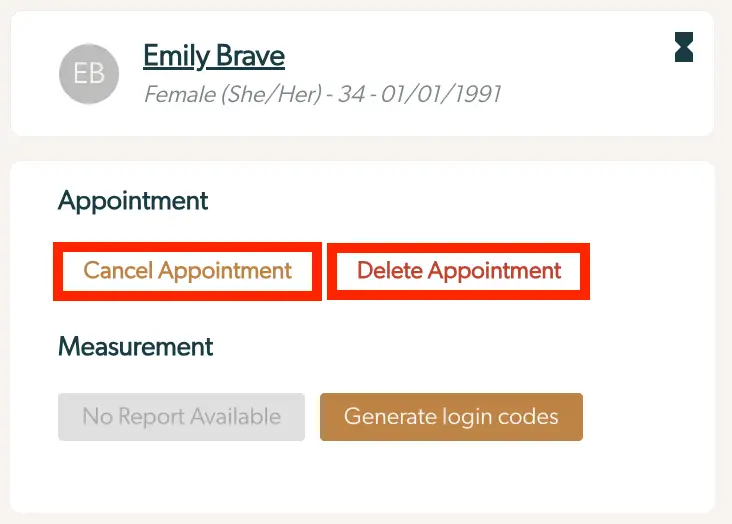
The 'Cancel Appointment' screen in the Mirah system allows users to change the status of an appointment to canceled within the Mirah platform. It clarifies that this action will not affect the appointment status in the EMR or any other system. The screen informs the user that the provider will not be required to view feedback for this encounter, and since no respondents have started, all invitations will be canceled, and no feedback will be collected. There are two buttons at the bottom: 'Cancel Appointment' on the left, which confirms the cancellation, and 'Keep Appointment' on the right, which retains the appointment as scheduled. A close button is located at the top right corner of the screen.The screenshot displays the appointment management section for a patient named Emily Brave, who is a 34-year-old female. The top section shows her name, gender, age, and date of birth. Below this, there are two buttons under the 'Appointment' section: 'Cancel Appointment' and 'Delete Appointment', both highlighted in red, allowing the user to either cancel or delete the appointment. In the 'Measurement' section, there is a greyed-out button labeled 'No Report Available', indicating that no measurement report is currently accessible, and a brown button labeled 'Generate login codes', which allows the user to generate login codes for accessing the system. The 'Cancel Appointment' and 'Delete Appointment' buttons are located centrally in the appointment section, while the 'Generate login codes' button is located to the right in the measurement section.

4). Proceed to cancel/delete the appointment by confirming the following prompt.
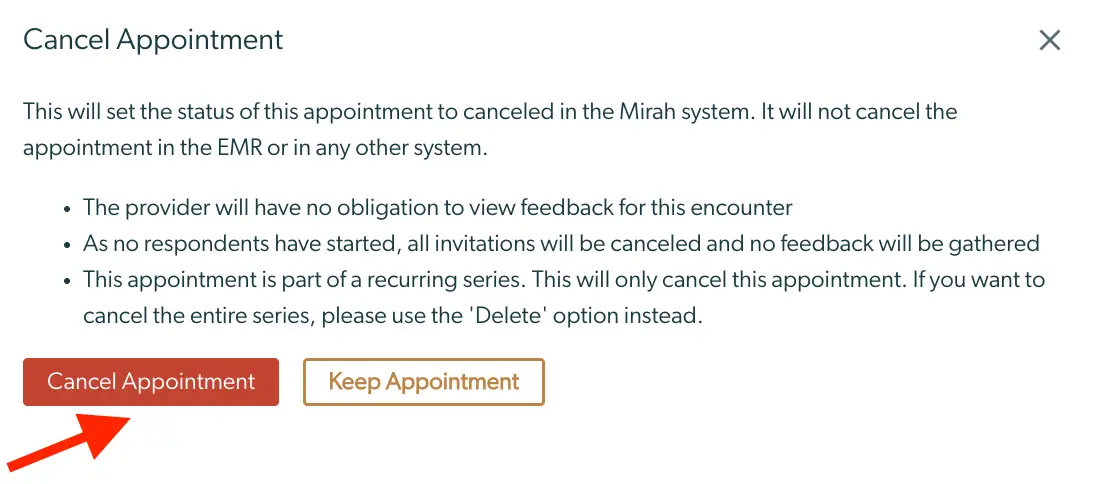
The screenshot displays the 'Cancel Appointment' dialog in the Mirah system, which allows users to set the status of an appointment to canceled within Mirah. It clarifies that this action will not affect the appointment status in the EMR or any other system. The dialog explains that the provider will not be obligated to view feedback for the encounter, and since no respondents have started, all invitations will be canceled and no feedback will be gathered. It notes that the appointment is part of a recurring series and advises using the 'Delete' option to cancel the entire series. The dialog features two buttons at the bottom: 'Cancel Appointment' in red on the left, which confirms the cancellation, and 'Keep Appointment' in orange on the right, which retains the appointment.The screenshot displays a confirmation dialog for deleting an appointment within the Mirah system. The dialog explains that deleting the appointment will not affect its status in the EMR or any other system. It notes that the provider will not be required to view feedback for the encounter, and since no respondents have started, all invitations will be canceled and no feedback will be gathered. There are two buttons at the bottom of the dialog: 'Delete Appointment' on the left, which is highlighted in red to indicate the action of deletion, and 'Keep Appointment' on the right, outlined in orange, allowing the user to cancel the deletion process. A close button is located at the top right corner of the dialog for dismissing the window without making any changes.

5). There could be multiple appointments on one day for a patient. One appointment may have been deleted, but the other may remain as active. To ensure the right appointment is deleted in Mirah, check the timing for each one and manually delete the correct appointment in Mirah.

If issues persist even after following the above steps, please contact support@mirah.com for further assistance.