
How to Generate a Clinical Note on the Enhanced Feedback Report

When taking notes on a certain patient/case, there is a feature in Mirah that allows you to write down notes in the platform itself in the Enhanced Feedback Report (EFR) to help keep all information in one place. The following steps detail how to create these notes in Mirah.

How to Generate the Note in Mirah​

1.) On the EFR screen, there will be an orange button with three white lines at the top-right of the screen. Click on this button.
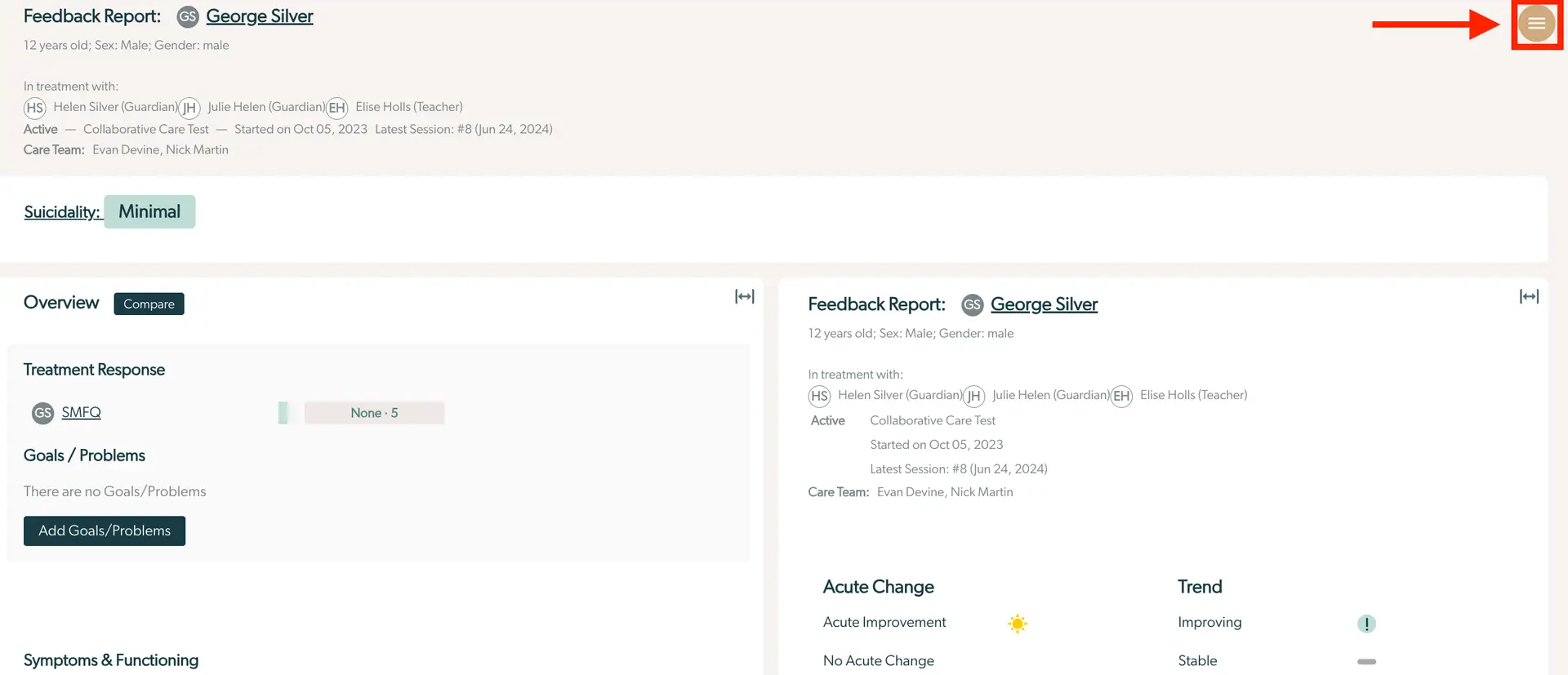
The screenshot displays the Enhanced Feedback Report for a patient named George Silver, who is 12 years old, male. The report is part of the Mirah Measurement-Based Care platform, providing insights into collaborative care. The top section shows George's basic information and treatment details, including his guardians and teacher involved in the care, the active status of the Collaborative Care Test, and the latest session date. The right side of the screen features a menu button highlighted in red, located at the top right corner, which likely provides additional options or actions related to the report. Below, the report is divided into sections: 'Suicidality' with a status of 'Minimal', 'Overview' with a 'Compare' button, 'Treatment Response' showing a score of 'None · 5' for SMFQ, and 'Goals / Problems' indicating no current goals or problems with an 'Add Goals/Problems' button. The 'Symptoms & Functioning' section is not fully visible. The right panel summarizes 'Acute Change' with options for 'Acute Improvement' and 'No Acute Change', and 'Trend' showing 'Improving' and 'Stable' statuses.

2.) Once you click this button, a dropdown menu will appear. The first option will have a black pencil icon with the words "Generate Clinical Note" next to it. Click on this option to generate the note.

The screenshot displays a dropdown menu from the Enhanced Feedback Report feature in Mirah Measurement-Based Care. The menu contains two options: 'Generate Clinical Note' and 'Change Measurement Plan'. The 'Generate Clinical Note' option is highlighted with a red border, indicating its selection or importance. This option is accompanied by a pencil icon, suggesting its function to create or edit a clinical note. The 'Change Measurement Plan' option is below, with an icon resembling a ruler, indicating its purpose to modify the measurement plan. The menu is accessed via a hamburger icon located in the top right corner of the screen, which is a common UI element for accessing additional options or settings.

3.) You will now be able to view the clinical notes written for that patient. If you have the proper authorization in Mirah, you will be able to edit the information already within the note and be able to write your own notes.
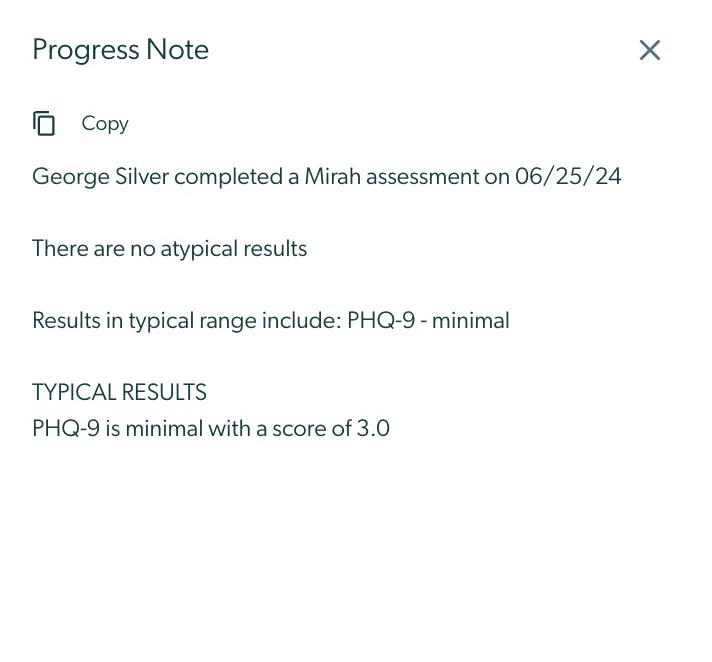
The screenshot displays a 'Progress Note' section from the Mirah Measurement-Based Care platform, specifically within the Enhanced Feedback Report feature. At the top left, there is a 'Copy' button represented by a clipboard icon, allowing users to copy the text content of the note. The main content of the note states that George Silver completed a Mirah assessment on 06/25/24. It mentions that there are no atypical results and provides details on typical results, indicating that the PHQ-9 score is minimal with a score of 3.0. The 'X' button at the top right corner is likely for closing the note or dialog.