How to View a Patient's Details Page

Accessing a patient's Detail page​

1). From your Dashboard (this is where you are taken after successfully logging in), click the “Clients” tab.
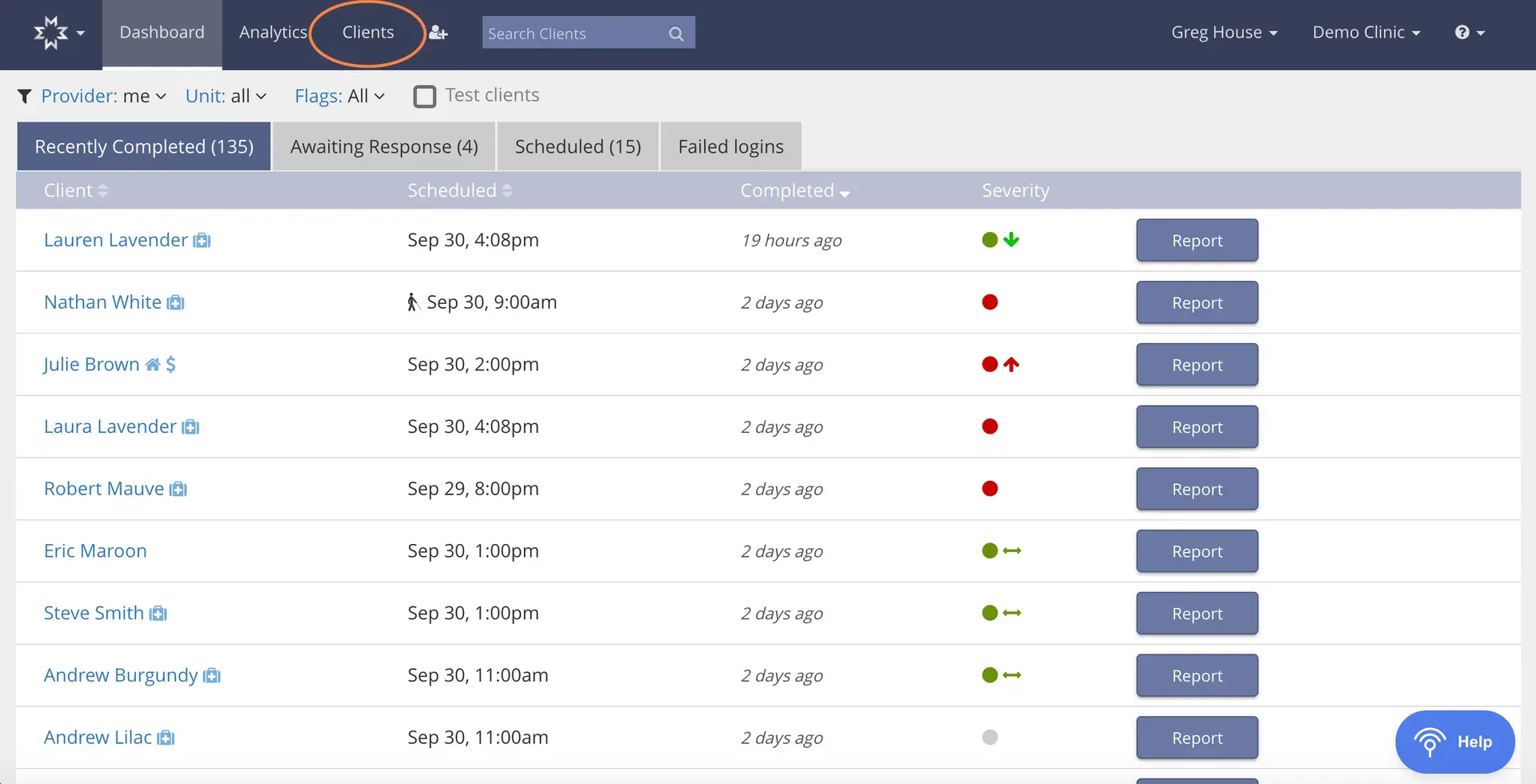
The screenshot displays the 'Clients' tab within the Mirah Measurement-Based Care platform, showing a list of clients with their scheduled and completed assessment times, along with the severity of their conditions. The top navigation bar includes options for Dashboard, Analytics, and Clients, with a search field labeled 'Search Clients'. The user is identified as Greg House from Demo Clinic, with a help button located at the bottom right corner. The main section is divided into tabs: Recently Completed, Awaiting Response, Scheduled, and Failed Logins. Each client entry includes their name, scheduled time, completion status, severity indicator, and a 'Report' button for further details. The 'Report' buttons are located to the right of each client entry.

2). Locate the patient whose details you would like to view. If you have trouble finding the patient on the list in the “Clients” tab, try searching for the patient in the “Search Clients” box at the top of the page.
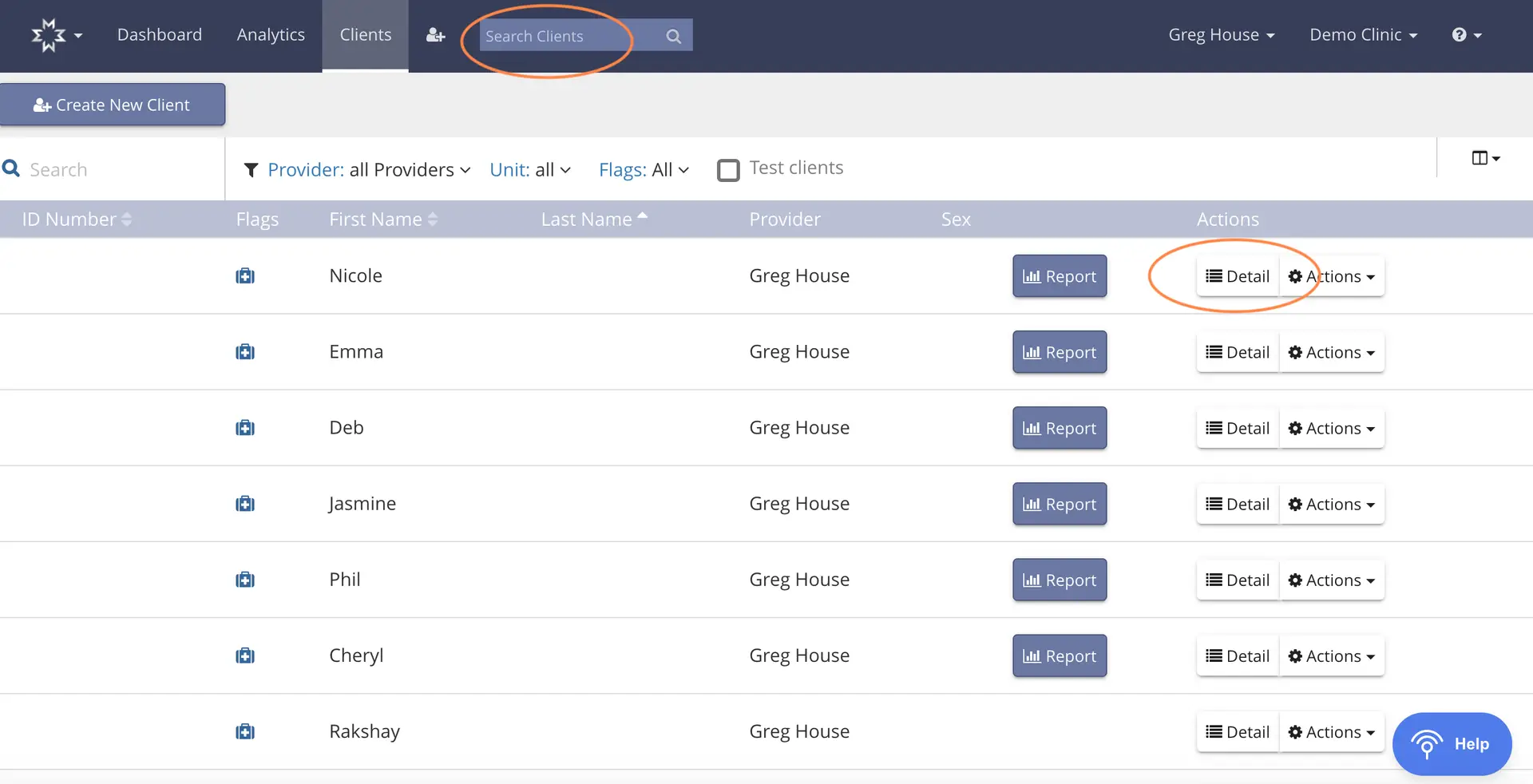
The screenshot displays the 'Clients' section of the Mirah Measurement-Based Care platform, where users can view and manage patient information. At the top, there is a navigation bar with options for Dashboard, Analytics, and Clients, along with a search bar labeled 'Search Clients' for finding specific patients. Below the navigation bar, there is a button labeled 'Create New Client' for adding new patients. The main table lists patients with columns for ID Number, Flags, First Name, Last Name, Provider, and Sex. Each row represents a patient, showing their first name, last name, and associated provider. In the 'Actions' column, there are buttons labeled 'Report', 'Detail', and 'Actions' for each patient. The 'Detail' button, located in the middle of the 'Actions' column, allows users to view detailed information about the patient. The 'Actions' button provides additional options for managing the patient's data. The 'Report' button is used to generate reports related to the patient's care. The screenshot highlights the 'Detail' button, indicating its importance in accessing patient details.

3). Once locating the patient, click the “Detail” button that corresponds with their name. This will take you to the patient’s Detail page.
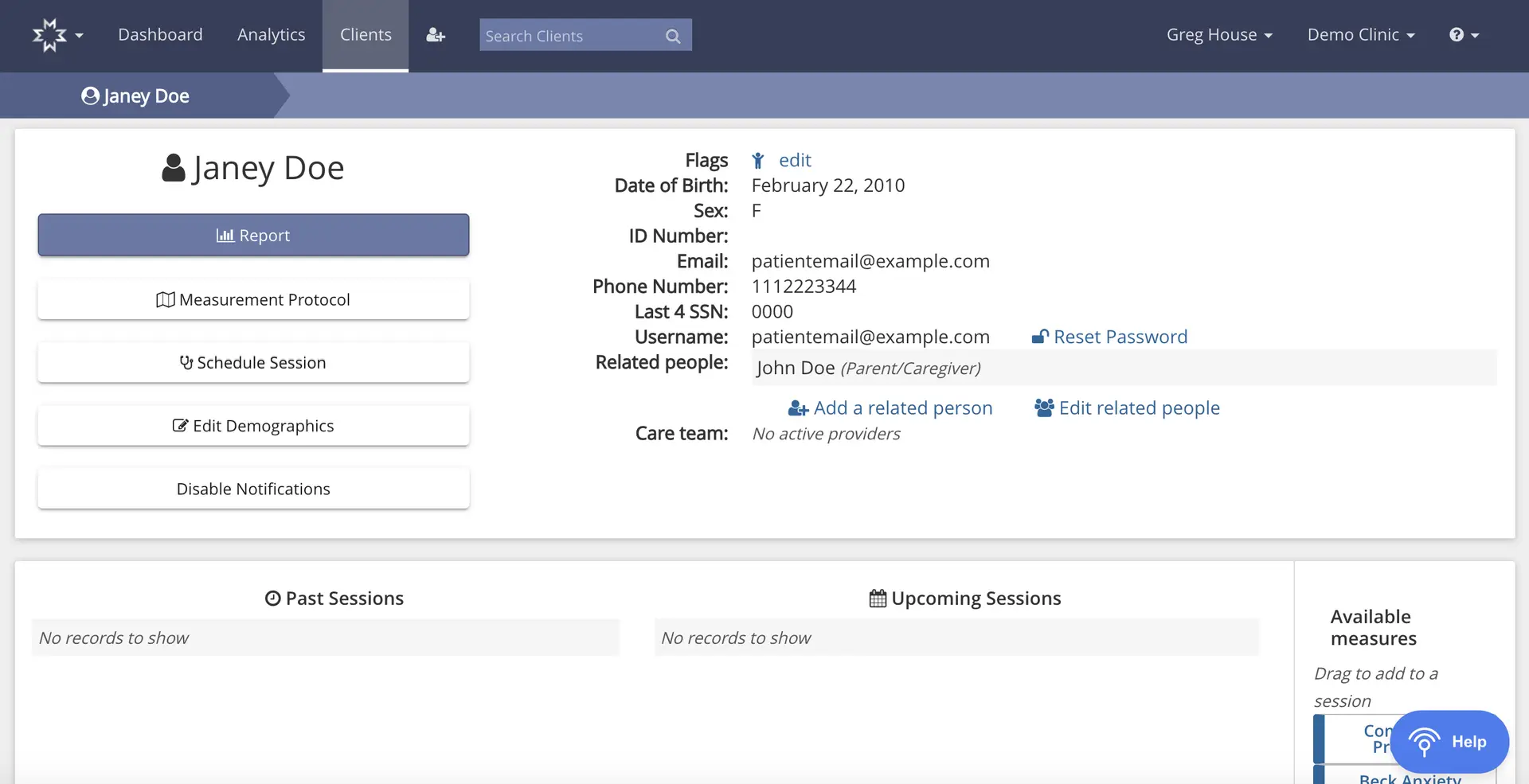
The screenshot displays the patient details page for Janey Doe within the Mirah Measurement-Based Care platform. At the top, the navigation bar includes options for Dashboard, Analytics, and Clients, with a search bar for searching clients. The page is titled 'Janey Doe' and features a breadcrumb trail indicating the current location within the Clients section. The left side of the page contains buttons for generating a report, accessing the measurement protocol, scheduling a session, editing demographics, and disabling notifications. The right side lists personal details such as flags with an edit option, date of birth, sex, ID number, email, phone number, last four digits of SSN, username, related people with an option to add or edit related people, and care team information. Below, sections for past and upcoming sessions are displayed, both indicating no records to show. On the right, there is a list of available measures that can be dragged into a session. The bottom right corner features a Help button.

Information on a patient's Detail page​

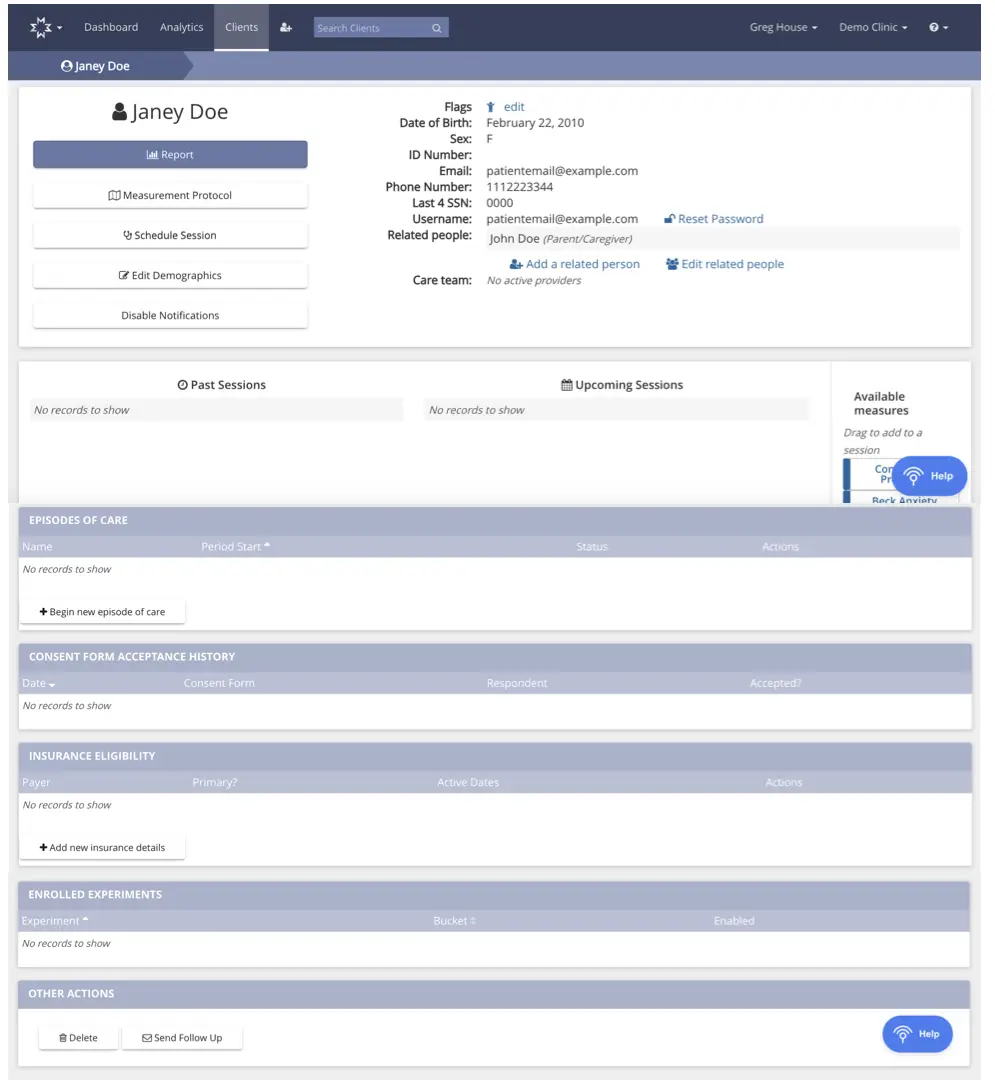
You can view basic information about your patient on the Detail page, as well as schedule sessions, edit patient information, assign measures and perform other administrative tasks. The most commonly used functions and content accessed on the Detail page are:

  1. Access to most recent feedback report
  2. View demographic information (assigned care team, DOB, phone number, email, etc.)
  3. Edit demographic information
  4. View caregiver information
  5. Edit or enter caregiver information
  6. View past and upcoming sessions
  7. Schedule sessions
  8. Change demographic information
  9. Change notifications preferences
  10. Assign measures
  11. View measures protocol
  12. View and add episodes of care
  13. View consent history
  14. View and add insurance eligibility
  15. View enrolled experiments The screenshot displays a patient's details page within the Mirah Measurement-Based Care platform. At the top, the navigation bar includes options for Dashboard, Analytics, and Clients, with a search bar to find clients. The page is titled with the patient's name, Janey Doe, and includes a section for patient information such as flags, date of birth, sex, ID number, email, phone number, last four digits of SSN, username, and related people. There are options to edit flags, reset the password, add a related person, and edit related people. Below this, there are buttons for generating a report, viewing the measurement protocol, scheduling a session, editing demographics, and disabling notifications. The page also includes sections for past and upcoming sessions, episodes of care, consent form acceptance history, insurance eligibility, and enrolled experiments, all of which currently show no records. The 'Episodes of Care' section has a button to begin a new episode of care, and the 'Insurance Eligibility' section has a button to add new insurance details. At the bottom, there are buttons for deleting the patient record and sending a follow-up. On the right side, there is a help button and a section for available measures that can be dragged into a session.