Schedule View

Note: If you don’t currently have the Schedule view and are interested in this, email support@mirah.com and we’ll work with your Practice to enable this for you.

Schedule View​

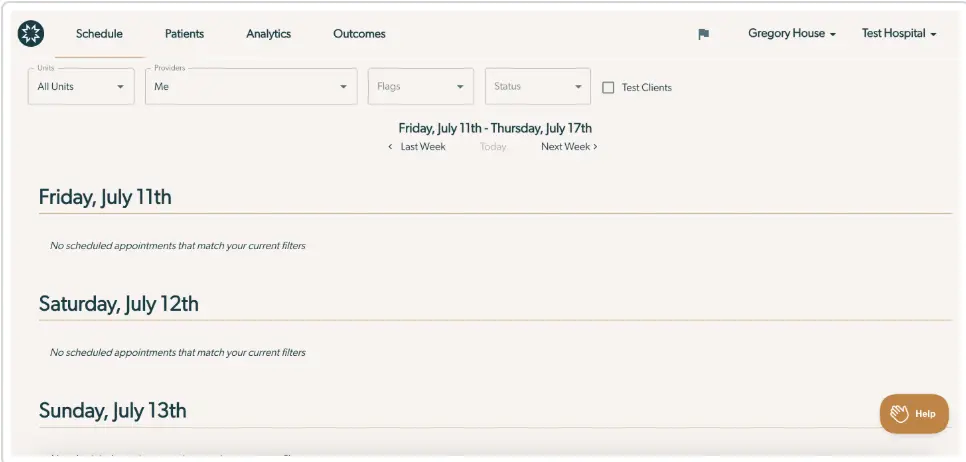
The screenshot displays the Schedule View within the Mirah Measurement-Based Care platform, specifically for working with patients. The top navigation bar includes tabs for Schedule, Patients, Analytics, and Outcomes, allowing users to switch between different sections of the platform. Below the navigation bar, there are dropdown menus for filtering appointments by Units, Providers, Flags, and Status, along with a checkbox for Test Clients. The current view shows a date range from Friday, July 11th to Thursday, July 17th, with options to navigate to Last Week, Today, or Next Week. The schedule for Friday, July 11th, Saturday, July 12th, and Sunday, July 13th indicates that there are no scheduled appointments matching the current filters. The user is identified as Gregory House, associated with Test Hospital, displayed in the top right corner. A Help button is located at the bottom right corner of the screen, providing assistance if needed.

The schedule page shows a list of appointments by day. It shows the appointments for a day ordered by start time. If a patient has started their measures for the appointment shown, you’ll see the Report icon in the far right. Click on this to access the feedback report. You’ll see a red dot on the Report icon for any reports that you have not yet viewed.

Filtering​

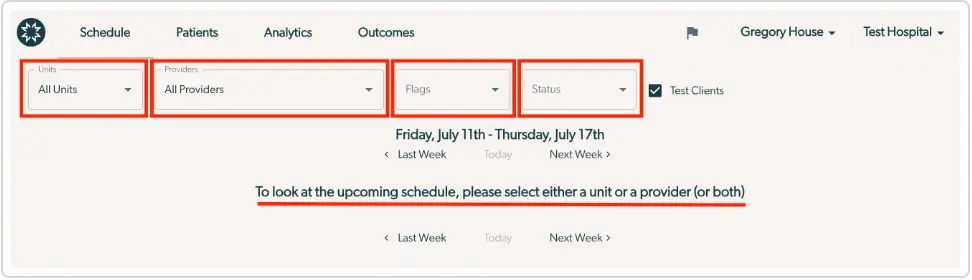
The screenshot displays the Schedule View interface of Mirah Measurement-Based Care, designed for working with patients. At the top, there is a navigation bar with tabs labeled Schedule, Patients, Analytics, and Outcomes, allowing users to switch between different sections of the application. Below the navigation bar, there are dropdown menus for filtering the schedule by Units and Providers, both set to 'All Units' and 'All Providers' respectively. Additional filters include Flags and Status, with a checkbox for Test Clients. The date range displayed is Friday, July 11th - Thursday, July 17th, with navigation options for Last Week, Today, and Next Week. A message prompts users to select either a unit or a provider to view the upcoming schedule. The user profile is indicated by the name Gregory House, and the current hospital is Test Hospital, both located at the top right corner.

The filters at the top of the page let the user control which appointments they see. The default filters show your appointments and organization.

For performance and usability reasons, we don’t let users see all the appointments at once. If Clinicians set both the organization and provider filters to All Providers and All Units they will see a warning: “To look at the upcoming schedule, please select either a unit or a provider (or both)”

Weekly View​

The screenshot displays a section of the Schedule View in Mirah Measurement-Based Care, specifically focusing on date navigation for working with patients. The top of the screen shows the current week range, Friday, July 11th to Thursday, July 17th, indicating the period being viewed. Below the date range, there are three navigation options: 'Last Week' on the left, 'Today' in the center, and 'Next Week' on the right. These options allow users to navigate to the previous week, the current day, or the next week, respectively. Each option is underlined in red, highlighting their clickable nature.

The schedule page always shows seven days of data at a time, starting with today. The header shows what days are in view on the page. Use the “Last Week” and “Next Week” buttons to move seven days at a time. Use the “Today” button to jump back to today.

The view will show appointments that Mirah has received from your EHR integration and is typically 2 -14 days forward looking. Note that if you go forward too far, you’ll see “no appointments match your filters.”

Individual Appointment Row​

ColumnNotes
ClientPatient name, with a link to their patient details page
ProviderName of the provider the appointment is scheduled with.
TimeThe time the appointment is scheduled to start
StatusHover over the status to see the description. See the Workflow Statuses section below for a list of possible statuses.
FlagsSee Flags section below. These are the same flags as on the original dashboard.
ActionsUse Actions to access measurement details and key code login

Workflow statuses​

Hover over a status in the Schedule to see the definition.

The screenshot displays a dropdown menu under the 'Status' field, which is part of the Schedule View in the Mirah Measurement-Based Care application. This dropdown allows users to select the current status of a patient in the workflow. The available options include 'Awaiting Interview', 'Complete', 'Error', 'Failed', 'Future', 'In Progress', 'Measurement Canceled', 'Not Measured', 'Not Participating', 'Not Started', and 'Notifications Blocked'. The dropdown is activated by clicking the downward-facing arrow located to the right of the 'Status' label.

StatusNotes
Awaiting interviewAwaiting provider to start interview
CompleteAll data has been collected for this appointment
ErrorThe state of measurement is unknown
FailedNo questions were answered and the measurement expired.
FutureThe window to enter assessment data is not yet open
In progressAt least one respondent has started the assessment
Measurement cancelledEither the appointment was cancelled, or the client did not show for the session and did not fill out the assessment.
Not measuredThis appointment has no measurement associated.
Not participatingNot participating in MBC
Not startedThe window to complete assessments is open but no respondents have started their assessments.
Notifications blockedWe are unable to send notifications because the patient has opted out or is missing contact information

Patient Flags​

Filter by Patient Flags to identify specific scenarios.

The screenshot displays a dropdown menu under the 'Flags' section, which is part of the Schedule View feature in Mirah's Measurement-Based Care product. This menu allows users to select various flags related to patient concerns. The options available in the dropdown include 'Cost Concerns' with a dollar sign icon, 'COVID-19 Health Alert' with a virus icon, 'Employment Concerns' with a briefcase icon, 'Housing Concerns' with a house icon, and 'Med' with a medical icon. The dropdown is activated by clicking the downward-facing arrow located next to the 'Flags' label at the top of the menu.

Where to find old dashboard features​

The old dashboard had 4 tabs, “Recently Completed”, “Upcoming”, “My Tasks” and “Failed Logins”. The first two tabs show patient sessions, so the functionality in those tabs is available on the Schedule page. Click on your practice name in the top right corner to access Failed Logins and My Tasks.