Billing Insights Logic

When accessing Billing Insights within your institute, there are a few factors to keep in mind that might ease confusion around this platform tool.

Billing Algorithm:​

Recalculated Billing Codes​

If you view the billing codes and they seem to be incorrect, it will automatically recalculate every night so the inconsistencies will be resolved the following morning. Therefore, there may be instances where billing codes are not fully aligned midday but, by the next morning, it will be corrected.

Capping Added Billing Codes​

With the new update to our platform, users can now adjust the Billing Algorithm on the "Configurations" page. This feature enables users to place a cap on added billing codes, allowing users to bill as many codes as desirable and gain accurate reimbursement for their services.
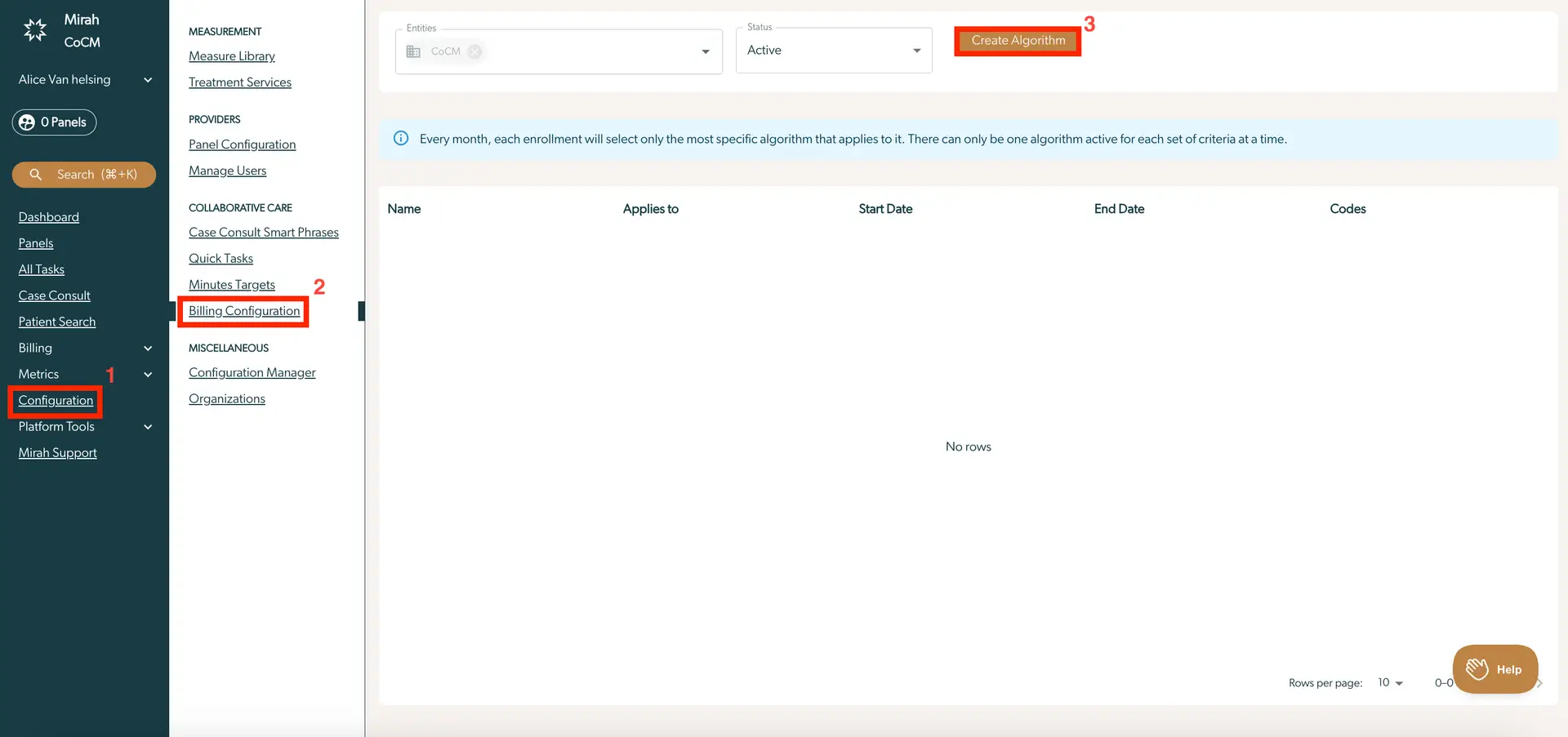
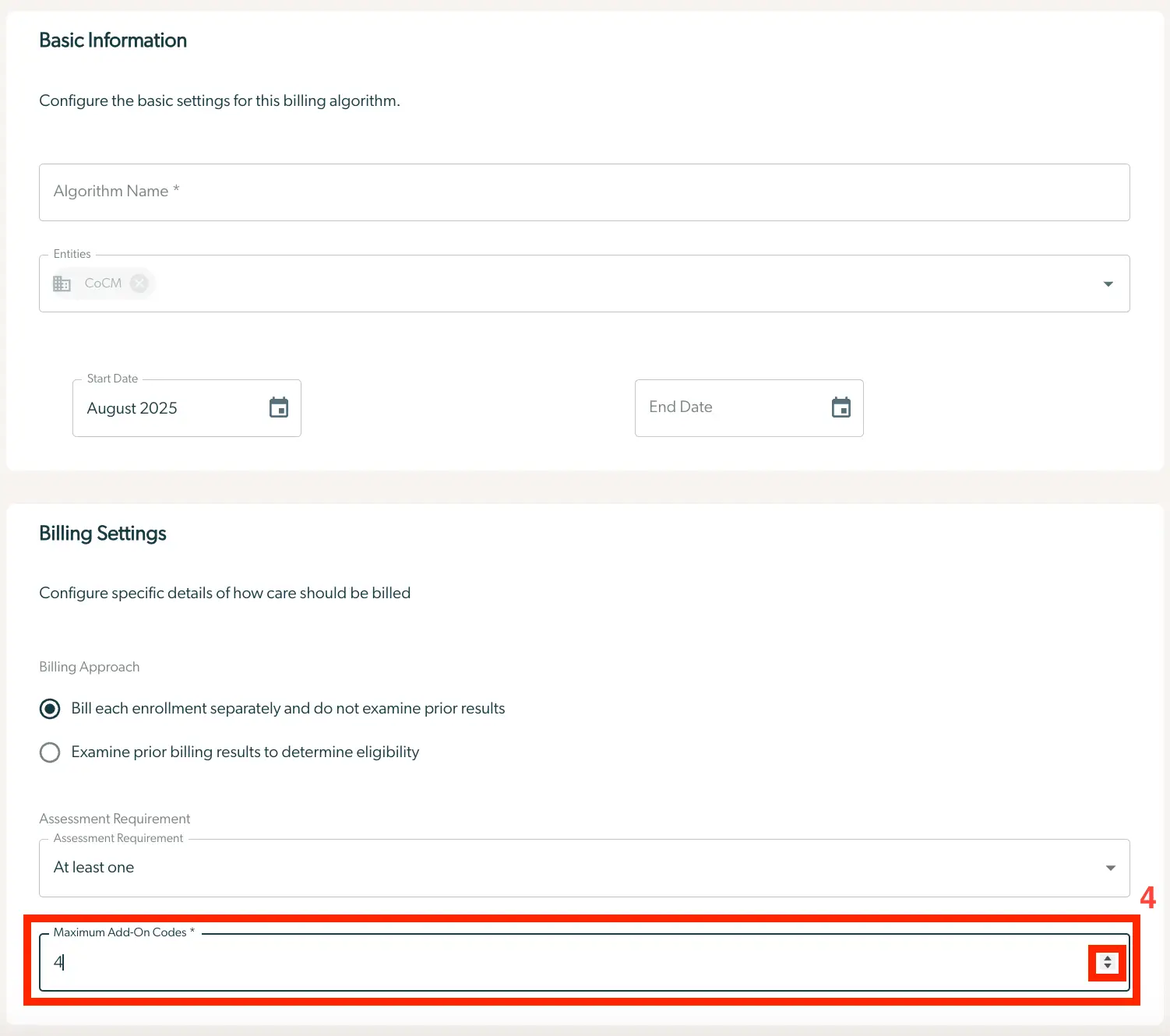
The screenshot displays the Billing Configuration page within the Mirah Collaborative Care platform. On the left side, there is a vertical navigation menu with sections such as Dashboard, Panels, All Tasks, Case Consult, Patient Search, Billing, Metrics, Configuration, Platform Tools, and Mirah Support. The Configuration section is expanded, highlighting the Billing Configuration option under Collaborative Care. The main area of the screen shows a table with columns labeled Name, Applies to, Start Date, End Date, and Codes, but currently, there are no rows displayed. Above the table, there are dropdown menus for selecting Entities and Status, with CoCM and Active selected respectively. A message indicates that each enrollment will select the most specific algorithm applicable, with only one algorithm active per criteria set at a time. The 'Create Algorithm' button is located at the top right corner of the main area, allowing users to initiate the creation of a new algorithm. At the bottom right, there is a 'Help' button for user assistance.The screenshot displays the 'Billing Insights Logic' configuration page within the Mirah Collaborative Care platform. The page is divided into two main sections: Basic Information and Billing Settings. In the Basic Information section, users can configure the basic settings for a billing algorithm. It includes a text field labeled 'Algorithm Name' for entering the name of the algorithm, a dropdown menu labeled 'Entities' with 'CoCM' selected, and date fields labeled 'Start Date' and 'End Date' with a calendar icon for selecting dates. The Start Date is set to August 2025, while the End Date is not specified. In the Billing Settings section, users can configure specific billing details. It includes a radio button group labeled 'Billing Approach' with two options: 'Bill each enrollment separately and do not examine prior results' and 'Examine prior billing results to determine eligibility.' The first option is selected. There is also a dropdown menu labeled 'Assessment Requirement' with the option 'At least one' selected. Below this, there is a text field labeled 'Maximum Add-On Codes' with the number '4' entered, and an increment/decrement button is located to the right of this field.

Counting Minutes:​

If you notice a discrepancy between time logged and time dedicated to a task, please keep in mind several factors prior to contacting Mirah Support:

  • The Mirah platform is strict on billing rules in order to prevent issues in auditing. Therefore, if two tasks are completed simultaneously, only one will be counted. To see more information regarding this policy, please read this article.
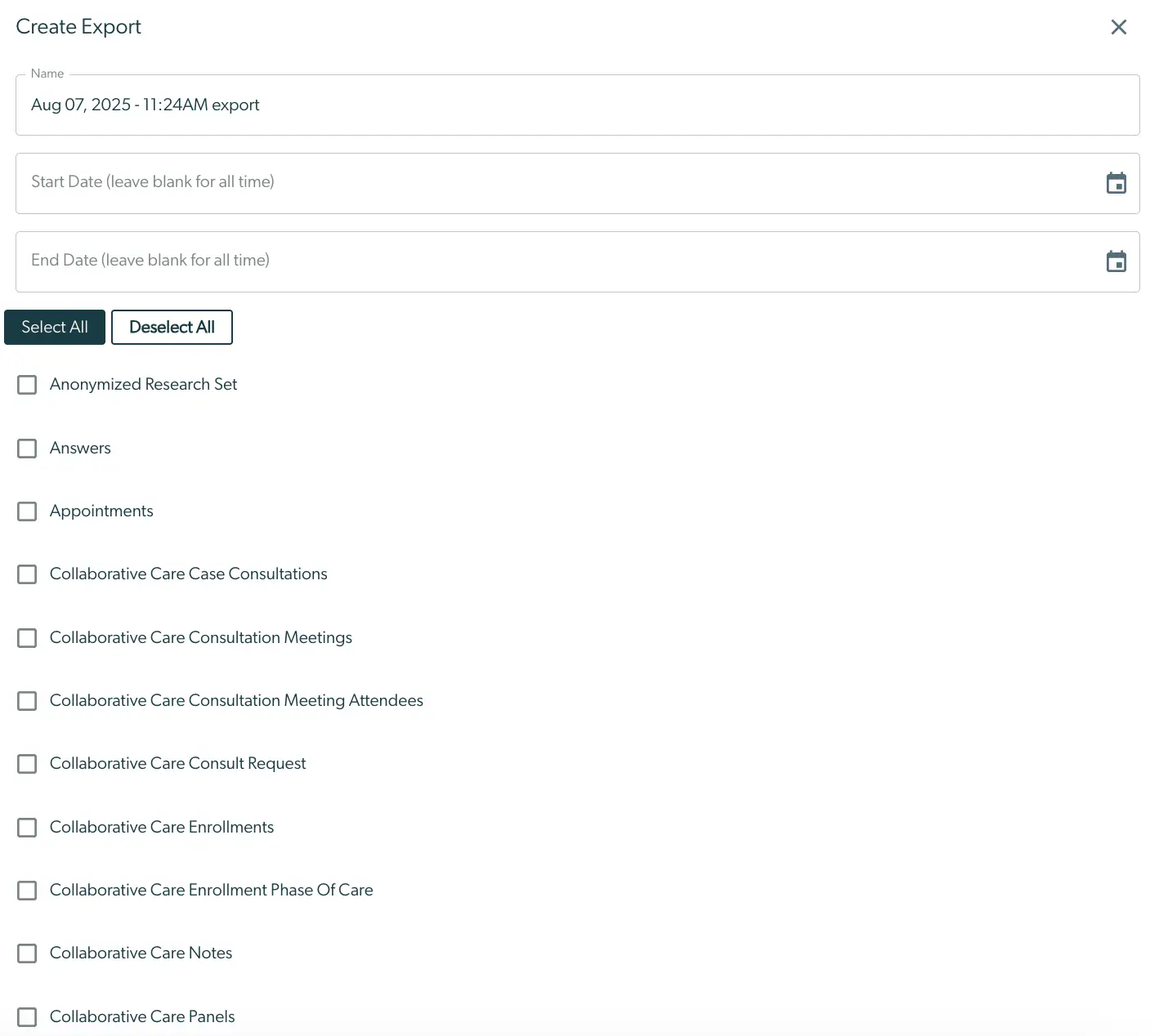
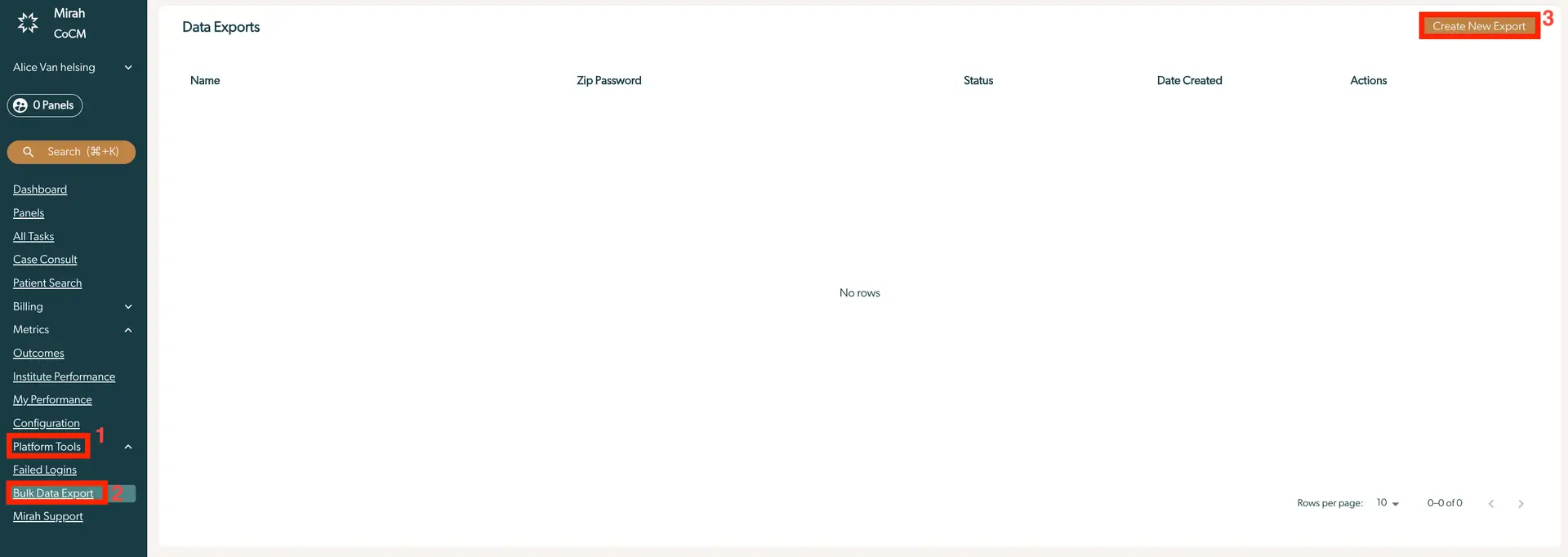
  • Look through the "Time Entry Log" and "Task Bulk Data Exports" to find if there was overlapping time. Once identified, you can adjust the date and time to get credited for the work. The screenshot displays the 'Data Exports' page within the Mirah Collaborative Care platform, specifically under the 'Bulk Data Export' section. The main area of the screen is a table with columns labeled 'Name', 'Zip Password', 'Status', 'Date Created', and 'Actions', which is currently empty, indicating no data exports have been created yet. At the top right corner, there is a prominent 'Create New Export' button, allowing users to initiate a new data export process. The left sidebar contains a navigation menu with options such as 'Dashboard', 'Panels', 'All Tasks', 'Case Consult', 'Patient Search', 'Billing', 'Metrics', 'Outcomes', 'Institute Performance', 'My Performance', 'Configuration', 'Platform Tools', 'Failed Logins', and 'Mirah Support'. The 'Platform Tools' section is expanded, revealing the 'Bulk Data Export' option, which is highlighted, indicating the current page. At the bottom of the table, there is a pagination control showing 'Rows per page: 10' and '0-0 of 0', with navigation arrows for moving through pages.The 'Create Export' screen in Mirah Collaborative Care allows users to generate a data export. At the top, there is a text field labeled 'Name' pre-filled with 'Aug 07, 2025 - 11:24AM export' for naming the export file. Below, there are two date fields labeled 'Start Date' and 'End Date' with placeholders indicating they can be left blank for all-time data. Each date field has a calendar icon on the right for selecting dates. Below the date fields, there are two buttons: 'Select All' and 'Deselect All' for managing the selection of data categories. The screen lists multiple checkboxes for different data categories such as 'Anonymized Research Set', 'Answers', 'Appointments', 'Collaborative Care Case Consultations', 'Collaborative Care Consultation Meetings', 'Collaborative Care Consultation Meeting Attendees', 'Collaborative Care Consult Request', 'Collaborative Care Enrollments', 'Collaborative Care Enrollment Phase Of Care', 'Collaborative Care Notes', and 'Collaborative Care Panels'. These checkboxes allow users to select specific data types for export.The screenshot displays a section of the Mirah Collaborative Care interface focused on billing insights related to collaborative care. It features two selectable options, each with a checkbox to the left. The first option is 'Collaborative Care Tasks,' which likely allows users to manage or view tasks associated with collaborative care. The second option is 'Collaborative Care Time Entry Logs,' which probably enables users to access or log time entries related to collaborative care activities. Both checkboxes are checked, indicating that these options are currently selected or active.The screenshot displays a button labeled 'Begin Data Export' which is part of the Billing Insights feature within the Mirah Collaborative Care platform. This button is designed to initiate the process of exporting data, likely related to billing insights, for further analysis or reporting. The button is centrally located and is highlighted with a red border, making it prominent and easily identifiable for users who need to perform data export tasks.
Requirements for Codes​

In order to meet the requirements for most billing codes, an assessment needs to be completed. However, the G codes will not require assessment completion. To identify whether an assessment will bring appropriate codes, you can use the little icons in the "Required Steps" column.

There are two primary icons to look out for:

1.) The clock insinuates how many minutes necessary to reach the next code.

The screenshot displays a simple user interface element consisting of a plus sign followed by the number 5 and a clock icon. This element is likely used to indicate the addition of five minutes to a time-related function within the Billing Insights or Collaborative Care feature of the Mirah Collaborative Care product. The plus sign and number are positioned to the left, with the clock icon immediately following them.

2.) The clipboard implies that an assessment is necessary to reach billing codes.

The screenshot displays an icon resembling a clipboard, which is typically used to represent tasks, notes, or documentation within a user interface. This icon may be part of the Mirah Collaborative Care platform, specifically related to the Billing Insights feature, indicating a section where users can access or manage billing-related documentation or insights. The icon is simple, with a dark color, and is likely clickable to navigate to a detailed view or functionality related to billing insights.