
How to add a goal for a caregiver

The goal measure is for both clients and caregivers. If you want to add a goal for a caregiver, follow the below instructions.

1). Select "Create New Goal/Problem".
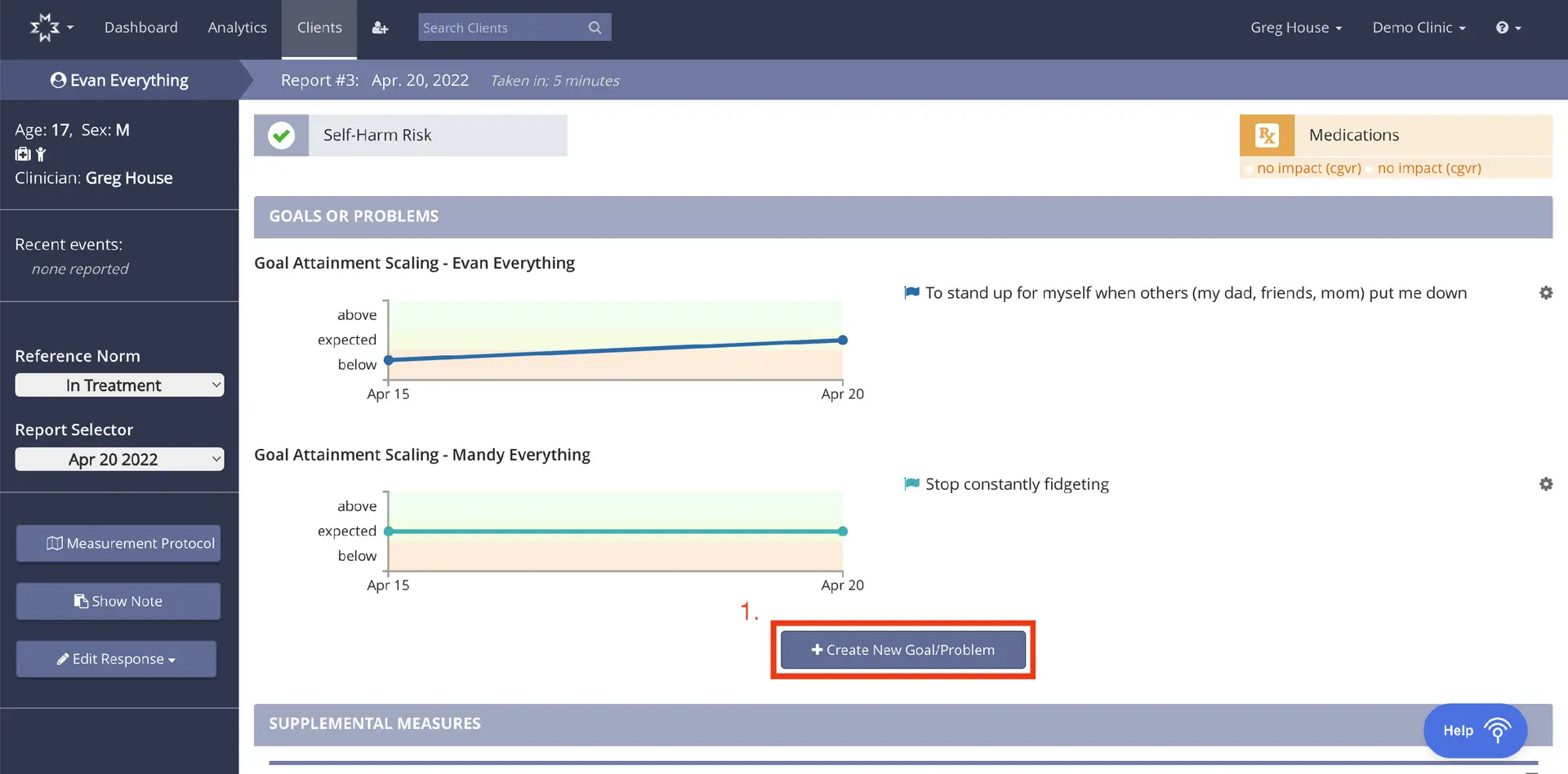
The screenshot displays the 'Goals or Problems' section of the Mirah Measurement-Based Care platform, where users can view and manage patient goals. The top navigation bar includes options for Dashboard, Analytics, Clients, and a search bar for finding clients. The page is titled 'Report #3: Apr. 20, 2022' with a note indicating the report was taken in 5 minutes. The left sidebar provides patient details such as name, age, sex, clinician, recent events, reference norm, and report selector. The main content area shows two goal attainment scaling graphs for Evan Everything and Mandy Everything, with respective goals listed next to each graph. The 'Create New Goal/Problem' button is located at the bottom right of the 'Goals or Problems' section, allowing users to add new goals or problems for the patient. The 'Medications' section is visible at the top right, indicating no impact. Supplemental measures are mentioned below the goals section.

2). Direct your attention to the "Respondent" section.
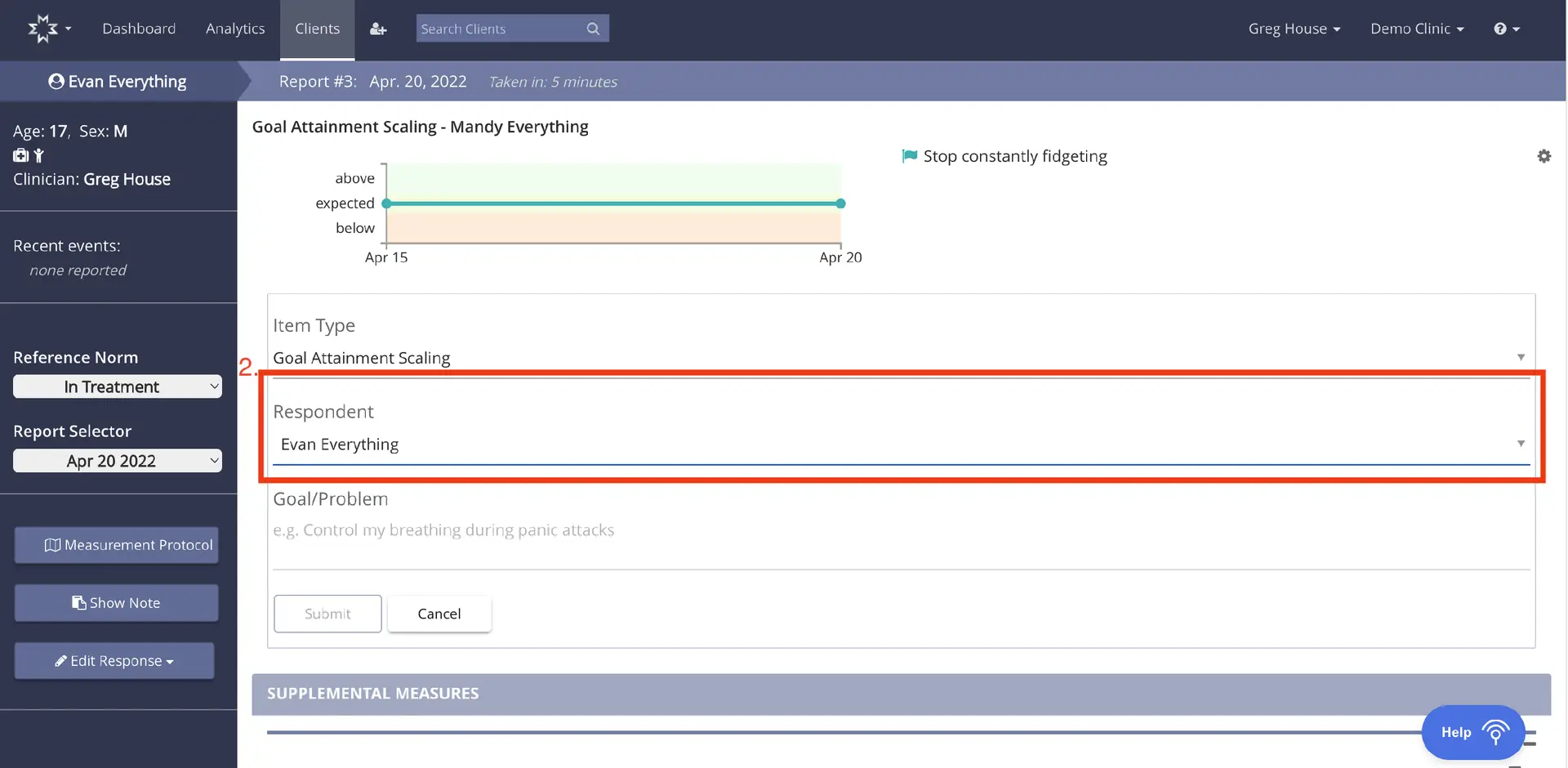
The screenshot displays the Goal Attainment Scaling interface for a patient named Evan Everything, under the care of clinician Greg House at Demo Clinic. The top navigation bar includes options for Dashboard, Analytics, Clients, and a search field for clients. The breadcrumb trail shows the path: Evan Everything > Report #3: Apr. 20, 2022. The main section features a graph illustrating goal attainment over time, with a flag indicating the goal 'Stop constantly fidgeting.' Below the graph, there are fields for Item Type, Respondent, and Goal/Problem, with the Item Type set to 'Goal Attainment Scaling' and the Respondent as 'Evan Everything.' The Goal/Problem field is empty, with a placeholder text suggesting 'e.g. Control my breathing during panic attacks.' To the left, there are options for Reference Norm set to 'In Treatment' and Report Selector set to 'Apr 20 2022.' Below these fields are buttons labeled 'Measurement Protocol,' 'Show Note,' and 'Edit Response,' with 'Edit Response' having a dropdown arrow. At the bottom, there are 'Submit' and 'Cancel' buttons for form submission, and a section labeled 'Supplemental Measures.' The Help button is located at the bottom right corner.

3). Click on the caregiver from the drop down.
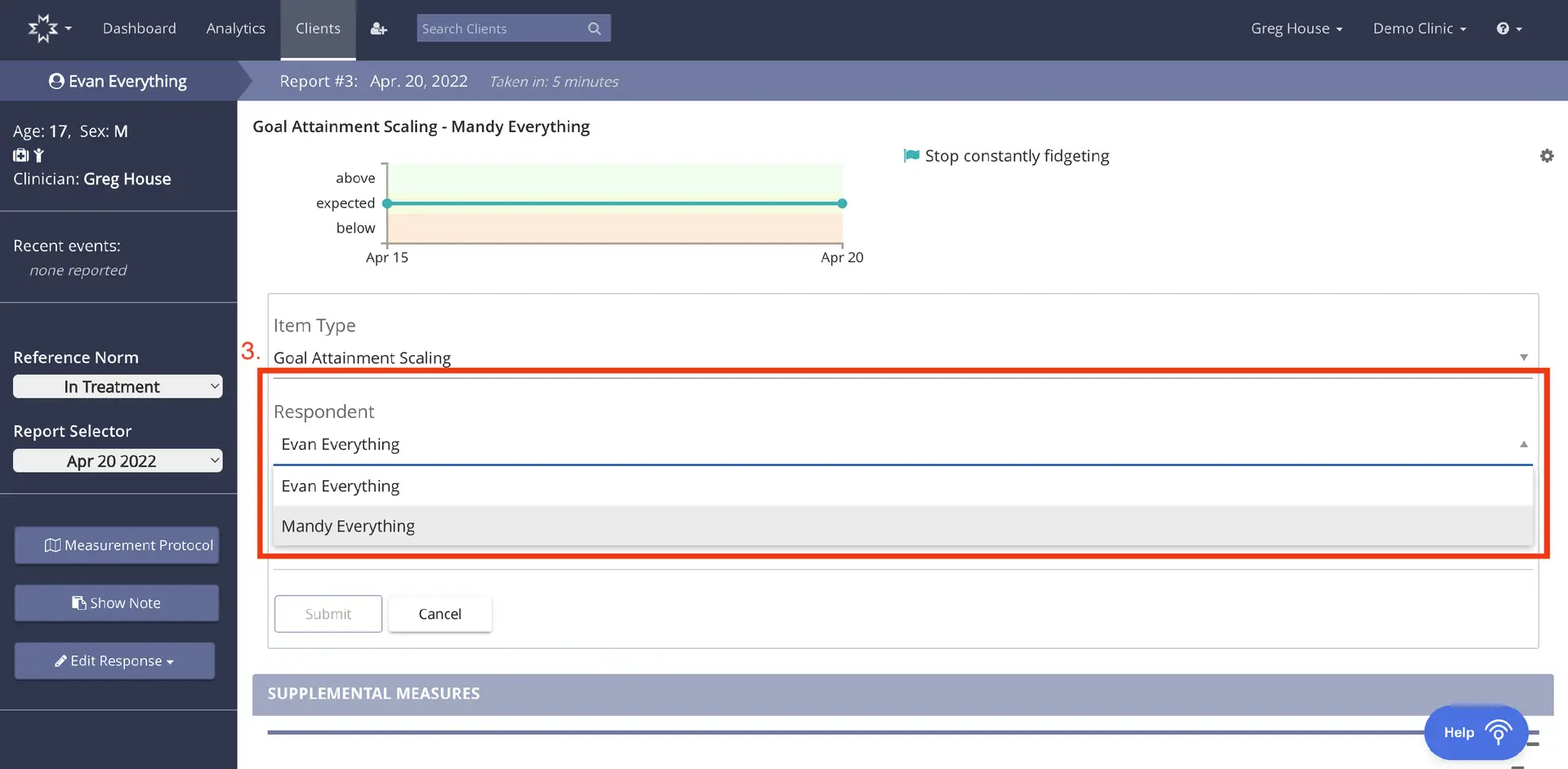
The screenshot displays the 'Goal Attainment Scaling' interface for a patient named Evan Everything, within the Mirah Measurement-Based Care platform. The top navigation bar includes options for Dashboard, Analytics, and Clients, with a search bar for finding clients. The breadcrumb trail shows the path: Evan Everything > Report #3: Apr. 20, 2022. The main section features a graph illustrating goal attainment over time, with a specific goal labeled 'Stop constantly fidgeting.' Below the graph, there is a form with a dropdown menu labeled 'Item Type' set to 'Goal Attainment Scaling' and another dropdown labeled 'Respondent' with options for 'Evan Everything' and 'Mandy Everything.' The form includes 'Submit' and 'Cancel' buttons at the bottom. On the left sidebar, patient details such as age, sex, and clinician are displayed, along with options for 'Reference Norm,' 'Report Selector,' 'Measurement Protocol,' 'Show Note,' and 'Edit Response.' The bottom right corner has a 'Help' button.

4). Input the goal/problem into the allotted text box.
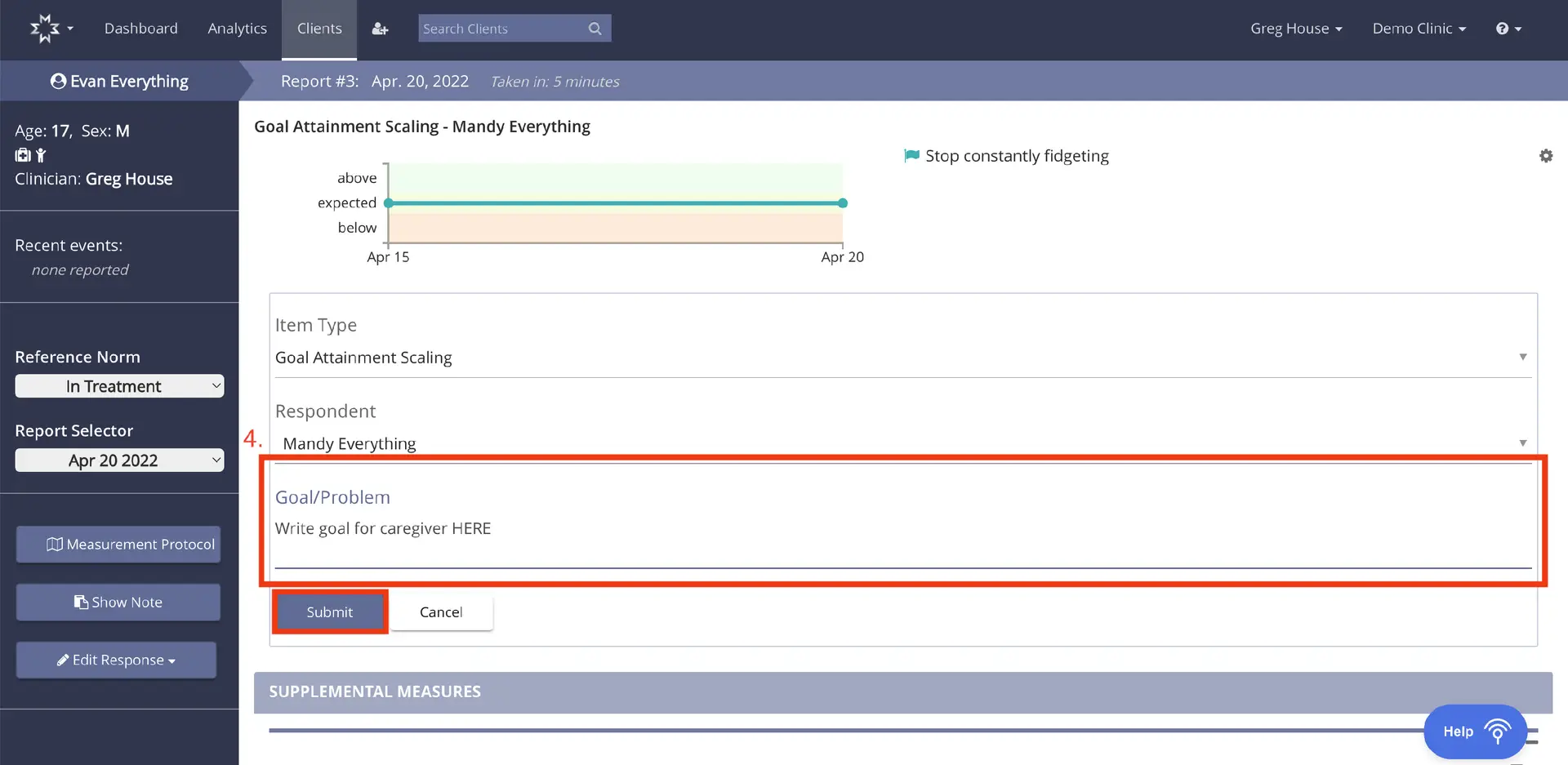
The screenshot displays the 'Goal Attainment Scaling' interface for a patient named Evan Everything, under the care of clinician Greg House at Demo Clinic. The screen is part of the 'Measurement-Based Care' feature, allowing users to add a goal for a caregiver. At the top, there is a breadcrumb navigation indicating the path: Dashboard > Analytics > Clients > Evan Everything. The main section shows a graph with a timeline from April 15 to April 20, indicating the progress of a goal labeled 'Stop constantly fidgeting.' Below the graph, fields are provided for 'Item Type' and 'Respondent,' both set to 'Goal Attainment Scaling' and 'Mandy Everything,' respectively. A text box labeled 'Goal/Problem' prompts users to write a goal for the caregiver. At the bottom, there are two buttons: 'Submit' and 'Cancel,' located side by side, allowing users to either save or discard the entered goal. On the left sidebar, there are options for 'Reference Norm,' 'Report Selector,' 'Measurement Protocol,' 'Show Note,' and 'Edit Response.' The 'Help' button is located at the bottom right corner.

5. The goal is now listed for the caregiver.
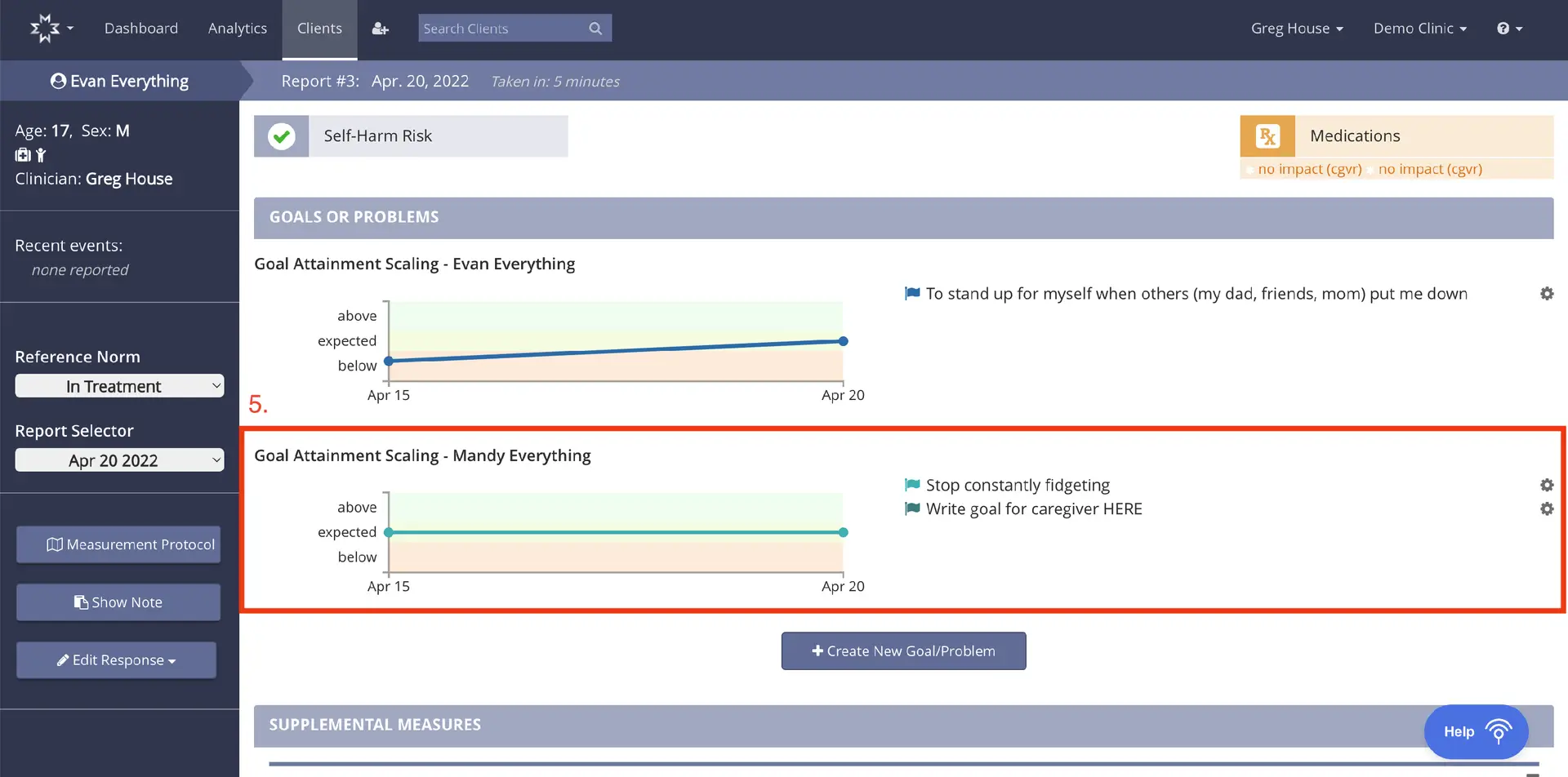
The screenshot displays the 'Clients' section of the Mirah Measurement-Based Care platform, focusing on the 'Goals or Problems' area for a patient named Evan Everything. The top navigation bar includes options for Dashboard, Analytics, and Clients, with a search bar for finding clients. The breadcrumb trail shows the path as 'Evan Everything', with the report number and date 'Report #3: Apr. 20, 2022' noted. The main content area is divided into sections, with the 'Self-Harm Risk' status indicated by a green checkmark. The 'Medications' section shows no impact. The 'Goals or Problems' section includes two goal attainment scaling graphs, one for Evan Everything and another for Mandy Everything, each with a timeline from April 15 to April 20. The goals for Evan include 'To stand up for myself when others put me down', while Mandy's goals are 'Stop constantly fidgeting' and 'Write goal for caregiver HERE'. Each goal has a settings icon for adjustments. On the left sidebar, patient details such as age, sex, and clinician are listed, along with options for 'Reference Norm' and 'Report Selector'. Below these, buttons for 'Measurement Protocol', 'Show Note', and 'Edit Response' are available. A 'Create New Goal/Problem' button is located at the bottom right of the goals section.