
Viewing Measures in the Measure Library

When needed, it is possible to search all measures available to your organization in Mirah.

1). To do so, start by clicking 'Institute Name' in the top right corner of the Dashboard screen, then selecting "Measure Library"
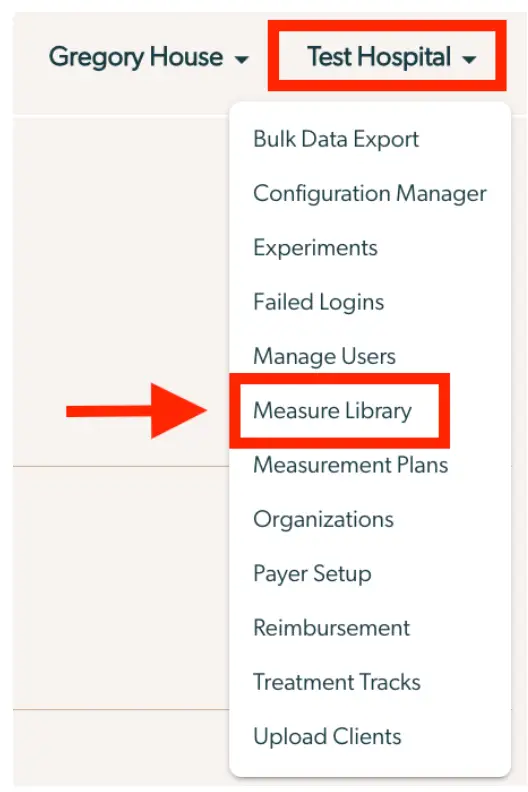
The screenshot displays a dropdown menu under the 'Test Hospital' section in the Mirah Measurement-Based Care platform. The menu provides various options for managing and configuring different aspects of the system. Options include Bulk Data Export, Configuration Manager, Experiments, Failed Logins, Manage Users, Measure Library, Measurement Plans, Organizations, Payer Setup, Reimbursement, Treatment Tracks, and Upload Clients. The 'Measure Library' option is highlighted, indicating it is the selected feature for viewing measures in the Measure Library. This menu is part of the user interface for managing advanced measures and other administrative tasks within the platform.

2). On the next page, you can utilize the search engine to find measures.
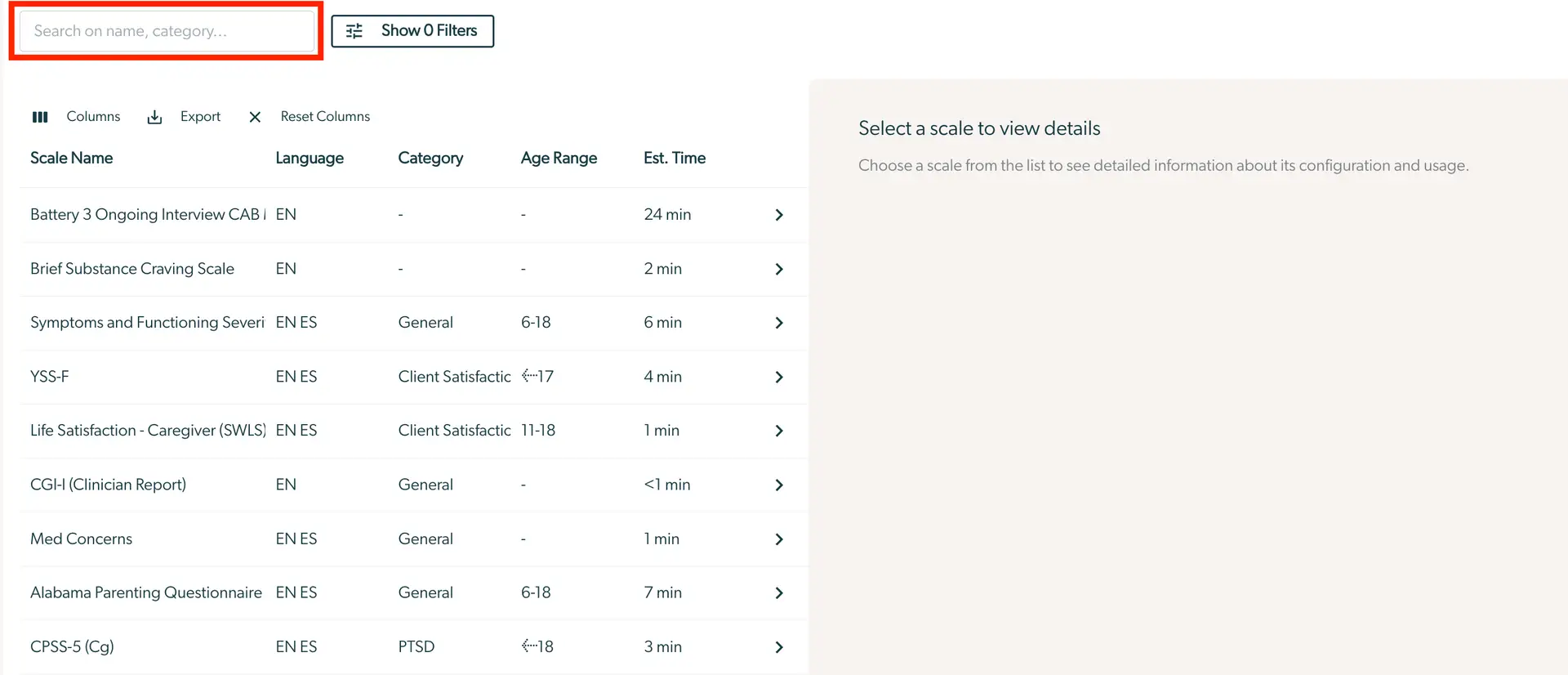
The screenshot displays the Measure Library interface of Mirah Measurement-Based Care, where users can view and manage various scales. At the top left, there is a search bar labeled 'Search on name, category...' for filtering scales by name or category. Next to it, a button labeled 'Show 0 Filters' allows users to apply additional filters. Below, a table lists scales with columns for Scale Name, Language, Category, Age Range, and Estimated Time. Each row represents a different scale, such as 'Battery 3 Ongoing Interview CAB' and 'Brief Substance Craving Scale,' with details like language options (EN, ES), category, age range, and estimated completion time. On the right, a panel prompts users to 'Select a scale to view details,' indicating that selecting a scale will provide more information about its configuration and usage.

3). To view measure details, simply select the arrow to the right of the scale name.

The screenshot displays a section from the Measure Library in the Mirah Measurement-Based Care platform, specifically focusing on advanced measures use. It shows a measure titled 'Battery 3 Ongoing Interview CAB | EN' with a duration of 24 minutes. There are two placeholder dashes indicating missing or unspecified data points. On the right side, there is a right-facing arrow button outlined in red, which likely serves as a navigation or selection tool to view more details about the measure.

4). In this view, there is a summary of the measure, administration details, and clinical details. Additionally, users can the ability to (1) preview measures or (2) download a PDF of the scale.
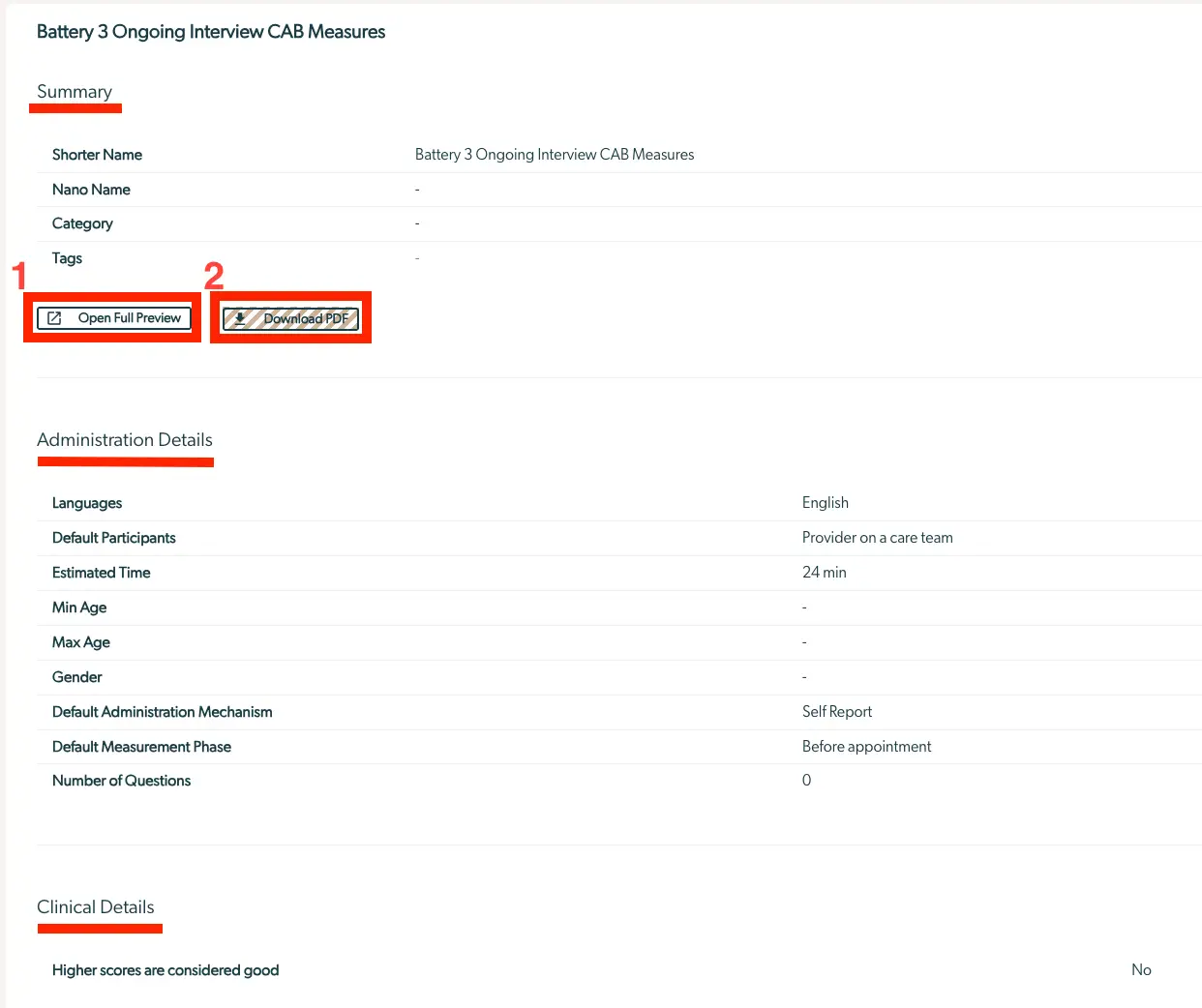
The screenshot displays the 'Battery 3 Ongoing Interview CAB Measures' page within the Measure Library of Mirah Measurement-Based Care. At the top, under 'Summary,' it lists details such as 'Shorter Name' with the value 'Battery 3 Ongoing Interview CAB Measures,' 'Nano Name,' 'Category,' and 'Tags,' all of which are currently empty. Below the summary, there are two buttons: 'Open Full Preview' on the left and 'Download PDF' on the right. The 'Administration Details' section provides information on 'Languages' set to English, 'Default Participants' as 'Provider on a care team,' 'Estimated Time' of 24 minutes, and other fields like 'Min Age,' 'Max Age,' 'Gender,' 'Default Administration Mechanism' set to 'Self Report,' 'Default Measurement Phase' as 'Before appointment,' and 'Number of Questions' which is 0. The 'Clinical Details' section notes that 'Higher scores are considered good.'

Previewing measures that patients see​

You may want to see what individual patients experience when taking a measure included in their measures protocol.

1). To do this, click on the individual measure in either an upcoming appointment or past appointment on the patient's Details page.

The screenshot displays the profile page of a patient named James Gray within the Mirah Measurement-Based Care platform. The page is divided into sections. On the left, there are several buttons for actions related to the patient's care: 'Report', '[BETA] New Report', '[INTERNAL] Old Report', 'Measurement Protocol', 'Schedule Session', 'Edit Demographics', and 'Disable Notifications'. These buttons are used to generate reports, manage measurement protocols, schedule sessions, edit patient demographics, and manage notifications. The main section on the right provides detailed information about James Gray, including full legal name, preferred name, preferred pronouns, flags, date of birth, sex, gender identity, ID number, email, phone number, last four digits of SSN, related people, care team, and care units. There are options to 'edit' certain fields and to 'Add a related person' or 'Edit related people'. Below this, the 'Past Sessions' section lists a session on June 28th at 8:15 pm with Dr. Hugh Barrigan MD, marked as 'Response Complete'. Tags such as 'Other Concerns', 'CAMS', 'GAD-7', and 'Events' are associated with this session, and there are buttons for 'Report', 'Details', and 'Edit'. The 'Upcoming Sessions' section is empty, indicating no records to show.

2). Then, you can preview the measure and generally learn more about its purpose, length, available languages, etc.

The screenshot displays the Mirah Measurement-Based Care interface, specifically focusing on a client's profile and a measure from the Measure Library. On the left, the client's profile for James Gray is shown, including details such as full legal name, preferred name, preferred pronouns, flags with an edit option, date of birth, sex, gender identity, ID number, email, phone number, last four digits of SSN, related people with options to add a relation, care team with an option to edit, and care units. There are several buttons for actions: 'Report', '[BETA] New Report', '[INTERNAL] Old Report', 'Measurement Protocol', 'Schedule Session', and 'Edit Demographics'. On the right, a detailed view of the Generalized Anxiety Disorder (GAD-7) measure is presented, which measures DSM-IV symptoms of generalized anxiety disorder. It includes information such as estimated time of 1 minute, category as Anxiety, applicable age of 12+, participants as Client, and tags like Outpatient, Inpatient, Intake, and Screener. The admin interval is indicated by flags for English and Spanish languages. There are two buttons at the bottom: 'Downloadable Guide' and 'Preview', both located at the bottom right corner. The 'Close' button is at the top right corner of the measure details section.