Completing a Provider-Administered Measure with a Patient
Some measures should be completed in-session by the provider with the patient's guidance. These measures need to be part of the measurement protocol for a patient prior to the session. You can do this by amending their measurement protocol, if you organization allows it, or the occurrence of this measure could already by automated by factors sent from the electronic health records (EHR) system of your organization, if your EHR is integrated with Mirah.
To add provider-administered measures if you don't have the ability to edit measurement protocols, please ask your Mirah trainer or unit supervisor for more details. For now, we will detail how to fill these measures out once they are added to the patient's measurement protocol.
1). To complete in-session measures, first find the Detail page of the patient in the session through the Dashboard or Patients tab.
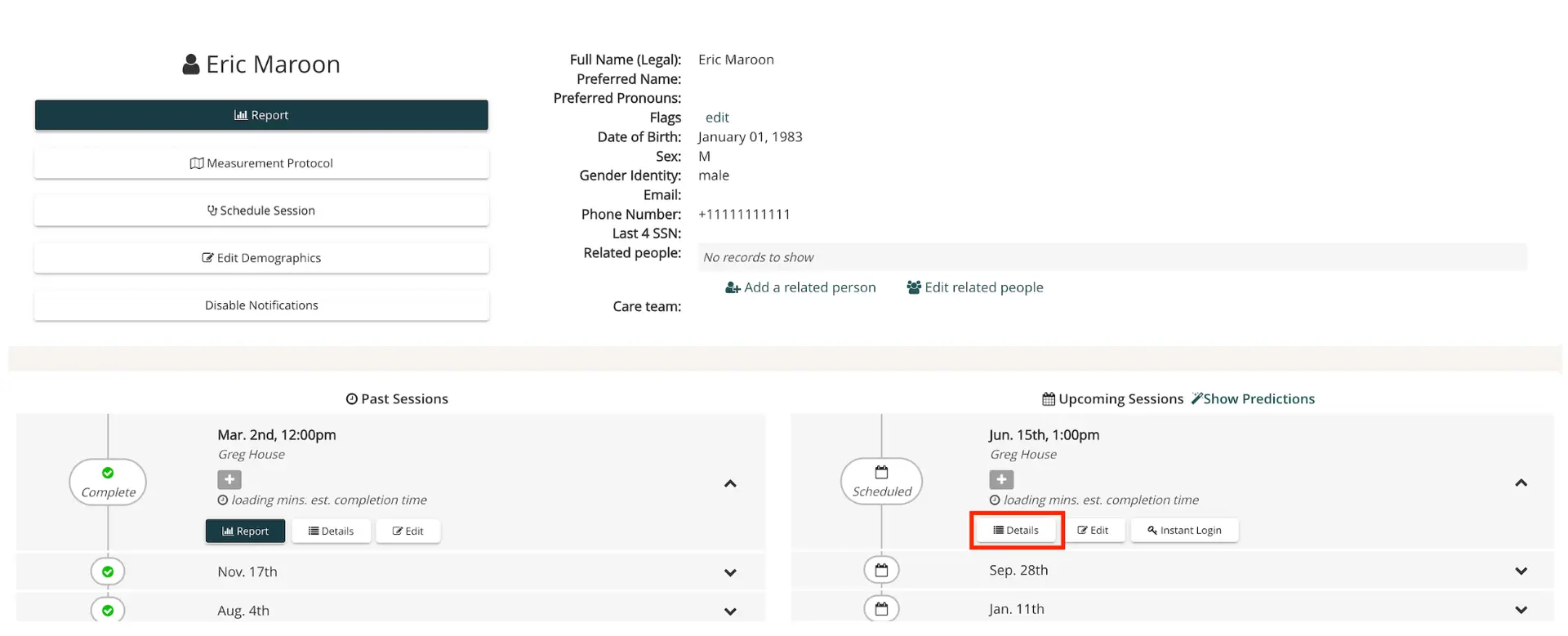
2). Next, click on the "Details" button for the desired session.
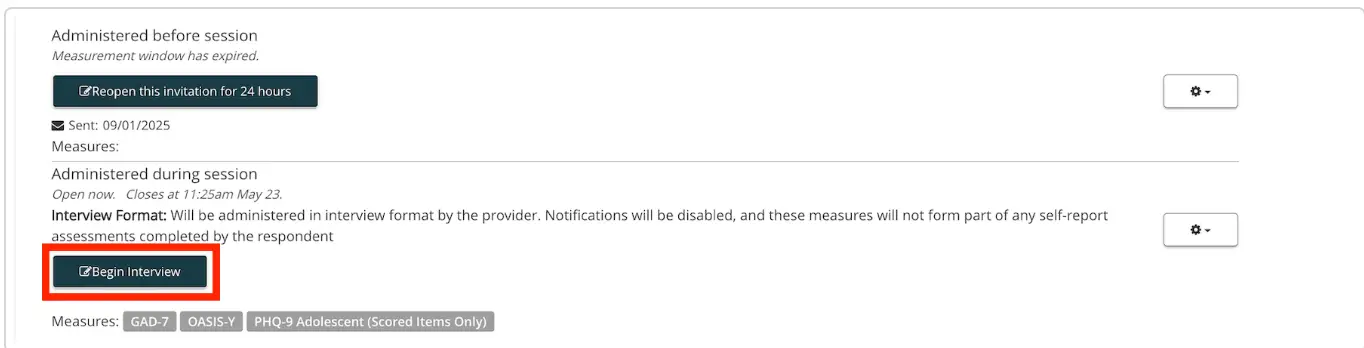
3). Click the "Begin Interview," and fill out the prompts together with the patient.
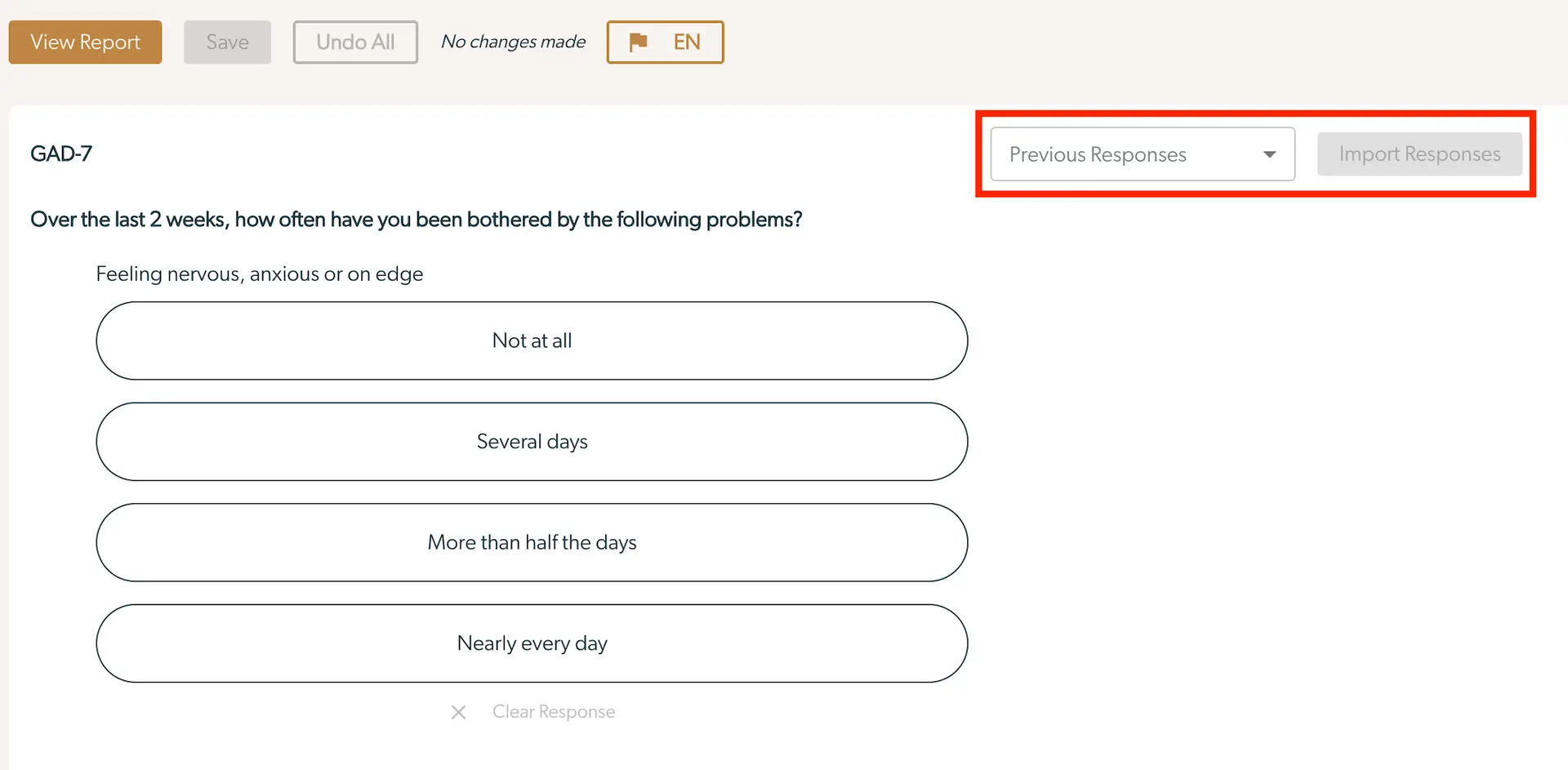
4). When you are completing the measure as a provider, you can load previous responses by clicking the "Previous Invitations" dropdown and select a date. Once you have selected a date, click the "Import Responses" button. This will populate the responses from the previous session.
Importing Responses from a previous administration of a measure is particularly useful for longer clinician-administered measures. This functionality allows the clinician to compare previous responses with current reported symptoms to facilitate a more comprehensive longitudinal assessment of the patient.
All previous administrations will appear in the dropdown by date, but you will only be able to select dates where that particular measure has results from the same respondent.
4). If an answer has been selected, and you would like to remove the answer, click "Clear Response" at the bottom of the question. This is available for almost all question types. Checkboxes can be de-selected on the checkbox.
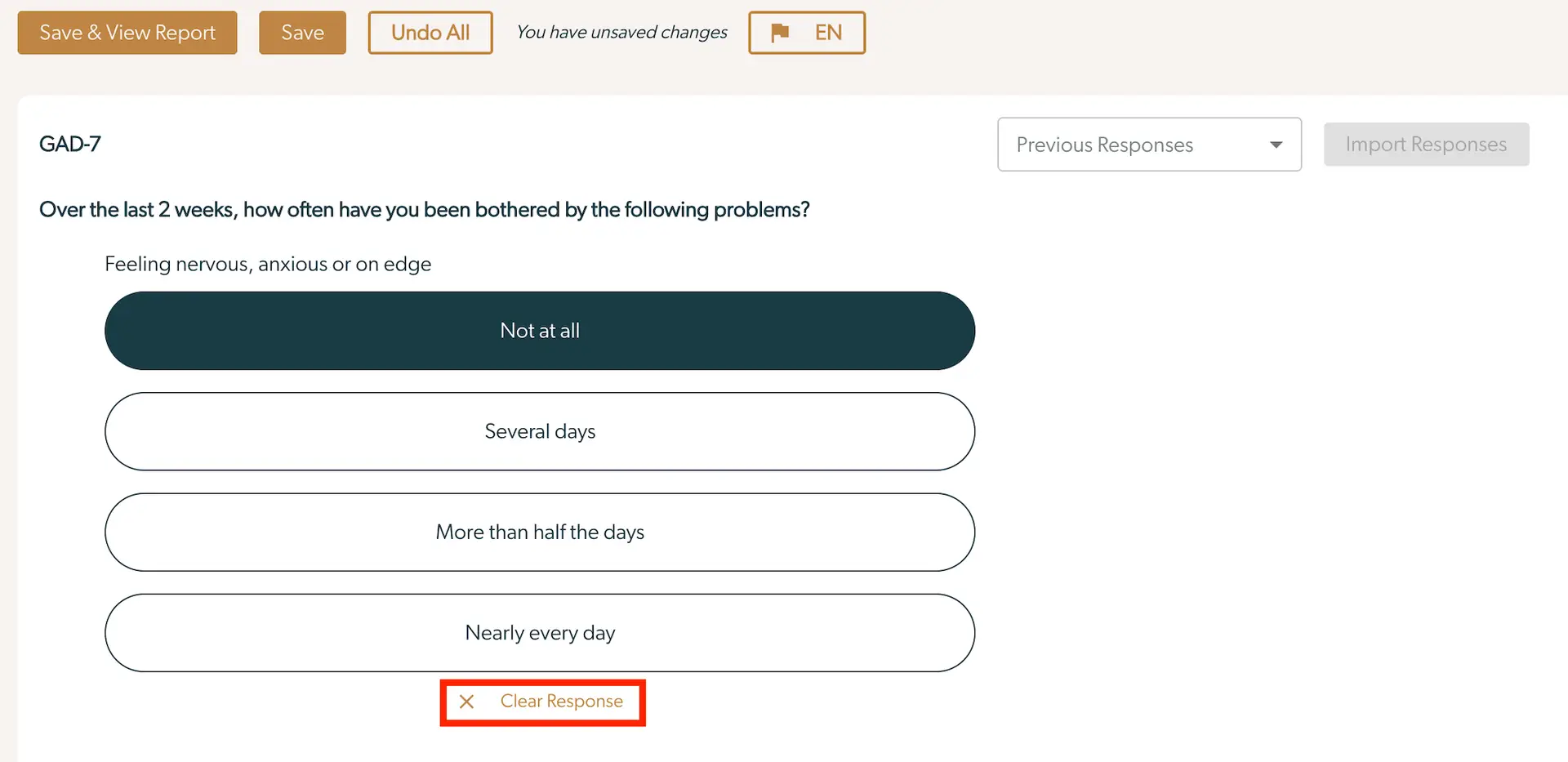
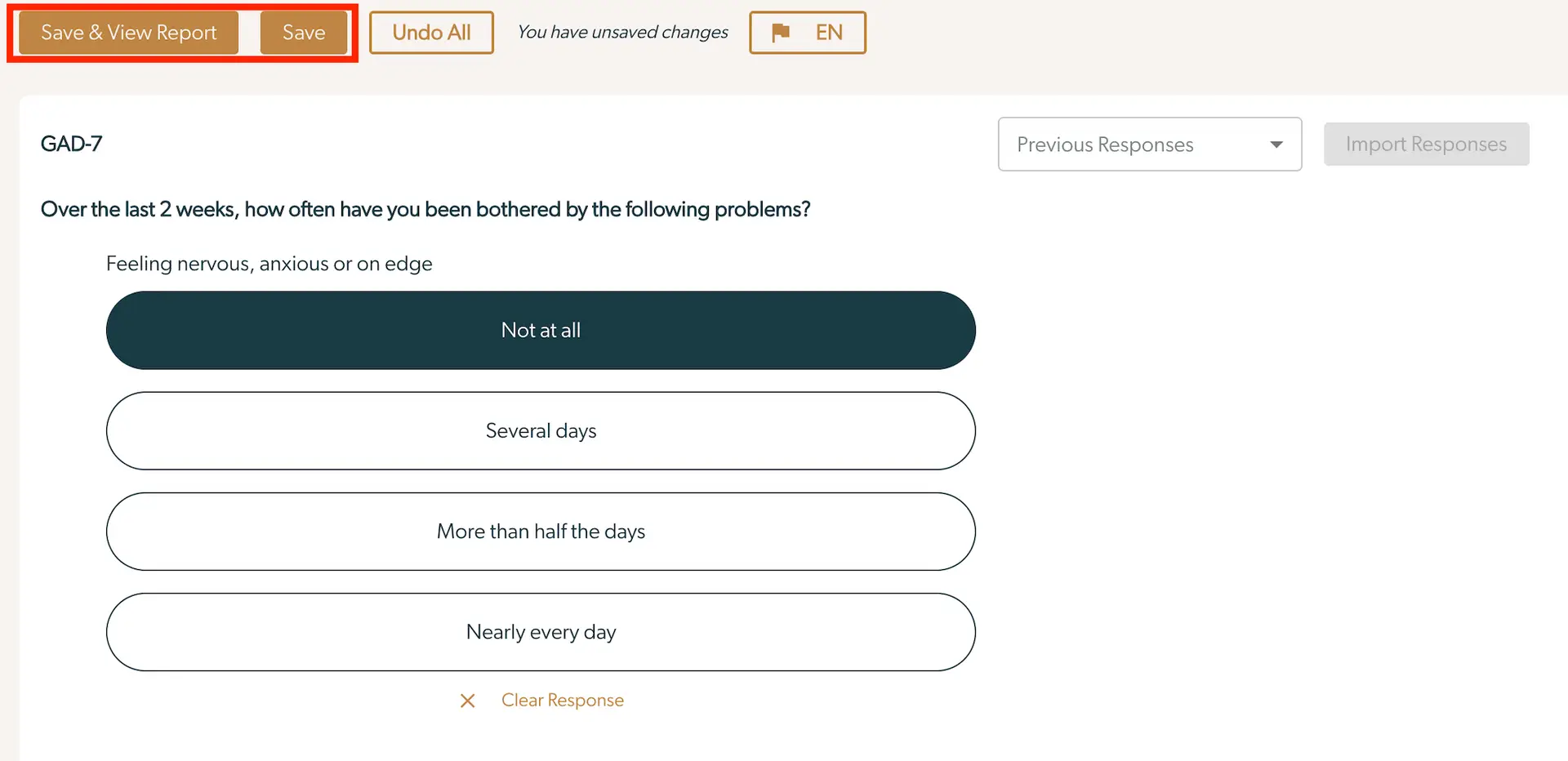
5). Once you have completed the measurement, press "Save" or "Save & View Report" at the top of the page.