Measurement Protocol Tool

The Measurement Protocol Tool is a feature of Mirah that enables user to see an overview of an individual patient's treatment services and edit the plan if necessary.

Follow these steps to access the tool and gain knowledge about its properties:

1). Go to the desired patient's Detail page by clicking on their hyperlinked name via the Dashboard or Patient's tab.

The screenshot displays a section of the Measurement Protocol Tool within the Mirah Measurement-Based Care platform. It shows a row of patient information including an hourglass icon, the patient's name 'Brave, Emily' highlighted in a red box, the date of birth '01/01/1991', and the gender 'F'. On the far right, there is an icon resembling a bar chart, which likely serves as a button to access detailed measurement data or analytics for the patient. This interface is part of the Advanced Measures Use feature, facilitating the tracking and analysis of patient data.

2). From their Detail page, select any past or upcoming appointment.
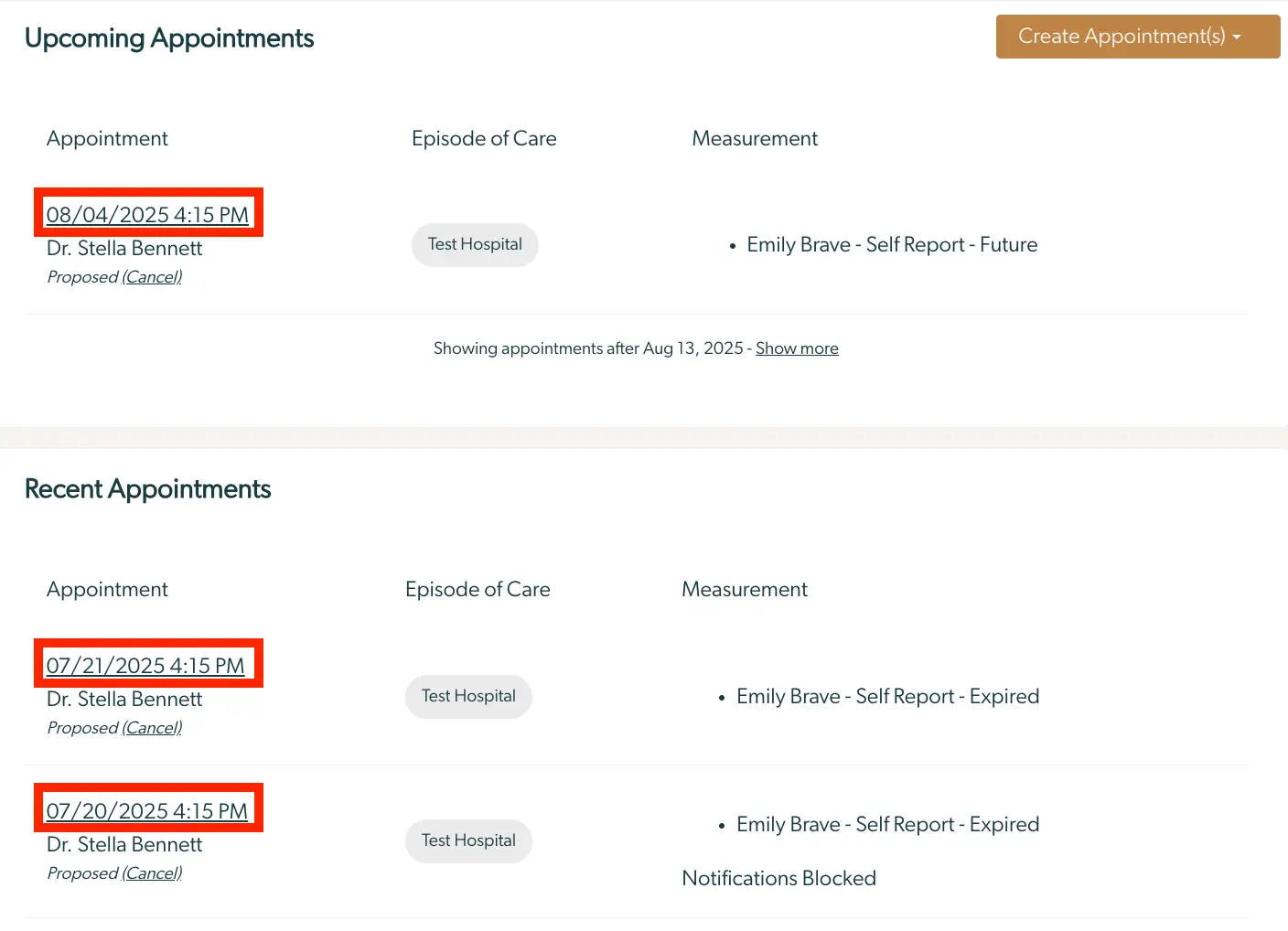
The screenshot displays a section of the Mirah Measurement-Based Care interface, focusing on appointment management. The screen is divided into two sections: Upcoming Appointments and Recent Appointments. Each section lists appointments with details such as date and time, the name of the doctor, the episode of care location, and the measurement status. Upcoming Appointments show a future appointment on August 4, 2025, at 4:15 PM with Dr. Stella Bennett at Test Hospital, with the measurement status 'Emily Brave - Self Report - Future'. Recent Appointments list past appointments on July 21, 2025, and July 20, 2025, both at 4:15 PM with Dr. Stella Bennett at Test Hospital, with the measurement status 'Emily Brave - Self Report - Expired'. The 'Create Appointment(s)' button is located at the top right corner, allowing users to schedule new appointments. The 'Cancel' link is available next to each appointment for users to cancel if needed. The 'Show more' link at the bottom of the Upcoming Appointments section allows users to view additional appointments beyond August 13, 2025.

3). First select "Measurement Plan Selection," which will reveal more information below. From there, click on "See detailed measurement planning".
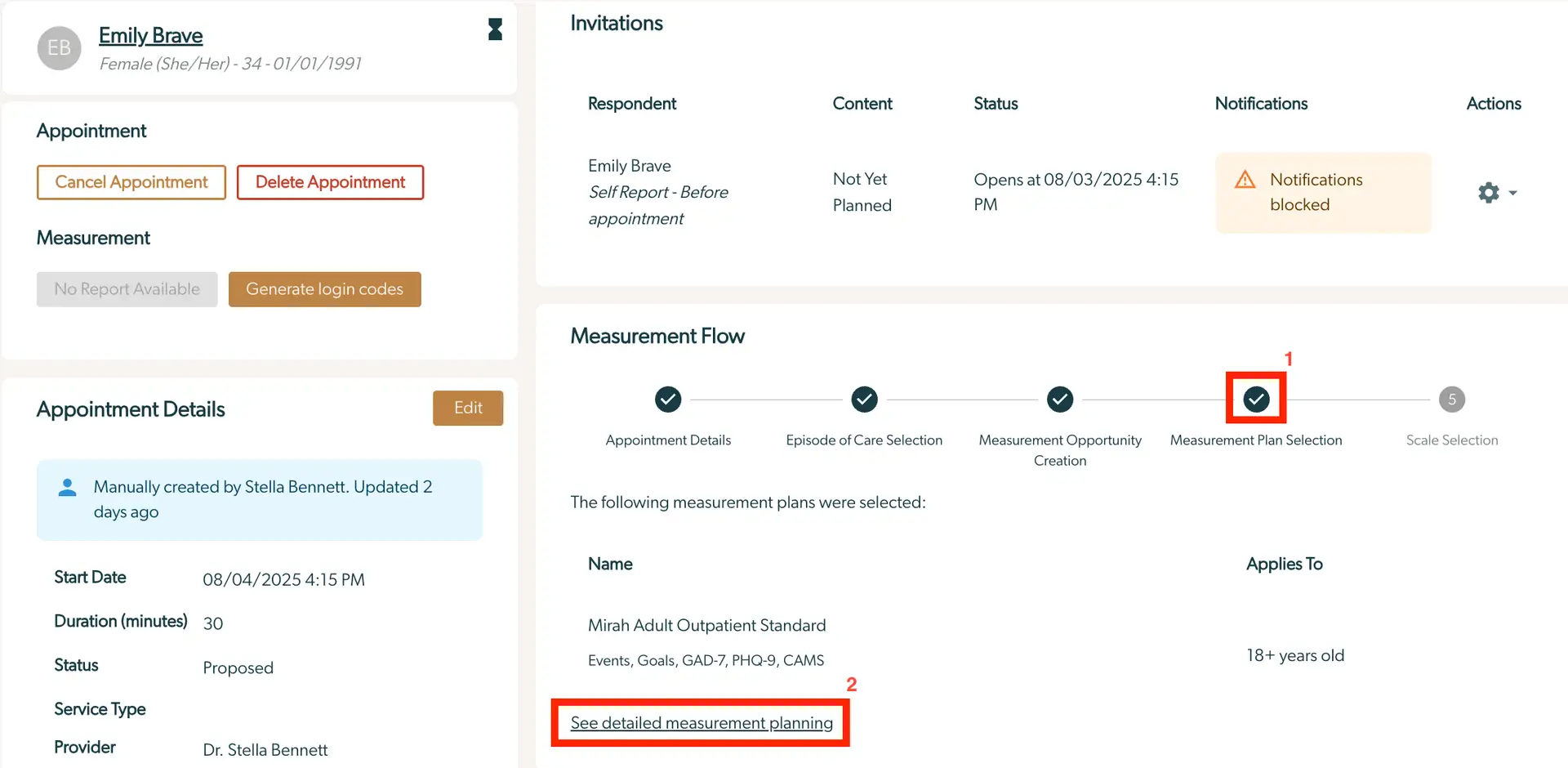
The screenshot displays the Measurement Protocol Tool interface for Mirah Measurement-Based Care. At the top left, the user's profile is shown with the name Emily Brave, gender, age, and birth date. Below, the Appointment section includes buttons for 'Cancel Appointment' and 'Delete Appointment' in red, and a 'Generate login codes' button in gold, indicating actions related to the user's appointment management. The Measurement section shows 'No Report Available'. The Appointment Details section provides information about the appointment, including the start date, duration, status, service type, and provider, with an 'Edit' button in gold for modifying these details. On the right, the Invitations section lists the respondent, content, and status of the invitation, with a notification indicating 'Notifications blocked'. The Measurement Flow section outlines the steps in the measurement process, with the current step 'Measurement Plan Selection' highlighted. Below, the selected measurement plan is detailed, including the name 'Mirah Adult Outpatient Standard' and applicable events and goals. A link labeled 'See detailed measurement planning' is provided for further information.

4). This will bring you to the patient's individualized measurement protocol. This page serves many functions and allows users to:

  • (1) Add single measures
  • (2) Remove single measures
  • (3) View patient report
  • (4) Review patient protocol
  • (5) See upcoming sessions
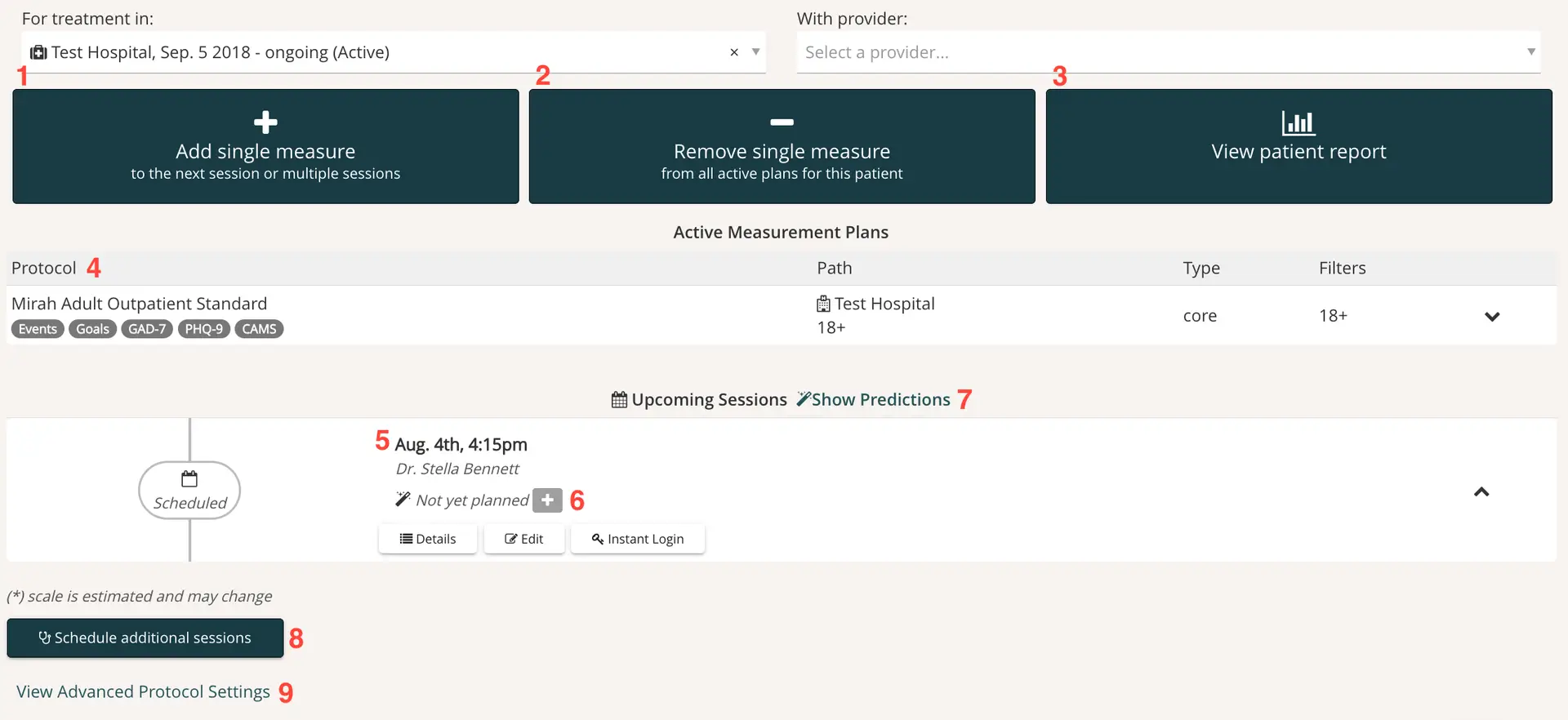
  • (6) Add measures to upcoming sessions The screenshot displays a section of the Mirah Measurement-Based Care interface, specifically within the Measurement Protocol Tool. It shows a scheduled appointment for August 4th at 4:15 PM with Dr. Stella Bennett. The status indicates 'Not yet planned' with an icon of a pencil and sparkles. There is a prominent plus button located next to this status, which likely allows the user to add or plan further details for the appointment. Below this, there are three buttons: 'Details', 'Edit', and 'Instant Login', each providing different functionalities. The 'Details' button allows users to view more information about the appointment, the 'Edit' button enables modifications, and the 'Instant Login' button facilitates quick access to the session. These buttons are aligned horizontally beneath the appointment details.
  • (7) Show predictions for recommended measures
    • To utilize this function, simply press "Show Predictions" and the phrase "Not Planned Yet" will turn into recommended measurements for the upcoming session. These measures are marked with an asterisk (*) for identification. The screenshot displays a section of the Mirah Measurement-Based Care interface, specifically focusing on the scheduling and prediction features. At the top, there is a navigation bar with 'Upcoming Sessions' and a 'Show Predictions' link on the right, which likely allows users to view predictive analytics related to upcoming sessions. Below, there is a scheduled session for August 4th at 4:15 pm with Dr. Stella Bennett. The session status is marked as 'Not yet planned' with an icon and a plus sign, indicating that further planning or actions are needed. Below the session details, there are three buttons: 'Details' for viewing more information about the session, 'Edit' for modifying session details, and 'Instant Login' for quick access, all located at the bottom of the session information.The screenshot displays a section of the Mirah Measurement-Based Care interface, specifically focusing on an upcoming session scheduled for August 4th at 4:15 pm with Dr. Stella Bennett. The session is marked as 'Not yet planned,' indicating that further details or actions may be required. Below the session details, there are four labeled buttons: 'Events,' 'Goals,' 'CAMS,' and 'PHQ-9,' each followed by an asterisk, suggesting they are important or required actions. These buttons are likely used to manage or input specific data related to the session. To the right of these buttons is a plus icon, which may be used to add additional items or actions. Below these options, there are three buttons: 'Details,' 'Edit,' and 'Instant Login,' which provide further interaction options for the user. The 'Details' button is likely used to view more information about the session, the 'Edit' button allows modifications, and the 'Instant Login' button provides quick access to the session. The 'Details' and 'Edit' buttons are located on the left, while the 'Instant Login' button is on the right.

  • (8) Schedule additional sessions
  • (9) View Advanced Protocol Settings The screenshot displays the Measurement Protocol Tool interface for Mirah Measurement-Based Care. At the top, there is a section indicating the treatment location, 'Test Hospital, Sep. 5 2018 - ongoing (Active)', with a dropdown menu to select a provider. Below are three prominent buttons: 'Add single measure' to add a measure to the next session or multiple sessions, 'Remove single measure' to remove a measure from all active plans for the patient, and 'View patient report' to access the patient's report. The 'Active Measurement Plans' section lists the protocol 'Mirah Adult Outpatient Standard' with associated tags like Events, Goals, GAD-7, PHQ-9, and CAMS. The path is 'Test Hospital' for patients aged 18 and above, with a filter for 'core' type. The upcoming session is scheduled for Aug. 4th, 4:15 pm with Dr. Stella Bennett, marked as 'Not yet planned'. There are buttons for 'Details', 'Edit', and 'Instant Login'. Below, there is an option to 'Schedule additional sessions' and 'View Advanced Protocol Settings'. The 'Show Predictions' link is available for upcoming sessions.

Advanced Protocol Settings​

This page has many features and helps users adjust protocols. "Replace core plan" and "Add a compliance or supplemental plan" are two important components in the Advanced Protocol Settings.
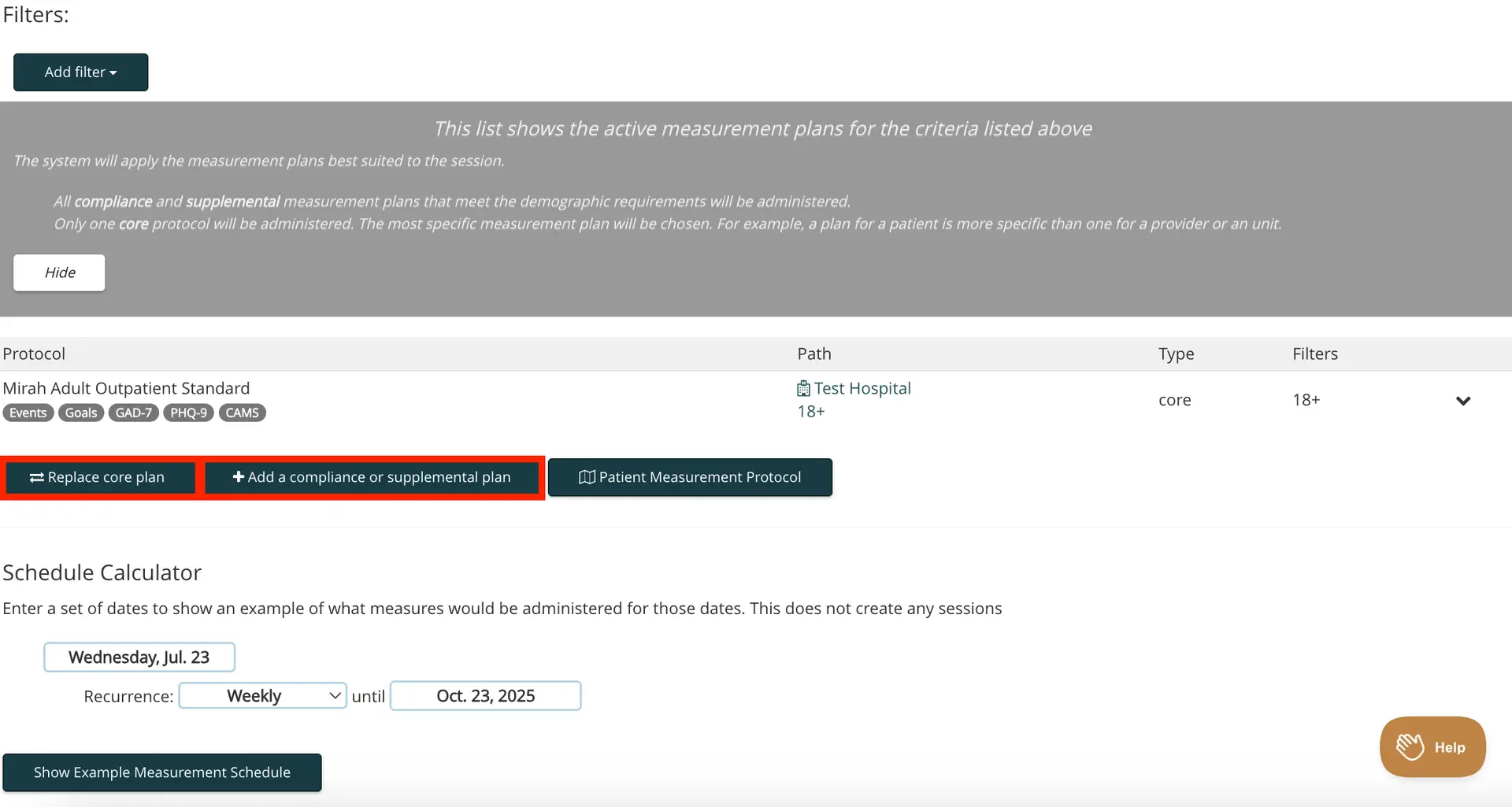
The screenshot displays the Measurement Protocol Tool interface within the Mirah Measurement-Based Care product. At the top, there is a 'Filters' section with an 'Add filter' button, allowing users to customize the measurement plans based on specific criteria. Below this, a grey informational box explains that the system will apply the most suitable measurement plans for the session, highlighting the difference between compliance, supplemental, and core protocols. The 'Hide' button is located within this box to collapse the information. The 'Protocol' section lists the 'Mirah Adult Outpatient Standard' with associated tags like Events, Goals, GAD-7, PHQ-9, and CAMS, indicating the types of measures included. The 'Path' column shows 'Test Hospital' and '18+' as the demographic filter. Below the protocol details, there are three buttons: 'Replace core plan' and 'Add a compliance or supplemental plan' in red, and 'Patient Measurement Protocol' in dark green, all located centrally. The 'Schedule Calculator' section allows users to enter a start date, recurrence frequency, and end date to simulate a measurement schedule without creating sessions. The start date is set to 'Wednesday, Jul. 23', recurrence is 'Weekly', and the end date is 'Oct. 23, 2025'. A 'Show Example Measurement Schedule' button is available to generate the schedule. A 'Help' button is located at the bottom right corner for user assistance.

Replace Core Plan: This function allows users to create a new primary treatment plan for a given patient.

Add Supplemental Plan: An option to add measures to the core plan that addresses specific needs that go beyond standard protocol.

Add Compliance Plan: Patient adherence plans that help patient's follow treatment protocols.

1). To create any of the three plans, five steps must be completed.
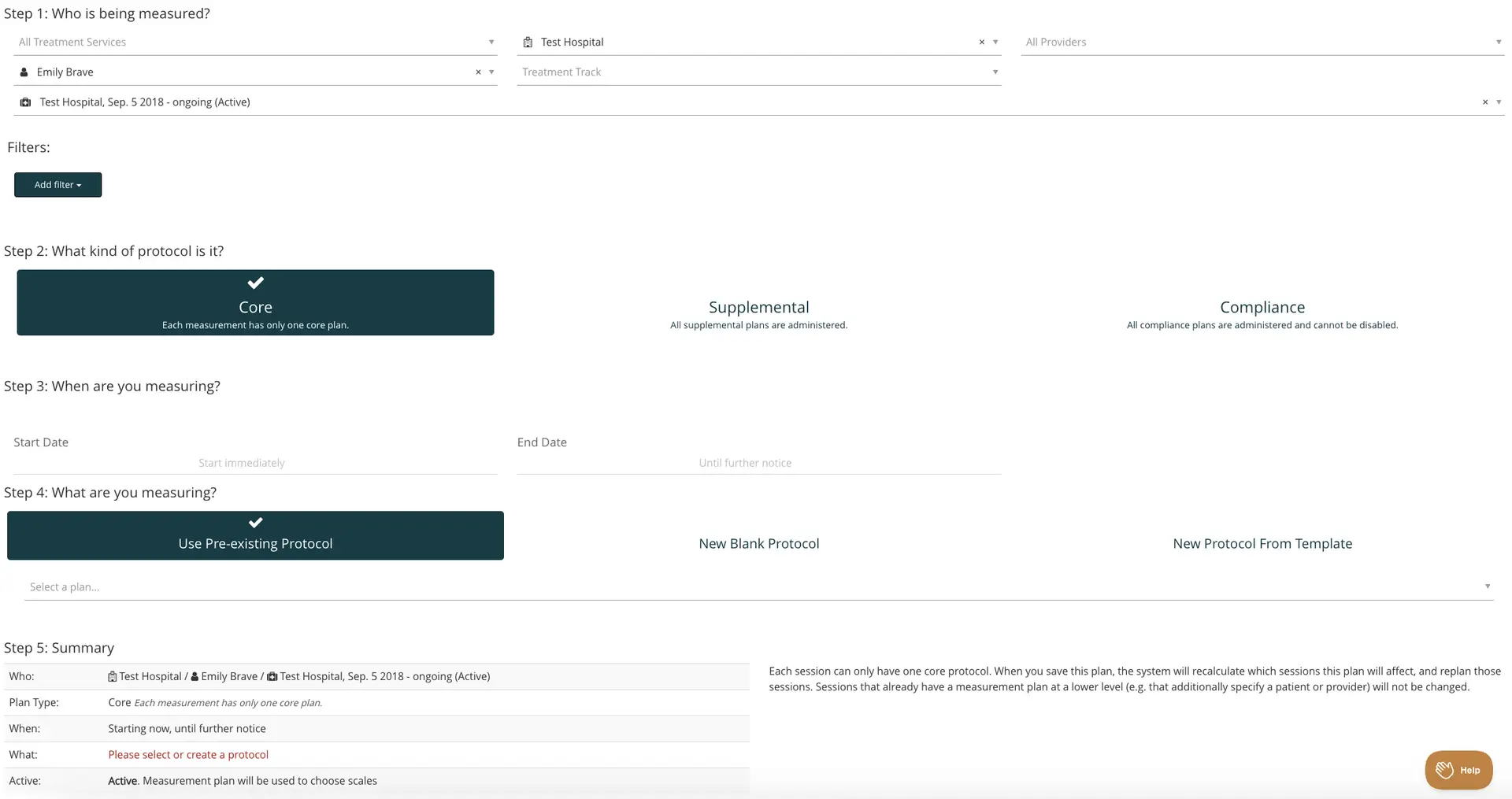
The screenshot displays the Measurement Protocol Tool interface within Mirah's Measurement-Based Care feature. The screen is divided into several steps guiding the user through the process of setting up a measurement protocol. Step 1 asks 'Who is being measured?' with dropdown menus for selecting treatment services, the patient (Emily Brave), the hospital (Test Hospital), and providers. Step 2 asks 'What kind of protocol is it?' with options for Core, Supplemental, and Compliance protocols, each with a brief description. Step 3 asks 'When are you measuring?' with fields for Start Date and End Date, indicating the measurement period. Step 4 asks 'What are you measuring?' with buttons to use a pre-existing protocol or create a new one from a blank or template. Step 5 provides a summary of the selections made, including who is being measured, the plan type, when the measurement occurs, and what is being measured, with a note on the active status of the plan. The 'Help' button is located at the bottom right corner of the screen.

2). If the Start and End Date are not filled in, the default will be set to "Start Immediately" and not end "Until Further Notice".

3). In step four, the user is instructed to add measurements to the plan either using a pre-existing protocol, a blank protocol, or a new protocol from an existing template. Within this section, there are a few important considerations.

  • When adding select scales, there are several options to take into account:
    • Frequency *If "Quarterly", the measure will be sent quarterly in accordance with the Start Date of the protocol. This screenshot displays a dropdown menu from the Measurement Protocol Tool within the Mirah Measurement-Based Care product. The menu allows users to select the frequency at which measurements are taken. The options available are Once Only, Every Session, Weekly, Every Other Session, Every 2 weeks, Monthly, Quarterly, and Custom. The option 'Every Session' is currently selected, indicated by a checkmark next to it. This menu is part of the Advanced Measures Use feature, enabling users to customize the measurement schedule according to their needs.
  • Administration Phase The screenshot displays a dropdown menu under the 'Administration phase' section of the Mirah Measurement-Based Care tool. This menu allows users to select the timing for administering a measurement scale. The options available are 'Scale default (Before session)', 'Before session', 'During session', and 'After session'. The currently selected option is 'Scale default (Before session)', indicated by a checkmark. This feature is part of the Advanced Measures Use functionality, enabling users to customize when assessments are conducted in relation to a session.
  • Administration Format The screenshot displays a dropdown menu under the 'Administration format' section of the Mirah Measurement-Based Care tool. This menu allows users to select the format in which assessments are administered. The options available are 'Scale default (Self-report format)', 'Self-report format', and 'Interview format'. The 'Scale default (Self-report format)' option is currently selected, indicating it is the default choice. This menu is part of the user interface for configuring how measurement-based care assessments are conducted, providing flexibility in choosing between self-reporting and interview methods.
  • Conditional Administration Logic and Display Order (if left blank, default is to administer lower numbers first). The screenshot displays a section of the Mirah Measurement-Based Care interface, specifically within the Measurement Protocol Tool. It features two expandable sections: 'Conditional Administration Logic' and 'Display Order'. The 'Conditional Administration Logic' section provides a note indicating that advanced configuration requires contacting support to configure. The 'Display Order' section includes a prompt for users to specify the order in which a scale should be displayed, with a suggestion to leave it blank for default settings where lower numbers are administered first. Each section has a downward-facing arrow icon on the right side, indicating that they can be expanded for more options or information.
  • After populating the information above, Step 5 will provide a holistic summary. The screenshot displays the 'Step 5: Summary' section of the Measurement Protocol Tool in Mirah's Measurement-Based Care feature. It provides a summary of a supplemental measurement plan. The 'Who' field lists the entities involved, including Test Hospital and Emily Brave, with the plan being active since September 5, 2018. The 'Plan Type' is labeled as Supplemental, indicating that all supplemental plans are administered. The 'When' field specifies that the plan starts now and continues until further notice. The 'What' field indicates the use of an Adult Protocol. The 'Active' field confirms that the measurement plan is active and will be used to choose scales. On the right, there is a note explaining that the supplemental measurement plan will be administered to anyone meeting the criteria and that saving the plan will replan affected sessions to include this plan.

4). To save the new protocol, select "Save Changes" at the bottom of the page. If the plan was "Core", the original protocol will automatically be replaced. If "Supplemental", the plan will become an option in the overall protocol. Finally, "Compliance" plans are added to the protocol and help adherence to core protocols.

Schedule Calendar​

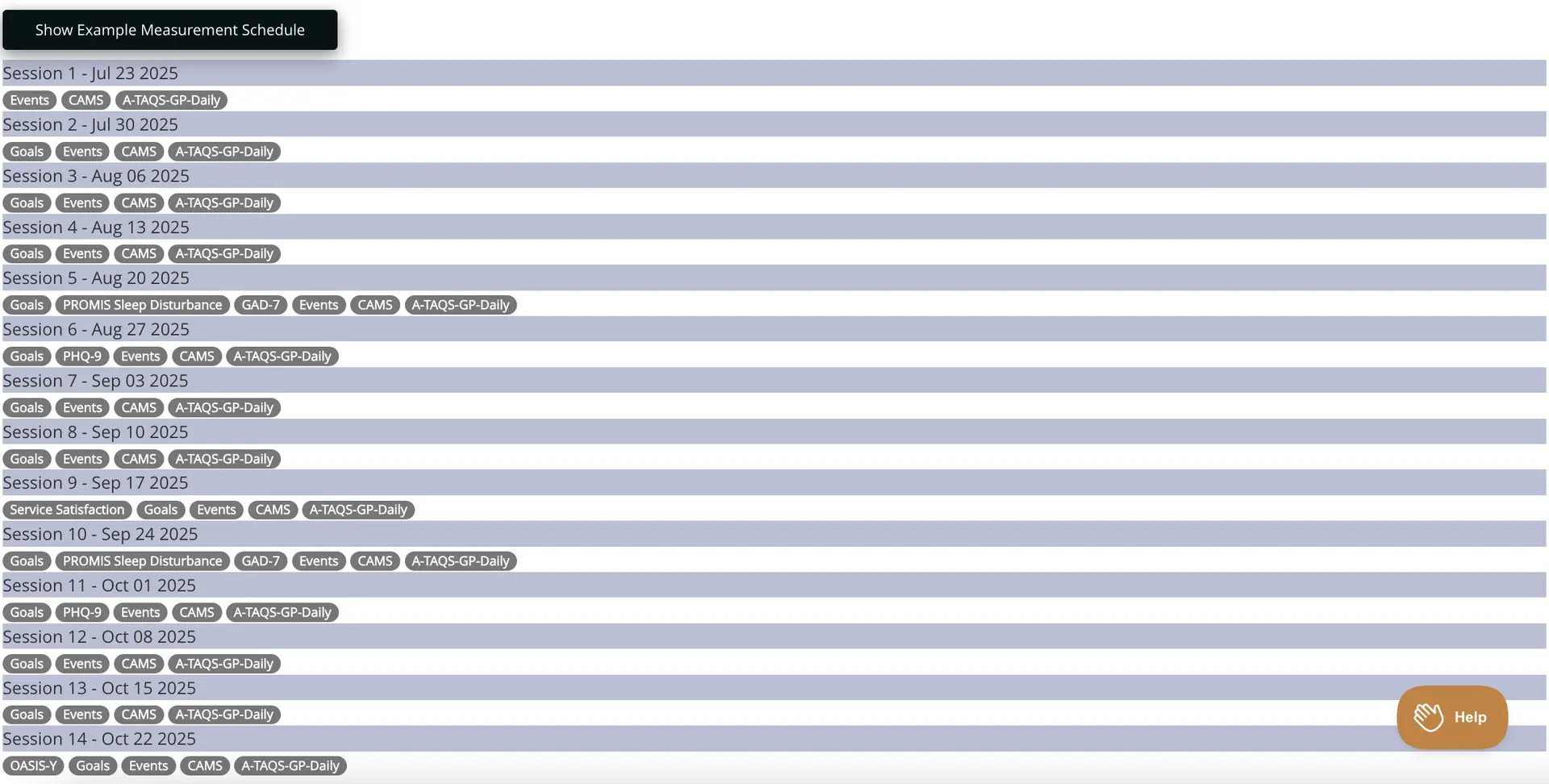
At the end of the Advanced Protocol Settings, there is an option to "Schedule Calendar". This feature provides a layout of potential session dates and which measures are recommended to administer each session.
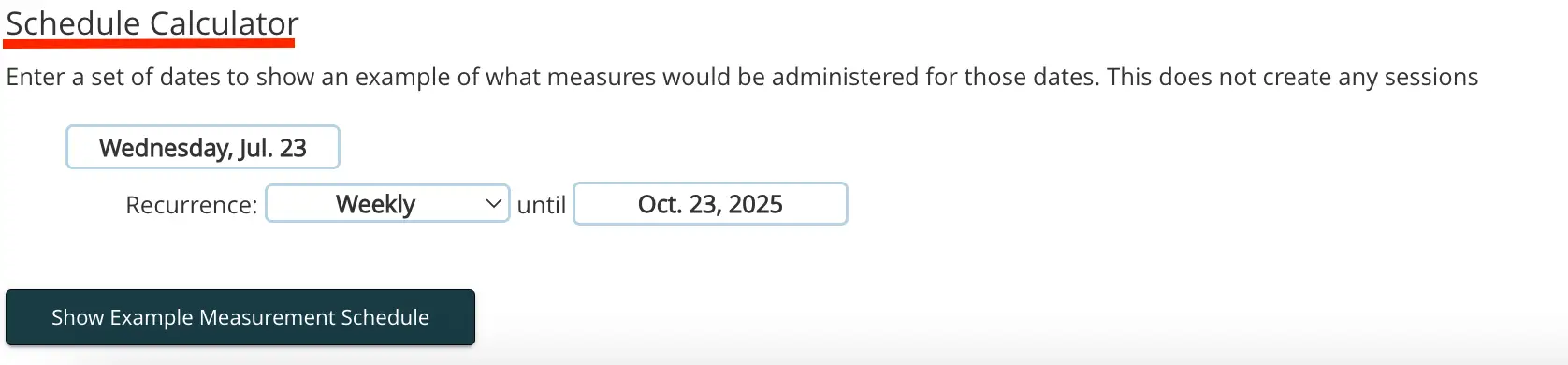
The Schedule Calculator screen allows users to input a set of dates to view an example of what measures would be administered on those dates without creating any sessions. The screen includes a date field displaying 'Wednesday, Jul. 23', a dropdown menu labeled 'Recurrence' set to 'Weekly', and an end date field showing 'Oct. 23, 2025'. At the bottom, there is a button labeled 'Show Example Measurement Schedule' which, when clicked, generates the example schedule. The button is centrally located at the bottom of the screen.

You can customize the timeline of this function by adjusting how frequent appointments take place and when you prefer sessions to commence.

This screenshot displays a dropdown menu from the Measurement Protocol Tool within the Mirah Measurement-Based Care product. The menu allows users to select the frequency of measurement assessments. The options available are 'none', 'Daily', 'Daily on weekdays', 'Weekly', 'Every two weeks', 'Monthly', 'Quarterly', and 'Every six months'. The 'Weekly' option is currently selected, as indicated by a checkmark next to it. This menu is part of the Advanced Measures Use feature, enabling users to customize the regularity of their measurement-based care assessments.The screenshot displays a calendar interface for selecting a date, specifically showing the month of October 2025. The calendar is part of the Measurement Protocol Tool in Mirah's Measurement-Based Care feature. The days of the week are listed at the top, starting with Monday and ending with Sunday. Each day of the month is represented by a number in a grid format. The current selected date is highlighted in blue, which is the 23rd of October. Above the calendar grid, the month and year 'October 2025' are displayed prominently. There are navigation arrows on either side of the month and year, allowing users to move to the previous or next month. Below the calendar, the selected date is shown in a text box as 'Oct. 23, 2025'. This interface allows users to choose specific dates for scheduling or tracking purposes within the application.

Click "Show Example Measurement Schedule" to generate the suggested schedule.
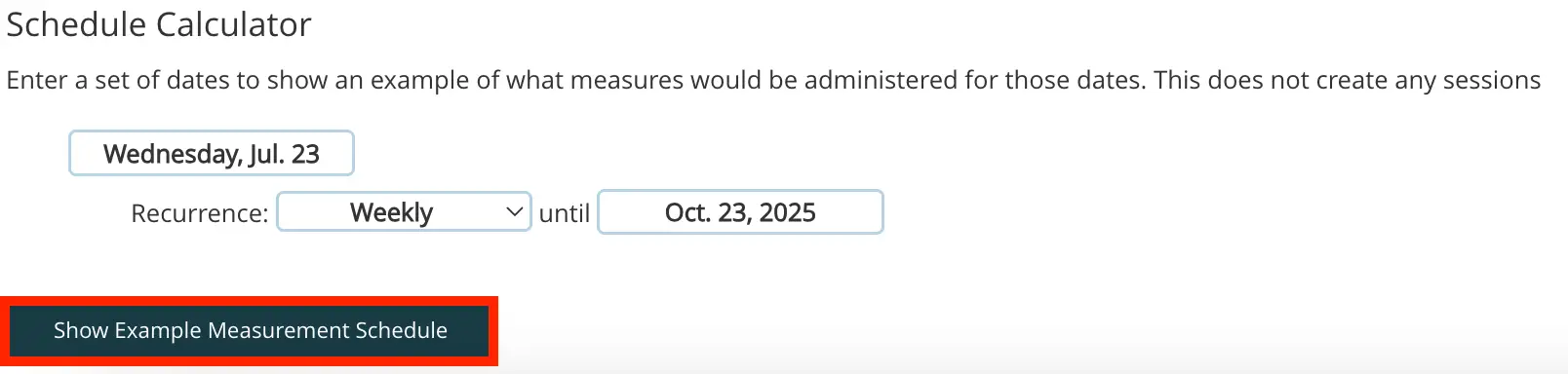
The Schedule Calculator screen allows users to input a set of dates to view an example of what measures would be administered during that period. It features a date field displaying 'Wednesday, Jul. 23' for the start date, a dropdown menu labeled 'Recurrence' set to 'Weekly', and an end date field showing 'Oct. 23, 2025'. Below these fields, there is a button labeled 'Show Example Measurement Schedule' located at the bottom center of the screen. This button, when clicked, generates an example schedule without creating any actual sessions.The screenshot displays the Measurement Protocol Tool within the Mirah Measurement-Based Care platform, showcasing a schedule of sessions with corresponding dates and associated measurement tools. At the top, there is a button labeled 'Show Example Measurement Schedule' which likely provides a sample schedule for reference. Below, the schedule is organized into sessions numbered 1 through 14, each with a specific date in 2025. Each session lists various measurement tools and assessments such as 'Goals', 'Events', 'CAMS', 'A-TAQS-GP-Daily', 'PROMIS Sleep Disturbance', 'GAD-7', 'PHQ-9', 'Service Satisfaction', and 'OASIS-Y', indicating the tools to be used during that session. These tools are presented in a horizontal layout under each session heading. In the bottom right corner, there is a 'Help' button, which is likely intended to provide user assistance or support.