
Understanding Measures Cadence

To understand the cadence of measures (how often they are administered), when notifications are sent to patients to complete measures, and when invitations to complete measures expire, you will view either the patient's measures protocol from their Detail page or the "Configuration" box when editing a session.

To view the patient's overall measures protocol (which measures are sent and how often), locate the patient whose measures protocol you would like to view using the Dashboard, Clients tab, or via the search function.Then click the "Measurement Protocol" button under the patient's name.
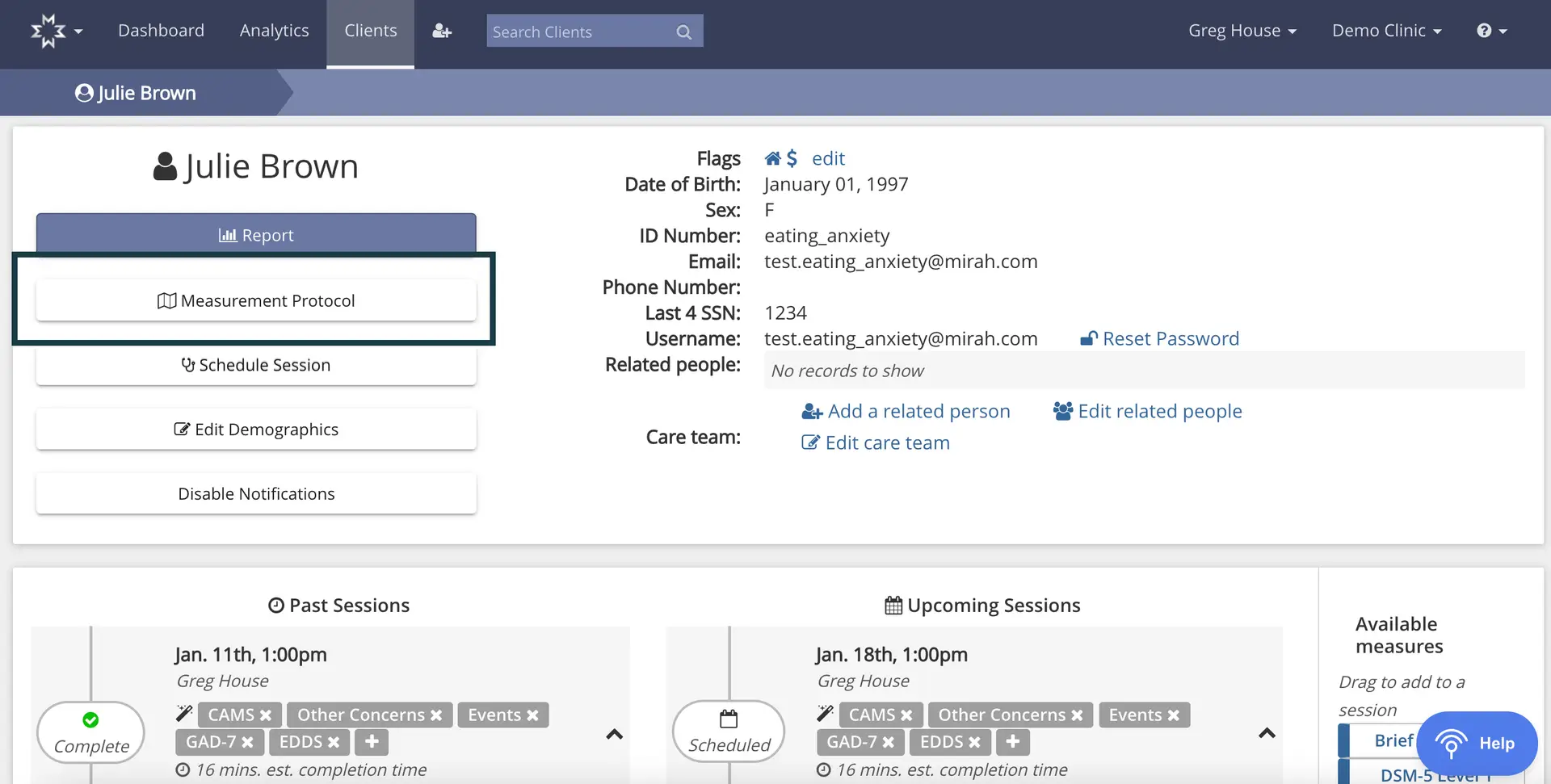
The screenshot displays the client profile page for Julie Brown within the Mirah Measurement-Based Care platform. At the top, the navigation bar includes options for Dashboard, Analytics, and Clients, with a search bar to find clients. The user's name, Greg House, and the clinic name, Demo Clinic, are shown on the right. Below the navigation, Julie Brown's profile is highlighted, showing her personal details such as date of birth, sex, ID number, email, phone number, last 4 SSN digits, and username. There are options to edit these details, reset the password, and manage related people and care team. On the left, there are buttons for Report, Measurement Protocol, Schedule Session, Edit Demographics, and Disable Notifications. The bottom section shows past and upcoming sessions with details like date, time, and associated measures. The right side lists available measures that can be added to a session.

To see the configuration of measures (when they are sent, when they expire, etc.), first locate the patient whose measures configuration you would like to view using the Dashboard, Clients tab, or via the search function.
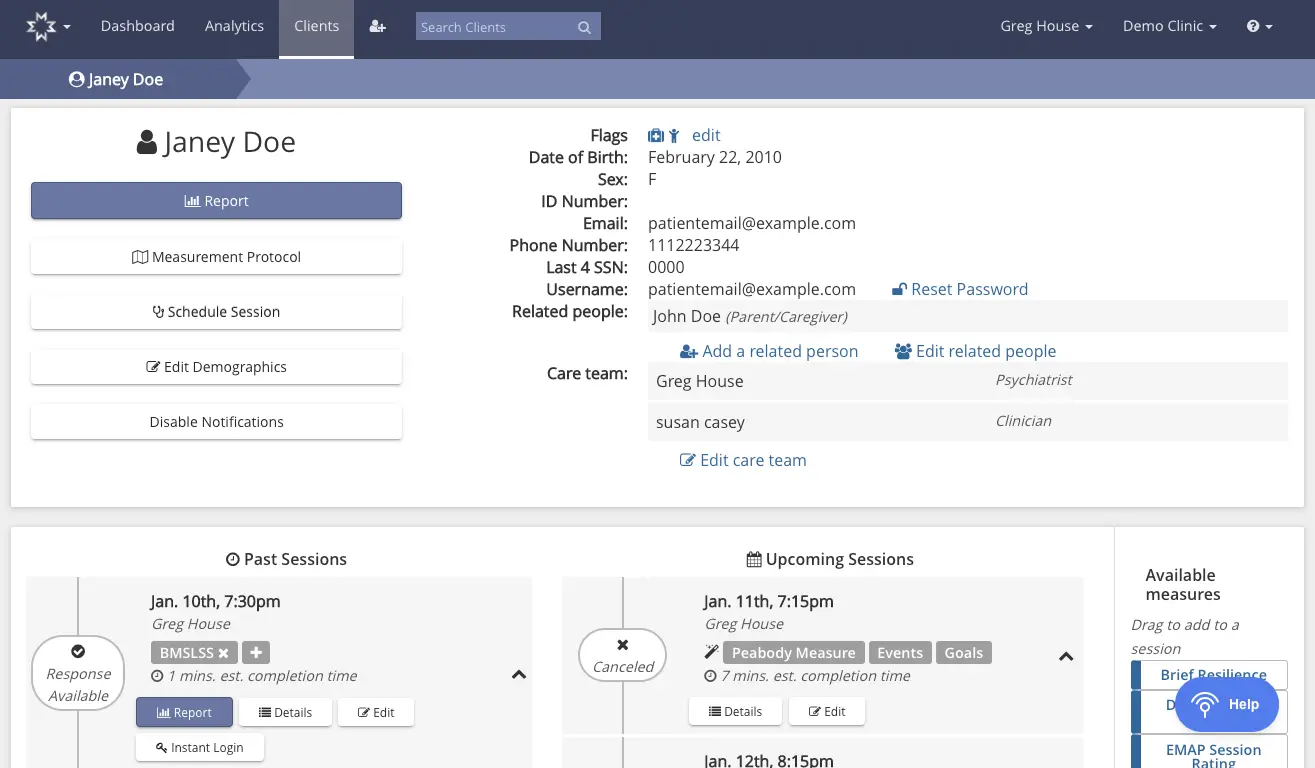
The screenshot displays the client profile page for Janey Doe within the Mirah Measurement-Based Care platform. The top section includes Janey Doe's personal information such as date of birth, sex, ID number, email, phone number, last 4 digits of SSN, and username. There are options to edit these details, reset the password, add related people, and edit the care team. The left side features buttons for generating a report, accessing the measurement protocol, scheduling sessions, editing demographics, and disabling notifications. Below, the page is divided into sections for past and upcoming sessions. The past sessions section lists a session on January 10th at 7:30 pm with Greg House, including a BMSLSS measure and options to view the report, details, and edit the session. The upcoming sessions section lists a session on January 11th at 7:15 pm with Greg House, featuring the Peabody Measure and options to view details and edit. On the right, there is a list of available measures that can be dragged into a session, including Brief Resilience, DASS, and EMAP Session Rating. The top navigation bar includes links to Dashboard, Analytics, Clients, and a search bar for clients, with user and clinic information on the right.

Next, click "Edit" for the session for which you'd like to view the measures configuration.
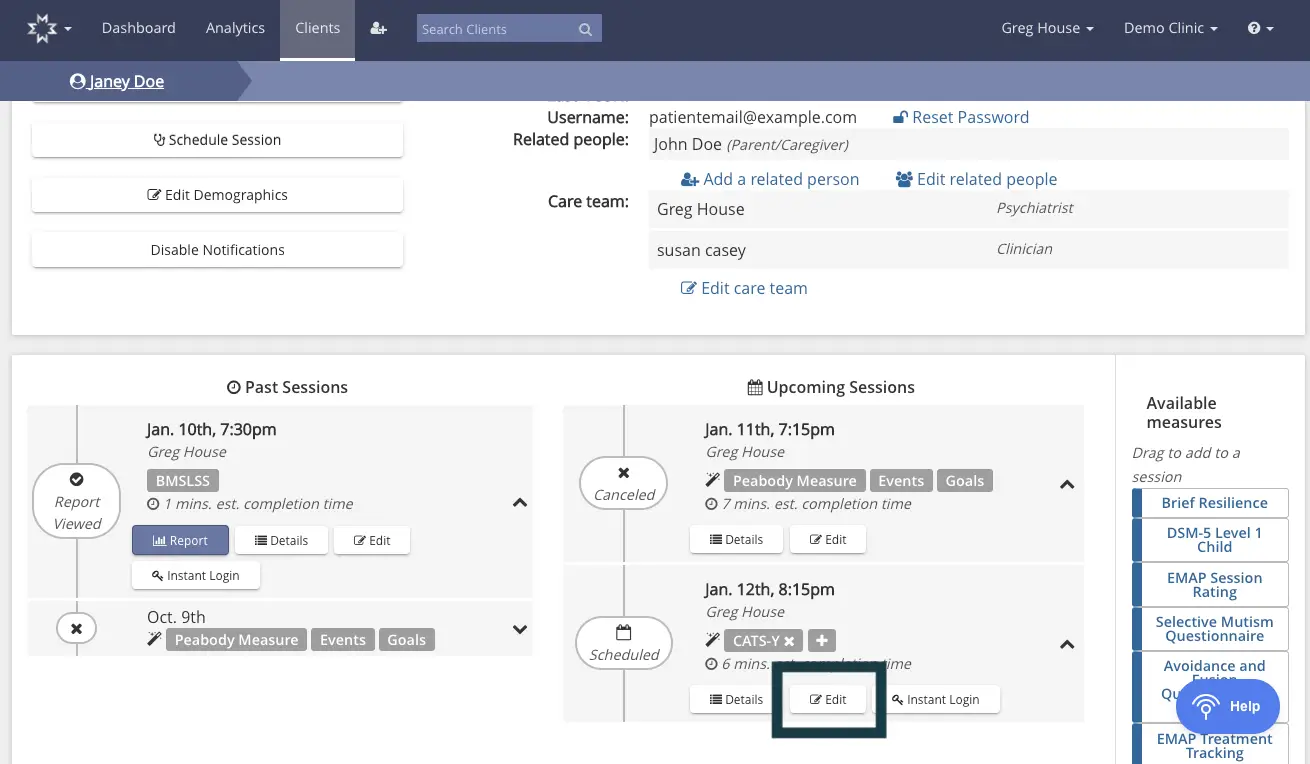
The screenshot displays the client management interface for Janey Doe within the Mirah Measurement-Based Care platform. At the top, the navigation bar includes options for Dashboard, Analytics, and Clients, with a search bar for finding clients. The breadcrumb trail shows Janey Doe's profile. Below, user information is presented, including username, related people, and care team members, with options to reset password, add or edit related people, and edit the care team. The left section features buttons for scheduling sessions, editing demographics, and disabling notifications. The main content area is divided into Past Sessions and Upcoming Sessions. Past Sessions list previous appointments with details like date, time, clinician, and estimated completion time, along with buttons for viewing reports, details, and editing. Upcoming Sessions show future appointments with similar details and options to edit or view details. The right sidebar lists available measures that can be dragged into sessions, such as Brief Resilience and DSM-5 Level 1 Child. A help button is located at the bottom right corner.

On the next screen, click "Show Configuration Settings"
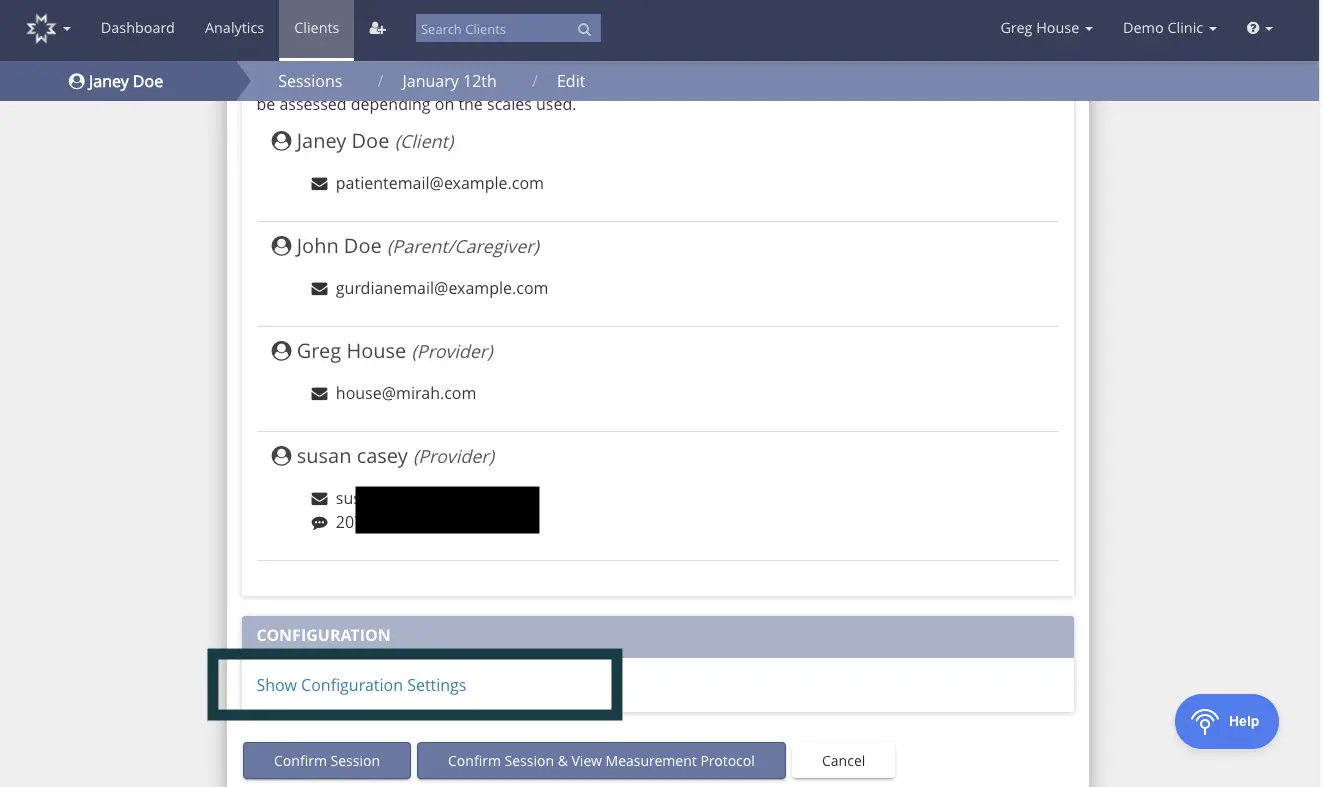
The screenshot displays the client session management interface for Janey Doe on January 12th. The top navigation bar includes options for Dashboard, Analytics, and Clients, with a search field for finding clients. The breadcrumb trail shows the path: Sessions / January 12th / Edit. Below, there is a list of individuals associated with the session, including Janey Doe (Client), John Doe (Parent/Caregiver), Greg House (Provider), and Susan Casey (Provider), each with their respective email addresses. The Configuration section features a 'Show Configuration Settings' link for accessing session settings. At the bottom, there are three buttons: 'Confirm Session', 'Confirm Session & View Measurement Protocol', and 'Cancel', which allow users to manage the session details. The 'Help' button is located in the bottom right corner for assistance.

Here, you can view the cadence of measures (how often they are administered), when notifications are sent to patients to complete measures, and when invitations to complete measures expire. These settings are often created based on your organization's preference.
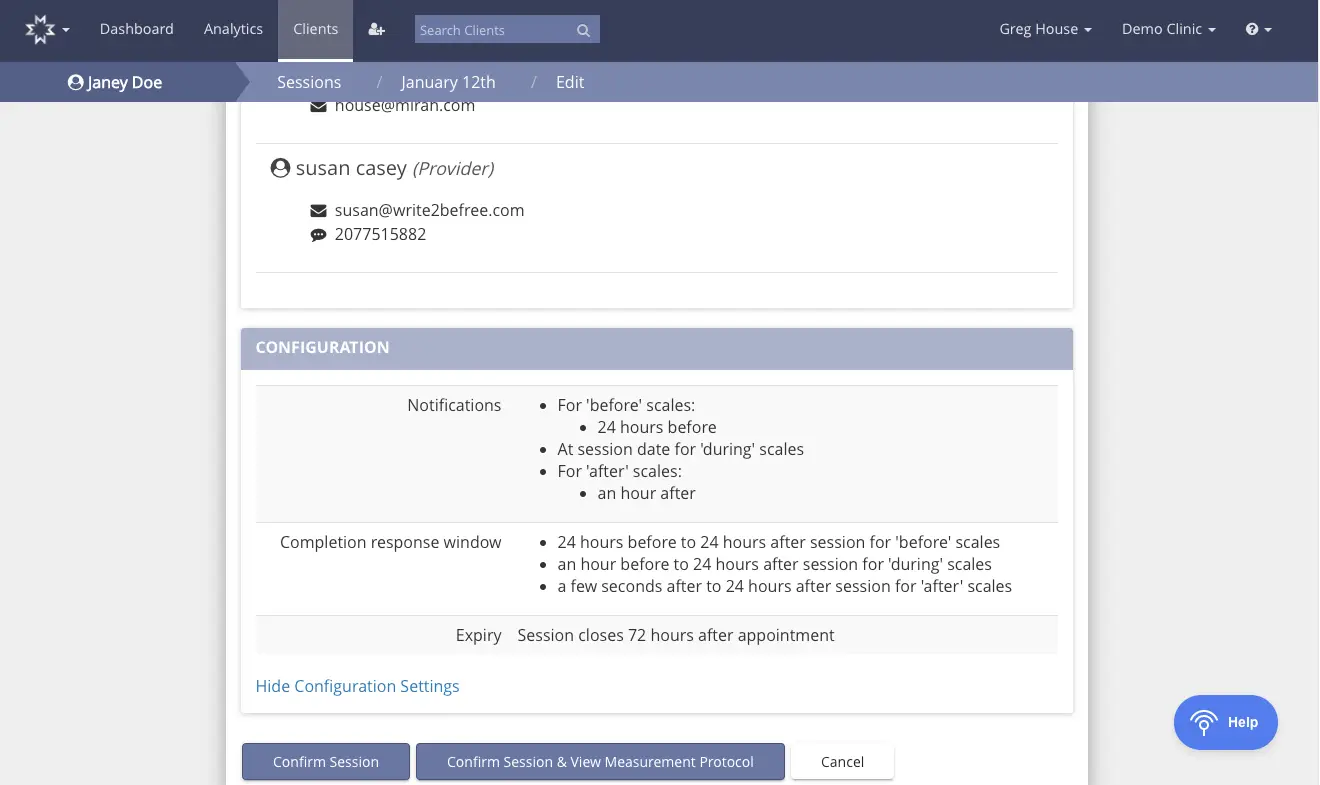
The screenshot displays the configuration settings for a session within the Mirah Measurement-Based Care platform. At the top, the navigation bar includes links to Dashboard, Analytics, and Clients, with a search bar for finding clients. The user is identified as Janey Doe, and the breadcrumb trail shows navigation from Sessions to January 12th, with an option to edit. Below, contact information for the provider, Susan Casey, is shown, including email and phone number. The Configuration section outlines notification settings for scales, specifying timing for 'before', 'during', and 'after' scales. The completion response window details the time frames for responses relative to the session. The expiry information indicates that the session closes 72 hours after the appointment. At the bottom, there are three buttons: 'Confirm Session', 'Confirm Session & View Measurement Protocol', and 'Cancel', all located centrally. A 'Help' button is positioned in the lower right corner.