
View Automatic Planning of measures

This article show how to check what measures are assigned to each session and the logic that determines why these measures are assigned to the session.

The first place to check is the session preview on the patient page. This will have a preview view of the measures assigned to a session. If there are no measures listed, even if the status is "Waiting for Response", there are no measures assigned to the session.

To view the logic for this, follow the below steps:

1). On the Patient page, click on the "Details" of the session you want to review:
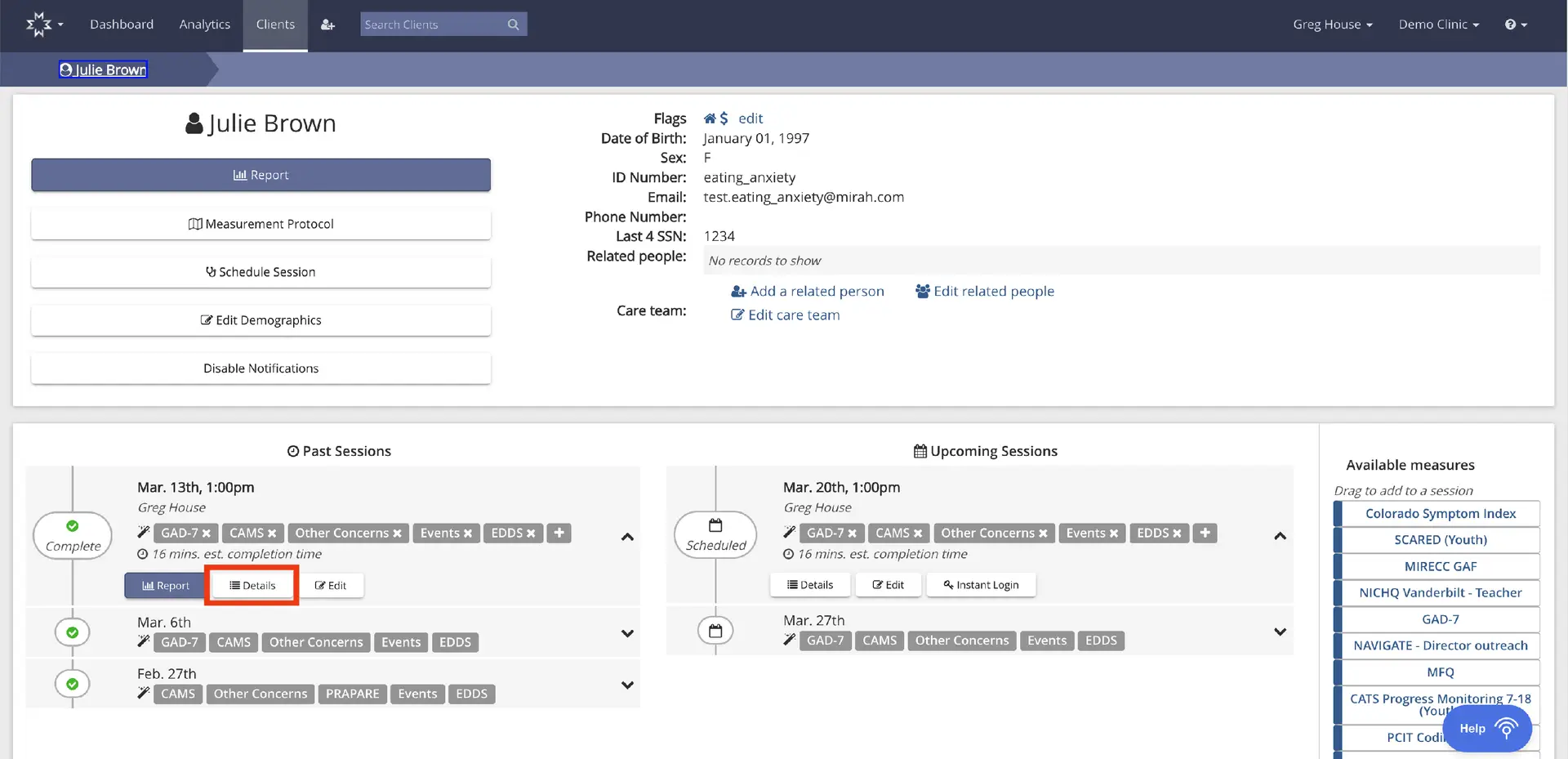
The screenshot displays the client profile page for Julie Brown within the Mirah Measurement-Based Care platform. At the top, the page header includes navigation options such as Dashboard, Analytics, and Clients, with a search bar for finding clients. The breadcrumb trail shows 'Clients > Julie Brown'. The main section presents Julie Brown's personal information including flags, date of birth, sex, ID number, email, phone number, and last four digits of SSN. There are options to add or edit related people and care team. Below, buttons for 'Report', 'Measurement Protocol', 'Schedule Session', 'Edit Demographics', and 'Disable Notifications' are available for managing client details. The lower section is divided into 'Past Sessions' and 'Upcoming Sessions'. Each session lists the date, time, and associated measures such as GAD-7, CAMS, Other Concerns, Events, and EDDS, with estimated completion time. Buttons for 'Report', 'Details', and 'Edit' are provided for past sessions, while 'Details', 'Edit', and 'Instant Login' are available for upcoming sessions. On the right, 'Available measures' can be dragged to add to a session, including options like Colorado Symptom Index and SCARED (Youth).

2). Click "Show Details" under Automatic Planning Details:
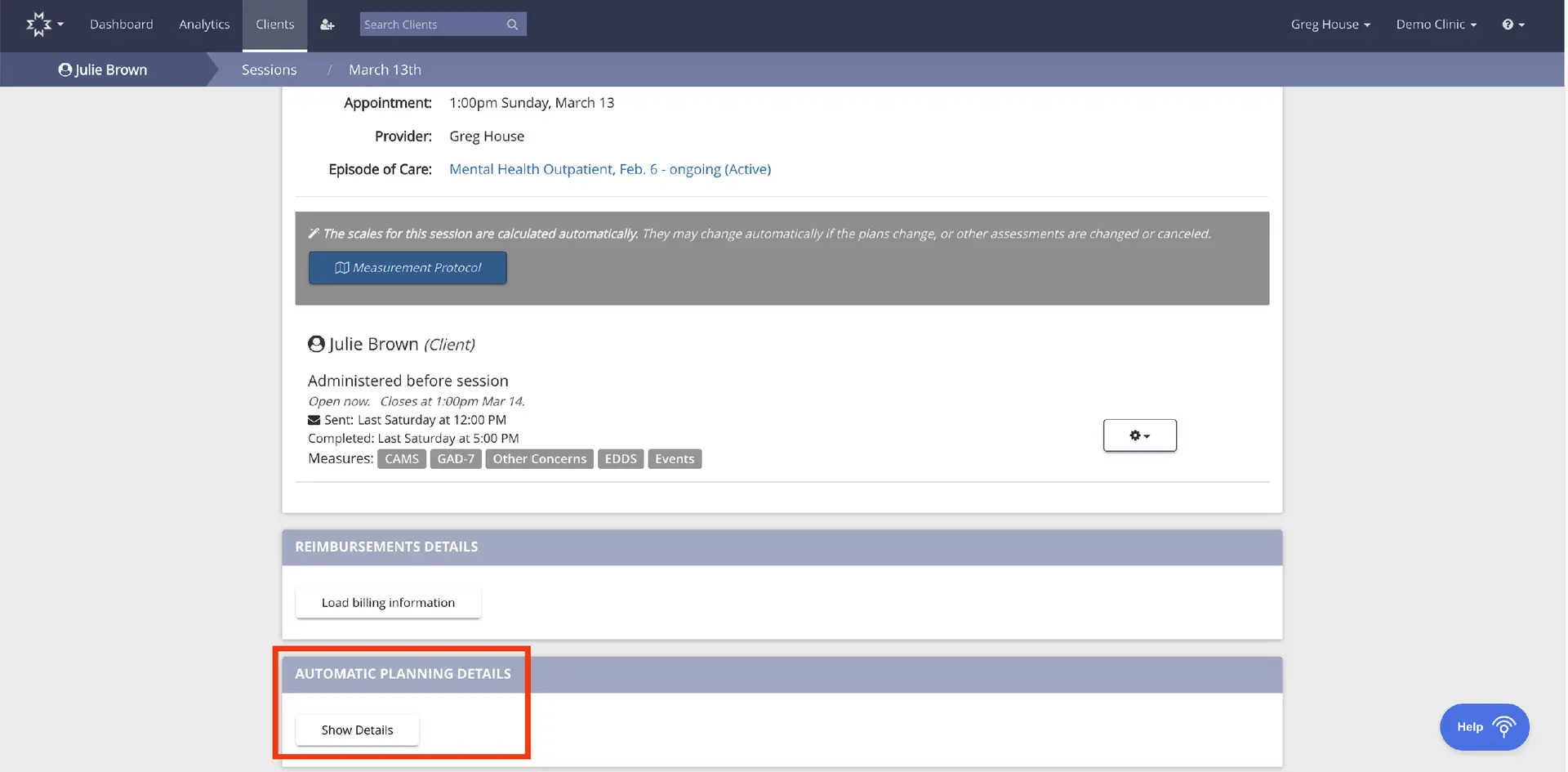
The screenshot displays the session details for a client named Julie Brown, scheduled for 1:00 PM on Sunday, March 13, with provider Greg House. The episode of care is labeled as Mental Health Outpatient, ongoing since February 6. The scales for the session are calculated automatically, with a button labeled 'Measurement Protocol' for further details. Below, it shows the measures administered before the session, including CAMS, GAD-7, Other Concerns, EDDS, and Events, with timestamps for when they were sent and completed. There is a section for Reimbursements Details with a button labeled 'Load billing information' and another section for Automatic Planning Details with a button labeled 'Show Details'. The top navigation bar includes links to Dashboard, Analytics, and Clients, along with a search bar for searching clients. The user is identified as Greg House from Demo Clinic, with a help button located at the bottom right corner.

3). Details of all the measures that were considered for inclusion for the session you are viewing are listed out:
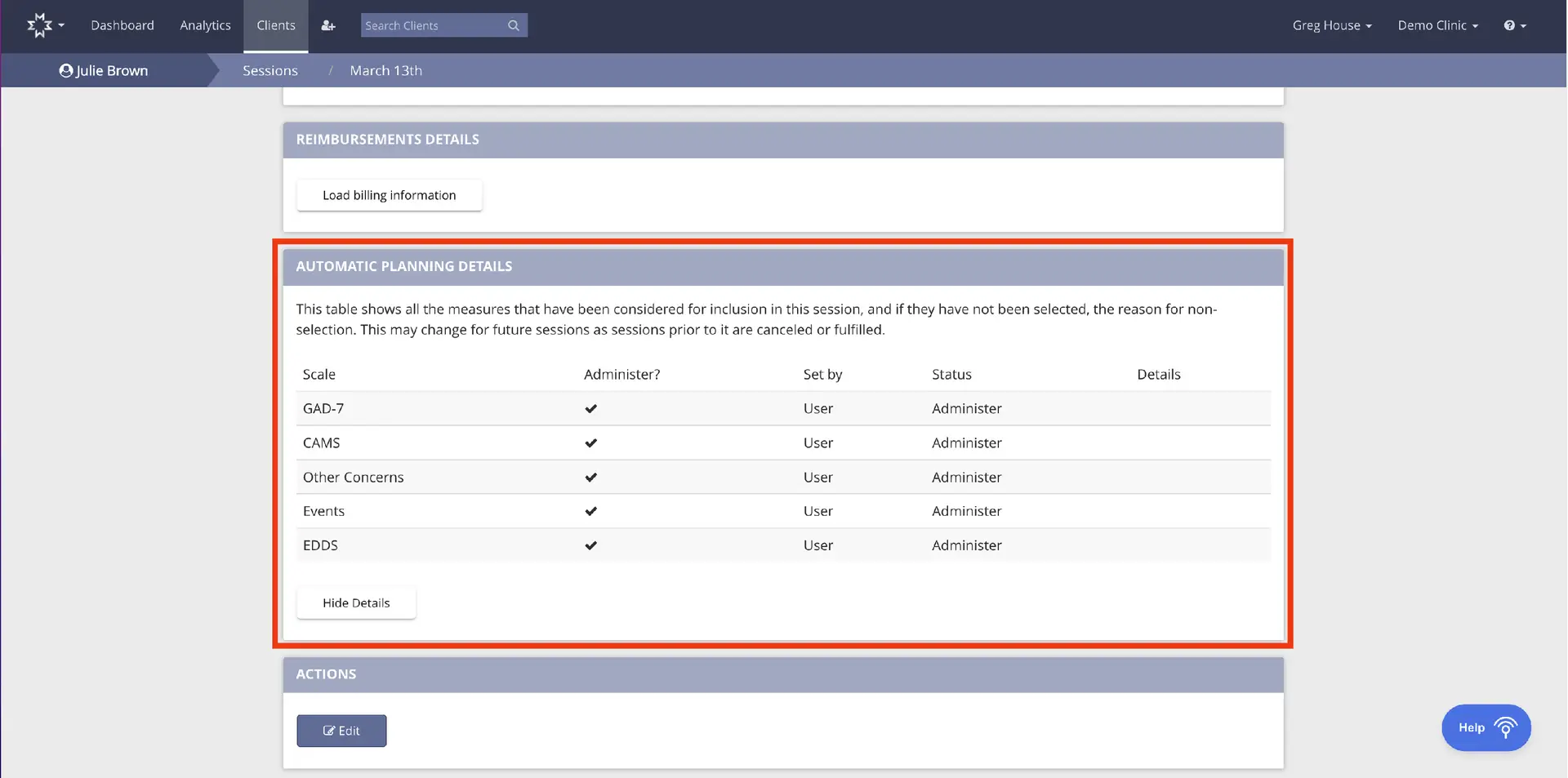
The screenshot displays the 'Automatic Planning Details' section of the Mirah Measurement-Based Care platform, which is part of the session view for a client named Julie Brown. This section provides a table listing various scales considered for inclusion in the session, such as GAD-7, CAMS, Other Concerns, Events, and EDDS. Each scale has columns indicating whether it should be administered, who set it, its status, and additional details. The 'Administer?' column shows checkmarks for all scales, indicating they are to be administered, and the 'Set by' column lists 'User' for each scale. The 'Status' column shows 'Administer' for all scales, and the 'Details' column is empty. Below the table, there is a 'Hide Details' button located at the bottom left, allowing users to collapse the section. The 'Actions' section below includes an 'Edit' button for modifying the session details. The top navigation bar includes links to Dashboard, Analytics, and Clients, with a search bar for finding clients. The breadcrumb trail shows the path 'Sessions / March 13th'. The user is logged in as Greg House at Demo Clinic, with a help button located at the bottom right corner of the screen.