Automatic Appointment Scheduling

In Mirah, there is the ability to set up automatic appointment scheduling which works to send appointments at a designated time per week, weekday or day. This article walks you through that configuration and details how to interpret this feature.

1). Locate "Organizations" from the institute menu.
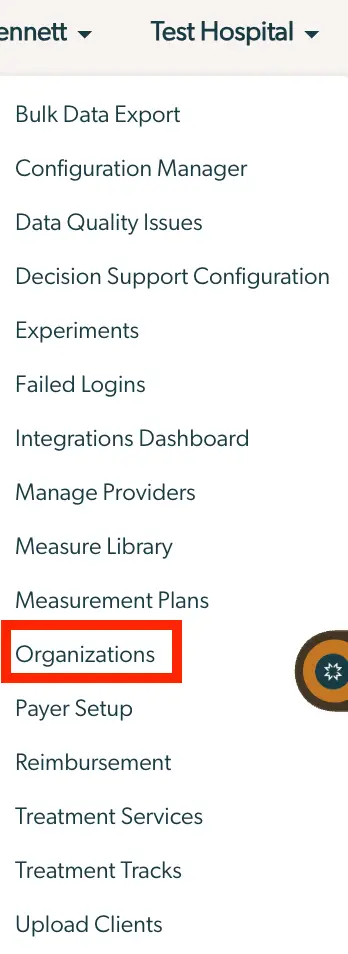
The screenshot displays a dropdown menu from the Mirah Measurement-Based Care platform, specifically under the 'Test Hospital' section. The menu includes various options for managing and configuring different aspects of the platform. Options listed are Bulk Data Export, Configuration Manager, Data Quality Issues, Decision Support Configuration, Experiments, Failed Logins, Integrations Dashboard, Manage Providers, Measure Library, Measurement Plans, Organizations, Payer Setup, Reimbursement, Treatment Services, Treatment Tracks, and Upload Clients. The 'Organizations' option is highlighted with a red border, indicating it is either selected or emphasized for the user. The settings icon is visible on the right side, suggesting additional configuration options.

2). Select the organization you would like to edit.

The screenshot displays the 'Organizations' section of the Mirah Measurement-Based Care platform. It lists an organization labeled 'Organization 3' with a sub-label 'Test Hospital' highlighted in red, indicating it might be selected or active. In the top right corner, there is a 'Create Organization' button in brown, allowing users to add a new organization. This interface is likely used for managing and organizing different healthcare entities within the platform.

3). The Automatic Appointment panel will appear towards the bottom of the screen. Select "Edit."
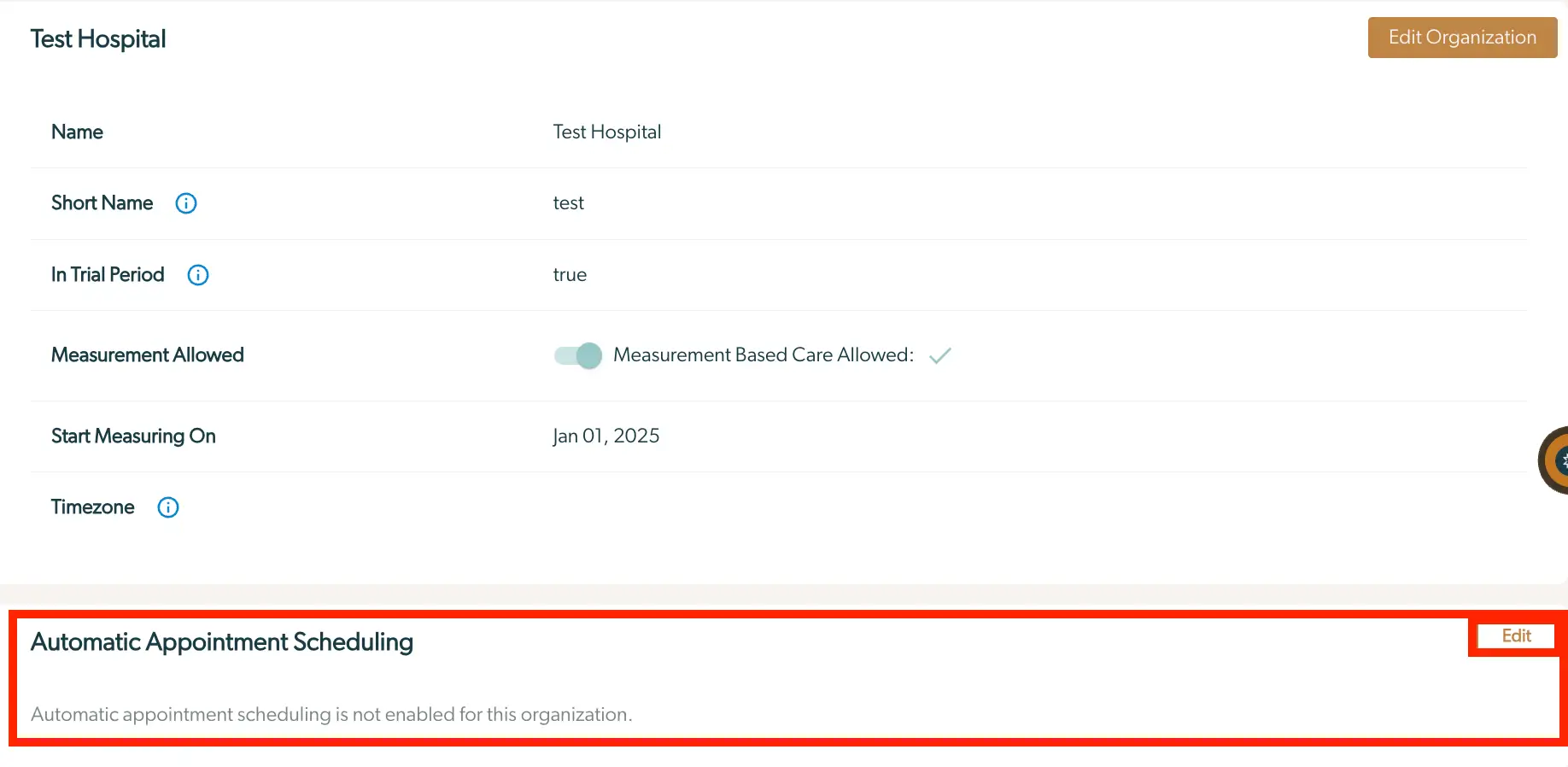
The screenshot displays the settings page for 'Test Hospital' within the Mirah Measurement-Based Care platform. It includes fields such as 'Name' with the value 'Test Hospital', 'Short Name' with the value 'test', 'In Trial Period' set to 'true', 'Measurement Allowed' with a toggle switch indicating 'Measurement Based Care Allowed' is enabled, 'Start Measuring On' with the date 'Jan 01, 2025', and 'Timezone' with an information icon. At the bottom, there is a section titled 'Automatic Appointment Scheduling' which states that automatic appointment scheduling is not enabled for this organization. An 'Edit' button is located to the right of this section, allowing users to modify the settings.

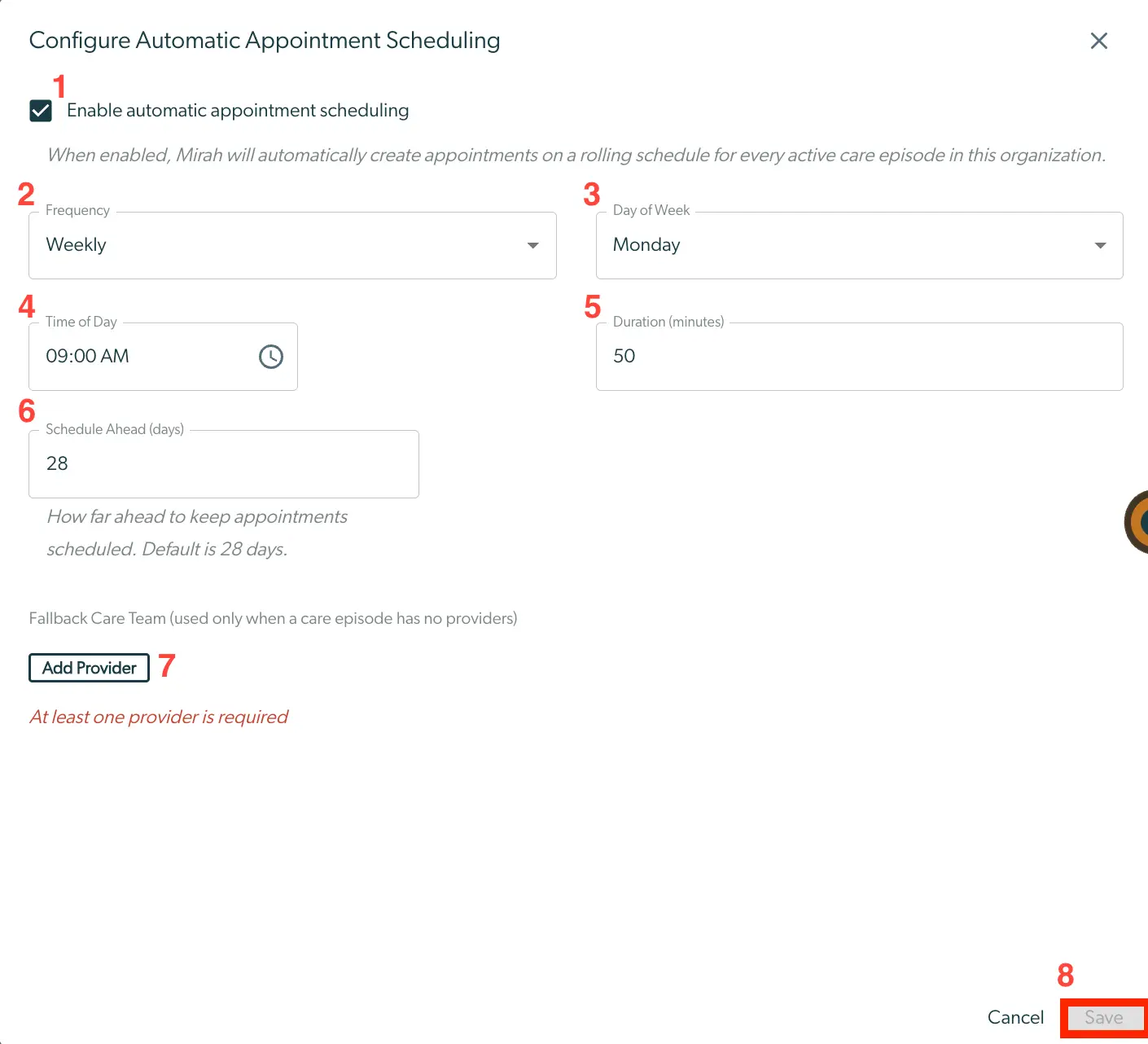
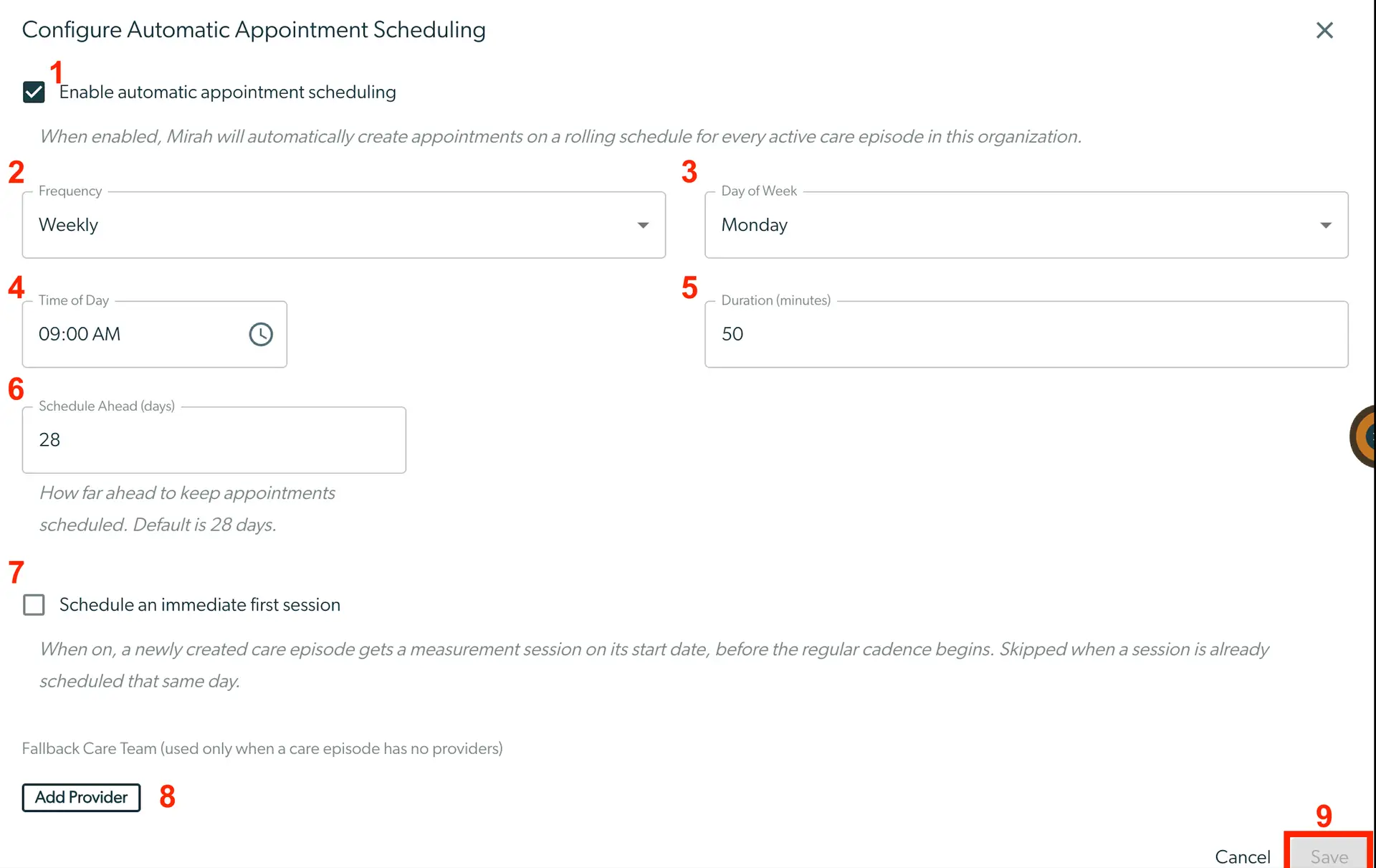
4). First, check the box to enable automatic appointments. Then, follow the listed directions:

  1. Select the Frequency. The default is weekly but options include "Daily," "Weekdays" and "Weekly."
  2. Choose which day of the week the appointments will be scheduled.
  3. Select the time of day these appointments will occur. This is relevant to when measures will send to patients.
  4. Designate the duration of the appointment. Please note these will be in minutes.
  5. Add the number of days ahead to keep appointments scheduled. This default is 28 days.
  6. Add a provider to the appointment. Please note that at least one provider is required and this provider is the fallback care team. Therefore, it is only used when a care episode has no providers.
  7. Select if you want a session to be created when an episode of care is begun instead of waiting for the first automatically scheduled appointment.
  8. Push "Save" to ensure these edits are finalized for the selected organization. The 'Configure Automatic Appointment Scheduling' screen allows users to set up automatic scheduling for appointments. At the top, there is a checkbox labeled 'Enable automatic appointment scheduling' to activate the feature. Below, users can select the 'Frequency' of appointments from a dropdown menu, with options such as 'Weekly'. The 'Day of Week' dropdown allows selection of a specific day, like 'Monday'. The 'Time of Day' field lets users specify the appointment time, shown as '09:00 AM'. The 'Duration (minutes)' field is set to '50', indicating the length of each appointment. The 'Schedule Ahead (days)' field, defaulting to '28', determines how far in advance appointments are scheduled. A section labeled 'Fallback Care Team' includes an 'Add Provider' button for assigning providers when none are available for a care episode. At the bottom right, there are 'Cancel' and 'Save' buttons for discarding or saving changes, respectively.
5). If you would like to edit the automatic appointments, simply select "Edit" and refer to Step 4 to adjust the sessions.
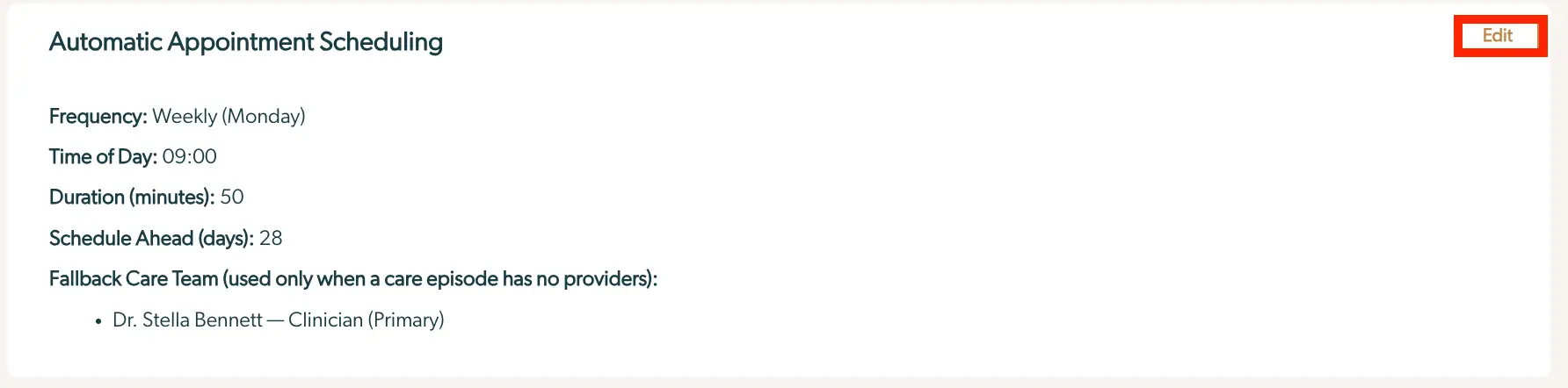
The screenshot displays the 'Automatic Appointment Scheduling' settings within the Mirah Measurement-Based Care platform. It outlines the scheduling parameters including the frequency set to weekly on Mondays, the time of day at 09:00, and the duration of each appointment set to 50 minutes. The schedule is set to be planned 28 days in advance. Additionally, there is a fallback care team option, which is used only when a care episode has no providers, listing Dr. Stella Bennett as the primary clinician. An 'Edit' button is located at the top right corner, allowing users to modify these settings.

Please Note: When Mirah schedules sessions, it assigns them to the first active provider on the episode’s care team, in the order providers were added. If the old provider remains on the team and was added first, sessions may continue to be assigned to them. To fix this, you can remove them from the care team in Mirah.