
How to Remove a Single Measure

When changing a patient's measurement protocol, there is the ability to remove a single measure rather than changing measurement bundles. This guide will show you how to do so.

Removing a Single Measure​

1). First reach the patient's details page. This can be found by finding the patient’s name in the dashboard and clicking “Detail.”
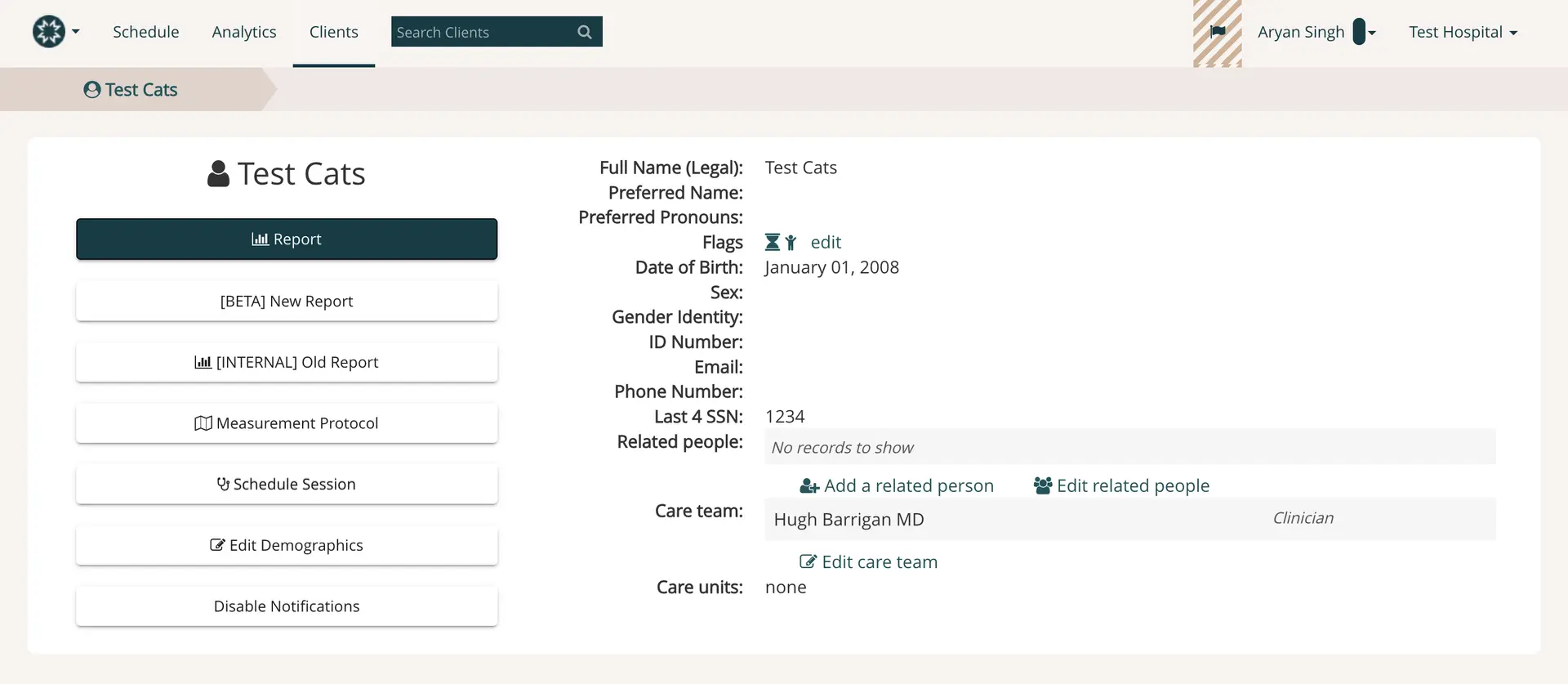
The screenshot displays the client profile page for 'Test Cats' within the Mirah Measurement-Based Care platform. At the top, there is a navigation bar with options for Schedule, Analytics, and Clients, along with a search bar labeled 'Search Clients'. The breadcrumb trail indicates the user is viewing 'Test Cats'. The left side of the screen features a vertical menu with buttons for generating reports, accessing measurement protocols, scheduling sessions, editing demographics, and disabling notifications. The main section on the right provides detailed client information, including full legal name, preferred name, preferred pronouns, flags with an edit option, date of birth, sex, gender identity, ID number, email, phone number, and the last four digits of the SSN. It also lists related people with options to add or edit them, and details about the care team, which includes 'Hugh Barrigan MD' as a clinician, with an option to edit the care team. The care units field is noted as 'none'. The user profile and organization, 'Aryan Singh' and 'Test Hospital', are displayed at the top right.

2). Access the patient's measurement protocol by clicking the "Measurement Protocol" button on the left side of the page.
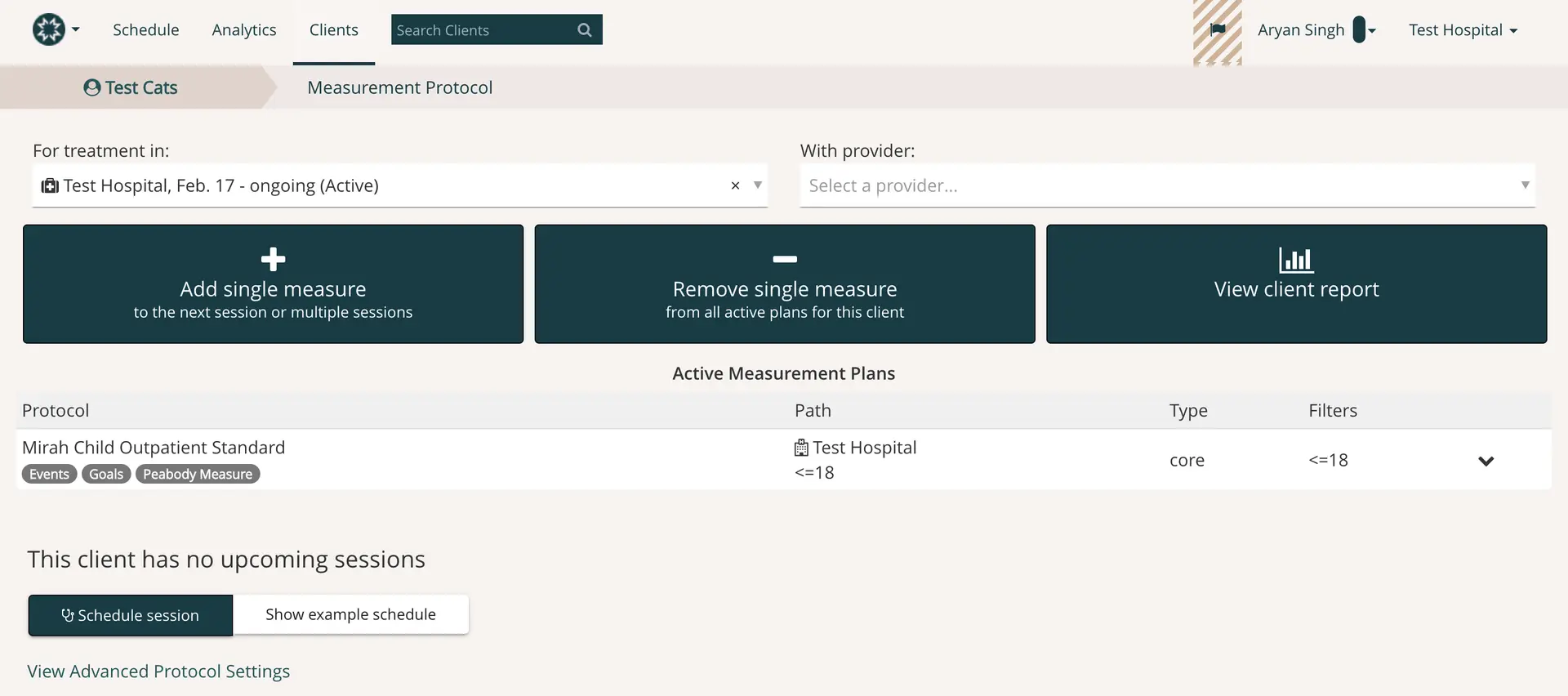
The screenshot displays the client profile page for 'Test Cats' within the Mirah Measurement-Based Care platform. The page is part of the 'Clients' section, as indicated by the breadcrumb navigation at the top. The page provides detailed information about the client, including their full legal name, preferred name, preferred pronouns, flags, date of birth, sex, gender identity, ID number, email, phone number, and the last four digits of their SSN. The right side of the screen lists related people, care team members, and care units, with options to add or edit these details. The left side features several buttons for actions related to the client: 'Report', '[BETA] New Report', '[INTERNAL] Old Report', 'Measurement Protocol', 'Schedule Session', 'Edit Demographics', and 'Disable Notifications'. The 'Measurement Protocol' button is highlighted with a red oval, indicating its relevance to the task of removing a single measure.The screenshot displays the 'Measurement Protocol' page within the Mirah Measurement-Based Care platform, specifically for managing measurement plans for a client named 'Test Cats'. At the top, there is a navigation bar with options for 'Schedule', 'Analytics', and 'Clients', along with a search bar labeled 'Search Clients'. The breadcrumb trail indicates the current location as 'Test Cats > Measurement Protocol'. Below, there are dropdown menus for selecting the treatment location, currently set to 'Test Hospital, Feb. 17 - ongoing (Active)', and a provider selection field labeled 'With provider'. Three prominent buttons are displayed: 'Add single measure' on the left, 'Remove single measure' in the center, and 'View client report' on the right. These buttons allow users to manage measures for the client's sessions. The 'Active Measurement Plans' section lists the protocol 'Mirah Child Outpatient Standard' with associated tags 'Events', 'Goals', and 'Peabody Measure', and details such as 'Path' set to 'Test Hospital', 'Type' as 'core', and 'Filters' as '<=18'. At the bottom, a message states 'This client has no upcoming sessions', with a button to 'Schedule session' and an option to 'Show example schedule'. A link to 'View Advanced Protocol Settings' is also available.

3). From the measurement protocol page, click the "Remove single measure" button in the middle of the screen.
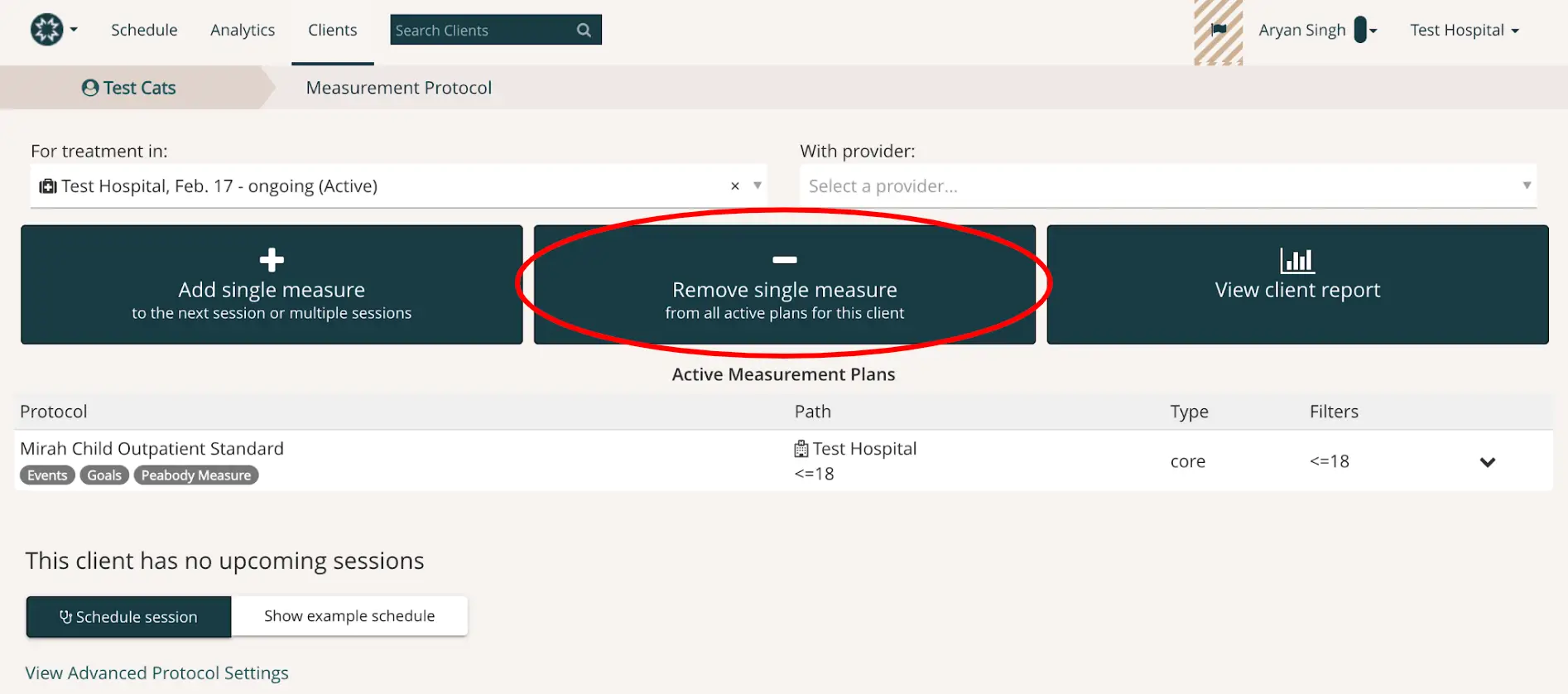
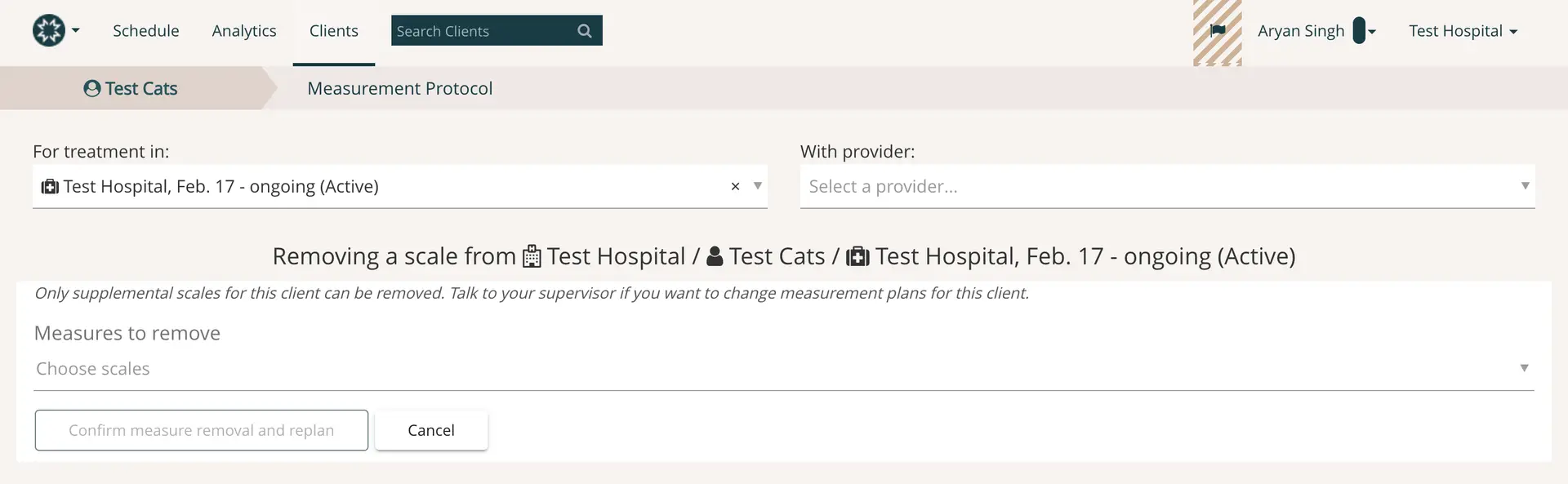
The screenshot displays the Measurement Protocol page within the Mirah Measurement-Based Care platform, specifically focusing on the removal of a single measure from active plans for a client. At the top, navigation options include Schedule, Analytics, and Clients, with a search bar for finding clients. The breadcrumb trail indicates the user is in the 'Test Cats' section under 'Measurement Protocol'. The page is set for treatment at 'Test Hospital, Feb. 17 - ongoing (Active)', with a dropdown to select a provider. Central to the screen are three main buttons: 'Add single measure' to add measures to sessions, 'Remove single measure' to remove measures from active plans, and 'View client report' to access client reports. Below, the 'Active Measurement Plans' section lists protocols, including 'Mirah Child Outpatient Standard', with associated tags like Events, Goals, and Peabody Measure. The client has no upcoming sessions, with options to 'Schedule session' or 'Show example schedule'. A link to 'View Advanced Protocol Settings' is available for further configuration.The screenshot displays the 'Removing a scale' interface within the Mirah Measurement-Based Care platform, specifically under the 'Measurement Protocol' section for a client named 'Test Cats' at 'Test Hospital'. The top navigation bar includes options for Schedule, Analytics, and Clients, with a search bar for finding clients. The breadcrumb trail indicates the user is in the 'Measurement Protocol' section for 'Test Cats'. The main content area shows a dropdown menu labeled 'For treatment in', pre-filled with 'Test Hospital, Feb. 17 - ongoing (Active)', and another dropdown labeled 'With provider', which is empty and prompts the user to select a provider. Below, there is a section titled 'Removing a scale from Test Hospital / Test Cats / Test Hospital, Feb. 17 - ongoing (Active)', with a note stating that only supplemental scales can be removed and advising consultation with a supervisor for changes to measurement plans. The 'Measures to remove' section includes a dropdown to 'Choose scales'. At the bottom, there are two buttons: 'Confirm measure removal and replan' and 'Cancel', both located centrally.

4). Here you can use the search bar below the "Measures to remove" and select which measure you would like to remove. Select the measure, and click "Confirm measure removal and replan" button to remove it from the measurement protocol. You have the option to select multiple measures if you would like to remove more than one.
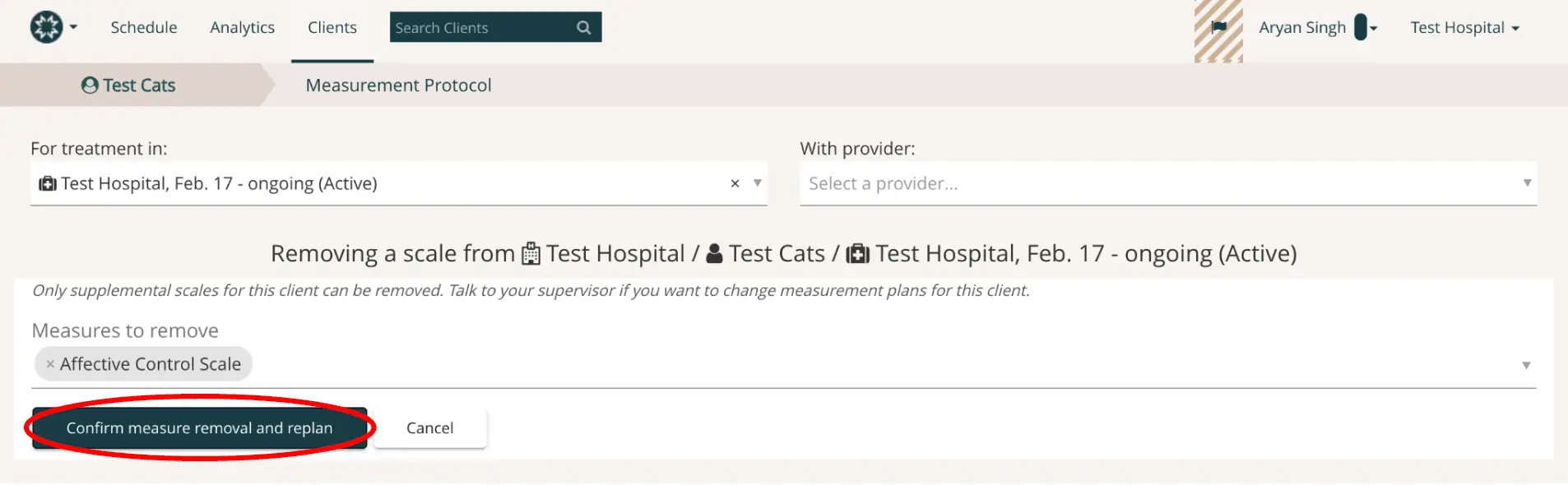
The screenshot displays the interface for removing a measurement scale from a client's treatment plan within the Mirah Measurement-Based Care platform. The top navigation bar includes options for Schedule, Analytics, and Clients, with a search bar for finding clients. The breadcrumb trail indicates the user is in the 'Test Cats' section under 'Measurement Protocol'. The screen shows the treatment location as 'Test Hospital, Feb. 17 - ongoing (Active)' and provides a dropdown to select a provider. Below, the section titled 'Removing a scale from Test Hospital / Test Cats / Test Hospital, Feb. 17 - ongoing (Active)' lists the 'Affective Control Scale' as the measure to be removed. A note advises that only supplemental scales can be removed and suggests consulting a supervisor for changes to measurement plans. At the bottom, there are two buttons: 'Confirm measure removal and replan' in dark blue, located centrally, and 'Cancel' in white, positioned to the right.

5). After clicking the "Confirm measure removal and replan", you will receive a confirmation message stating that the measure has been successfully removed.

If you do not see a confirmation message, try repeating steps 3-5. You may receive an error message if the measures you selected are part of an organization default plan. If you receive an error message for a different reason, please reach out to support@mirah.com.