
How to Create a Treatment Service

In the Mirah platform, institutes have the ability to create Treatment Services for their patients. This functionality is designed so users can create structured programs to address common treatments within the organization. If Treatment Services has been enabled for your institute, the following steps detail how to create a new one.

How to Create a Treatment Service​

1). Navigate from the dashboard to the top right of the screen and click on the name of your institute. Click on "Treatment Services" towards the bottom of the dropdown menu.
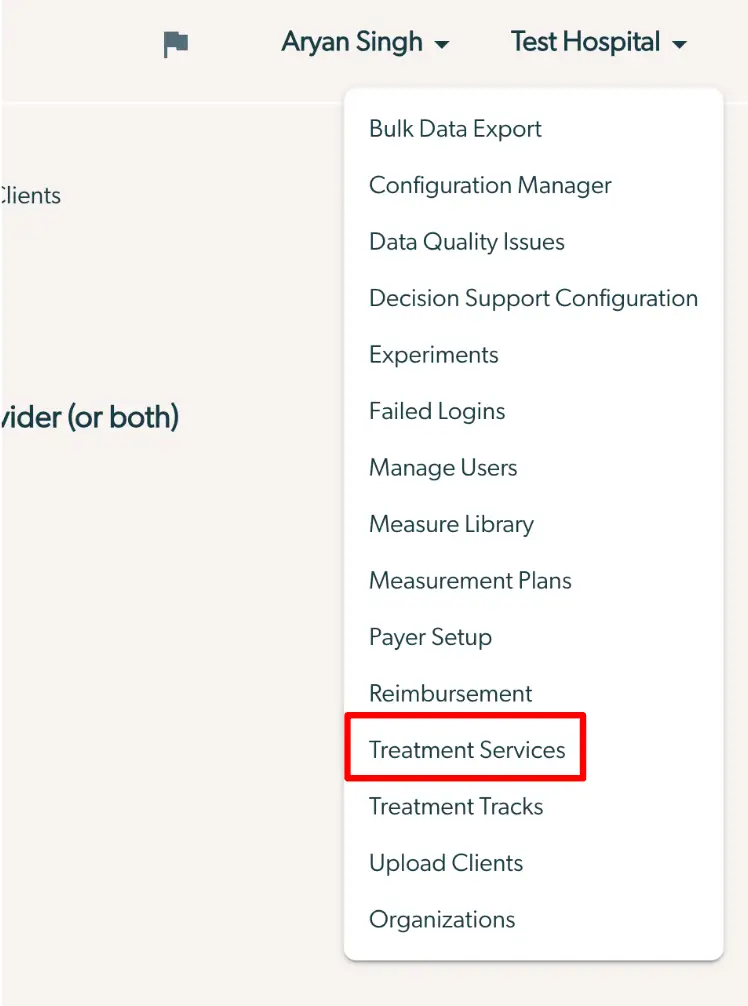
The screenshot displays a dropdown menu under the user profile section in the Mirah Measurement-Based Care platform. The user profile is identified as 'Aryan Singh' and the organization is 'Test Hospital'. The dropdown menu provides various administrative and configuration options including Bulk Data Export, Configuration Manager, Data Quality Issues, Decision Support Configuration, Experiments, Failed Logins, Manage Users, Measure Library, Measurement Plans, Payer Setup, Reimbursement, Treatment Services, Treatment Tracks, Upload Clients, and Organizations. The 'Treatment Services' option is highlighted, indicating the user's intention to access or manage treatment services within the platform. This menu is part of the user interface for managing and optimizing care delivery processes.

2). Click on the "Create a new Treatment Service" button towards the top-right of the screen.
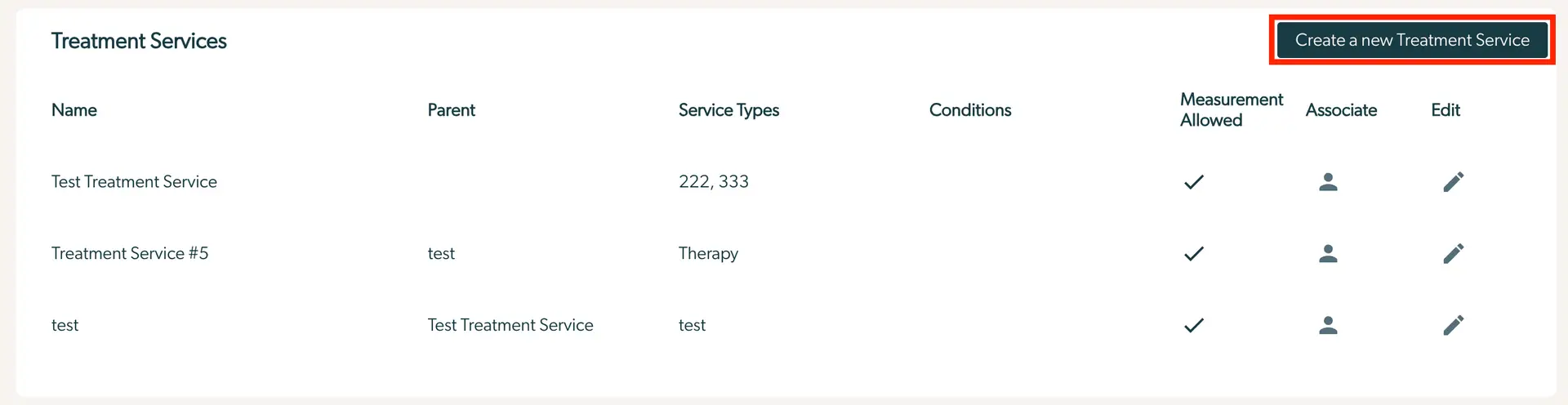
The screenshot displays the 'Treatment Services' page within the Mirah Measurement-Based Care platform, which is used to manage and create treatment services. The page lists existing treatment services in a table format with columns labeled 'Name', 'Parent', 'Service Types', 'Conditions', 'Measurement Allowed', 'Associate', and 'Edit'. Each row in the table represents a treatment service, providing details such as the service name, parent service, types of services offered, and conditions associated with the service. The 'Measurement Allowed' column indicates whether measurement is permitted for the service with a checkmark. The 'Associate' column features an icon for associating the service with other entities, and the 'Edit' column includes a pencil icon for editing the service details. At the top right corner of the page, there is a prominent button labeled 'Create a new Treatment Service', which allows users to add a new treatment service to the list.

3). Fill out the fields with the required information, and then click "Create". *Please note: When entering more than one service type, include one comma and no spaces between each item on the list.
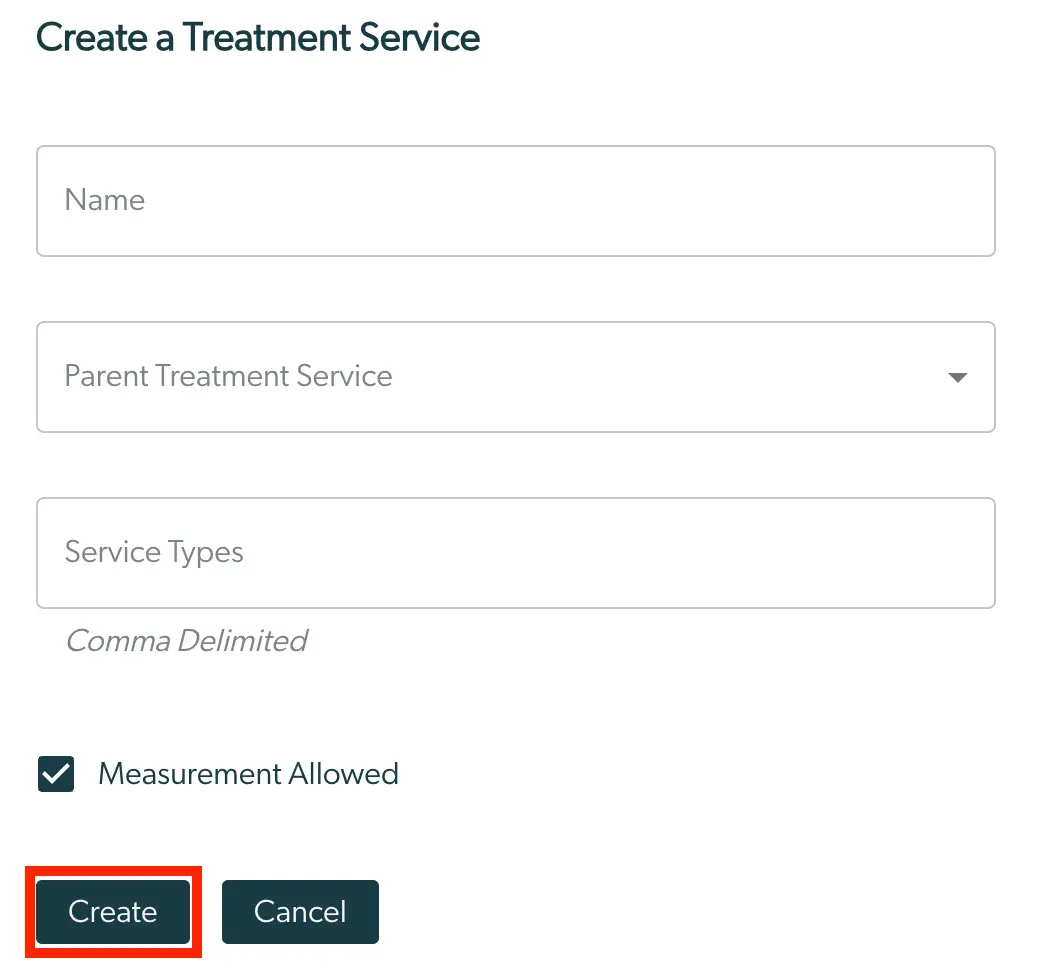
The 'Create a Treatment Service' screen allows users to define a new treatment service within the Mirah Measurement-Based Care platform. It includes a text field labeled 'Name' for entering the name of the treatment service, a dropdown menu labeled 'Parent Treatment Service' for selecting an existing parent service, and a text field labeled 'Service Types' for specifying service types in a comma-delimited format. Below these fields, there is a checkbox labeled 'Measurement Allowed' which can be checked to enable measurement-based care for the service. At the bottom of the screen, there are two buttons: 'Create' on the left, highlighted in red, to save and create the new treatment service, and 'Cancel' on the right to discard changes and exit the screen.

4). After the treatment service is successfully created, you will be redirected to the treatment services page and you will see the new treatment service in the list.
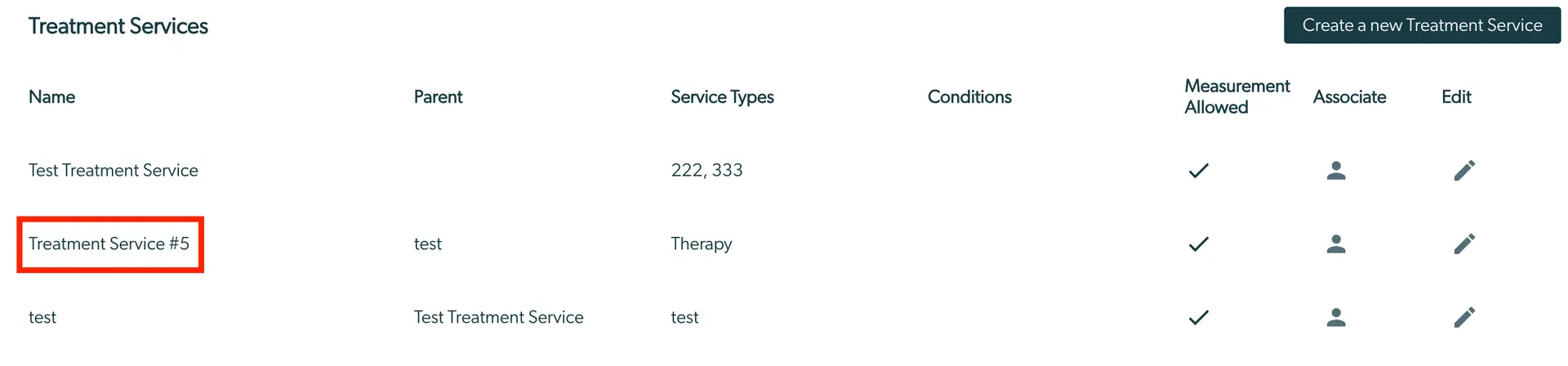
The screenshot displays the 'Treatment Services' page within the Mirah Measurement-Based Care platform. This page is designed to manage and view different treatment services. At the top right corner, there is a button labeled 'Create a new Treatment Service' for adding new services. The table below is organized into columns: 'Name', 'Parent', 'Service Types', 'Conditions', 'Measurement Allowed', 'Associate', and 'Edit'. Each row represents a treatment service entry. The 'Name' column lists the service names such as 'Test Treatment Service' and 'Treatment Service #5'. The 'Parent' column indicates the parent service, with entries like 'test'. 'Service Types' lists the types of services, such as '222, 333' and 'Therapy'. The 'Conditions' column is currently empty. The 'Measurement Allowed' column shows checkmarks indicating whether measurement is permitted for each service. The 'Associate' column contains an icon of a person, likely for associating the service with a user or group. The 'Edit' column features a pencil icon for editing the service details. The highlighted row is 'Treatment Service #5', drawing attention to this specific entry.

5). If you would to make any edits to the treatment service, click on the black pencil icon at the far-right of the treatment service name and you will be brought back to the page shown in step 3.

The screenshot displays a table used for managing treatment services within the Mirah Measurement-Based Care platform. The table includes columns labeled 'Name', 'Parent', 'Service Types', 'Conditions', 'Measurement Allowed', 'Associate', and 'Edit'. Each row represents a different treatment service. The 'Name' column lists the service names such as 'Test Treatment Service', 'Treatment Service #5', and 'test'. The 'Parent' column indicates the parent service, with entries like 'test' and 'Test Treatment Service'. The 'Service Types' column shows the types of services offered, such as '222, 333' and 'Therapy'. The 'Conditions' column is currently empty. The 'Measurement Allowed' column uses checkmarks to indicate whether measurement is permitted for each service. The 'Associate' column features an icon representing the option to associate the service with a user or group. The 'Edit' column contains pencil icons for editing the respective service, with the icon for 'Treatment Service #5' highlighted in red, indicating it is selected for editing.

If you face any issues while trying to create a new treatment service, please reach out to support@mirah.com for further assistance.