
How to Add Core and Supplemental Measures

How to add a Core Measure​

When a client is first enrolled in Mirah, they will automatically start to receive the following measures depending on age:

Measures in "Mirah Child Outpatient Standard":​

1). Events: Every Session - Before session - Self-report format

2). Goals: Every Session - Before session - Self-report format

3). Peabody Measure: Every Session - Before session - Self-report format

Measures in "Mirah Adult Outpatient Standard":​

1). Events: Every Session - Before session - Self-report format

2). Goals: Every Session - Before session - Self-report format

3). CAMS: Every Session - Before session - Self-report format

4). GAD-7: Alternating - Every Session

5). PHQ-9: Alternating - Every Session

Any edits made to core measures can only be made by your supervisor. If your supervisor is somehow unable to make these edits, please reach out to support@mirah.com for further assistance.

How to add a Supplemental Measure​

1). Search for the client's name, or click on the client's name from the dashboard.

2). From the client page, click on the "Measurement Protocol" button on the left-hand side.
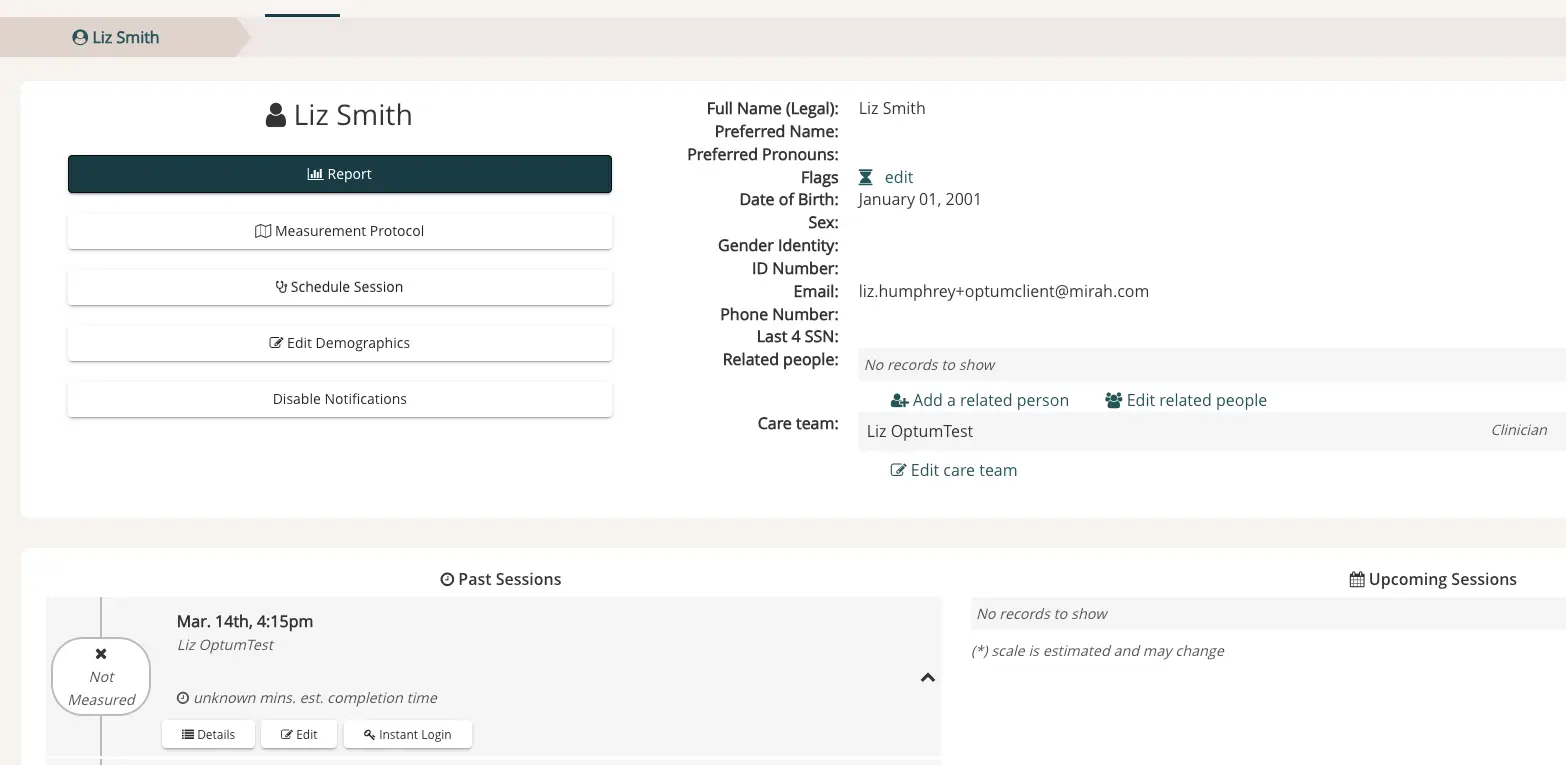
The screenshot displays the user interface for managing a client's profile in Mirah Measurement-Based Care. At the top, the client's name, Liz Smith, is prominently displayed with a profile icon. Below the name, there is a 'Report' button for accessing detailed reports. The left side features buttons for 'Measurement Protocol', 'Schedule Session', 'Edit Demographics', and 'Disable Notifications', each serving specific functions related to client management. On the right, detailed client information is listed, including full name, preferred name, preferred pronouns, flags with an 'edit' option, date of birth, sex, gender identity, ID number, email, phone number, last four digits of SSN, related people with options to 'Add a related person' and 'Edit related people', and care team details with an 'Edit care team' link. The bottom section is divided into 'Past Sessions' and 'Upcoming Sessions', with details of past sessions including date, time, and clinician name, along with 'Details', 'Edit', and 'Instant Login' buttons for session management. The upcoming sessions section indicates no records to show.

3). Click "Add Single Measure". Note that you'll want to confirm that you're adding the measure in the correct Episode of Care (for clients who are enrolled in more than one). You can see the related options for this client by clicking into the "For treatment in:" drop-down.
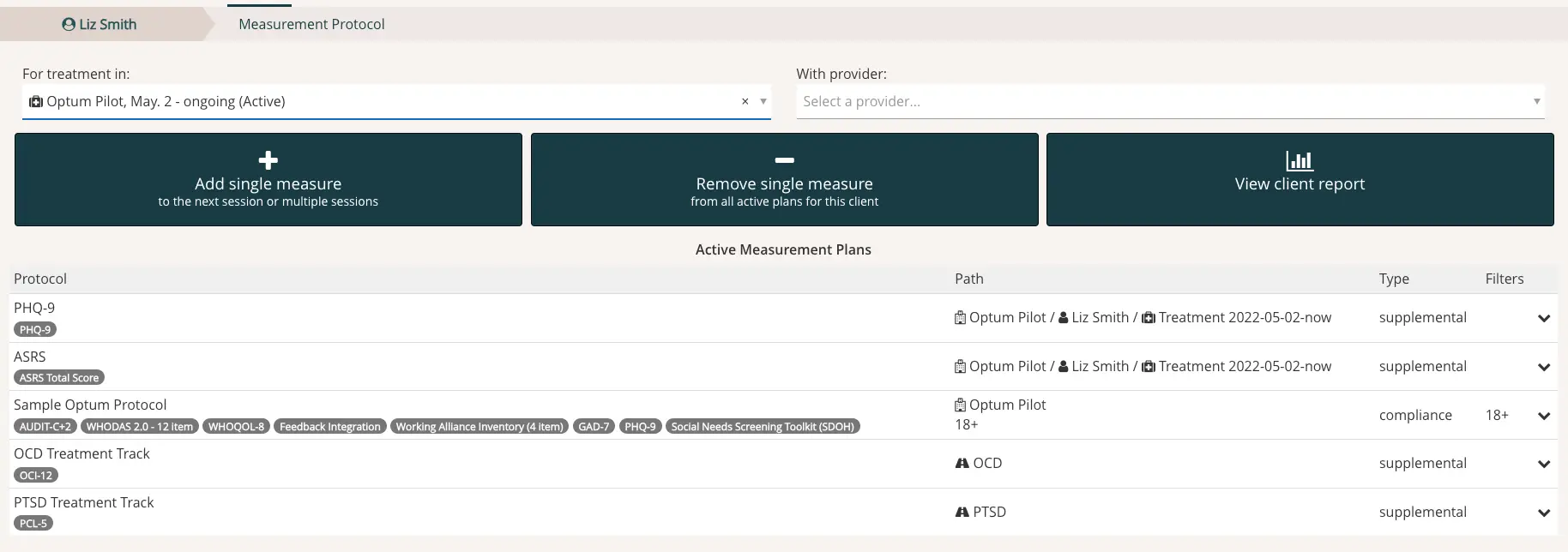
The screenshot displays the Measurement Protocol page for Liz Smith, showing the interface for managing measurement plans. At the top, there is a breadcrumb navigation indicating the user's location within the application. Below, there is a section labeled 'For treatment in:' with a dropdown menu showing 'Optum Pilot, May 2 - ongoing (Active)' as the selected treatment plan. Next to it, there is a 'With provider:' dropdown menu for selecting a provider, currently empty. Three large buttons are prominently displayed: 'Add single measure' with a plus icon, located centrally, allows users to add a measure to the next session or multiple sessions; 'Remove single measure' with a minus icon, also centrally located, enables users to remove a measure from all active plans for the client; 'View client report' with a bar chart icon, located to the right, provides access to the client's report. Below these buttons, the 'Active Measurement Plans' section lists various protocols, each with a name, path, type, and filters. Protocols include PHQ-9, ASRS, Sample Optum Protocol, OCD Treatment Track, and PTSD Treatment Track, with details such as path, type (e.g., supplemental, compliance), and filters (e.g., 18+).

4). This will open the "Select scales" window. Search for the measure(s) you'd like to add to treatment sessions using the search bar. Hit the "Choose" button for any scale you'd like to add.
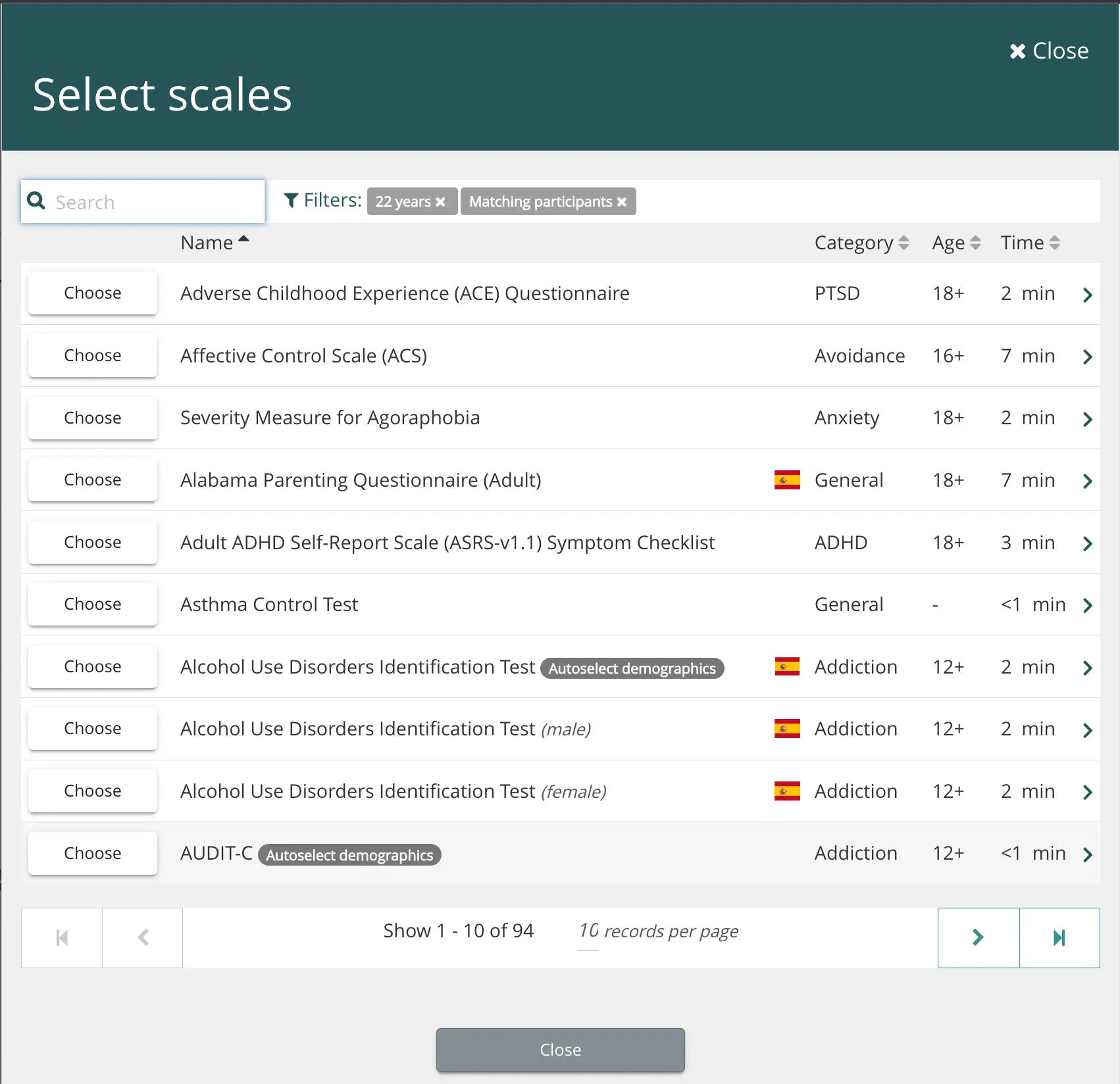
The 'Select scales' screen allows users to choose from a list of measurement scales for assessment purposes. At the top, there is a search bar for filtering scales, accompanied by active filters indicating '22 years' and 'Matching participants'. Each scale is listed with a 'Choose' button on the left, followed by the scale name, category, age suitability, and estimated completion time. Some scales have additional tags like 'Autoselect demographics' or gender-specific labels such as 'male' and 'female'. The screen includes navigation controls at the bottom to move through pages of scales, showing 'Show 1 - 10 of 94' with options to view '10 records per page'. A 'Close' button is located at the bottom center to exit the screen, and another 'Close' button is at the top right corner.

5). Choose the measure frequency that meets your needs.
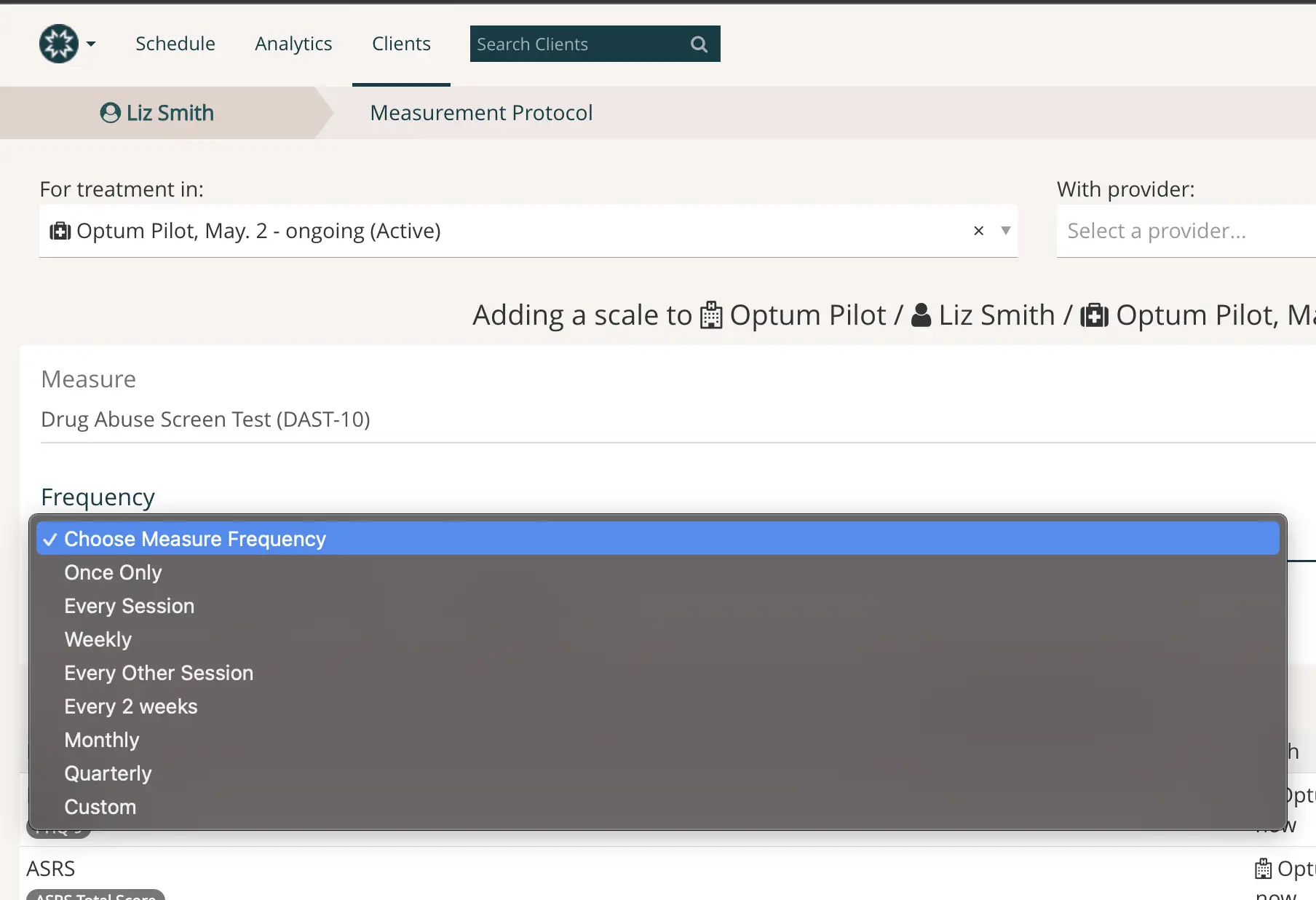
The screenshot displays the interface for adding a scale to a treatment protocol within the Mirah Measurement-Based Care platform. The top navigation bar includes options for Schedule, Analytics, and Clients, with a search bar labeled 'Search Clients' for finding specific client records. The breadcrumb trail indicates the user is in the 'Measurement Protocol' section for client Liz Smith, under the 'Optum Pilot' treatment program. The screen shows a dropdown menu for selecting the frequency of the 'Drug Abuse Screen Test (DAST-10)' measure, with options such as Once Only, Every Session, Weekly, Every Other Session, Every 2 weeks, Monthly, Quarterly, and Custom. The dropdown is located under the 'Frequency' label, which is below the 'Measure' label displaying the selected test. The 'For treatment in:' field specifies the active treatment program, and the 'With provider:' field is available for selecting a provider.

6). Click “Confirm measure addition and replan".
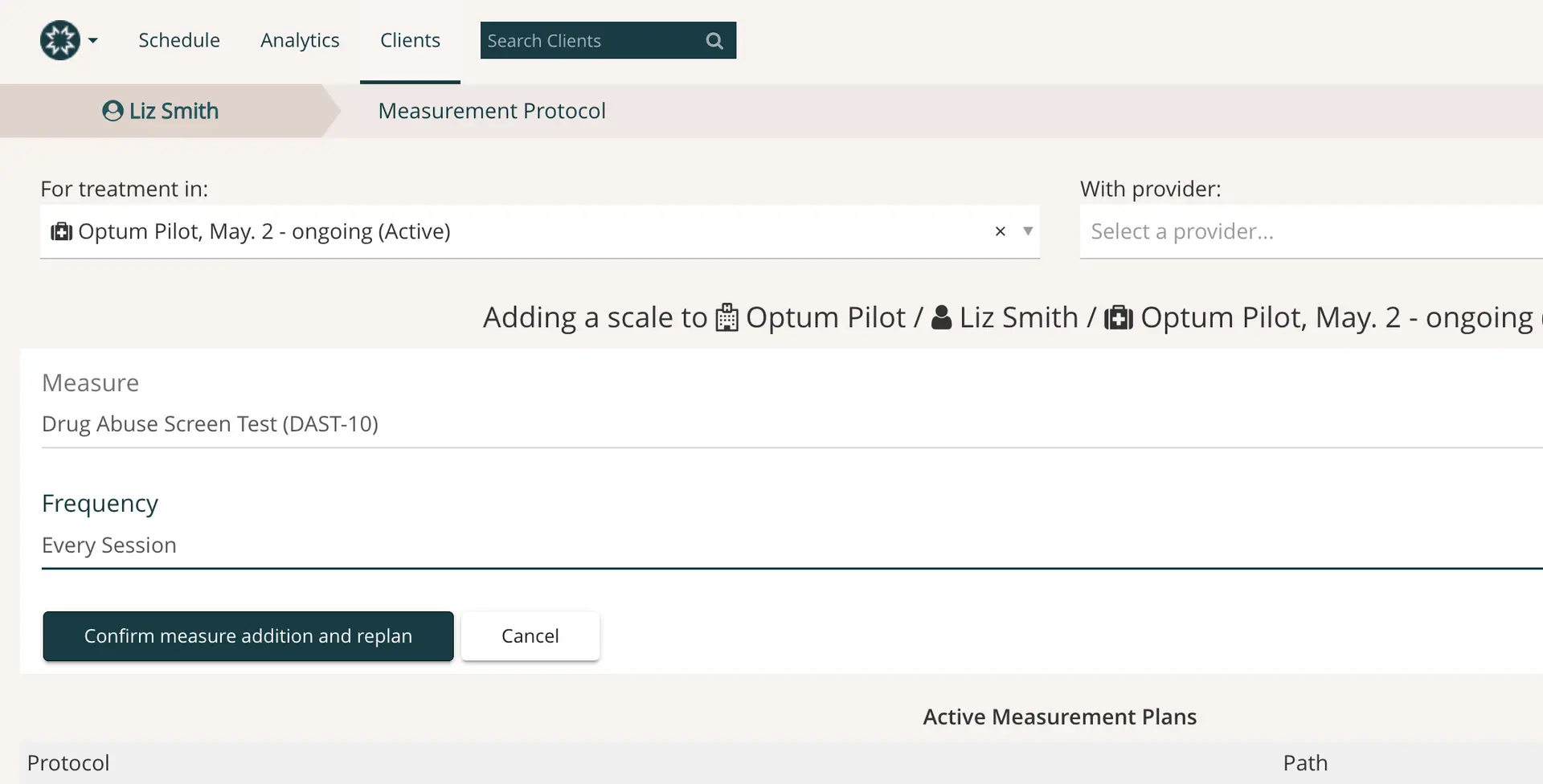
The screenshot displays the interface for adding a scale to a treatment plan within the Mirah Measurement-Based Care platform. The top navigation bar includes options for Schedule, Analytics, and Clients, with a search bar labeled 'Search Clients' for finding specific client records. The breadcrumb trail shows the path: Liz Smith > Measurement Protocol. Below, there are fields for selecting the treatment location, 'Optum Pilot, May 2 - ongoing (Active)', and a dropdown menu for selecting a provider. The section titled 'Adding a scale to Optum Pilot / Liz Smith / Optum Pilot, May 2 - ongoing' indicates the current operation. The 'Measure' field displays 'Drug Abuse Screen Test (DAST-10)', and the 'Frequency' field specifies 'Every Session'. At the bottom, there are two buttons: 'Confirm measure addition and replan' on the left, and 'Cancel' on the right, allowing the user to either confirm the addition of the measure or cancel the operation.

7). You will see measures listed in the measure protocol as supplemental.