
Viewing a Patient's Measures Protocol

Please note that, for some organizations using Mirah, measures protocols are automatically created and cannot be edited by providers. Your organization’s preferences regarding measures protocols and their administration will be covered in training.

1). To view a patient’s measures protocol, first navigate from the dashboard to the patient’s Detail page by finding the patient’s name and clicking “Detail.”
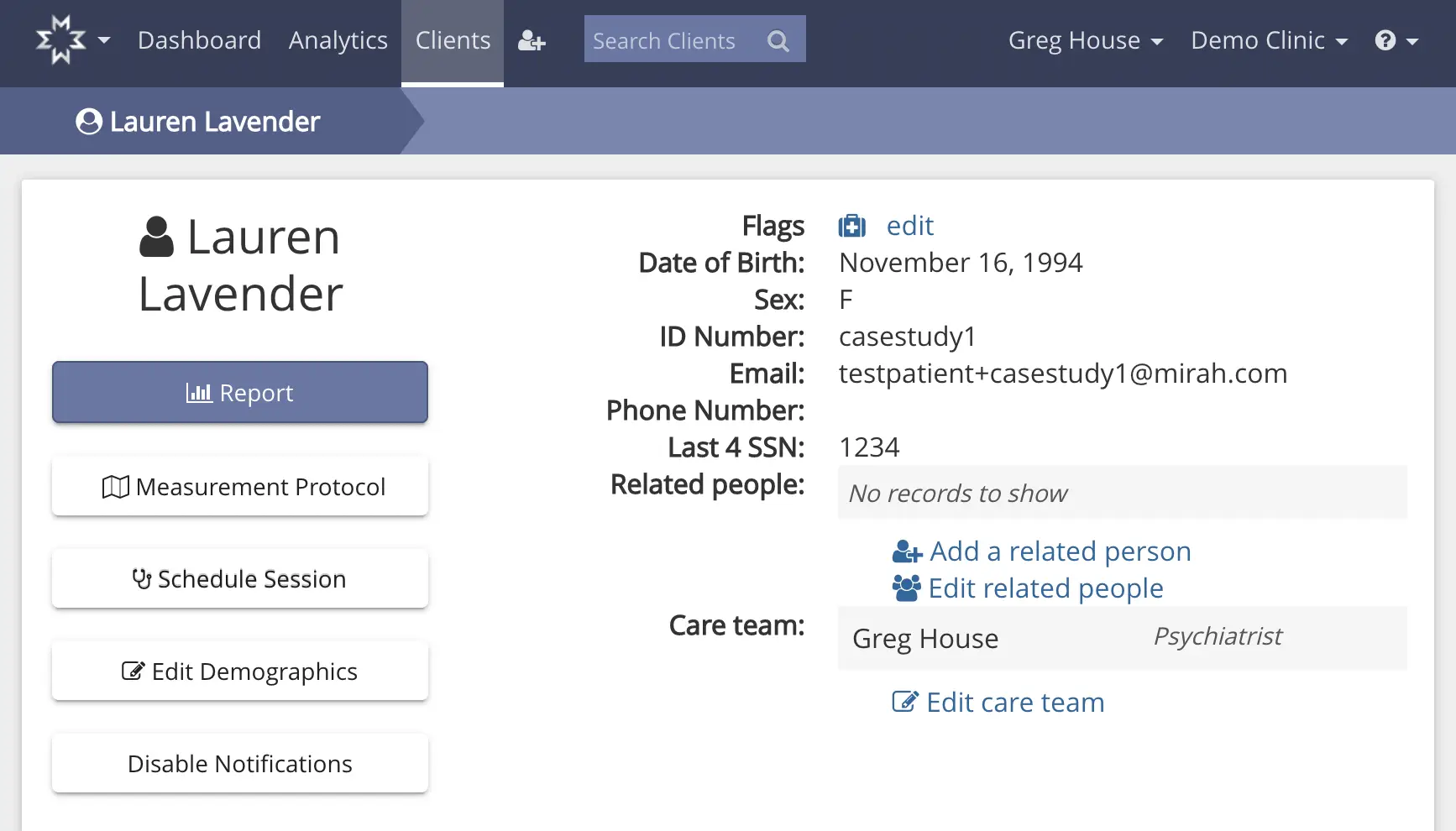
The screen displays a patient's profile within the Mirah Measurement-Based Care platform, specifically for viewing and managing a patient's measures protocol. At the top, the navigation bar includes options for Dashboard, Analytics, and Clients, with a search bar for finding clients. The user is identified as Greg House from Demo Clinic. The main section shows the patient's name, Lauren Lavender, with a breadcrumb trail indicating the current page. The left side features buttons for Report, Measurement Protocol, Schedule Session, Edit Demographics, and Disable Notifications, each serving specific functions for managing patient care. On the right, patient details such as Flags, Date of Birth, Sex, ID Number, Email, Phone Number, Last 4 SSN, and Related People are listed, with options to edit these details. The Care Team section lists Greg House as the psychiatrist, with an option to edit the care team. The interface is designed to provide comprehensive patient information and facilitate easy navigation and management of patient care protocols.

2). Once on the Details page, click “Measurement Protocol” to edit and view the patient’s measures protocol. You can also view a summary of measures that have been administered in past sessions and are scheduled to be administered in future sessions by scrolling down on the Detail page.
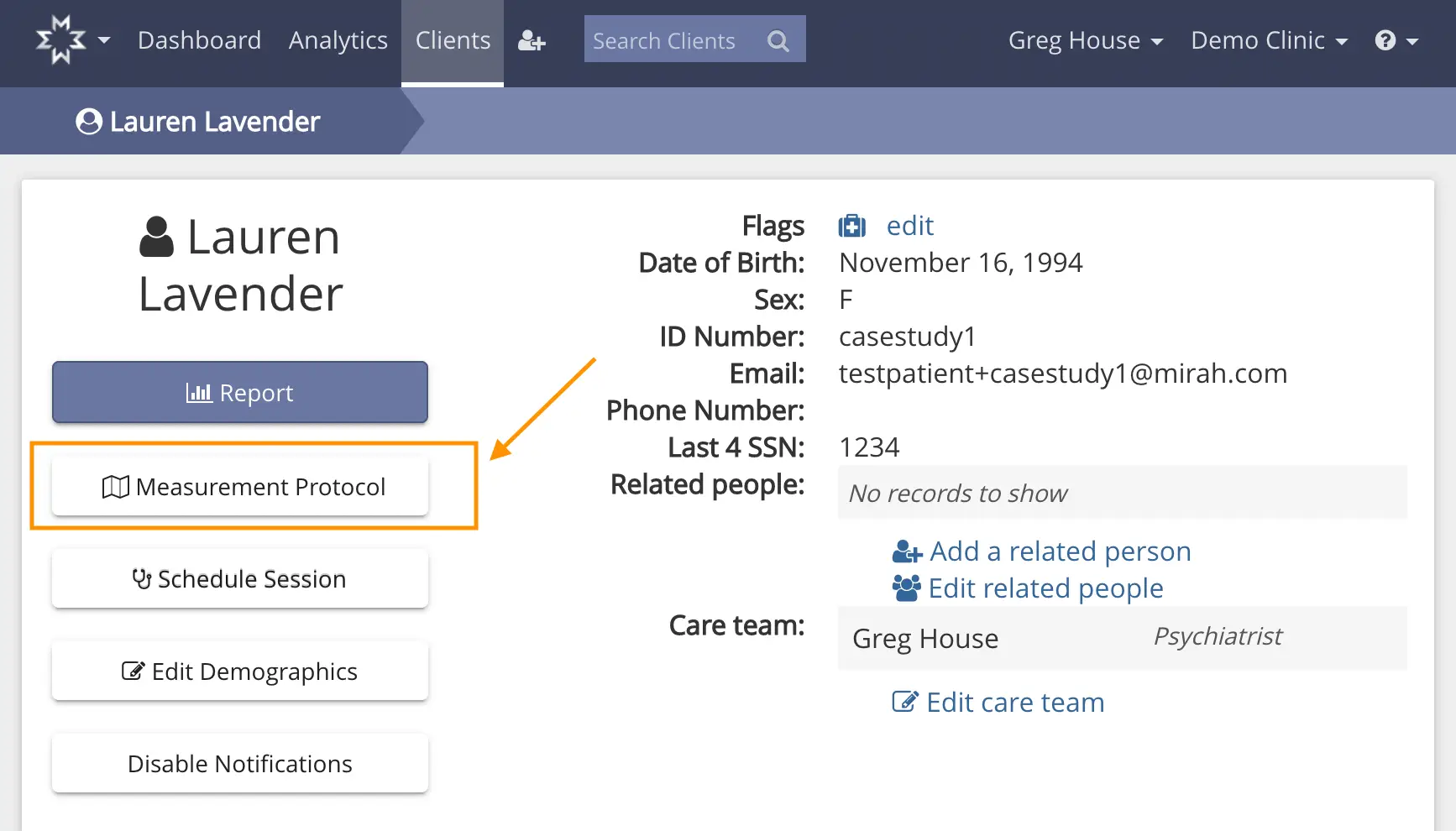
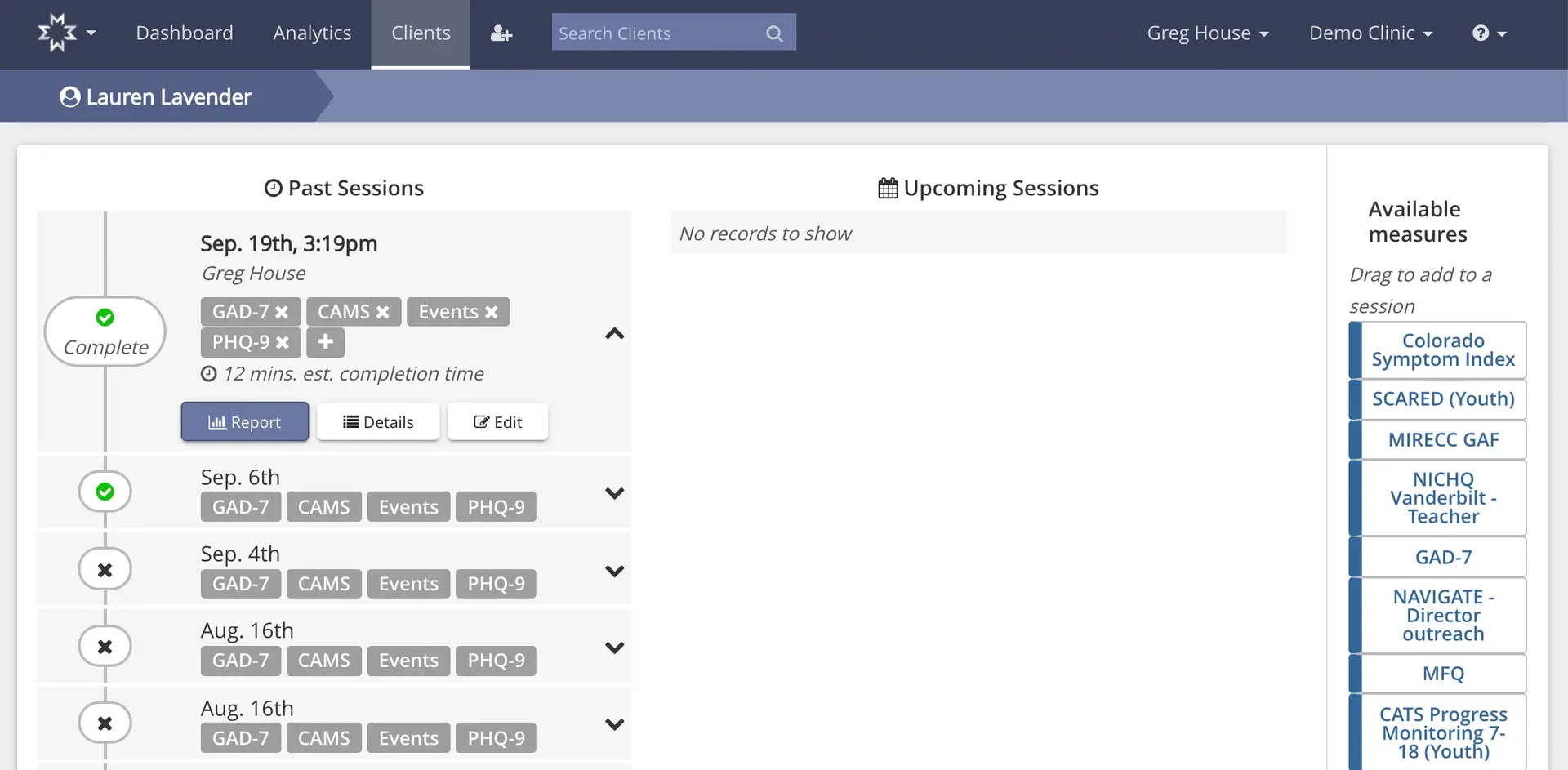
The screenshot displays the patient profile page for Lauren Lavender within the Mirah Measurement-Based Care platform. The top navigation bar includes options for Dashboard, Analytics, and Clients, with a search bar for finding clients. The user is identified as Greg House from Demo Clinic. The page shows Lauren Lavender's personal details such as date of birth, sex, ID number, email, phone number, and the last four digits of her SSN. There is a section for related people with options to add or edit related persons. The care team is listed with Greg House as the psychiatrist, and there is an option to edit the care team. On the left side, there are buttons for Report, Measurement Protocol, Schedule Session, Edit Demographics, and Disable Notifications. The Measurement Protocol button is highlighted, indicating its importance in the current workflow.The screenshot displays the 'Clients' section of the Mirah Measurement-Based Care platform, specifically focusing on a patient's measures protocol. The top navigation bar includes options for Dashboard, Analytics, and Clients, with a search bar to find clients. The user is identified as Greg House, associated with Demo Clinic. The main content is divided into three sections: 'Past Sessions' on the left, 'Upcoming Sessions' in the center, and 'Available measures' on the right. Under 'Past Sessions', there is a timeline of sessions for Lauren Lavender, with the most recent session on September 19th at 3:19 pm marked as complete. This session includes measures like GAD-7, CAMS, and PHQ-9, with an estimated completion time of 12 minutes. Buttons for 'Report', 'Details', and 'Edit' are located below the session details. The 'Upcoming Sessions' section indicates 'No records to show'. The 'Available measures' section lists various measures such as Colorado Symptom Index and SCARED (Youth), which can be dragged to add to a session.

3). The first step on the Measurement Protocol Page is to make sure the correct Episode of Care is selected. Click the below dropdown to select the Episode of Care because the Measurement logic is dependent on the Episode of Care.
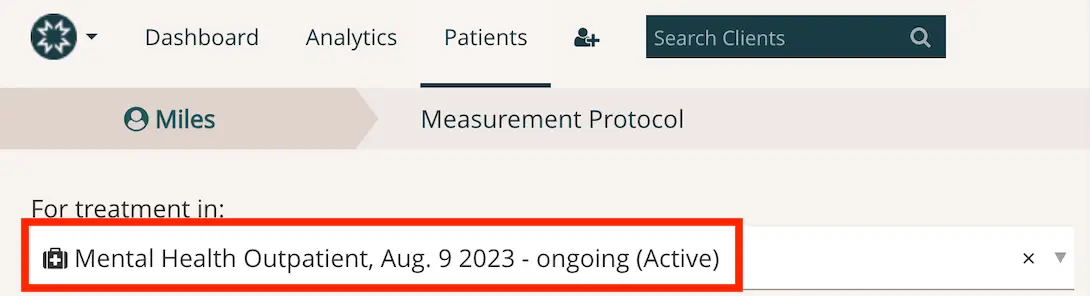
The screenshot displays the Measurement Protocol page for a patient named Miles within the Mirah Measurement-Based Care platform. At the top, there is a navigation bar with options for Dashboard, Analytics, and Patients, along with a search bar labeled 'Search Clients' on the right side. Below the navigation bar, the breadcrumb trail indicates the user's current location: Patients > Miles > Measurement Protocol. The main content area shows the treatment setting for Miles, specifically 'Mental Health Outpatient,' with the start date of August 9, 2023, and the status marked as ongoing and active. This information is highlighted with a red border, emphasizing its importance in the patient's care protocol.

4). From the Measurement Protocol page, you can add and remove measures, view the most recent clinical report, and find further information about active measures by clicking the downward arrow to the right of the listed measure.
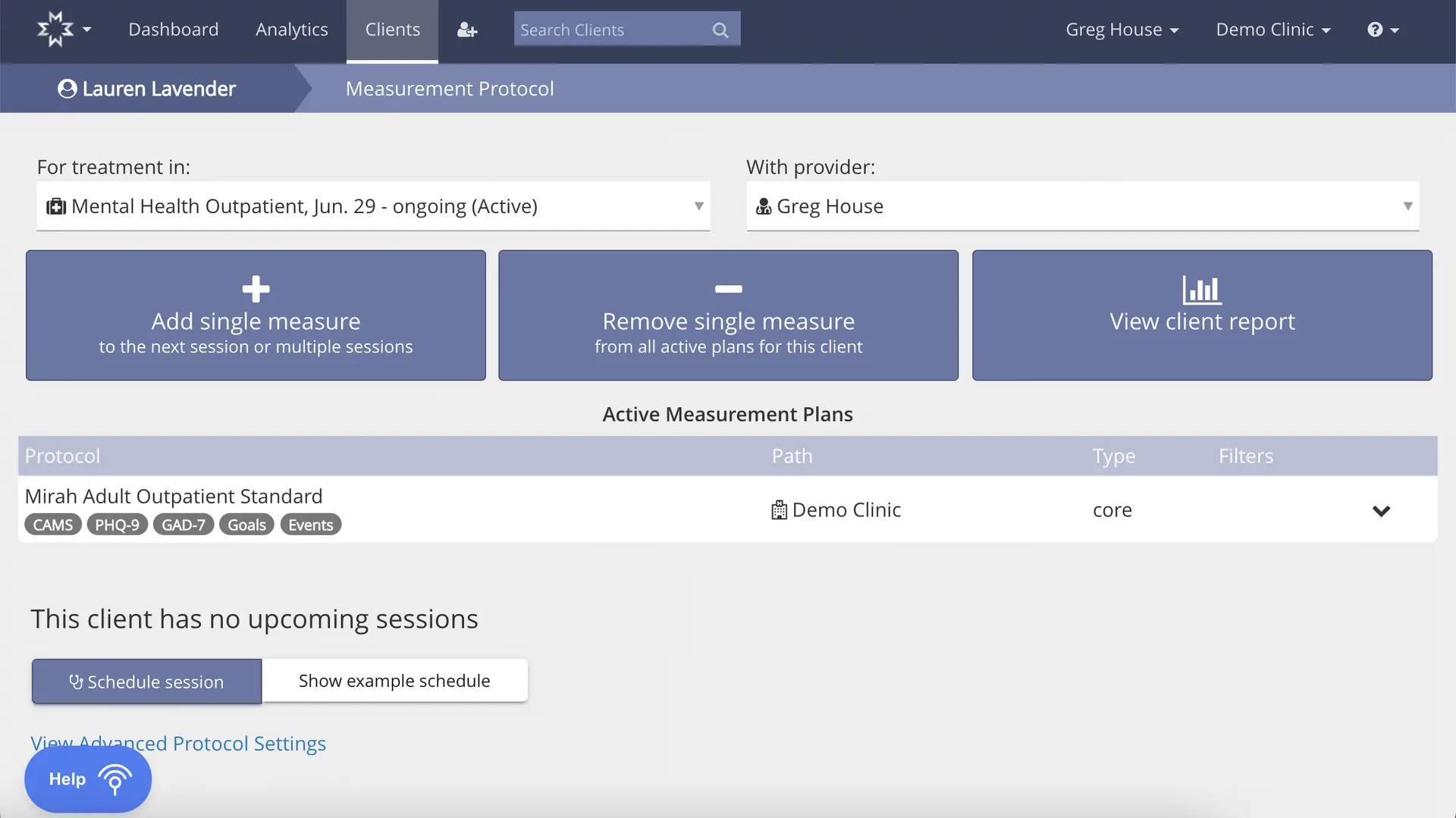
The screenshot displays the Measurement Protocol page for a client named Lauren Lavender. At the top, there is a breadcrumb navigation indicating the user's location within the application, starting from the Dashboard, Analytics, and Clients sections. The page is set for treatment in 'Mental Health Outpatient, Jun. 29 - ongoing (Active)' with provider 'Greg House'. Below this, there are three large buttons: 'Add single measure' to add measures to the next session or multiple sessions, 'Remove single measure' to remove measures from all active plans for the client, and 'View client report' to access the client's report. These buttons are centrally located. The 'Active Measurement Plans' section lists the protocol 'Mirah Adult Outpatient Standard' with associated measures like CAMS, PHQ-9, GAD-7, Goals, and Events. The path is set to 'Demo Clinic' with a type labeled 'core'. The page indicates that the client has no upcoming sessions, with options to 'Schedule session' or 'Show example schedule' located below. There is also a link to 'View Advanced Protocol Settings'. A 'Help' button is located at the bottom left corner.

  • *If this is blank, please work with a superuser to create a Measurement Protocol.

5). To view additional measurement protocols, click the "View Advanced Protocol Settings" to view additional specific measurement protocols that have been manually assigned to this patient.

Understanding Measurement Logic​

Measurement Planning is more complex than it appears at first and is dependent on the Episode of Care that an appointment is part of it. When there is an appointment, it checks the measurement logic of that Episode of Care to decide on whether to send a measure.

In a scenario where it has been 10 days since the last GAD-7 was completed by the patient across all Episodes of Care:

Episode of Care A GAD-7 logic says it will send every 1 week. That means that at the next Episode of Care A appointment, if there has not been a GAD-7 sent in the last 1 week, it will send.

Episode of Care B has GAD-7 logic of every 30 days. Episode of Care C has GAD-7 logic of every 2 weeks. If there are appointments in these Episodes of Care, GAD-7 will not yet send.

Therefore GAD-7 will send again the first time one of the following is the case:

1. Episode of Care A appointment (since it has already been 1 week since the last administration)

2. Episode of Care B appointment after it has been 30 days

3. Episode of Care C appointment after it has been 3 weeks