
The My Time Page

This page describes a Mirah feature that hasn't been deployed for all customers yet. If you don't have access to this feature yet and you're interested in getting it, contact Mirah support.

Overview​

Your time logged in Mirah is the primary artifact used to bill payers for your services, which keeps the collaborative care program running. In addition, reviewing how you've spent your time can help guide effective care, for example by checking when you last had contact with a patient or how much of your time you're spending on different tasks. The My Time page is a tool to manage all the time you log across patients and tasks so you can get a better handle on how you're spending your time.

Access My Time from the navigation on the left, just under Panels:

The screenshot displays the navigation menu of the Mirah Collaborative Care platform, specifically for Riverbend Behavioral Health. At the top, the Mirah logo and the organization name are visible. Below, the user's name, Dr. Dana Reyes M.D., is displayed with a dropdown arrow for additional options. A button labeled '0 Panels' is present, indicating the number of panels assigned to the user. A search bar with a placeholder text 'Search (ctrl+K)' allows users to quickly find features or information. The menu includes several options: 'Dashboard', 'Panels', 'My Time' (highlighted to indicate the current selection), 'All Tasks', 'Case Consult', 'Patient Search', 'Billing', 'Metrics', 'Configuration', 'Platform Tools', and 'Mirah Support'. Some options like 'Billing', 'Metrics', and 'Platform Tools' have dropdown arrows, suggesting expandable sub-menus. The menu is designed to help users navigate through different functionalities related to managing time, tasks, and other collaborative care features.

Calendar Navigation​

The default view when you open My Time is a calendar with the time you've logged so far this week. Before we look at a whole week though, lets look at a single day so we can see some details more clearly:
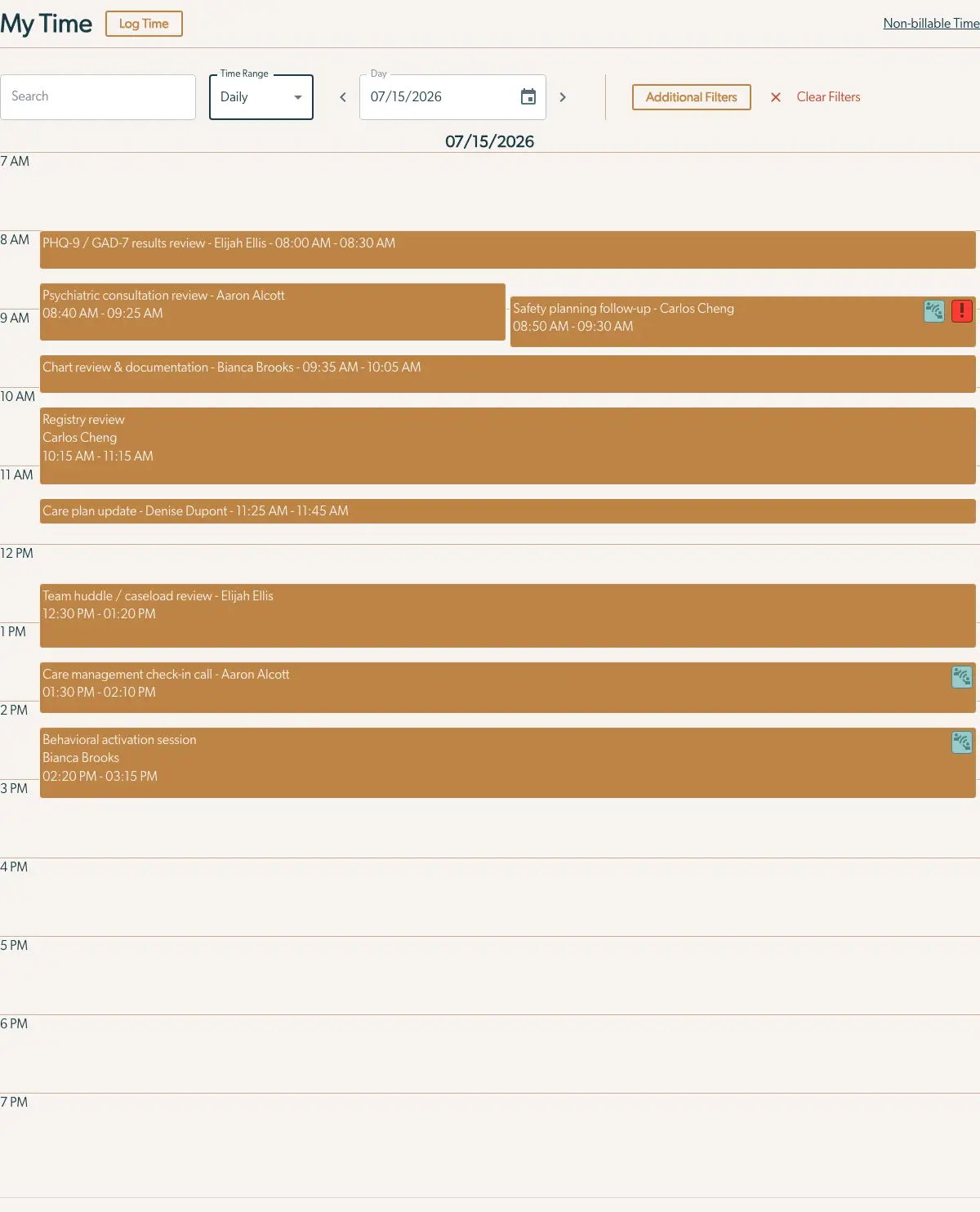
The 'My Time' page in Mirah Collaborative Care is designed for managing and viewing scheduled activities. At the top, there is a search bar for filtering events. Below it, the 'Time Range' dropdown allows users to select the viewing period, with 'Daily' currently selected. The 'Day' field displays the selected date, 07/15/2026, with calendar icons for easy date selection. To the right, 'Additional Filters' and 'Clear Filters' buttons provide options to refine or reset the view. The main section shows a timeline from 7 AM to 7 PM, with scheduled events displayed as colored blocks. Each block includes the event name, participant, and time. Some events have icons indicating additional notes or alerts. The 'Log Time' button at the top allows users to add new entries, and a link to 'Non-billable Time' is available in the top right corner.

The calendar spans 7am to 7pm (if you've logged time earlier or later it'll automatically expand to see all time for this day). You can select which day to view at the top, or use the left and right buttons next to the day selector to go back and forth one day at a time. When you're looking at a week or a month at a time the left and right buttons step a week or a month.

It shows each block of logged time as a rectangle with the time's title, the patient the time was logged for and the start and end time. When there are multiple blocks of time logged at the same time, they're shown stacked next to each other. Note that short time entries, less than about 20 minutes, will be drawn larger than their "real" size so they can fit a line of text. This can cause several consecutive short time entries to look like they overlap even when they don't.

The next thing to look for is the red badge that may appear on some time entries. This indicates a block of time where some of the time isn't getting counted as billable. In the example above, this is because it overlaps with another time block, and Mirah only counts the non-overlapped time as billable. See The Non-billable Time Page article for more details about what makes time not count for billing.

In addition to the red badge, there's a blue badge on time that was logged as including patient contact. Regular patient contact is an important part of collaborative care, so this helps you get a high level view of how much of your time is being spent with patients.

Now lets zoom out to a week:
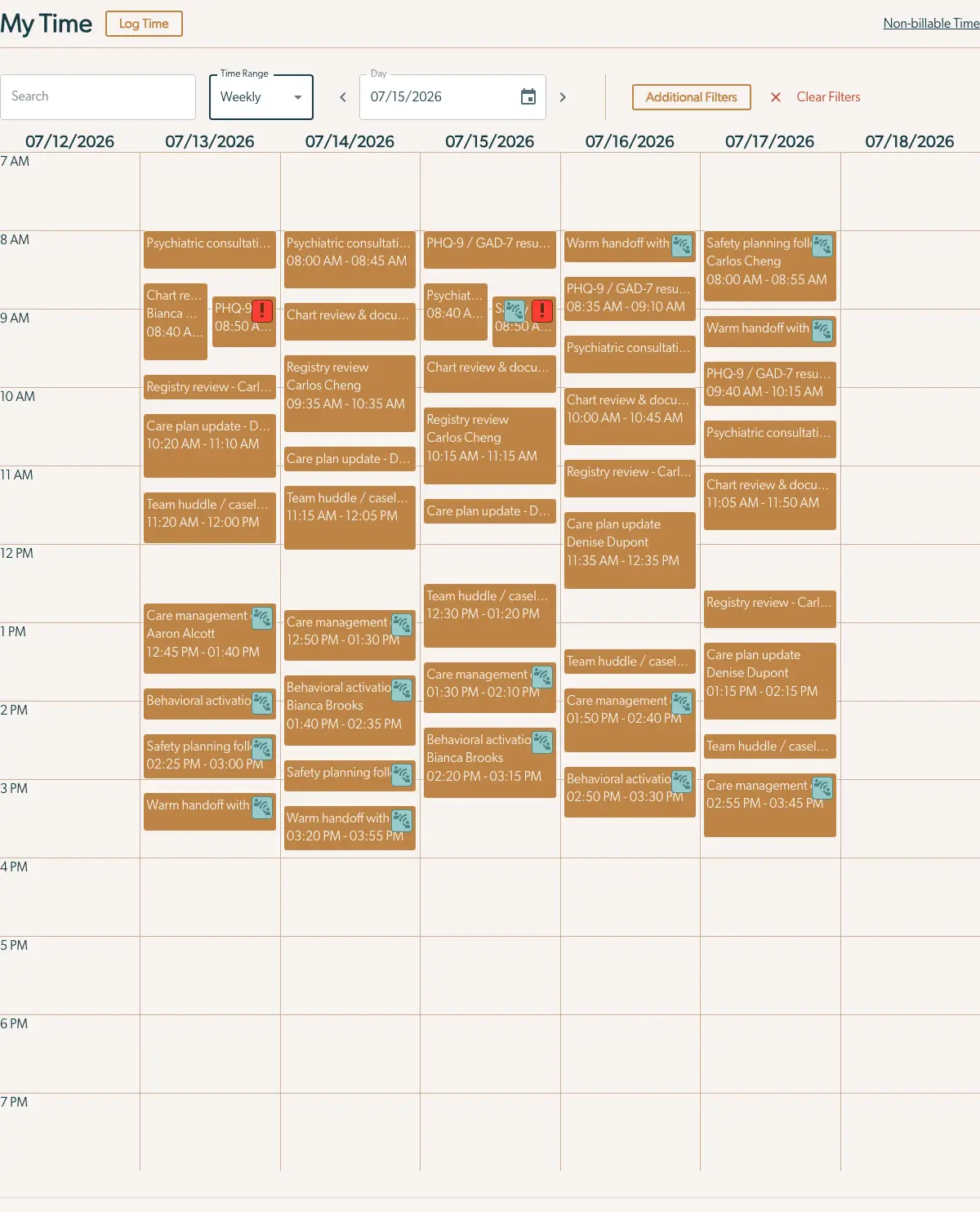
The 'My Time' page is designed for managing and viewing scheduled activities over a weekly period. The top navigation includes a search bar on the left for finding specific entries, a 'Time Range' dropdown menu set to 'Weekly', and a date selector currently displaying '07/15/2026'. Navigation arrows allow users to move between weeks. To the right, there are buttons for 'Additional Filters' and 'Clear Filters' to customize the view. Below, a calendar grid displays daily schedules from 07/12/2026 to 07/18/2026, with time slots from 7 AM to 7 PM. Each day contains color-coded blocks representing different activities such as 'Psychiatric consultation', 'Chart review', and 'Care management', with specific times and participant names. Some blocks have icons indicating alerts or additional notes. The 'Log Time' button is located at the top right, allowing users to add new entries.

The week view uses the same basic structure as the day view, but with all seven days stacked up next to each other. Finally, we can zoom out to a month:
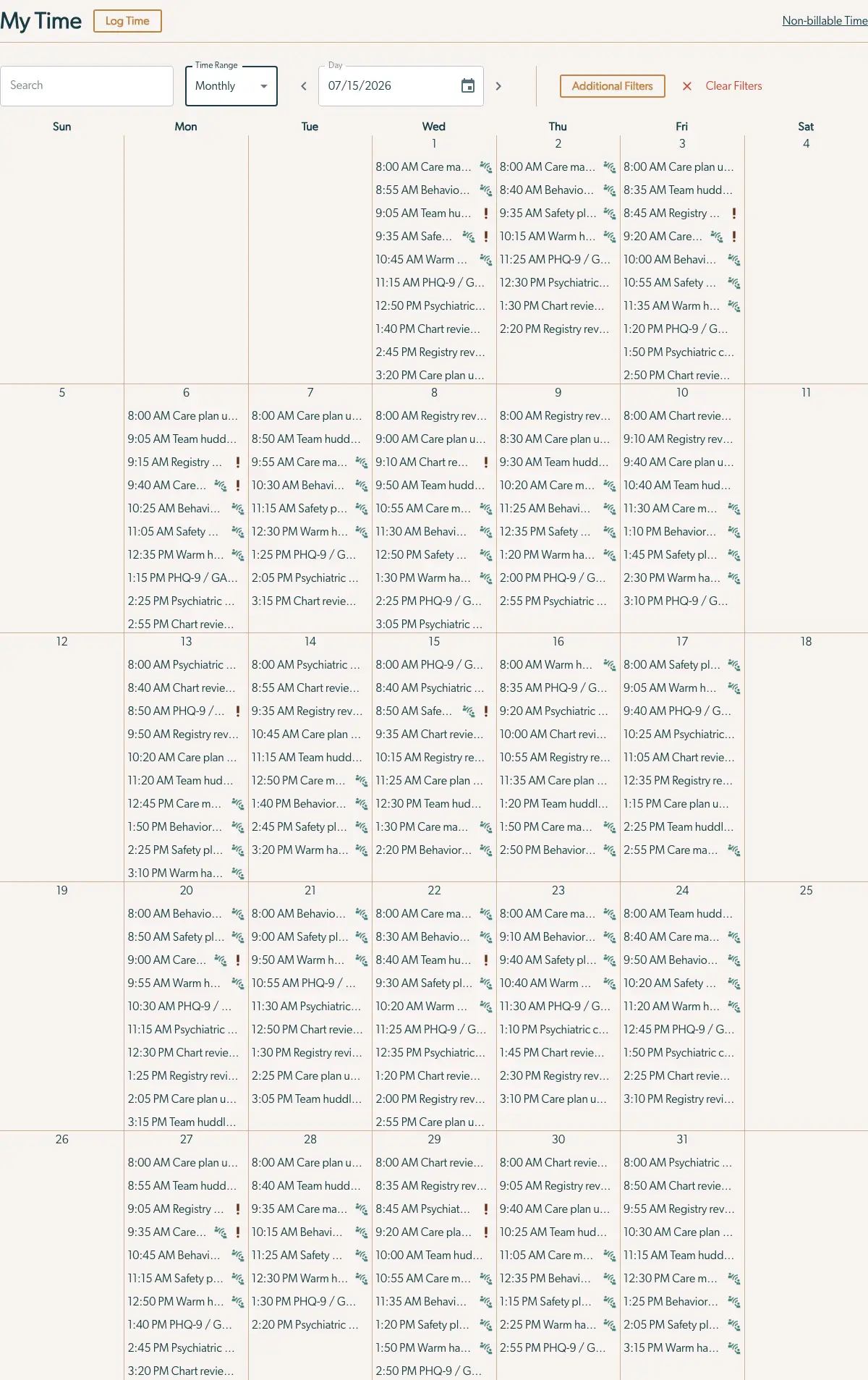
The 'My Time' page in Mirah Collaborative Care is designed for managing and tracking time allocations. At the top, there is a search bar for filtering entries, followed by a 'Time Range' dropdown set to 'Monthly' and a date selector set to 07/15/2026, with navigation arrows to adjust the date. To the right, there are buttons for 'Additional Filters' and 'Clear Filters'. Below, a calendar view displays scheduled activities for each day of the month, organized in columns by day of the week. Each entry includes a time, activity description, and icons indicating specific details or alerts. The 'Log Time' button is located at the top left, and a link to 'Non-billable Time' is at the top right.

A full month doesn't have enough space to show full blocks of time, so this condenses each time entry into a single line, sorted from earliest to latest. The badges become small icons on each row. To keep the page at a manageable size, we only show the first 10 time entries on each day. When there are more, there's a "See more time entries" button at the bottom of the day, which takes you to the single-day view.

Searching and Filtering​

The weekly and especially monthly view can be overwhelming with how much data they present, so it can be easier to use the tools on this page to only look at the time you're specifically interested in. Here's an example of searching for an individual patient:
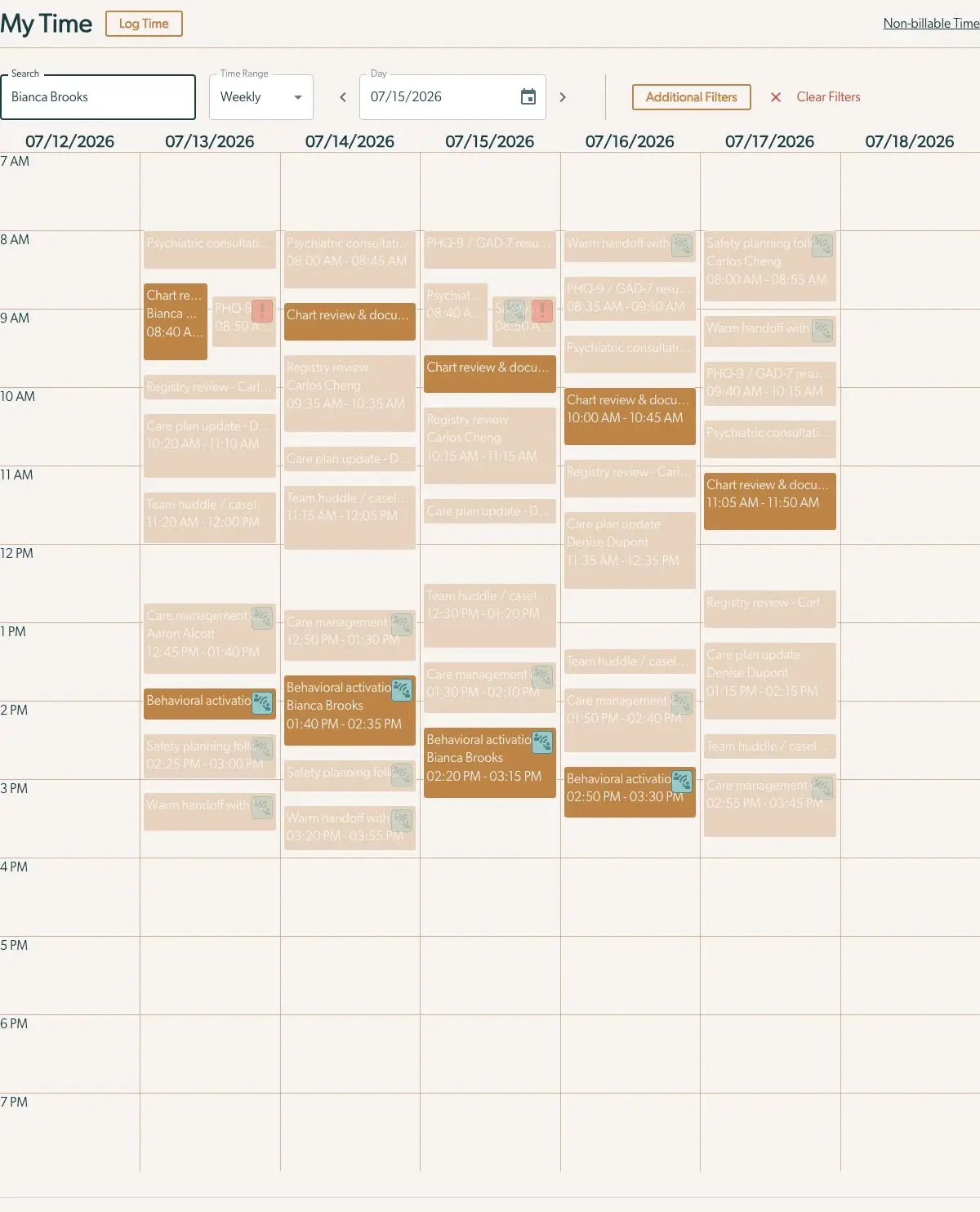
The 'My Time' page is designed for managing and viewing scheduled activities and tasks. At the top, there is a navigation bar with the title 'My Time' and a 'Log Time' button on the left. Below, there are filters and options including a search bar to select a user, a 'Time Range' dropdown set to 'Weekly', and a 'Day' selector with a calendar icon for choosing specific dates. The 'Additional Filters' button and 'Clear Filters' option are located to the right. The main section displays a weekly calendar view from 07/12/2026 to 07/18/2026, with time slots from 7 AM to 7 PM. Each day contains scheduled activities such as 'Psychiatric consultation', 'Chart review & documentation', and 'Behavioral activation', with specific times and participant names. Activities are color-coded and some have icons indicating additional details or actions.

When you search on the calendar view, all the time entries that don't match your search fade into the background, leaving the relevant ones highlighted. In this example we're searching for a patient's name, but you can also search by

  • The patient's legal or preferred name
  • The title of the time entry or the task it's linked to
  • The text of any notes linked to the time entry

This lets you drill down into how you're spending your time in more detail. In addition to searching, you can clicking the "Additional Filters" button to see some more specific ways to highlight your time:

The 'My Time' page in Mirah Collaborative Care is designed for managing and tracking time efficiently. It features a search bar on the left for filtering entries. Next to it, a dropdown menu labeled 'Time Range' allows users to select the period, such as 'Weekly'. Adjacent to this is a date selector for choosing a specific day, with navigation arrows on either side for easy date adjustment. Below, there is a dropdown to select a specific 'Patient', and checkboxes for 'Patient Facing Time' and 'Non-billable Time' to refine the time tracking. On the right, a dropdown labeled 'View Time For' provides options for viewing time allocations. The top right corner includes buttons for 'Additional Filters' and 'Clear Filters', allowing further customization or resetting of the filters.

The patient selector lets you pick a specific patient to highlight (helpful when there are patients who share a first or last name so a search is less specific), or highlight time that's patient facing or non-billable. Note that if you use multiple filters (for example, a patient and a search), only time that matches all the selected filters will be highlighted. You can clear your filters at any time with the Clear Filters button.

You can also select another provider to see their time instead of your own. This is most useful for supervisors, but can also come in handy for care managers if you need to cover for someone while they're out or share a patient load.

Filtering on the monthly view works similarly to the daily and weekly view:
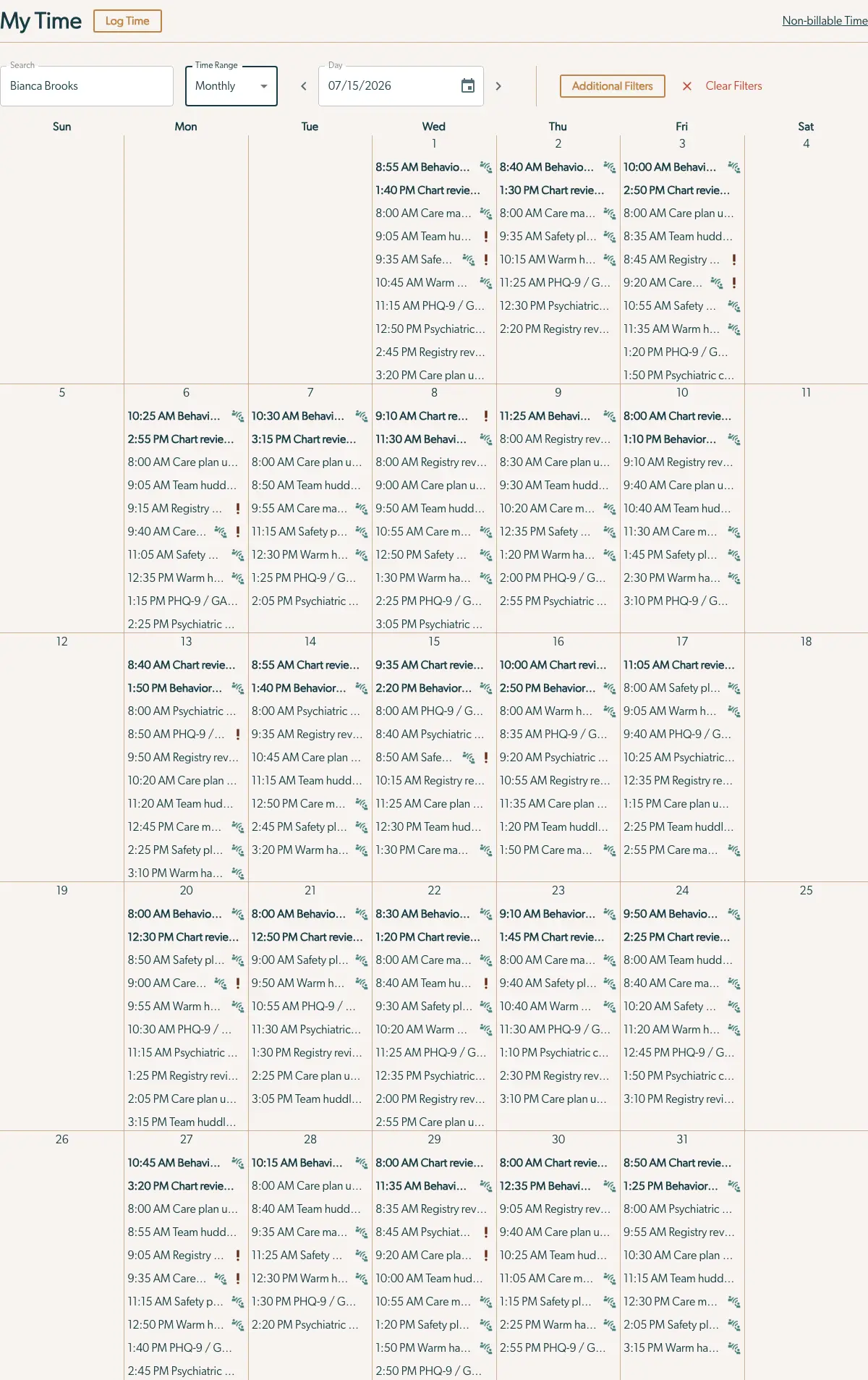
The 'My Time' page in Mirah Collaborative Care is designed for managing and tracking time allocations for various tasks and appointments. At the top, there is a navigation bar with the title 'My Time' and a 'Log Time' button on the left. To the right, there are options for 'Non-billable Time'. Below, a search bar allows users to filter by name, currently showing 'Bianca Brooks'. Next to it, a 'Time Range' dropdown is set to 'Monthly', and a date selector is set to '07/15/2026'. To the right, there are buttons for 'Additional Filters' and 'Clear Filters'. The main section displays a calendar view for the month, with each day listing scheduled activities such as 'Behavioral...', 'Chart review...', and 'Care plan...'. Each entry includes a time and may have icons indicating specific statuses or actions. The calendar is organized by week, with columns for each day from Sunday to Saturday.

Time that matches the search gets highlighted in bold and sorted to the top of each day's box. This includes time that would have been "below the fold" otherwise, due to the 10 visible entries per day limit.

Time Logging​

In addition to viewing your time on the calendar, you can also use it to log new time. Clicking on any empty space in any calendar view will open a form to log new time at the time you clicked on (rounded to the nearest 15 minutes). Note that this time is not linked to a specific task, so you'll need to add a patient and title for the time, (normally these are inferred from the linked task).

The 'Log Time' screen allows users to record time entries for a specific date, in this case, July 15, 2026. At the top, the date is prominently displayed. Below, a highlighted time slot from 6:00 PM to 6:30 PM is shown. Users can input the start time, which is required and currently set to 6:00 PM on July 15, 2026, using a calendar icon for date selection. The duration is set to 30 minutes. Additional fields include 'Title' for naming the time entry, 'Patient' for selecting a patient from a dropdown menu, and 'Notes' for any additional information. There is a checkbox labeled 'Included Direct Patient Contact' to indicate if direct contact was made. The 'Save' button at the bottom right is currently disabled, indicating that required fields may need to be completed before saving.

The form also includes a small calendar showing a preview of the time you're creating. If there are other time entries in the period before and after the time you're entering, they'll appear in this preview as well.

You are not restricted to editing time recorded by you. You can also edit time recorded by others.

Note that in the monthly view the default start time when you open this form by clicking on the calendar is 8am, since the display for each day doesn't use proportional time. Don't forget to change it to the time you actually want to log!

Edit Time Details​

You can also click on any time entry in the calendar to edit them. This opens a similar form to logging new time.
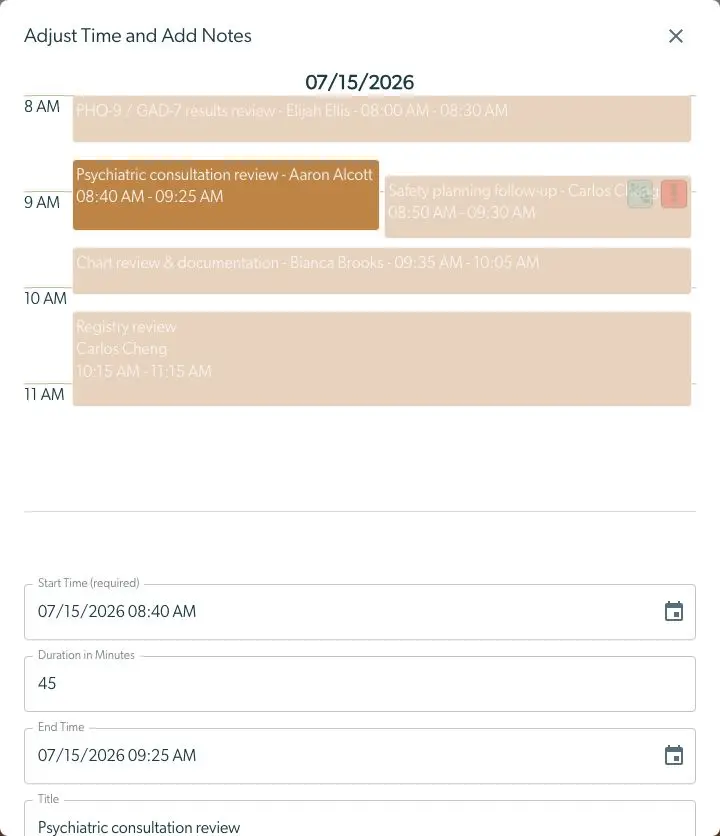
The 'My Time' page for Mirah Collaborative Care displays a daily schedule for July 15, 2026, allowing users to manage their time effectively. The schedule is organized in hourly blocks from 8 AM to 11 AM, showing various appointments such as 'PHQ-9 / GAD-7 results review' and 'Psychiatric consultation review.' Each appointment block includes the time, title, and participant's name. Below the schedule, there are fields to adjust the details of a selected appointment: 'Start Time' with a calendar icon for date selection, 'Duration in Minutes,' 'End Time' with another calendar icon, and 'Title.' These fields allow users to modify the appointment details as needed.