Panels - How to Create and Edit Panels

A "Panel" in Mirah is a group of providers that work together to provide care for patients enrolled in collaborative care. Providers can serve different functions on a panel, such as primary care physician or care manager, and can join or leave panels over time, either as job responsibilities shift or as a temporary measure, for example to cover for a colleague on leave.

In this article we'll cover how to set up panels to reflect the teams in your practice. Once you have panels set up, see How to Enroll and Intake a Patient to learn how to select the panel for a patient when enrolling them in collaborative care, and How to Filter Data in Mirah by Panel for how to use panels to filter the data you see across Mirah and reduce some of the noise of a busy practice.

To create or edit panels​

1.) Click into the "Configuration" tab in the vertical menu, then select "Panel Configuration".
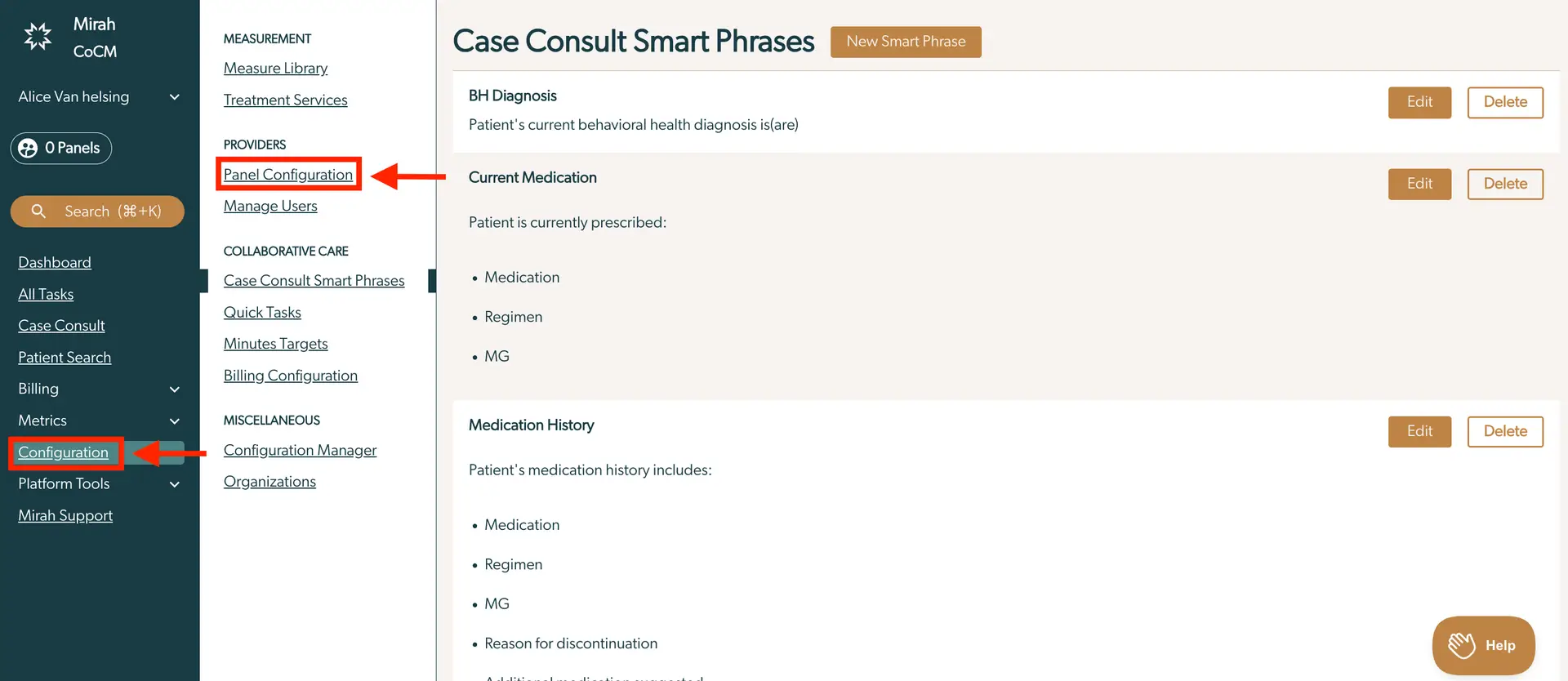
The screenshot displays the 'Case Consult Smart Phrases' page within the Mirah Collaborative Care platform. The left sidebar contains navigation options including Dashboard, All Tasks, Case Consult, Patient Search, Billing, Metrics, Configuration, Platform Tools, and Mirah Support. The Configuration section is expanded, highlighting 'Panel Configuration' and 'Manage Users' under Providers. The main content area shows sections for BH Diagnosis, Current Medication, and Medication History, each with details about the patient's health and medication regimen. Each section has 'Edit' and 'Delete' buttons located on the right side for modifying or removing entries. A 'New Smart Phrase' button is located at the top right of the main content area, allowing users to add new phrases. A 'Help' button is located at the bottom right corner of the screen.

2.) Before you have any panels set up, this page will look something like this:
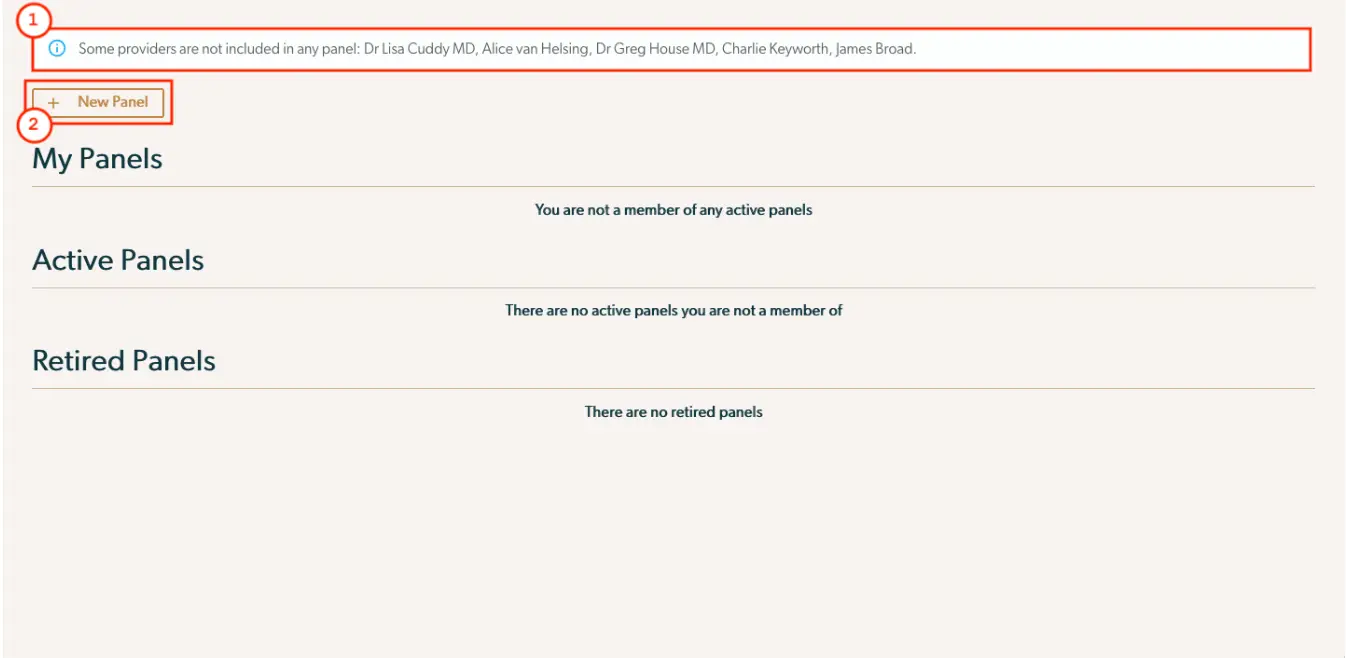
The screenshot displays the 'Panels' section of the Mirah Collaborative Care platform, where users can manage their involvement in various panels. At the top, there is an informational message indicating that certain providers, including Dr. Lisa Cuddy MD, Alice van Helsing, Dr. Greg House MD, Charlie Keyworth, and James Broad, are not included in any panel. Below this message, there is a '+ New Panel' button located on the left side, which allows users to create a new panel. The main section is divided into three categories: 'My Panels', 'Active Panels', and 'Retired Panels'. Each category contains a message indicating the user's current status, such as 'You are not a member of any active panels', 'There are no active panels you are not a member of', and 'There are no retired panels'. This screen is designed to help users manage their panel memberships effectively.

  • The tool tip at the top (box 1) indicates that some providers haven't been assigned to a panel yet. This isn't necessarily a problem - some providers may not be part of a care team - but as your staffing changes while you use Mirah, this can be a quick way to make sure you haven't forgot to set someone up in the right panel.

3.) Click on the "New Panel" button (box 2) at the top of the screen. This button will open a quick form to let you make a new panel:
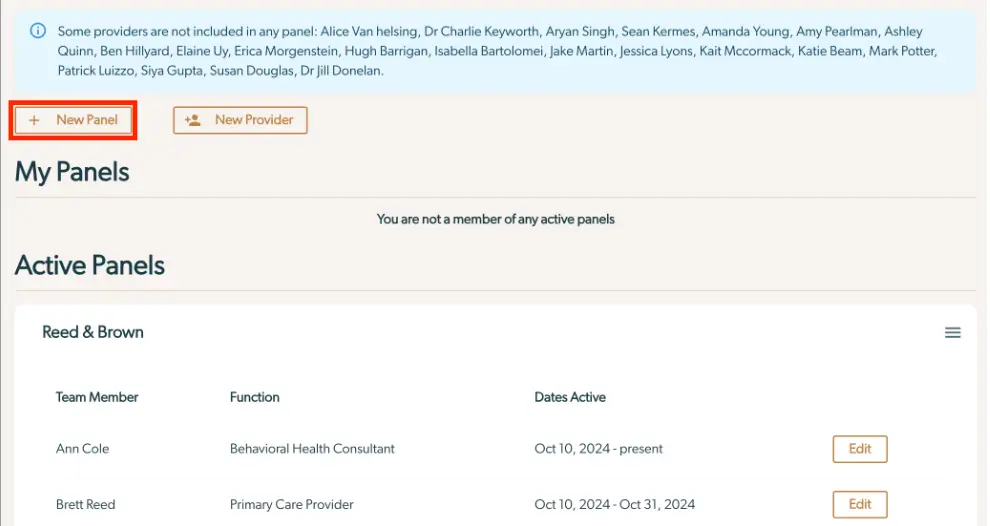
The screenshot displays the 'Panels' section of the Mirah Collaborative Care platform, where users can create and manage panels for collaborative care. At the top, there is a notification indicating providers not included in any panel, followed by two buttons: 'New Panel' and 'New Provider', both located at the top left. Below, the 'My Panels' section shows that the user is not a member of any active panels. The 'Active Panels' section lists existing panels, such as 'Reed & Brown', with columns for 'Team Member', 'Function', and 'Dates Active'. Each team member, like Ann Cole and Brett Reed, has their role and active dates displayed, with an 'Edit' button on the right for modifying panel details.

  • Setting a name for a panel is optional - if you don't give it a name, the panel will automatically update its name as primary care physicians are assigned to it. It will start with the name of "Unnamed Panel".
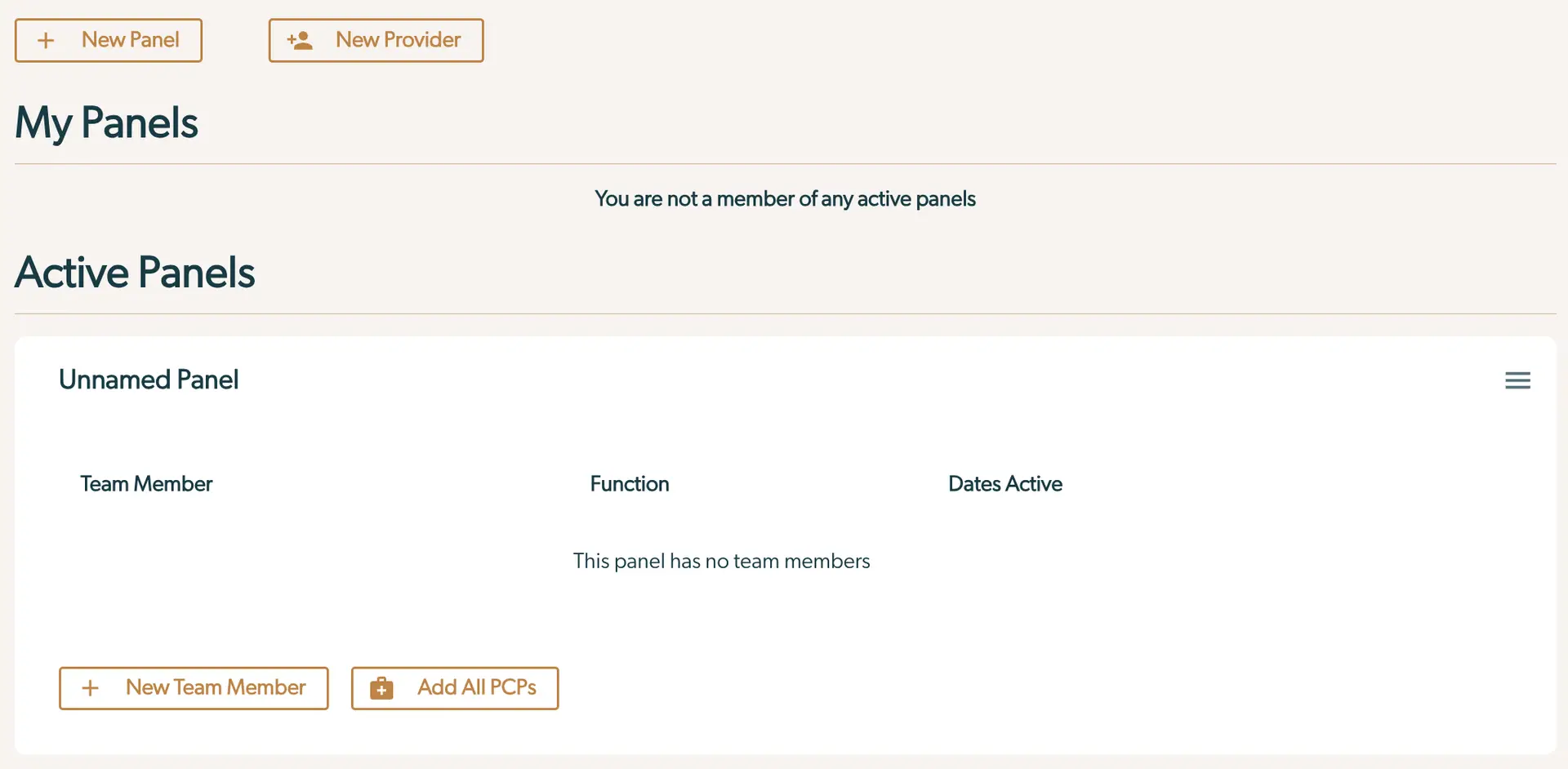
  • Here's what the new panel looks like: The screenshot displays the 'Panels' section of the Mirah Collaborative Care platform, where users can create and manage panels for collaborative care. At the top, there are two buttons: '+ New Panel' and '+ New Provider', which allow users to create a new panel or add a new provider, respectively. Below these buttons, the 'My Panels' section indicates that the user is not a member of any active panels. The 'Active Panels' section shows an 'Unnamed Panel' with columns for 'Team Member', 'Function', and 'Dates Active', but currently states 'This panel has no team members'. At the bottom of the panel, there are two buttons: '+ New Team Member' and '+ Add All PCPs', which are used to add individual team members or all primary care providers to the panel. The panel also includes a menu icon on the right side for additional options.

4.) Click the "New Team Member" button at the bottom of the card to open a form to add a new team member:

The 'Active Panels' screen in Mirah Collaborative Care allows users to create or edit a panel. At the top, the panel is labeled 'Unnamed Panel'. Below, there are three columns labeled 'Team Member', 'Function', and 'Dates Active'. The message 'This panel has no team members' is displayed, indicating no members have been added yet. Users can select a team member and function from dropdown menus. The 'Start Date' field is pre-filled with '07/14/2025', and there is an optional 'End Date' field, both with calendar icons for date selection. At the bottom left, there are two buttons: 'Save' in gold to confirm changes, and 'Cancel' in white with a gold border to discard changes. A menu icon with three horizontal lines is located at the top right corner of the panel.

  • Team members can be any provider in the Mirah system, and any team member can serve any function. The available functions are "Primary Care Provider", "Care Manager", "Consulting Psychiatrist" and "Behavioral Health Consultant".
  • By default, team members will have their start date for serving on the panel listed as today, but you can change that to any date either in the past (if you want a new panel to reflect the history of an existing team) or the future (if you have a team member who will start work on a panel later and you want to get it set up now). Most team members should have their end date field left blank when you create them, but if you have someone who you know will only be on the panel temporarily (such as covering for a colleague on leave) you can set the end date in advance.
  • After adding several providers to a panel, it looks like this: The screenshot displays a panel for managing team members within the Mirah Collaborative Care platform. At the top, the panel is titled 'Devine'. Below the title, there are three columns labeled 'Team Member', 'Function', and 'Dates Active'. Each row lists a team member's name, their role, and the period they have been active, starting from October 15, 2024, to the present. The team members listed are Ann Cole as a Consulting Psychiatrist, Evan Devine as both a Behavioral Health Consultant and a Primary Care Provider, and Nick Martin as a Care Manager. To the right of each row, there is an 'Edit' button, allowing users to modify the details of each team member. At the bottom of the panel, there are two buttons: '+ New Team Member' and '+ Add All PCPs', which are used to add new team members or all primary care providers, respectively.
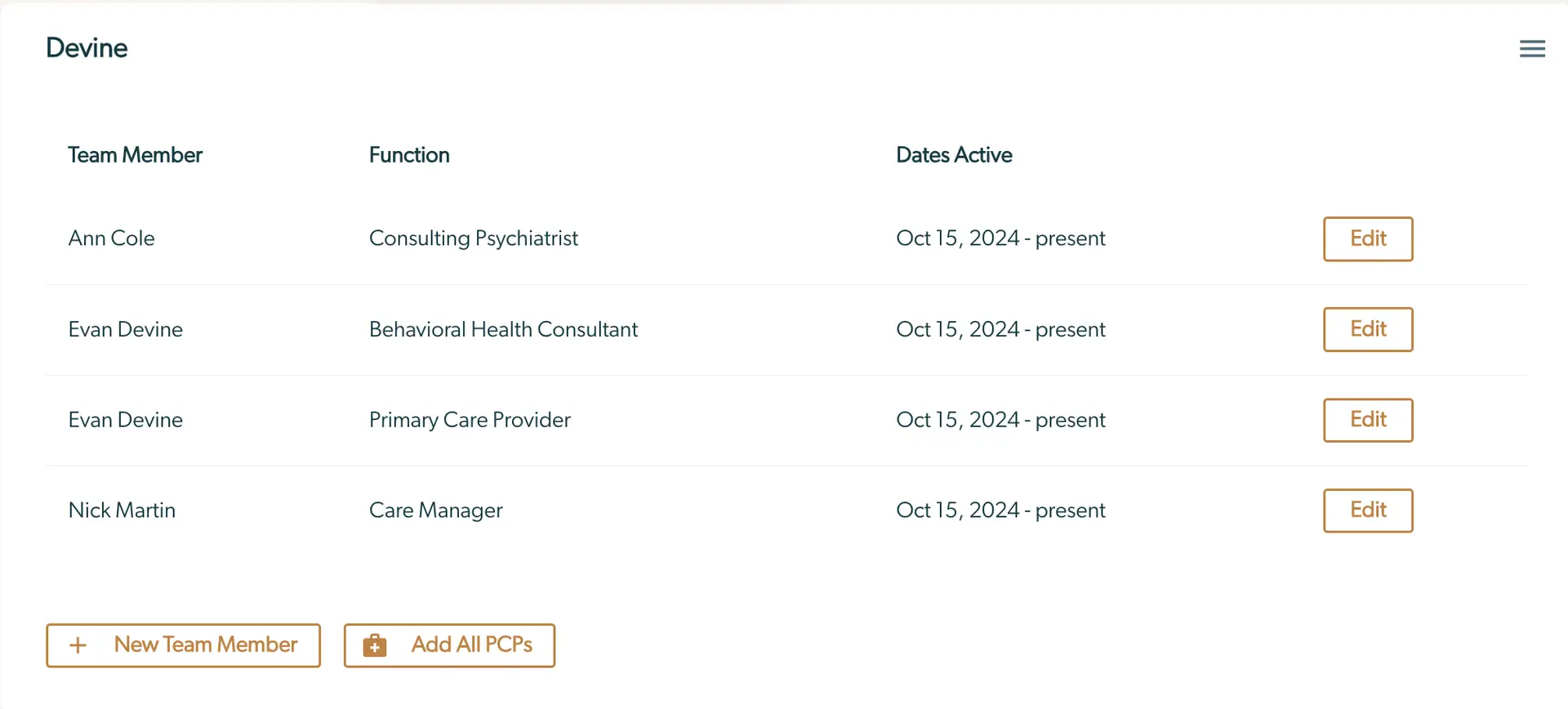
  • Note - Evan is serving two functions on this panel, both Primary Care Provider and Behavioral Health Consultant (BHC). He's listed twice so that these functions can be managed independently - as your staffing needs change Evan might specialize into being just a BHC on this panel. Finally, since the panel's name was left blank on creation, it used the name(s) of the PCP(s) on the panel to give itself a descriptive moniker - this is now the "Devine" panel.

5.) Click the "Edit" button next to a team member to change the start or end time of their tenure on the panel. A form will appear to let you change their start date or set an end date:

The screenshot displays a panel for editing or creating a collaborative care entry in Mirah Collaborative Care. It shows the name 'Ann Cole' with the title 'Consulting Psychiatrist' and the date range 'Oct 15, 2024 - present'. There are two date fields: 'Start Date' with a pre-filled date of '10/15/2024' and an optional 'End Date' field, both accompanied by calendar icons for date selection. On the right side, there are two buttons: a 'Save' button in brown with a checkmark icon to confirm changes, and a 'Cancel' button in a lighter brown with an 'X' icon to discard changes.

  • Once a team member's end date on a panel has passed, Mirah considers that team member "deactivated". Deactivated team members still show up in the panel so you can see the history of who has worked on the panel over time: The screenshot displays a panel titled 'Devine' which lists team members involved in collaborative care. The table includes three columns: 'Team Member', 'Function', and 'Dates Active'. Each row provides details about a team member, including their name, role, and the period they are active. Ann Cole is a Consulting Psychiatrist active from October 15, 2024, to the present. Evan Devine is listed twice, once as a Behavioral Health Consultant active from October 15, 2024, to July 11, 2024, and again as a Primary Care Provider active from October 15, 2024, to the present. Nick Martin is a Care Manager active from October 15, 2024, to the present. Each row has an 'Edit' button located on the right side, allowing users to modify the details of the respective team member. Below the table, there are two buttons: '+ New Team Member' and '+ Add All PCPs', which are used to add new team members or primary care providers, respectively.
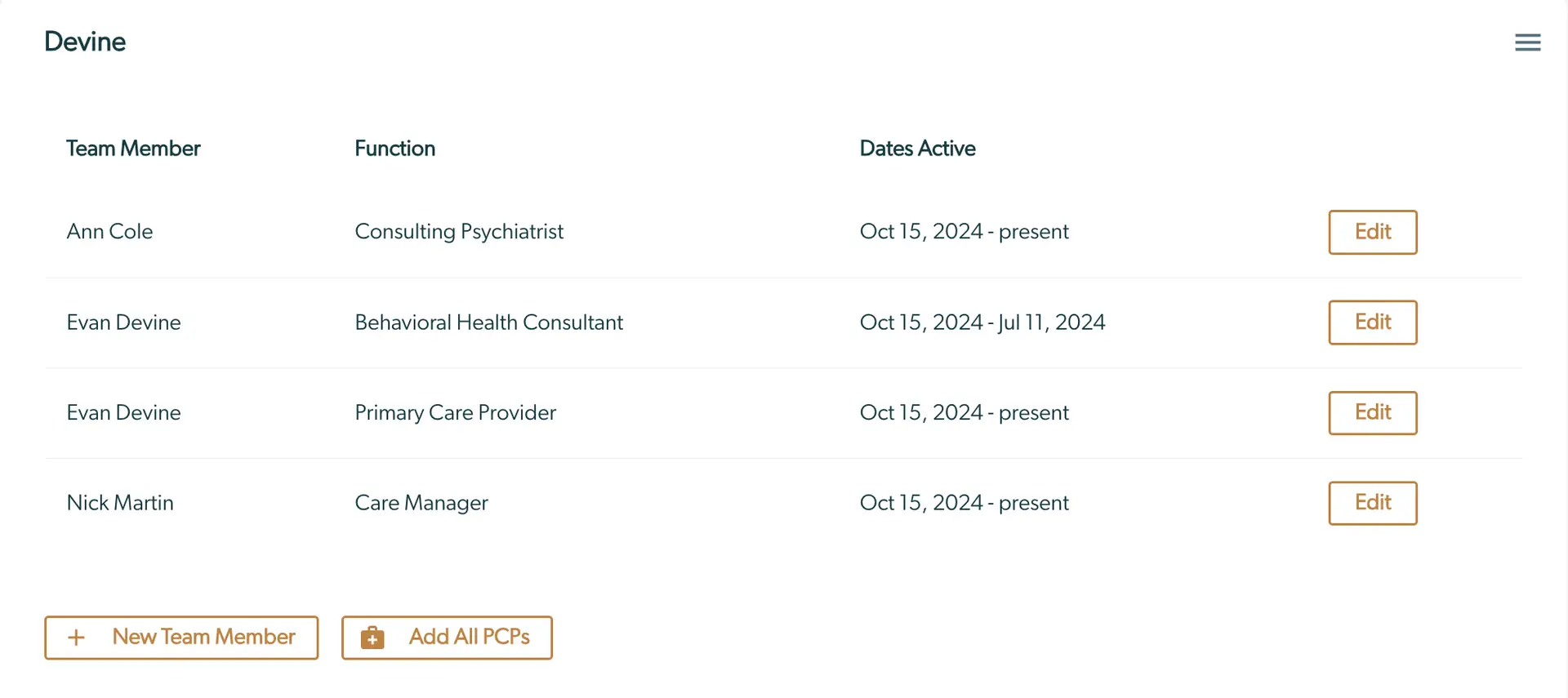
Deactivating a team member does not automatically reassign any patients they may have been working with (see How to Enroll and Intake a Patient for how to change which care manager and PCP is assigned to an enrolled patient).

Deactivated team members will not be available when selecting team members to assign to a patient during enrollment, or when editing the care team on an enrollment.

My Panels, Active Panels and Retired Panels​

When you add yourself to the panel, the panel will move to the "My Panels" section of the page. This puts panels that you're serving on at the top of the page so you can find them easily.

"Active Panels" list all active panels your institute.

"Retired Panels" lists all panels that have been retired in your institute
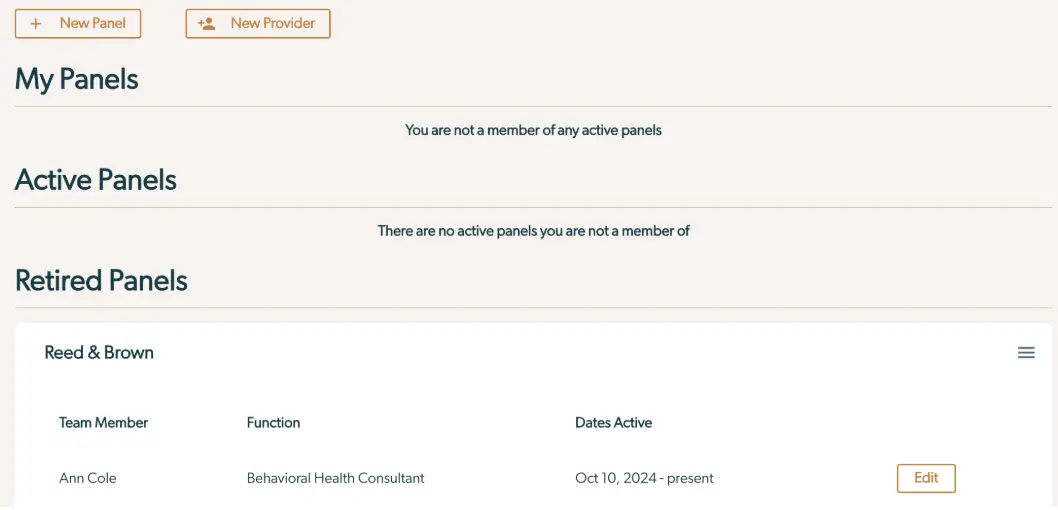
The screenshot displays the 'Panels' section of the Mirah Collaborative Care platform, which is used for managing collaborative care panels. At the top, there are two buttons: 'New Panel' and 'New Provider', both located on the upper left side, allowing users to create a new panel or add a new provider, respectively. Below these buttons, the screen is divided into three sections: 'My Panels', 'Active Panels', and 'Retired Panels'. The 'My Panels' section indicates that the user is not a member of any active panels. Similarly, the 'Active Panels' section states that there are no active panels the user is not a member of. The 'Retired Panels' section lists a panel named 'Reed & Brown', which includes details such as 'Team Member' with the name Ann Cole, 'Function' as Behavioral Health Consultant, and 'Dates Active' from October 10, 2024, to present. There is an 'Edit' button on the right side of the 'Reed & Brown' panel entry, allowing users to modify the panel details.

Using the hamburger menu in the top right of a panel card lets you manually set the name of a panel or retire the panel:

The screenshot displays a section of the Mirah Collaborative Care interface titled 'Reed & Brown'. It shows details of a team member, Ann Cole, who is a Behavioral Health Consultant. Her active dates are listed as October 10, 2024, to present. On the right side of the screen, there is a menu icon with three horizontal lines, which when clicked, reveals a dropdown menu with options to 'Change Name' and 'Activate Panel'. Below the dropdown menu, there is an 'Edit' button outlined in orange, indicating it is interactive and can be clicked to modify the panel details.

Using the "Change Name" option here shows a form to set the panel's name:

This screenshot displays a user interface for creating or editing panels within the Mirah Collaborative Care platform. The interface includes a text input field labeled 'Name (optional)' where users can enter the name of the panel, in this case, 'Reed & Brown'. To the right of the text field are two buttons: a 'Save' button, which is brown and located centrally, allowing users to save the entered panel name, and a 'Cancel' button, which is outlined and located to the right of the 'Save' button, enabling users to discard changes and exit the panel creation or editing process.

You can use this to set the name of a panel to a location, office, or whatever may be convenient for you. Once you've set the name manually, it won't automatically update as you change the PCPs assigned to the panel.

Note - Retired panels won't be available to use as filters (see How to Filter Data in Mirah By Panel) or when selecting the care team during enrollment (see How to Enroll and Intake a Patient). You can un-retire a panel at any time using the hamburger menu at the top right of the panel card and clicking on "Activate Panel"

The screenshot displays a dropdown menu with two options: 'Change Name' and 'Activate Panel'. This menu is part of the user interface for managing panels within the Mirah Collaborative Care platform. The 'Change Name' option allows users to rename the panel, while the 'Activate Panel' option, highlighted in red, is used to activate the selected panel. The dropdown menu is accessed via a hamburger icon located at the top right corner of the screen, which typically signifies additional options or settings.

Additional Resources​

Now that you have several panels set up in Mirah, you can use them to filter the data you see in the rest of the app to only one or a handful of panels at a time, letting you focus on your work without getting overwhelmed: How to Filter Data in Mirah By Panel.