
Automatic Chart/Assessment Time Tracking

The Automatic Chart/Assessment Time Tracking feature must be enabled in your instance. If you're interested in learning more about this feature and how to enable it for your institute, please contact support (support@mirah.com).

In order to help you efficiently record time that you spend in the Mirah app, Mirah will automatically start a timer when you visit certain pages in the system. These timers will only start if you have no other timer running - if you're in the middle of another workflow, it won't be interrupted.

When the timer starts, the following bar will appear at the bottom of your screen.

The screenshot displays a task management interface within the Mirah Collaborative Care platform, specifically for automatic chart or assessment time tracking. At the top left, the name 'Annika Reef' is shown, indicating the user or patient associated with the task. Next to the name, '+10m elapsed' is displayed with a clock icon, showing the time spent on the task. The section 'Enrollment and Intake' follows, likely indicating the task category or phase. On the right side, there are four buttons: 'Add Note' for adding additional information, 'Discard Time' to remove the recorded time, 'Save Progress' to save the current state of the task, and 'Complete Task' in orange to finalize the task. These buttons are aligned horizontally and provide functionality for managing the task efficiently.

Triggers to Start Timer​

The following actions will start a timer without a task:

  1. Viewing the patient record page
  2. Viewing a patient's report
  3. Enrolling a patient

Save Time​

When you are done with the work you were doing, you can either "Save Progress" to end the timer without Completing the Task or press "Complete Task_"._

The screenshot displays a section of the Mirah Collaborative Care interface focused on task management and time tracking. At the top left, the user's name, Annika Reef, is displayed, followed by a time indicator showing '+11m elapsed' with a clock icon, indicating the duration spent on the current task. Next to it, the text 'Enrollment and Intake' suggests the current phase or task being worked on. On the right side, there are four buttons: 'Add Note' with a pencil icon, allowing users to add notes related to the task; 'Discard Time' with a prohibition icon, enabling users to discard the recorded time; 'Save Progress' with a clock and plus icon, allowing users to save their current progress; and 'Complete Task' with a checklist icon, which finalizes the task. The 'Save Progress' and 'Complete Task' buttons are highlighted with red and orange borders, respectively, indicating their importance or current availability.

When a timer is started that is not initially linked to a task, it is independent of tasks and cannot be merged with a task or have a template applied to it.

If you have questions about what this means, please reach out to support@mirah.com, and we would be thrilled to clarify this complex topic with you!

Once "Save Progress" or "Complete Task" are selected, there is a pop-up to take action on saving the time. On the top bar, you view other time you have recorded. You can also adjust the Start Time, Duration (which changes the End Time), Title, Patient, add Notes, or mark the time as Direct Patient Contact.
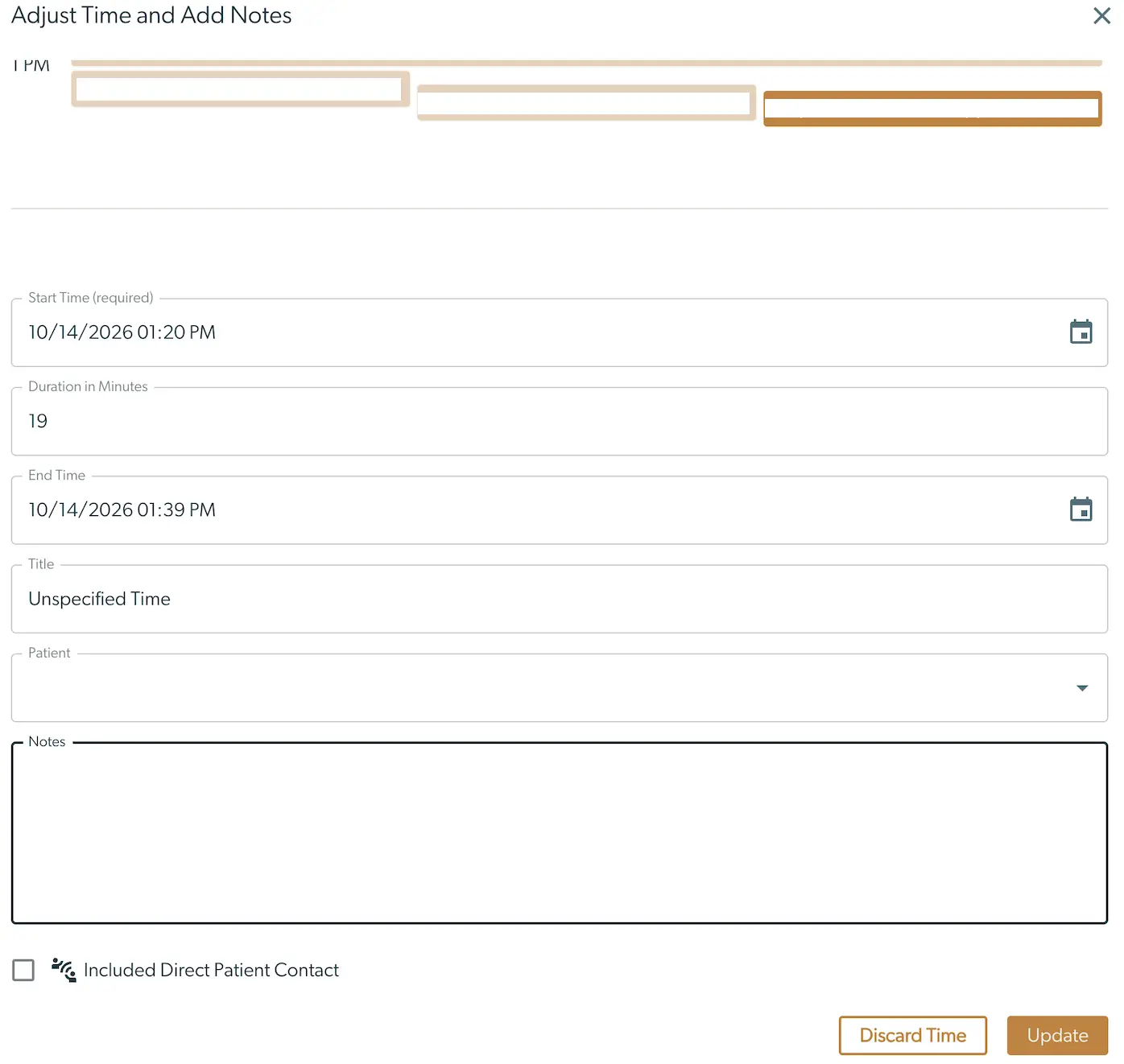
The 'Adjust Time and Add Notes' screen allows users to modify time entries and add relevant notes for tasks related to patient care. At the top, there are three input fields for entering time details. Below, the 'Start Time' field is pre-filled with '10/14/2026 01:20 PM' and is required. The 'Duration in Minutes' field shows '19', and the 'End Time' field displays '10/14/2026 01:39 PM'. The 'Title' field is labeled 'Unspecified Time', and the 'Patient' field is empty with a dropdown option. A large 'Notes' text area is provided for additional information. At the bottom, there is a checkbox labeled 'Included Direct Patient Contact'. Two buttons are located at the bottom right: 'Discard Time' in orange and 'Update' in brown, allowing users to either discard changes or update the time entry.

Click "Update" when you are done. You can view your recorded time on the My Time page.