
How to Change the Status and Template of a Task

Changing the Status of a Task​

1.) When viewing a task, a badge is visible below the title indicating the current status of the task. In the example below, the status of the task is "Active":
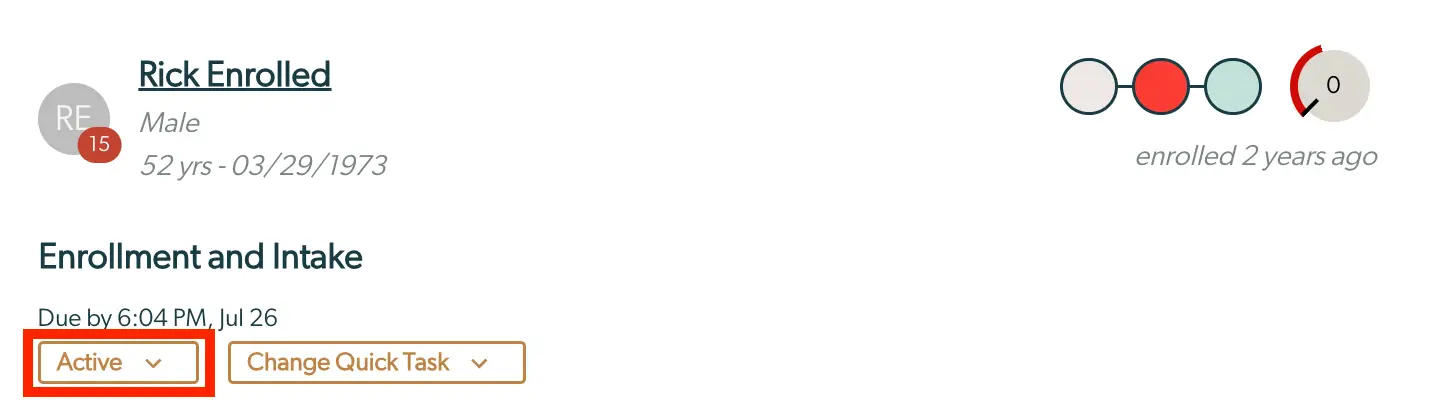
The screenshot displays a section of the Mirah Collaborative Care interface focused on a specific task related to a patient named Rick Enrolled. The top left corner shows Rick's initials 'RE' in a circular icon with a red badge indicating the number 15, possibly representing notifications or tasks. Below the name, Rick's gender, age, and date of birth are listed. To the right, a visual timeline with colored circles indicates the patient's enrollment status, with a note stating 'enrolled 2 years ago.' The main section titled 'Enrollment and Intake' includes a due date and time, 'Due by 6:04 PM, Jul 26.' Below this, two buttons are prominently displayed: 'Active' with a dropdown arrow, allowing users to change the task status, and 'Change Quick Task' with a dropdown arrow, enabling users to modify the task template. Both buttons are located at the bottom left of the section and are highlighted with a red border.

2.) Clicking on this badge will display a menu where you can select an alternate status.
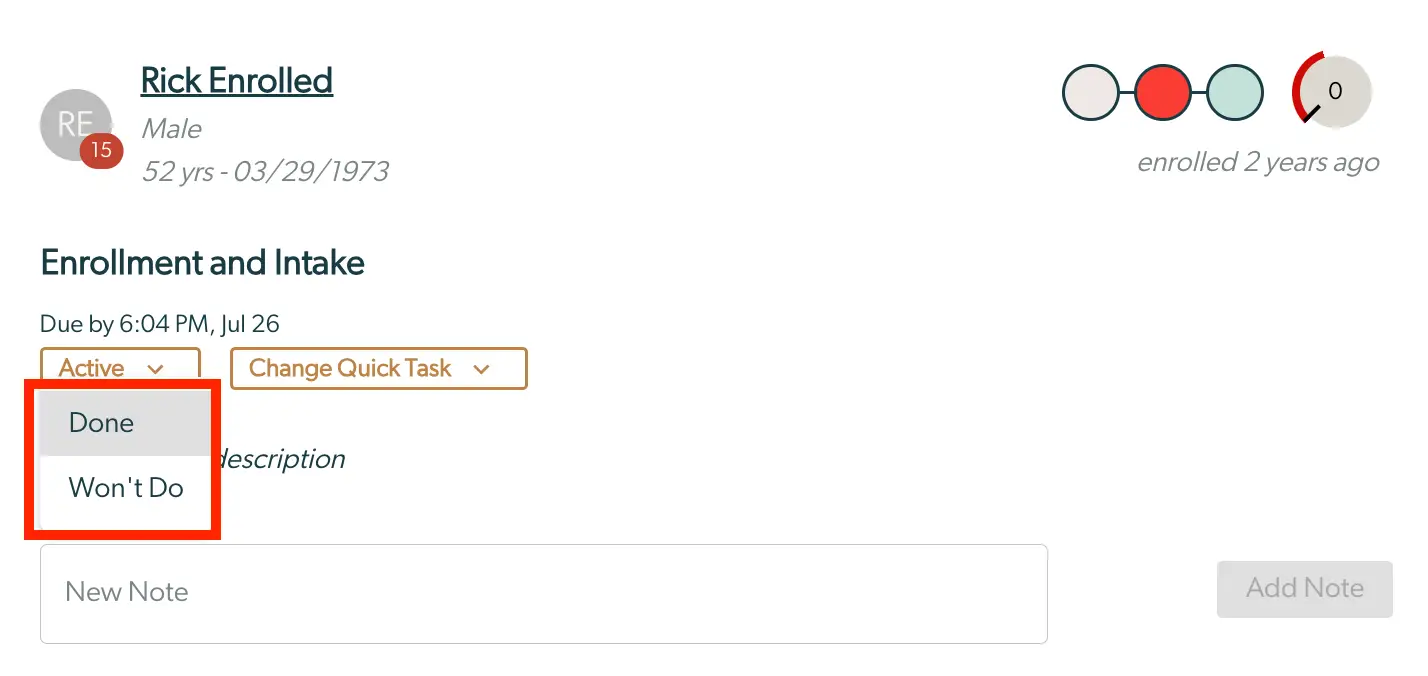
The screenshot displays the task management interface for a patient named Rick Enrolled, who is a 52-year-old male. The interface shows the task titled 'Enrollment and Intake' with a due date and time of 6:04 PM on July 26. The task status is currently set to 'Active' with a dropdown menu allowing the user to change the status to 'Done' or 'Won't Do'. Next to the status dropdown is another dropdown labeled 'Change Quick Task', which allows for template adjustments. Below the task details is a text field labeled 'New Note' for adding additional comments or information, and a button labeled 'Add Note' located to the right of the text field for submitting the note. At the top right, there is a visual representation of the patient's enrollment status, indicating that Rick was enrolled 2 years ago.

3.) After clicking on your desired option, you may enter an optional note.

The screenshot displays a modal window titled 'Mark Task as Done and Add Note: Enrollment and Intake'. It is part of the task management feature in Mirah Collaborative Care. The window contains a text area labeled 'Notes' where users can input additional information related to the task. Below the text area, there is a message indicating that the task will be marked as done upon saving. In the bottom right corner, there is a 'Save' button, which users can click to save the note and mark the task as completed. The modal also includes a close button represented by an 'X' in the top right corner, allowing users to exit the window without saving changes.

4.) Once you hit "Save", the new status will automatically be reflected on the page.

5.) You can switch between statuses freely. For example, moving this task back to "Active" can be achieved the same way.
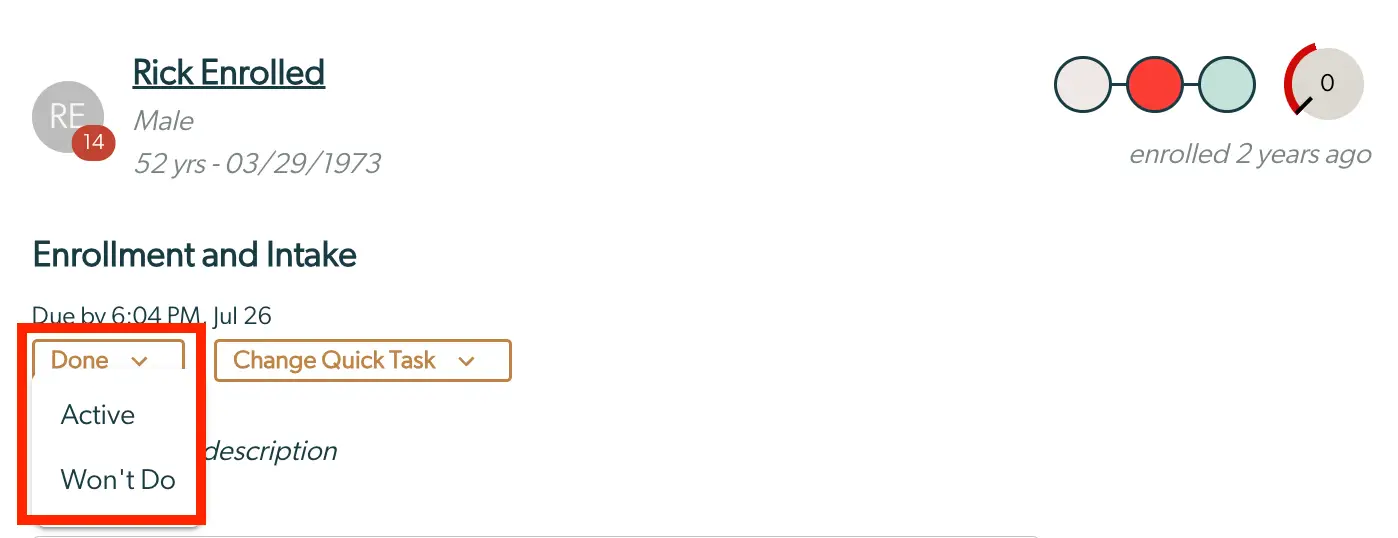
The screenshot displays a task management interface for a patient named Rick Enrolled, a 52-year-old male born on March 29, 1973, who was enrolled two years ago. The interface is part of the Enrollment and Intake section, with a task due by 6:04 PM on July 26. There is a dropdown menu labeled 'Done' located on the left side, which allows users to change the status of the task to 'Active' or 'Won't Do'. Next to it, on the right side, is another dropdown button labeled 'Change Quick Task', which provides options for modifying the task template. The interface includes a visual progress indicator with circles representing different stages and a gauge showing the number zero, indicating task completion status.

6.) This same badge and functionality is present at the bottom of the task details as well.

The screenshot displays a section of the task management interface within Mirah Collaborative Care, specifically focusing on task actions. It includes five buttons: 'Send to Top', 'Edit', 'Log Time', 'Done', and a disabled 'Done' button. The 'Send to Top' button allows users to prioritize the task by moving it to the top of the list. The 'Edit' button enables users to modify task details. The 'Log Time' button is used for recording the time spent on the task. The 'Done' button, highlighted with a dropdown arrow, indicates options for marking the task as completed, while the disabled 'Done' button suggests that the task is already marked as completed or cannot be marked as done at this time. These buttons are located horizontally across the interface, facilitating task management and status updates.

7.) Task status does not effect billable minutes. All minutes will be counted regardless of status. Additionally, you can filter by status anywhere tasks are listed as seen in the image below.

The screenshot displays a dropdown menu for changing the status of a task within the Mirah Collaborative Care platform. The dropdown is labeled 'Status' and is located at the top of the menu. It provides three options for task status: 'Active', 'Done', and 'Won't Do'. The dropdown is currently expanded, showing all available status options for selection. This feature is part of the Tasks section under Collaborative Care, allowing users to update the progress or decision regarding a specific task.

Changing the Type of Quick Task​

Each institute can create designated task templates, which allows access to preconfigured templates. When editing a task, users have the ability to change the template.

1.) Navigate to the "Tasks" page and select the desired task by clicking the magnifying glass on the left.
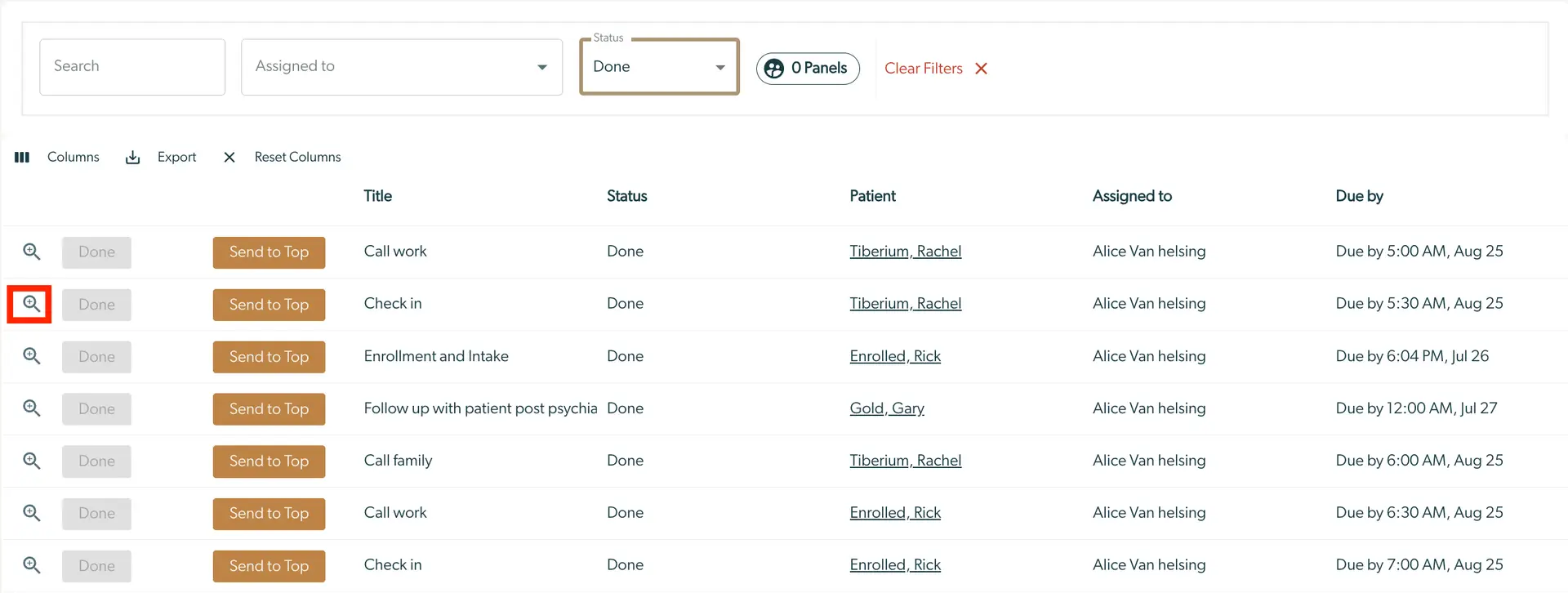
The screenshot displays the task management interface within the Mirah Collaborative Care platform, focusing on the ability to change the status and template of tasks. At the top, there are search fields labeled 'Search' and 'Assigned to', along with a dropdown menu for 'Status' set to 'Done'. To the right, there is a button labeled '0 Panels' and a 'Clear Filters' option. Below, a table lists tasks with columns titled 'Title', 'Status', 'Patient', 'Assigned to', and 'Due by'. Each row includes a magnifying glass icon for task details, a 'Done' button indicating task completion, and a 'Send to Top' button for prioritizing tasks. The table displays tasks such as 'Call work', 'Check in', and 'Enrollment and Intake', assigned to Alice Van Helsing, with due dates and times specified.

2.) Locate and select the "Change Quick Task" button.
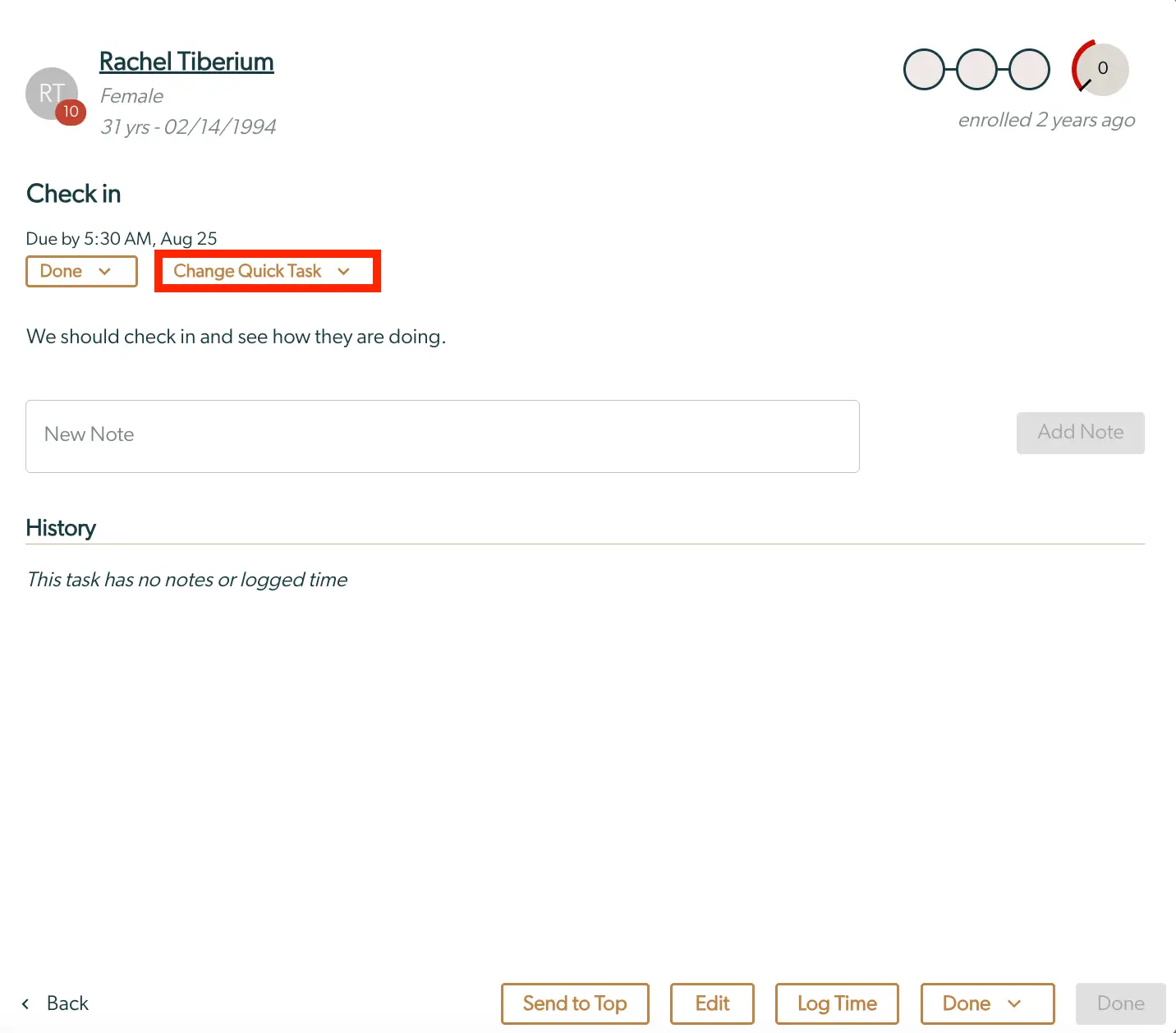
The screenshot displays the task management interface for Rachel Tiberium, a 31-year-old female enrolled in the program two years ago. The top section shows her name, age, and enrollment status. Below, the 'Check in' section indicates a task due by 5:30 AM on August 25. There are two dropdown menus labeled 'Done' and 'Change Quick Task' for updating the task status and template, respectively. The 'Done' dropdown is located to the left of 'Change Quick Task'. Below these options is a text field labeled 'New Note' for adding notes, accompanied by an 'Add Note' button on the right. The 'History' section states that there are no notes or logged time for this task. At the bottom, navigation buttons include 'Back', 'Send to Top', 'Edit', 'Log Time', and 'Done', with 'Done' appearing twice, once in the dropdown and once as a standalone button.

3.) A dropdown menu will appear where users can choose the task template they wish to use.
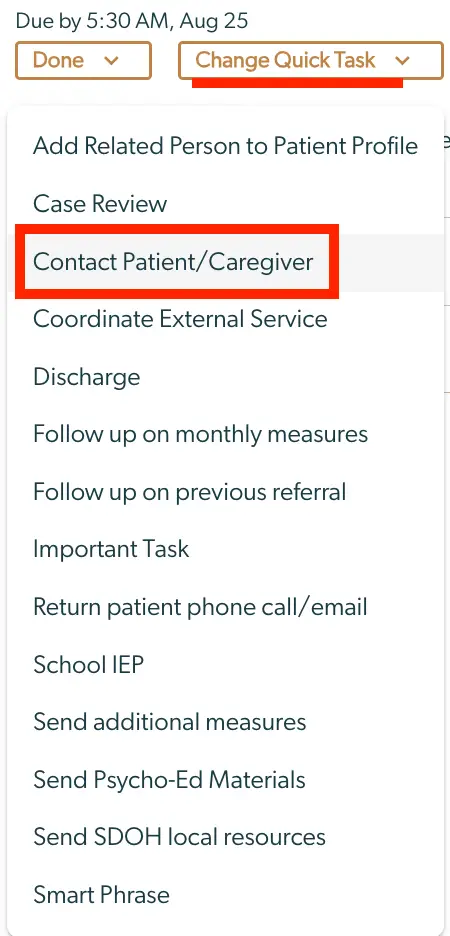
The screenshot displays a task management interface within the Mirah Collaborative Care platform, specifically focusing on changing the status and template of a task. At the top, the task is marked as due by 5:30 AM on August 25. Below this, there are two buttons: 'Done' and 'Change Quick Task', both with dropdown arrows indicating additional options. The 'Change Quick Task' button is highlighted, suggesting it is currently active. Below the buttons, a dropdown menu is visible, listing various task templates such as 'Add Related Person to Patient Profile', 'Case Review', 'Contact Patient/Caregiver', 'Coordinate External Service', 'Discharge', 'Follow up on monthly measures', 'Follow up on previous referral', 'Important Task', 'Return patient phone call/email', 'School IEP', 'Send additional measures', 'Send Psycho-Ed Materials', 'Send SDOH local resources', and 'Smart Phrase'. The 'Contact Patient/Caregiver' option is highlighted, indicating it is selected or being hovered over.

4.) The modification will be reflected as the name will automatically change.
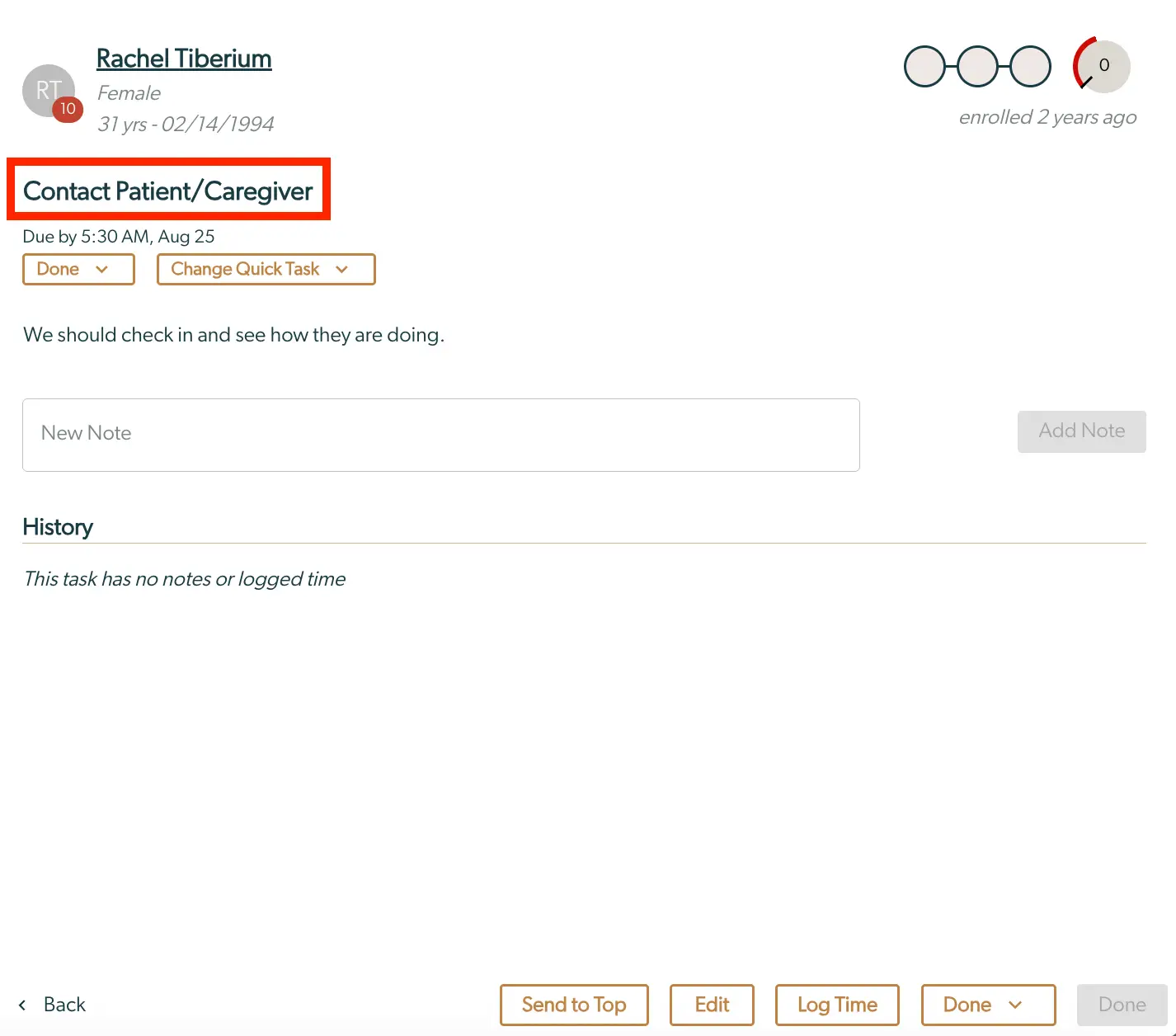
The screen displays a task interface for contacting a patient or caregiver within the Mirah Collaborative Care platform. At the top left, the patient's information is shown, including the name 'Rachel Tiberium', gender 'Female', and birthdate '02/14/1994', with an age of 31 years. A circular icon with the initials 'RT' and the number '10' is next to the name. To the right, a progress indicator shows enrollment status with a label 'enrolled 2 years ago'. Below the patient information, the task title 'Contact Patient/Caregiver' is highlighted. The task is due by 5:30 AM on August 25. Two dropdown menus are available: 'Done' and 'Change Quick Task', allowing users to update the task status and template. A text box labeled 'New Note' is provided for adding notes, with an 'Add Note' button to the right, currently disabled. The 'History' section indicates that there are no notes or logged time for this task. At the bottom, navigation buttons include 'Back', 'Send to Top', 'Edit', 'Log Time', and 'Done', with the 'Done' button duplicated and disabled.