How to create a custom task

Your organization will have a list of predefined task templates that can be used to create new tasks. However, you can also create a new custom task from either the Dashboard or the patient’s record for a specific patient's treatment.

How to create a custom task from the Patient detail page:​

  1. Navigate to the patient’s detail page
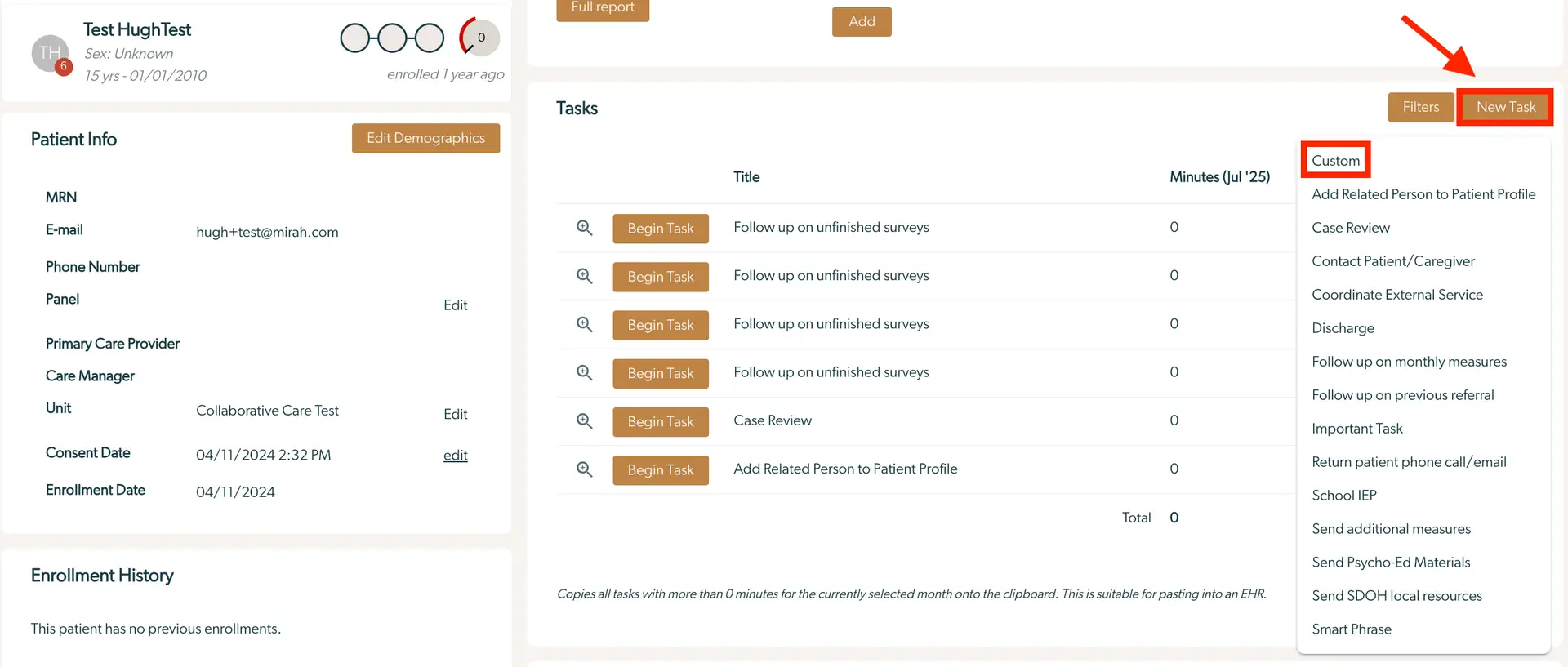
  2. To the right of the patient’s demographic information, you will see the "Tasks" module. Click on the “New Task” button, then click "Custom"
  3. Follow the steps below to create a custom task The screenshot displays the 'Tasks' section of the Mirah Collaborative Care platform, specifically for creating a custom task. On the left, under 'Patient Info', details such as the patient's name, email, phone number, primary care provider, care manager, and unit are listed, with options to edit these details. The 'Tasks' section on the right shows a list of tasks with titles like 'Follow up on unfinished surveys' and 'Case Review', each with a 'Begin Task' button to initiate the task. At the top right, there are two buttons: 'Filters' and 'New Task'. Clicking 'New Task' reveals a dropdown menu with options including 'Custom', 'Add Related Person to Patient Profile', 'Case Review', and more, allowing users to create specific tasks. The purpose of this screen is to manage and create tasks related to patient care, facilitating collaborative care efforts.
Creating a custom task:​

  1. Select the “Custom” option. *Note - there are predefined tasks that can be selected
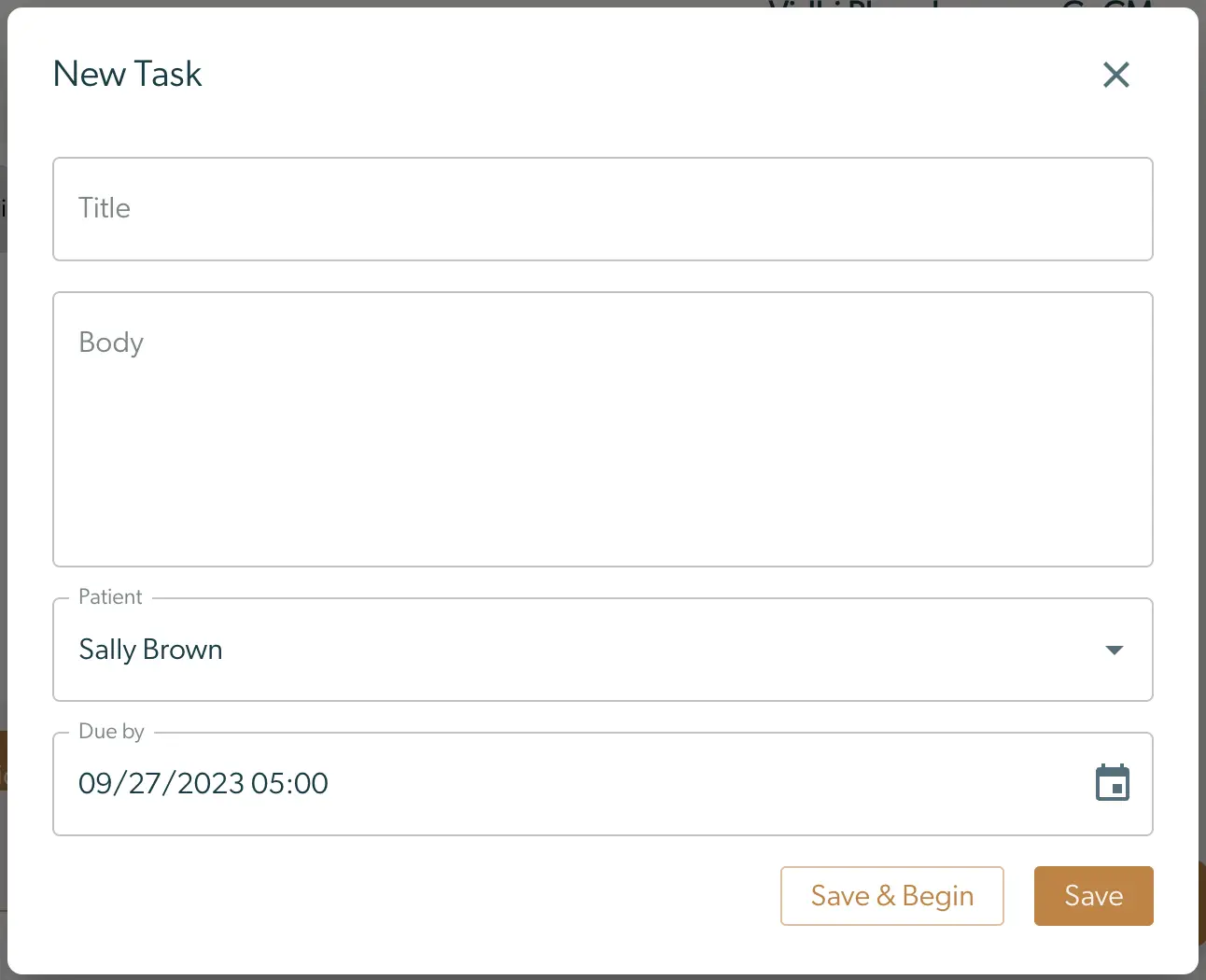
  2. Fill out the task information. Fields in bold are required to save the task
    • Title - short description of the task
    • Body - detailed information about the task
    • Patient - the patient this task is related to. *Note - this will be pre-populated when creating a task from the patient’s detail page
    • Due Date - due date for the task. *Note - the default due date is the next day at 5pm
  3. Save the task by using one of the following options
    • “Save & Begin” - Creates the task record and begins the task timer. This should be used if you are going to immediately start working on the task after task creation
    • “Save” - Create the task record to be worked on at a later time The 'New Task' screen allows users to create a custom task within the Mirah Collaborative Care platform. At the top, there is a text field labeled 'Title' for entering the task name. Below it, a larger text area labeled 'Body' is provided for detailed task description. The 'Patient' field displays the name 'Sally Brown' with a dropdown arrow for selecting different patients. The 'Due by' field shows the date and time '09/27/2023 05:00' with a calendar icon for date selection. At the bottom right, there are two buttons: 'Save & Begin' and 'Save'. 'Save & Begin' initiates the task immediately, while 'Save' stores the task for later action. The close button is located at the top right corner of the screen.