
How to View All Tasks

The "All Tasks" tab includes a complete list of all Tasks in your institute.

How to View Tasks​

1.) Navigate to the "All Tasks" option on the sidebar on the left of the screen.
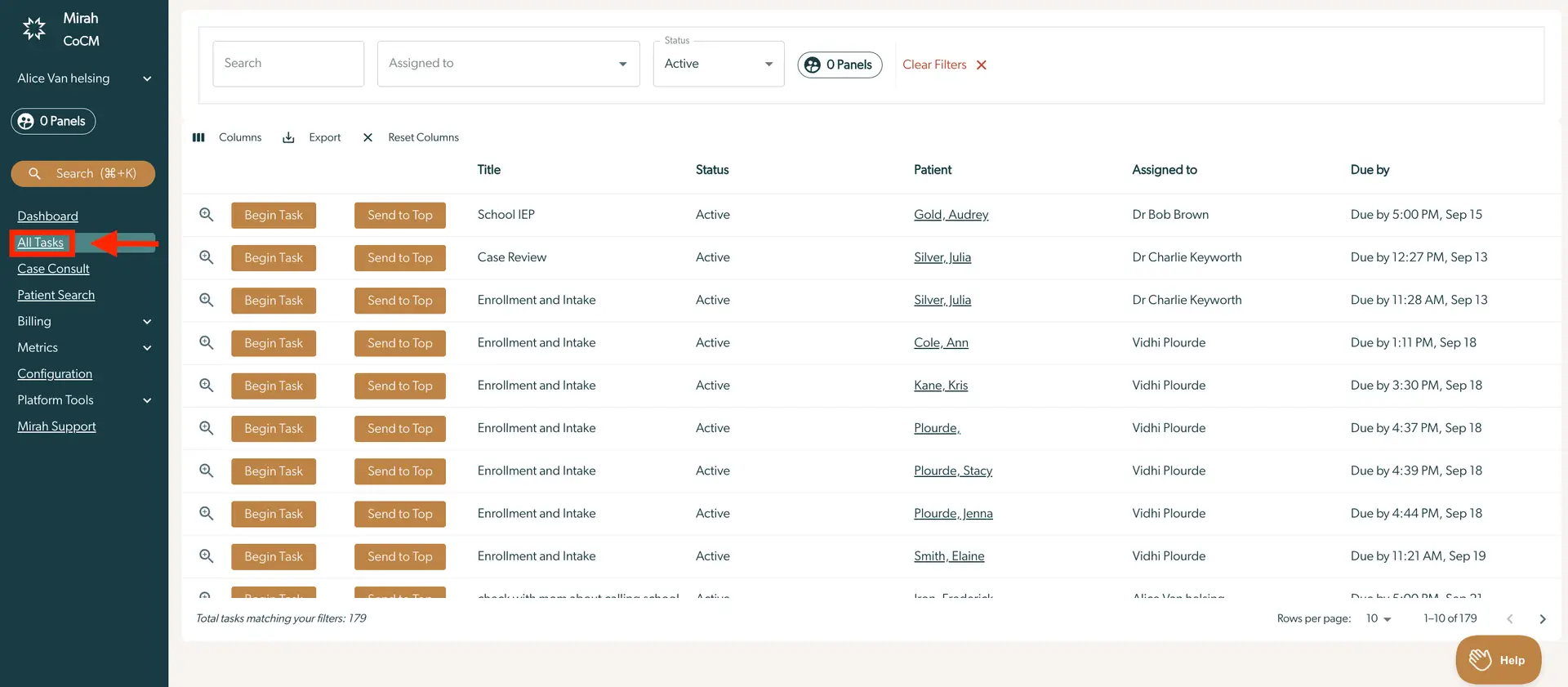
The screenshot displays the 'All Tasks' page within the Mirah Collaborative Care platform, which is part of the Tasks feature under Collaborative Care. The left sidebar includes navigation options such as Dashboard, Case Consult, Patient Search, Billing, Metrics, Configuration, Platform Tools, and Mirah Support. The 'All Tasks' section is highlighted, indicating the current view. The main area of the screen shows a table listing tasks with columns for Title, Status, Patient, Assigned to, and Due by. Each row represents a task with details such as the task title, its status, the patient associated with the task, the person assigned to the task, and the due date and time. Above the table, there are filter options for searching tasks, assigning tasks, and filtering by status, along with buttons for Columns, Export, Reset Columns, and Clear Filters. The 'Begin Task' and 'Send to Top' buttons are located next to each task title for task management. The bottom of the table indicates the total number of tasks matching the filters, and navigation controls for rows per page and pagination are present. The 'Help' button is located at the bottom right corner.

2.) Find the "Status" filter towards the top of the screen. Here you can choose either the "Active," "Done" or "Won't Do" option. This will filter the tasks to include only tasks with the selected status.

The screenshot displays the task management interface within Mirah Collaborative Care, focusing on filtering tasks by status. At the top, there are two search fields labeled 'Search' and 'Assigned to' for filtering tasks based on keywords or assignee. To the right, a dropdown menu labeled 'Status' allows users to filter tasks by their current state, with options including 'Active', 'Done', and 'Won't Do'. Next to the status dropdown, there is a 'Clear Filters' button to remove any applied filters. Below, there are options for managing columns, exporting data, and resetting columns. The task list includes columns for 'Title', 'Patient', 'Assigned to', and 'Due by', with a sample task titled 'Call work', assigned to 'Alice Van Helsing', and due by '5:00 AM, Aug 25'. The 'Send to Top' button is located next to the task title, allowing users to prioritize tasks.

3.) To view completed tasks, select "Done" in the Status filter. All completed tasks will appear below.
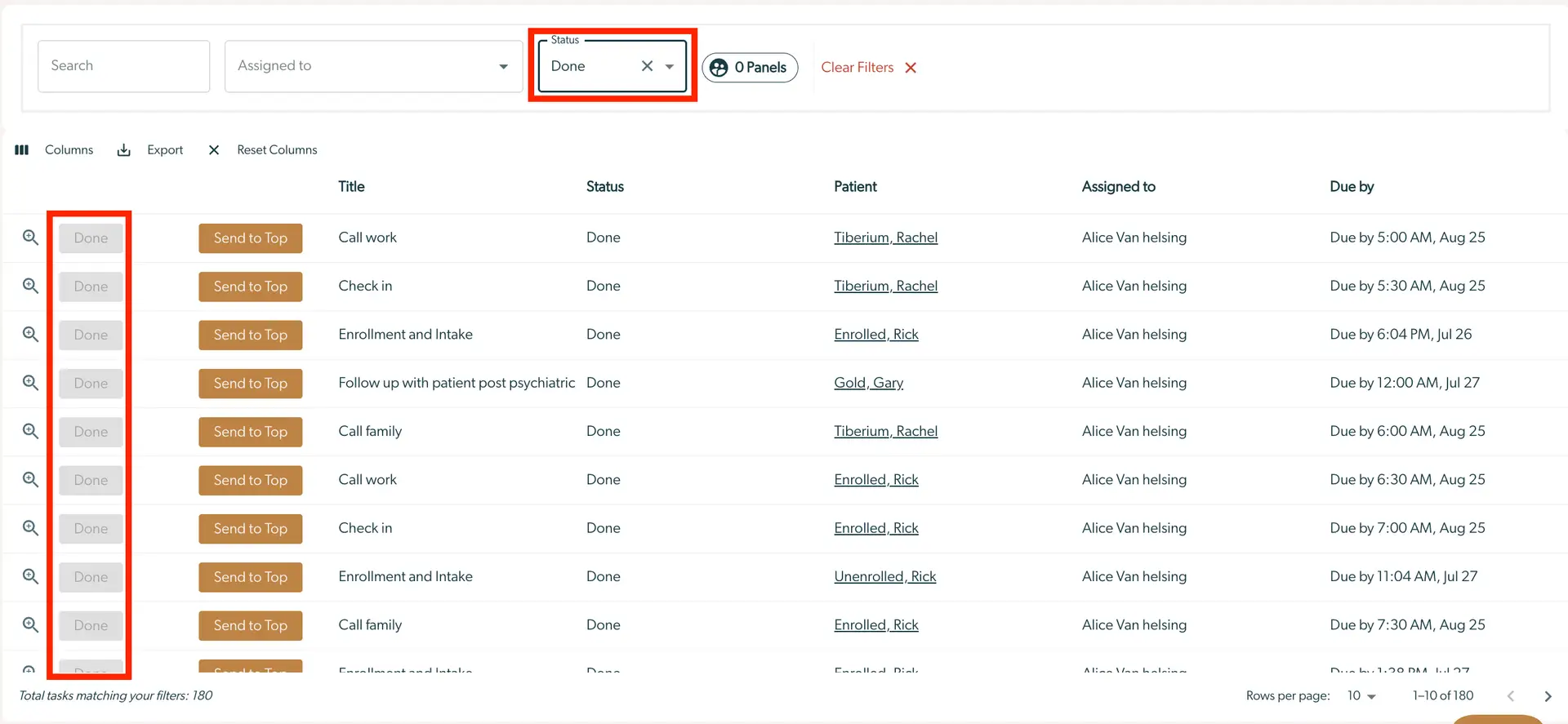
The screenshot displays the 'Tasks' section of the Mirah Collaborative Care platform, specifically filtered to show tasks with a status of 'Done'. At the top, there are search fields labeled 'Search' and 'Assigned to', along with a dropdown menu for 'Status' set to 'Done', and a button labeled 'Clear Filters' located to the right. Below, a table lists tasks with columns titled 'Title', 'Status', 'Patient', 'Assigned to', and 'Due by'. Each row represents a task, showing its title, status as 'Done', the patient's name, the person assigned to the task, and the due date and time. The left side of each row has a magnifying glass icon for task details and a 'Send to Top' button for prioritization. The bottom of the screen indicates the total number of tasks matching the filters, which is 180, and shows pagination controls for navigating through the task list.

4.) If you don't see a completed task after filtering on Status for "Done" tasks, confirm that your task status has been updated to "Done".

Reviewing Saved Notes​

To see notes you have saved, click the magnifying glass into a task. Here is you will see all notes for a task. You can edit or delete them on this screen.