How to Edit Tasks

Editing Tasks in CoCM​

To edit an existing task, simply navigate to the patient's record, and find the task in the task list (make sure the filter on the task list is set to show completed tasks if needed).
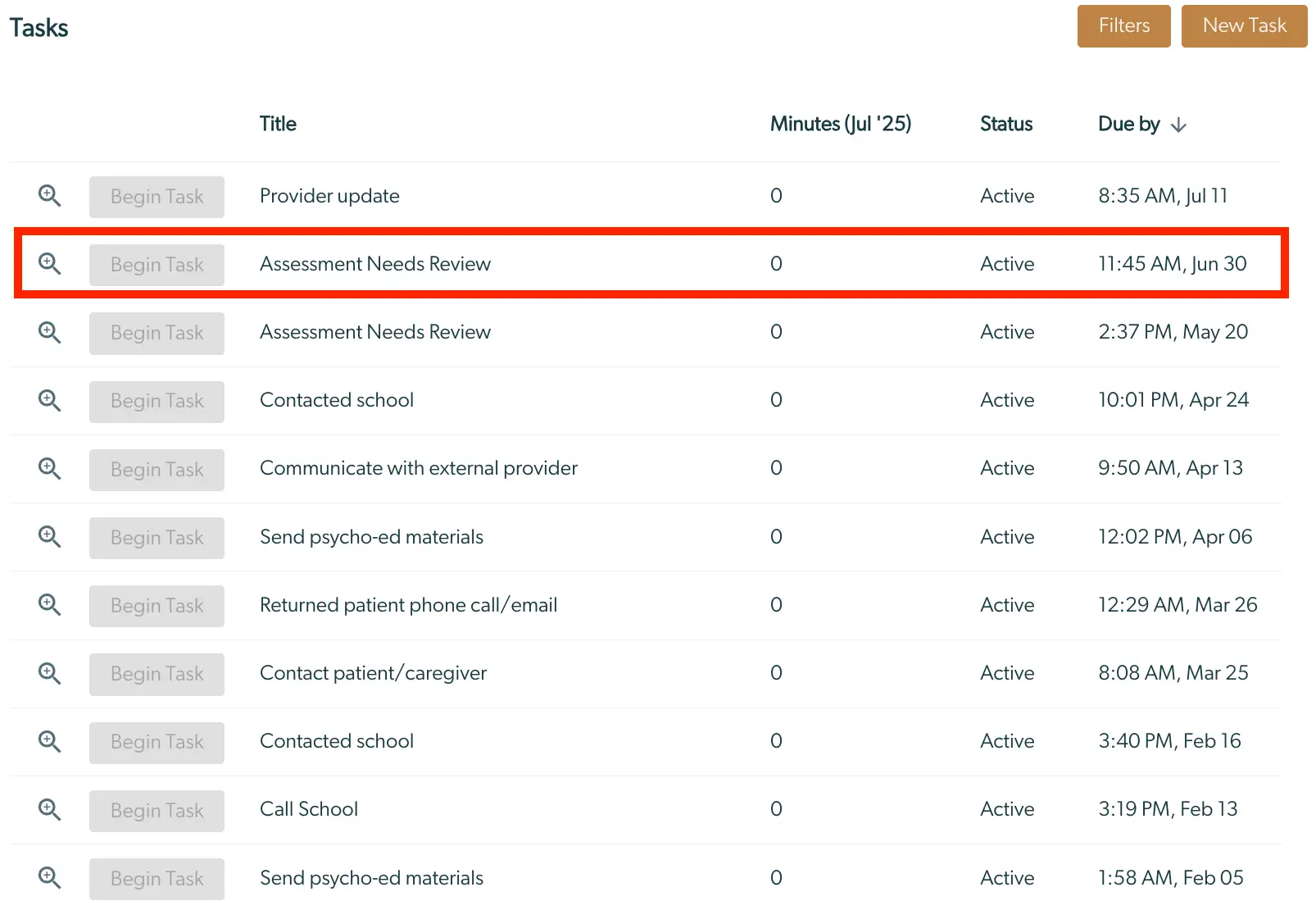
The screenshot displays the Tasks page within the Mirah Collaborative Care platform, showcasing a list of tasks related to collaborative care. Each task is presented in a table format with columns labeled Title, Minutes (Jul '25), Status, and Due by. The Title column lists the names of tasks such as 'Provider update' and 'Assessment Needs Review'. The Minutes column shows the time allocated for each task, currently set to 0 for all tasks. The Status column indicates the current status of each task, marked as 'Active'. The Due by column provides the deadline for each task, with specific times and dates. The 'Begin Task' button is located next to each task title, allowing users to initiate the task. At the top right corner, there are two buttons labeled 'Filters' and 'New Task', which enable users to filter tasks or create new ones. The task 'Assessment Needs Review' is highlighted with a red border, indicating it is selected or of particular interest.

Once you have located the correct task, click on the magnifying glass to the right of the task to open up the details for that task.

The screenshot displays a task interface within the Mirah Collaborative Care platform. On the left side, there is a magnifying glass icon enclosed in a red square, indicating a search or zoom function. Next to it is a greyed-out 'Begin Task' button, suggesting that the task cannot be started at this moment. The task is labeled 'Assessment Needs Review' with a count of '0', indicating no assessments are pending review. The status of the task is 'Active', and the timestamp '11:45 AM, Jun 30' is displayed, likely indicating the last update or scheduled time for the task.

You will now see the details associated with the selected task. To edit a field, hover over that field with your mouse and you will see a pencil icon appear. Click on the pencil icon to edit that field. The title of the task, the status and template of the task, as well as the notes associated with the task are editable. Alternatively, click the "Edit" button on the bottom of the selected task and proceed with edits. Previous notes associated with logged time cannot be edited.
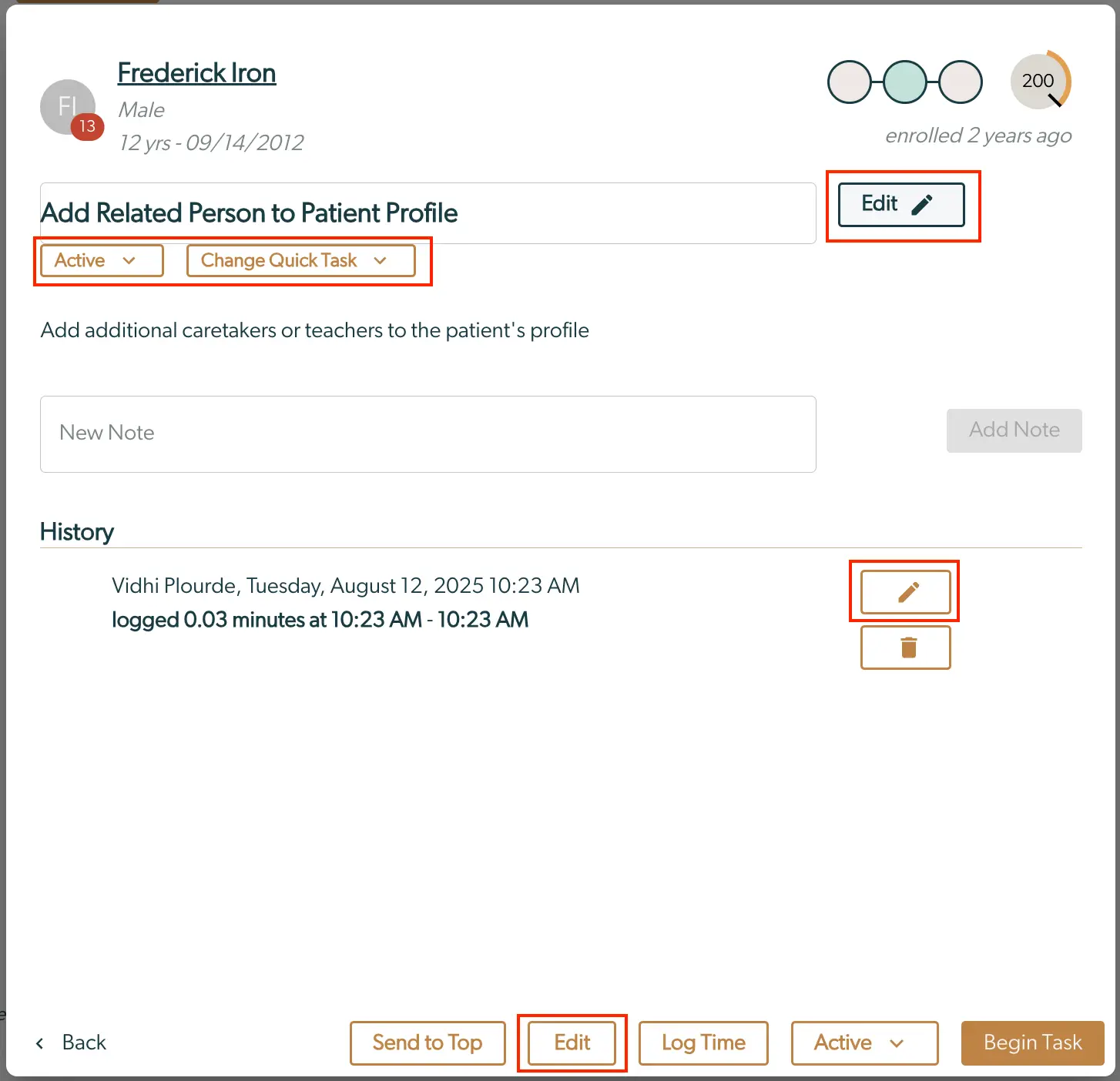
The screenshot displays the task editing interface for a patient profile in Mirah Collaborative Care. At the top, the patient's name, Frederick Iron, along with demographic details such as age and enrollment date, are shown. Below, the section titled 'Add Related Person to Patient Profile' allows users to add caretakers or teachers to the patient's profile. There are dropdown menus labeled 'Active' and 'Change Quick Task' for task status and quick task selection, respectively. An 'Edit' button is located to the right of this section for modifying the task details. A text field labeled 'New Note' is available for adding notes, accompanied by an 'Add Note' button. The 'History' section lists previous task logs, including a log entry by Vidhi Plourde with a timestamp and duration. Each log entry has an edit icon for modifications and a trash icon for deletion. At the bottom, navigation and action buttons include 'Back', 'Send to Top', 'Edit', 'Log Time', 'Active' dropdown, and 'Begin Task', facilitating task management and navigation.

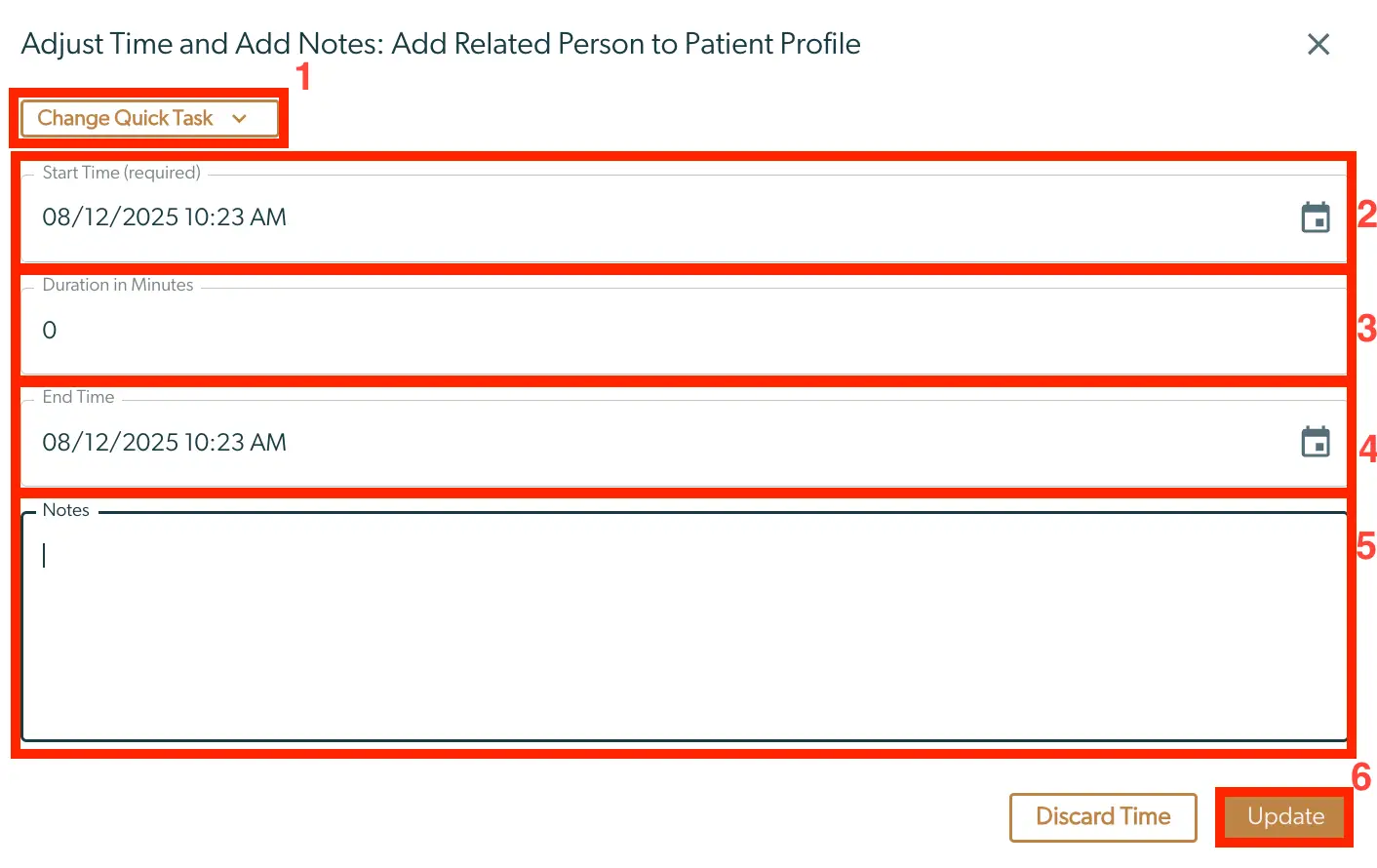
Once you select "Edit", a screen will surface enabling users to adjust multiple components of the specified task.

  1. Changing the quick task allows users to select a different task template from your institute.
  2. The start time can be altered to reflect a different time.
  3. A different duration can be inputted. Note that if you alter this field, the end time will automatically change to reflect the correct duration.
  4. Additionally, you can change the end time as well to reflect something different.
  5. The "Notes" section enables users to add more notes or adjust existing ones.
  6. Unsure to select "Update" in the bottom right corner to ensure the changes are saved. The screenshot displays the 'Adjust Time and Add Notes: Add Related Person to Patient Profile' interface within the Mirah Collaborative Care platform. At the top, there is a dropdown menu labeled 'Change Quick Task' allowing users to select different tasks. Below, fields for 'Start Time' and 'End Time' are present, each accompanied by a calendar icon for date selection. The 'Duration in Minutes' field is editable to specify the task length. A large text area labeled 'Notes' is available for additional information. At the bottom right, two buttons are visible: 'Discard Time' to cancel changes and 'Update' to save modifications.