
How to prioritize my task list on the Dashboard

What is the My Tasks list?​

The screenshot displays the 'My Tasks' and 'Inbox' sections of the Mirah Collaborative Care dashboard. The 'My Tasks' section on the left lists tasks assigned to different individuals, including Dylan Finch, Melaine Hauck, and Lanny Wilkinson, with task descriptions such as 'Communicate with external provider,' 'Case Consultation,' 'Make external referral,' 'Providing community resources,' and 'Send psycho-ed materials.' Each task entry includes a progress indicator with colored circles, a due date, and two buttons: a play button for starting the task and a square button for marking it as complete. The 'Inbox' section on the right shows assessments that need review, with entries for Melaine Hauck and Krystin Klein. Each entry includes a progress indicator, a description of the assessment status, and three buttons: 'View Report,' 'Create Task,' and 'Dismiss,' located below the assessment details.

The left-hand side of the Mirah dashboard shows tasks assigned to you. Unlike the All Tasks page or the Tasks table on patient pages, My Tasks only shows tasks assigned to you, and shows them in the order you choose so that you can have control over what's on the top of your to-do list. The tasks are shown as small cards to make them easy to scan and interact with.

Tasks may be created manually by you or other members of your team, automatically by the Mirah system in response to events, or as a result of handling inbox notifications, seen on the right side of the dashboard. To learn more about the inbox, see How to manage the inbox.

How to read a task card​

The screenshot displays a task card from the Mirah Collaborative Care dashboard, specifically for the task 'Communicate with external provider' assigned to Dylan Finch. The card includes a visual progress indicator with four circles, where the first two are filled, suggesting partial completion, and a number '35' indicating a progress percentage or score. The task was created on June 14 and is due by June 17. There are two buttons on the right side of the card: a play button for starting or resuming the task, and a square button for marking the task as complete or stopping the task. These buttons are located at the bottom right of the task card.

The left-hand side of a task card has information about the patient the task is for - their name, three part status badge and number of minutes accrued this month. Clicking the name will bring you to the patient's details page.

The screenshot displays a task item on the Mirah Collaborative Care dashboard, specifically for user Dylan Finch. The task is titled 'Communicate with external provider' and is accompanied by a timeline indicating it was created on June 14 and is due by June 17. To the right of the task title, there are two buttons: a play button for starting or engaging with the task, and a square button for marking the task as complete. These buttons are located at the far right of the task item. The task item also includes a visual progress indicator with three circles and a number 35, which likely represents the task's priority or status within the workflow.

The right hand side of the shows summary information about the task itself, the title, when the task was created, and when the task is due to be completed. Not all tasks will have a due date, in which case that information will not be present.

The screenshot displays a task entry on the Mirah Collaborative Care dashboard, specifically for the user Dylan Finch. The task is titled 'Communicate with external provider' and includes the creation date of June 14 and a due date of June 17. On the left side, there is a visual representation of progress with three circles connected by lines, indicating the task's status, and a number 35, which may represent a priority or progress metric. On the right side, there are two buttons: a play button outlined in red, likely for starting or viewing task details, and a checkbox outlined in brown, possibly for marking the task as complete. These buttons are located at the end of the task entry.

The play button starts tracking time on this task. If you're already tracking time on another task when you click this, that time will be saved and you'll start tracking this task instead. When you're tracking time on a task, the play button on that task's card will switch to a pause button:

The screenshot displays a task entry on the Mirah Collaborative Care dashboard, specifically for the user Dylan Finch. The task is titled 'Communicate with external provider' and includes the creation date of June 14 and a due date of June 17. On the left side, there is a visual representation of progress with three circles, two of which are filled, and a number 35 indicating a percentage or count. On the right side, there are two buttons: a pause button outlined in red, and a checkbox button outlined in brown, both located at the end of the task entry. These buttons allow the user to pause the task or mark it as complete, respectively.The screenshot displays a task item on the Mirah Collaborative Care dashboard, specifically for the user Dylan Finch. The task is titled 'Communicate with external provider' and includes a timeline indicating it was created on June 14 and is due by June 17. On the left side, there is a visual representation of progress with three circles connected by lines, and a number 35 indicating a specific metric or progress percentage. To the right of the task title, there are two buttons: a play button for initiating the task and a square button for marking the task as complete. These buttons are located on the right side of the task item.

The checkbox button immediately marks a task completed. If you've used the filter at the top of the page to only show active tasks, the task won't be immediately removed from the list, but will be gone when you navigate away from the tasks and return (such as by going to another page and then coming back to the dashboard). When a task is complete, the checkbox button will show a checkmark instead:

The screenshot displays a task item on the Mirah Collaborative Care dashboard, specifically for the user Dylan Finch. The task is titled 'Communicate with external provider' and includes a timeline indicating it was created on June 14 and is due by June 17. On the left side, there is a visual representation of progress with three circles, two filled and one empty, followed by a number 35, which likely indicates a progress percentage or a related metric. On the right side, there are two buttons: a play button for initiating or viewing task details, and a checkbox button for marking the task as complete. The play button is located to the left of the checkbox button, which is highlighted with a red border.

*Note - Once tasks have been completed, they will no longer appear in your dashboard. They can be found in the "All Tasks" tab.

Looking at the back of a task card​

Clicking anywhere on a task card (other than the patient name or one of the buttons) will bring up a dialog showing the "back" of the card with full details about the task:

From here you can edit the task, log time (or edit previously logged time), add notes, mark it complete and start time tracking.

Re-prioritizing tasks in your list​

The quickest way to move tasks around in your task list is to drag them up and down in the list:

The screenshot displays the 'My Tasks' section of the Mirah Collaborative Care dashboard, which is used for prioritizing tasks related to collaborative care. At the top, there is a 'Task Status Filter' dropdown menu set to 'Active', allowing users to filter tasks based on their status. Below, tasks are listed with details such as the name of the person associated with the task, the task description, creation date, and due date. Each task has a visual indicator showing its status with colored circles and a number indicating urgency. To the right of each task, there are two buttons: a play button for starting the task and a square button for additional options. On the right side of the screen, the 'Inbox' section shows 'Assessment Needs Review' with a notification count of 2. It includes a status indicator for assessments and the name 'Penelope Test', indicating an assessment update or completion that requires review. Below this, there are three buttons: 'View Report', 'Create Task', and 'Dismiss', allowing users to take action on the assessment. The bottom of the inbox section notes that 24 notifications are hidden due to panel selection, with navigation arrows for browsing through notifications.

If you have a task deeper in the list that you want to prioritize, the card back has a "Send to Top" button that will move the task to the top of the list from anywhere.

The screenshot displays a section of the Mirah Collaborative Care dashboard focused on task management. It features a series of buttons designed to manage and prioritize tasks. The 'Send to Top' button, highlighted in red, allows users to prioritize a task by moving it to the top of the list. The 'Edit' button enables users to modify task details, while the 'Log Time' button is used to record the time spent on a task. The 'Complete' button marks a task as finished, and the 'Begin Task' button initiates the task. The 'Back' button, located on the far left, allows users to navigate to the previous screen.

This button is also available on the All Tasks table. Note that All Tasks allows you to view tasks that aren't in your task list - using Send to Top on those won't move them anywhere. You can prioritize your own task list but not anyone else's.

Creating new tasks​

The top of the My Tasks list has a Create Task button, which will open up a form to allow you to quickly create new tasks:
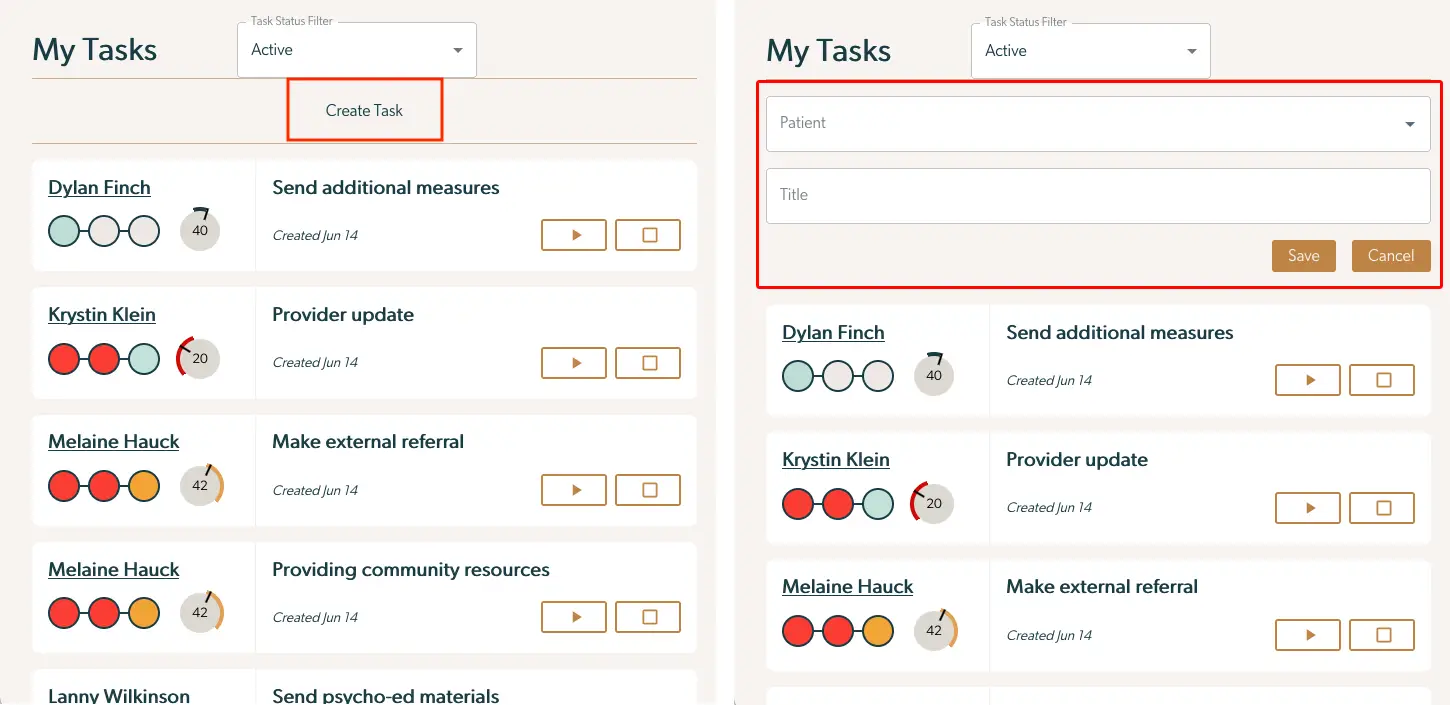
The screenshot displays the 'My Tasks' section of the Mirah Collaborative Care dashboard, where users can manage and prioritize their tasks. At the top, there is a 'Task Status Filter' dropdown menu set to 'Active', allowing users to filter tasks based on their status. Below this, a 'Create Task' button is prominently placed, enabling users to add new tasks. The left side shows a list of tasks with details such as the patient's name, task description, creation date, and a visual progress indicator. Each task has two buttons: a play button for starting or viewing task details, and a square button for additional options, both located to the right of the task description. On the right side, a task creation form is visible, with fields for 'Patient' and 'Title', and 'Save' and 'Cancel' buttons at the bottom right for submitting or discarding the new task.

When you open the form, it'll automatically focus the Patient input, which will search through all patients in Mirah. You can start typing to look for a patient and then either click to select one or use the keyboard:
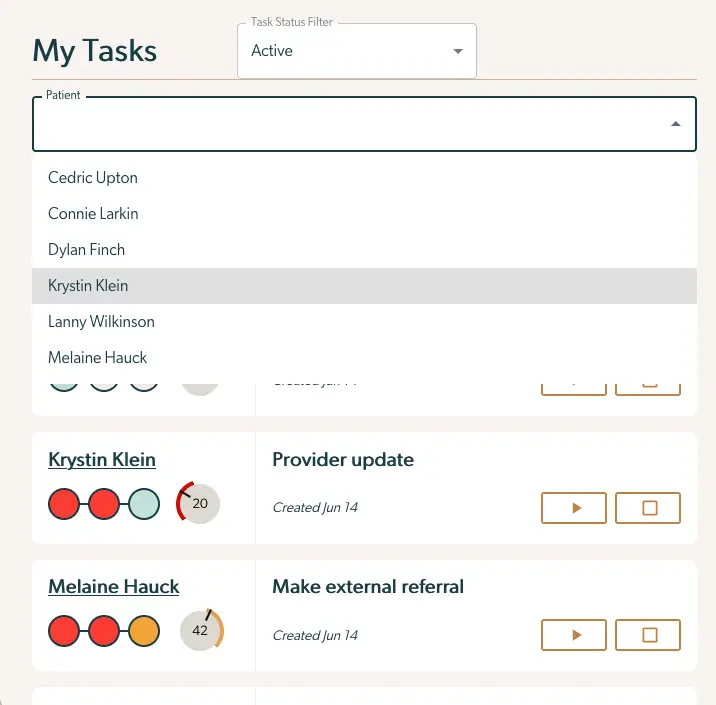
The screenshot displays the 'My Tasks' section of the Mirah Collaborative Care dashboard, where users can manage and prioritize their tasks. At the top, there is a 'Task Status Filter' dropdown menu set to 'Active', allowing users to filter tasks based on their status. Below this, there is a 'Patient' search field with a dropdown list of patient names, including Cedric Upton, Connie Larkin, Dylan Finch, Krystin Klein, Lanny Wilkinson, and Melaine Hauck, enabling users to select a specific patient to view related tasks. The main area shows tasks associated with selected patients, such as 'Provider update' for Krystin Klein and 'Make external referral' for Melaine Hauck, both created on June 14. Each task includes a visual progress indicator, a numerical value indicating priority or urgency, and two action buttons on the right side: a play button for starting the task and a square button for stopping or completing it.

Once you select a patient, the form will automatically advance to the Title field. Typing in this field will automatically search Quick Tasks that you've previously configured. You can either select one or enter any text to use a custom title:

The screenshot displays the 'My Tasks' section of the Mirah Collaborative Care dashboard, which is used for managing tasks related to patient care. On the left side, there is a task creation interface where users can select a patient from a dropdown menu labeled 'Patient' and enter a task title in the 'Title' field. Below these fields, there is a list of suggested tasks such as 'Case Consultation', 'Send psycho-ed materials', and 'Call School'. On the right side, there is a list of existing tasks for different patients, each with a visual progress indicator and a due date. Tasks are listed with the patient's name, task title, and creation date. Each task has two buttons: a play button for starting the task and a square button for marking it as complete, located to the right of the task title. The 'Task Status Filter' dropdown at the top allows users to filter tasks by status, currently set to 'Active'. The 'Save' and 'Cancel' buttons are located at the bottom right of the task creation interface.

From here, either click the Save button or Enter on your keyboard, and the task will be created and added to the top of your task list. The form will automatically focus back to the Patient field so you can continue entering tasks.

The 'My Tasks' screen is part of the Mirah Collaborative Care dashboard, designed to help users manage and prioritize their tasks. At the top, there is a 'Task Status Filter' dropdown menu set to 'Active', allowing users to filter tasks based on their status. Below, there are fields for 'Patient' and 'Title' where users can input specific details to search or categorize tasks. The screen displays a list of tasks with each entry showing the patient's name, task description, and creation date. Each task has a visual progress indicator with a percentage, and two action buttons: a play button to start or resume the task, and a square button to mark it as complete. The 'Save' and 'Cancel' buttons are located on the right side, enabling users to save changes or cancel actions.