
Creating and Adding Care Managers

To manually create and add Care Managers to your institute, please follow the instructions detailed in this article. Please note that you must have certain security roles in order to make these adjustments.

Create a Care Manager​

1). Log into your institute and locate the "Configurations Tab".
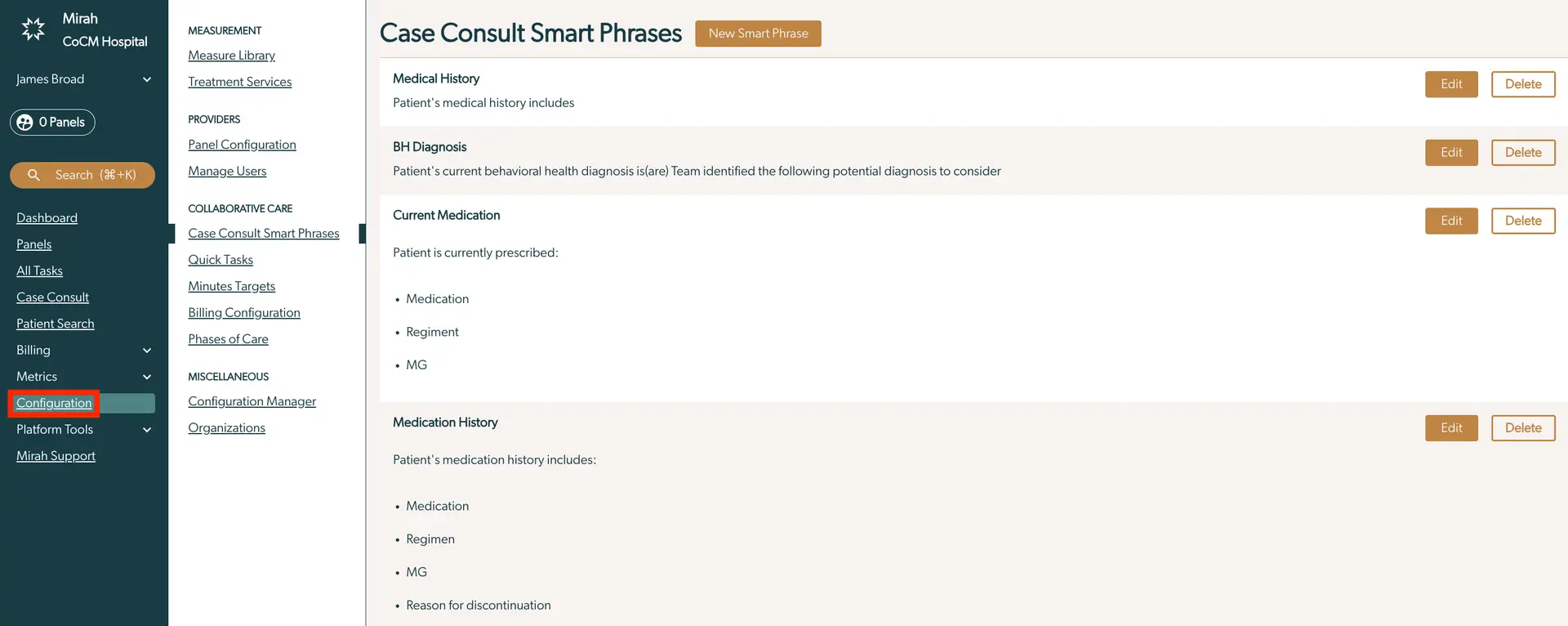
The screenshot displays the 'Case Consult Smart Phrases' page within the Mirah Collaborative Care platform. This page is part of the Configuration section, which is accessible from the left-hand navigation menu. The page is designed to manage smart phrases used in case consultations, providing a streamlined way to document patient information. It includes sections for Medical History, BH Diagnosis, Current Medication, and Medication History, each with a brief description of the type of information to be included. Each section has 'Edit' and 'Delete' buttons located on the right side, allowing users to modify or remove the smart phrases. The 'New Smart Phrase' button is located at the top right corner, enabling users to add new entries.

2). Once here, select "Manage Users".
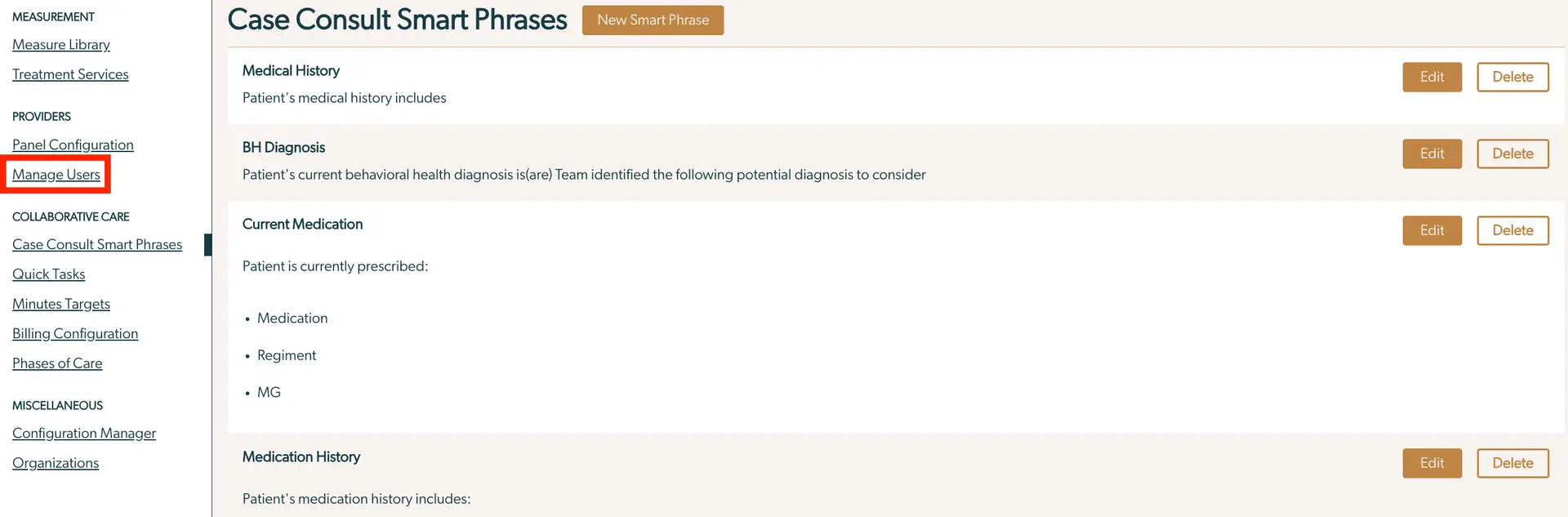
The screenshot displays the 'Case Consult Smart Phrases' section of the Mirah Collaborative Care platform, which is part of the Collaborative Care feature. The main area of the screen lists different sections such as Medical History, BH Diagnosis, Current Medication, and Medication History, each with a brief description of the patient's information. Next to each section, there are 'Edit' and 'Delete' buttons located on the right side, allowing users to modify or remove the information. At the top right corner of the main area, there is a 'New Smart Phrase' button for adding new entries. The left sidebar contains a navigation menu with categories like Measurement, Providers, Collaborative Care, and Miscellaneous. Under Providers, the 'Manage Users' option is highlighted, indicating the current focus area.

3). A new screen will arise. Click on the "Create New Staff User Button".
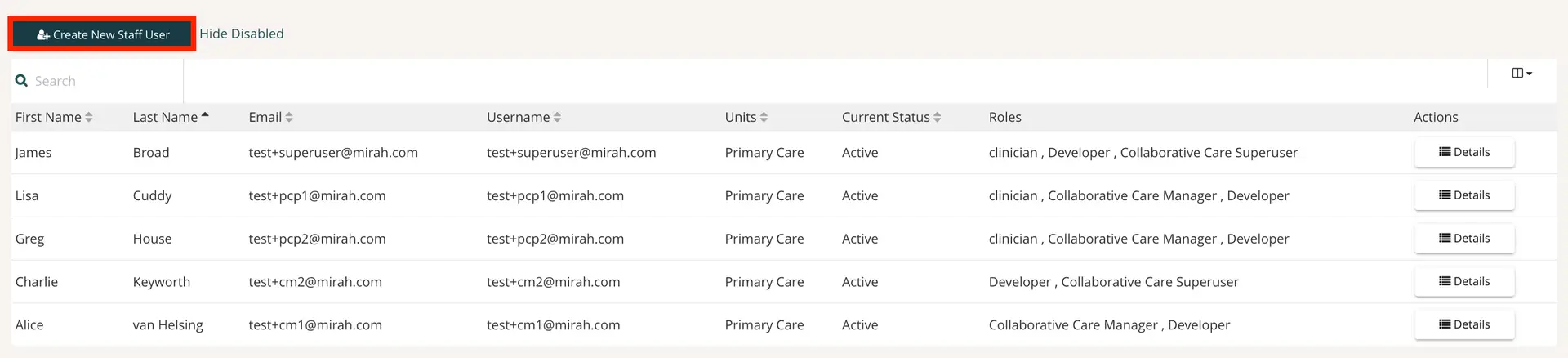
The screenshot displays the user management interface within the Mirah Collaborative Care platform, specifically for managing staff users. At the top left, there is a prominent 'Create New Staff User' button, which allows administrators to add new users to the system. Next to it, there is a 'Hide Disabled' option to filter out inactive users. Below, a search bar is available for quickly finding specific users. The main table lists existing users with columns for First Name, Last Name, Email, Username, Units, Current Status, Roles, and Actions. Each column is sortable, indicated by the small arrows next to the column headers. The 'Actions' column contains 'Details' buttons for each user, allowing further management of individual user profiles. The table provides a comprehensive overview of user information, including their roles and current status within the organization.

4). Input the information into the following fields. Specifically, at a minimum the "First Name," "Last Name," and "Email" must be filled out.

This screen is used for creating and adding care managers within the Mirah Collaborative Care platform. It includes fields for entering the care manager's Title, First Name, Last Name, Suffix, Email, Phone Number, and Username. The Title field provides an example input of 'e.g. Dr', while the Suffix field suggests 'e.g. M.D'. The Email and Phone Number fields are for contact information, and the Username field allows the user to leave it blank to use the email as the username. There is also a dropdown menu for Assessment notifications, which is set to 'Default'. This screen is part of the user management feature, facilitating the addition of new care managers to the system.

5). For care managers, select the staff role as "Care Manager". Typically, care managers have their access frequency listed as "Frequently" so input this information in as well.

This screen is part of the user management feature in Mirah Collaborative Care, specifically for creating and adding care managers. At the top, there is a checkbox labeled 'Practicing (can assign to patients)' which is checked, indicating that the user can be assigned to patients. Below, there are two highlighted fields: 'Staff role' set to 'Care Manager' and 'Access Frequency' set to 'Frequent'. These fields define the user's role and how often they access the system. The section 'Select Security Roles' lists various roles with descriptions and radio buttons for selection. The roles include Collaborative Carer, Superuser, Clinician, Front Desk, and Case Manager, each with specific access permissions and responsibilities. The radio buttons are located to the right of each role description, allowing the user to select the appropriate security role for the care manager being added.

6). As for their security role, select the "Collaborative Care Manager". On this page, you must also click on the correct user organization and push "Save" at the very end.
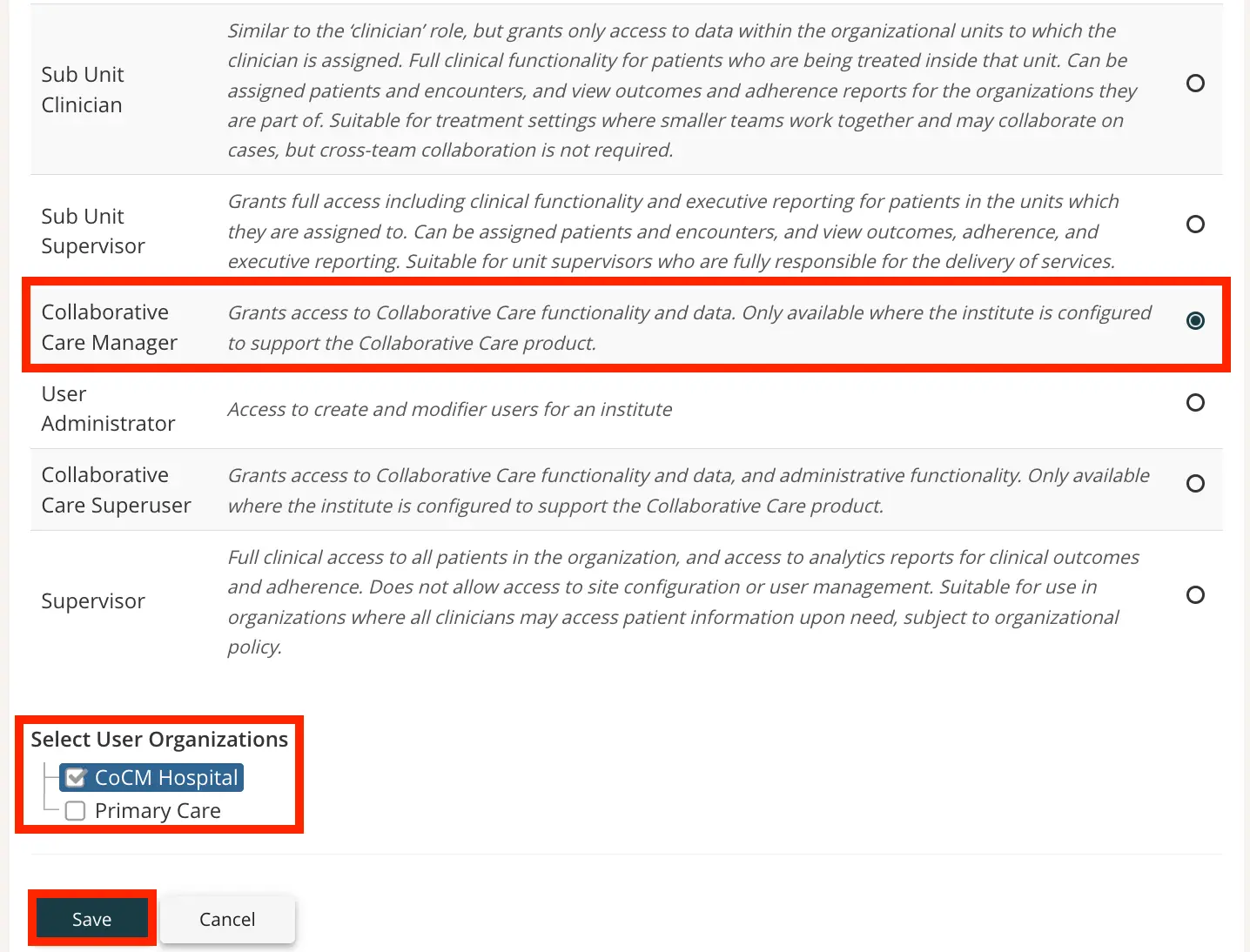
The screenshot displays a user role selection interface for managing users within the Mirah Collaborative Care system. It lists various roles such as Sub Unit Clinician, Sub Unit Supervisor, Collaborative Care Manager, User Administrator, Collaborative Care Superuser, and Supervisor, each with a brief description of their access rights and functionalities. The Collaborative Care Manager role is highlighted, indicating it grants access to Collaborative Care functionality and data, available only when the institute supports the Collaborative Care product. Below the roles, there is a section titled 'Select User Organizations' with checkboxes for CoCM Hospital and Primary Care, allowing the user to select the organizations the role will be associated with. The CoCM Hospital checkbox is checked. At the bottom of the screen, there are 'Save' and 'Cancel' buttons, located on the left side, for confirming or discarding changes.

7). A screen will surface confirming this information. Please note that before a care manager can be added to panels, they need to be enabled.
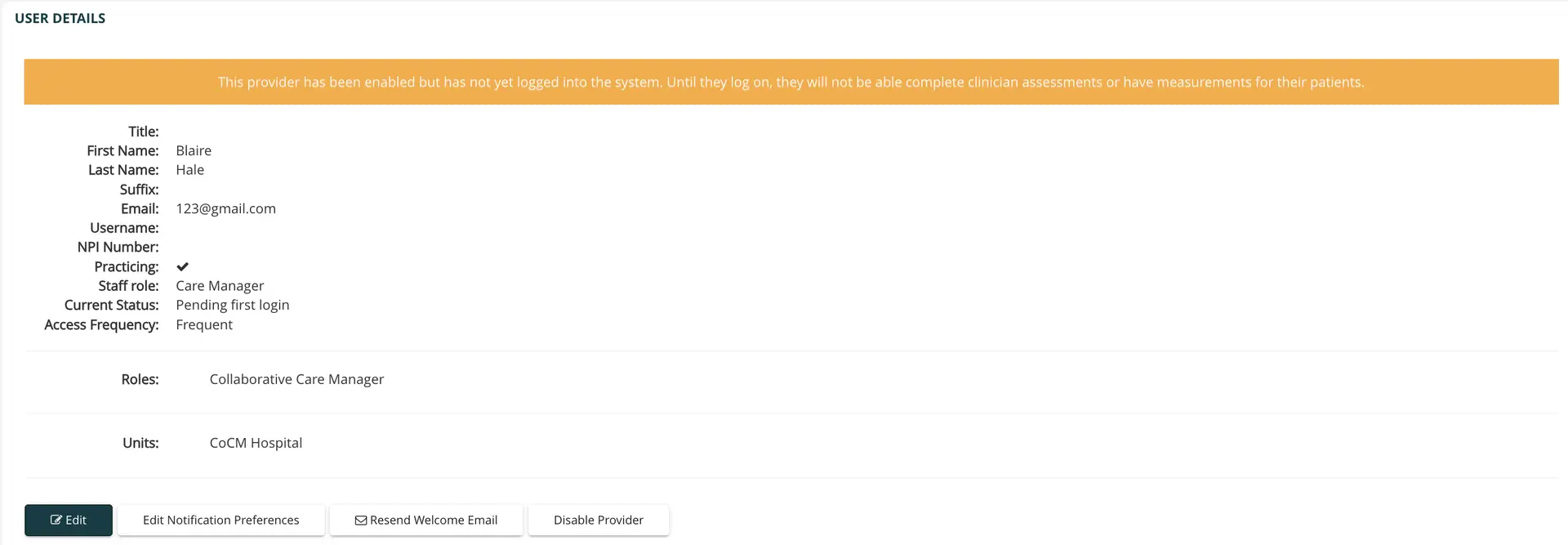
The screenshot displays the 'User Details' page for managing a care manager within the Mirah Collaborative Care system. At the top, there is an orange notification bar indicating that the provider has been enabled but has not yet logged into the system, which restricts their ability to complete clinician assessments or access patient measurements. Below this, user information is listed, including Title, First Name (Blaire), Last Name (Hale), Suffix, Email (123@gmail.com), Username, NPI Number, and a checkbox indicating Practicing status. The Staff role is identified as Care Manager, with the Current Status showing 'Pending first login' and Access Frequency marked as 'Frequent'. Further down, the Roles section specifies 'Collaborative Care Manager', and the Units section lists 'CoCM Hospital'. At the bottom of the page, there are three buttons: 'Edit' on the left, 'Edit Notification Preferences' in the center, 'Resend Welcome Email', and 'Disable Provider' on the right, allowing for user management actions.

Adding Care Managers in Panels​

1). From the dashboard, locate the "Configuration" tab. From here, select "Panel Configuration".
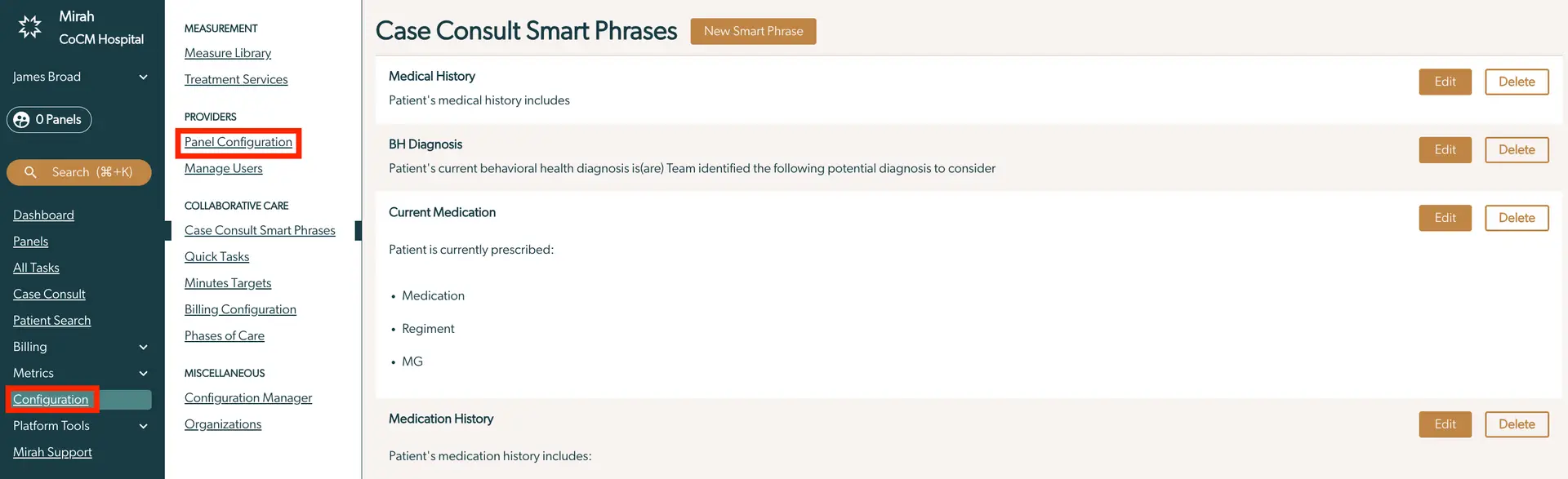
The screenshot displays the 'Case Consult Smart Phrases' page within the Mirah Collaborative Care platform. This page is part of the Collaborative Care feature, allowing users to manage predefined phrases used in case consultations. The left sidebar contains navigation options including Dashboard, Panels, All Tasks, Case Consult, Patient Search, Billing, Metrics, Configuration, Platform Tools, and Mirah Support. The Configuration section is expanded, highlighting 'Panel Configuration' and 'Manage Users' under Providers. The main content area lists smart phrases categorized under Medical History, BH Diagnosis, Current Medication, and Medication History. Each category includes a brief description of the patient's information and has 'Edit' and 'Delete' buttons on the right side for managing these phrases. The 'New Smart Phrase' button is located at the top right corner of the main content area, allowing users to add new phrases.

2). This page lists all active and retired panels within your organization. Here, you have the option to edit all panels to delete or add new providers.
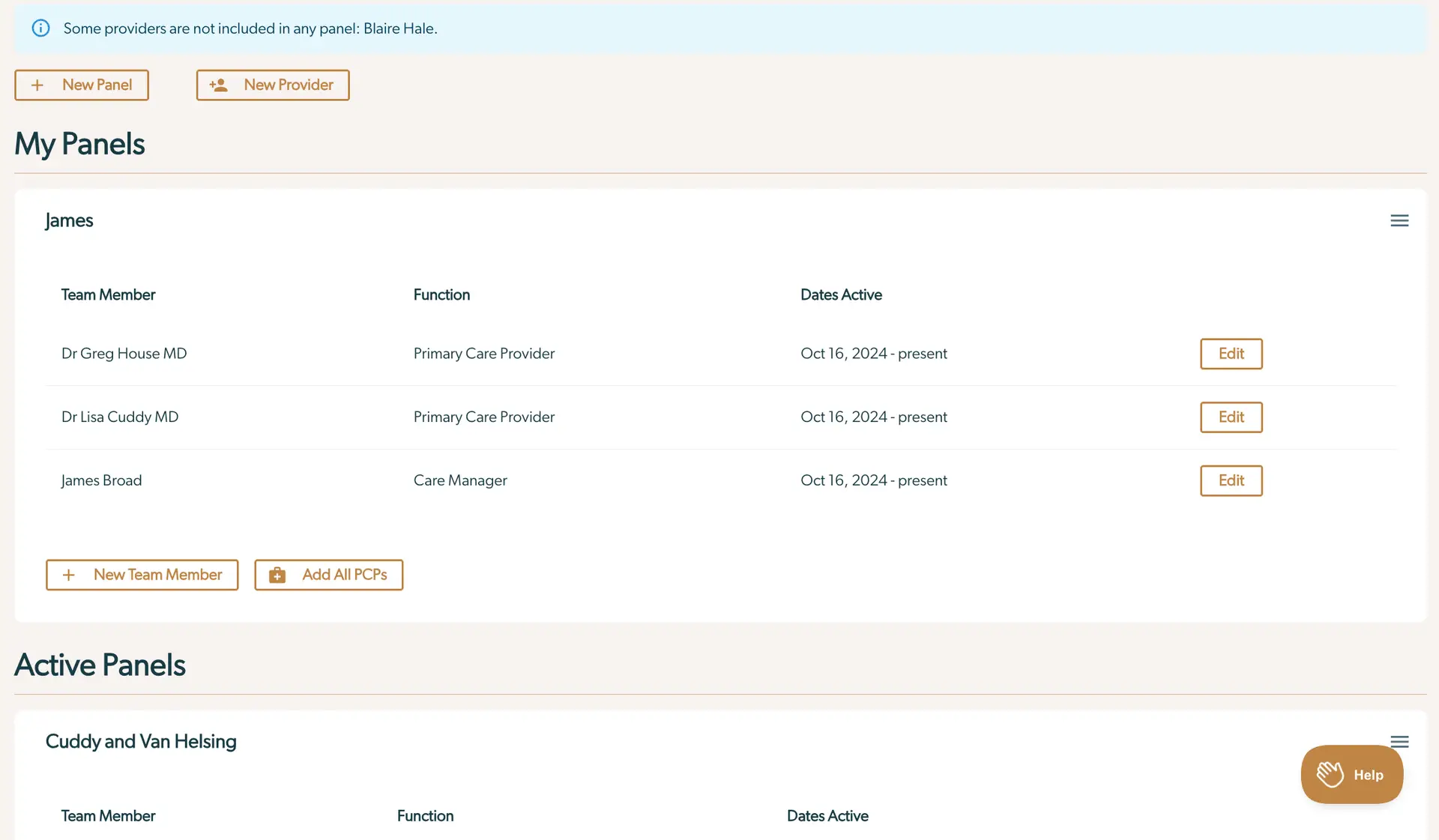
The screenshot displays the 'My Panels' section of the Mirah Collaborative Care platform, where users can manage team members within a panel. At the top, there is a notification indicating that some providers are not included in any panel, specifically Blaire Hale. Below this, there are two buttons: 'New Panel' and 'New Provider', located at the top left, allowing users to create a new panel or add a new provider. The 'My Panels' section lists team members with their names, functions, and active dates. Each team member has an 'Edit' button on the right side for modifying their details. The panel named 'James' includes Dr. Greg House MD and Dr. Lisa Cuddy MD as Primary Care Providers, and James Broad as a Care Manager, all active from October 16, 2024, to present. Below the team list, there are buttons labeled 'New Team Member' and 'Add All PCPs' for adding new members or primary care providers, respectively. The 'Active Panels' section is visible below, with a panel named 'Cuddy and Van Helsing', but no team members are listed.

3). Select "New Panel" at the top left of the page.

The screenshot displays a button labeled 'New Panel' with a plus sign icon to its left. This button is designed to allow users to create a new panel within the Mirah Collaborative Care platform, specifically in the context of managing users and collaborative care. The button is prominently highlighted with a red border, indicating its importance and encouraging user interaction. It is likely located in a section of the interface where users can manage or add new elements related to care management.

4). Here, you must input the name of the panel and select "Save".

The screenshot displays a user interface for creating a new panel within the Mirah Collaborative Care platform. At the top, there is a label 'New Panel' with a subtext 'Name (optional)' indicating that the user can enter a name for the panel, but it is not mandatory. Below this, there is a text field containing the text 'Blaire's Panel', which is the name given to the panel by the user. Underneath the text field, there are two buttons: a 'Save' button on the left, which is highlighted in brown and marked with a check icon, allowing the user to save the panel with the entered name, and a 'Cancel' button on the right, marked with an 'X' icon, which allows the user to cancel the creation of the panel. The buttons are located at the bottom of the panel creation interface.

5). This new panel will now appear in the "Active Panels" section. To add the care manager and related PCPs, click on the "New Team Member" button. Alternatively, if all active PCPs are to be added to this panel, select "Add All PCPs".

The screenshot displays Blaire's Panel, which is part of the user management feature in Mirah Collaborative Care. The panel is currently empty, indicating that there are no team members listed under the columns 'Team Member', 'Function', and 'Dates Active'. At the bottom left of the panel, there are two buttons: 'New Team Member' and 'Add All PCPs'. The 'New Team Member' button, marked with a plus icon, allows users to add individual team members to the panel. The 'Add All PCPs' button, marked with a group icon, enables users to add all Primary Care Providers to the panel. These buttons facilitate the management and addition of care managers within the collaborative care framework.

6). If you selected "New Team Member", add in their name, function and start date. Additionally, you have the option to input an end date if that is relevant.

This screen is part of the user management feature within Mirah Collaborative Care, specifically for creating and adding care managers. It includes fields for entering details about a team member, such as their name in the 'Team Member' field, their role in the 'Function' dropdown, and the dates of their involvement using the 'Start Date' and 'End Date (optional)' fields. The 'Start Date' field is pre-filled with the date 10/10/2025, and both date fields have calendar icons for selecting dates. At the bottom left, there are two buttons: 'Save' in orange for saving the entered information, and 'Cancel' in beige for discarding changes.

7). After creating the panel, there will now be an option to add the new panel to a patient's page. For more information about editing a patients care team, please refer to this article.
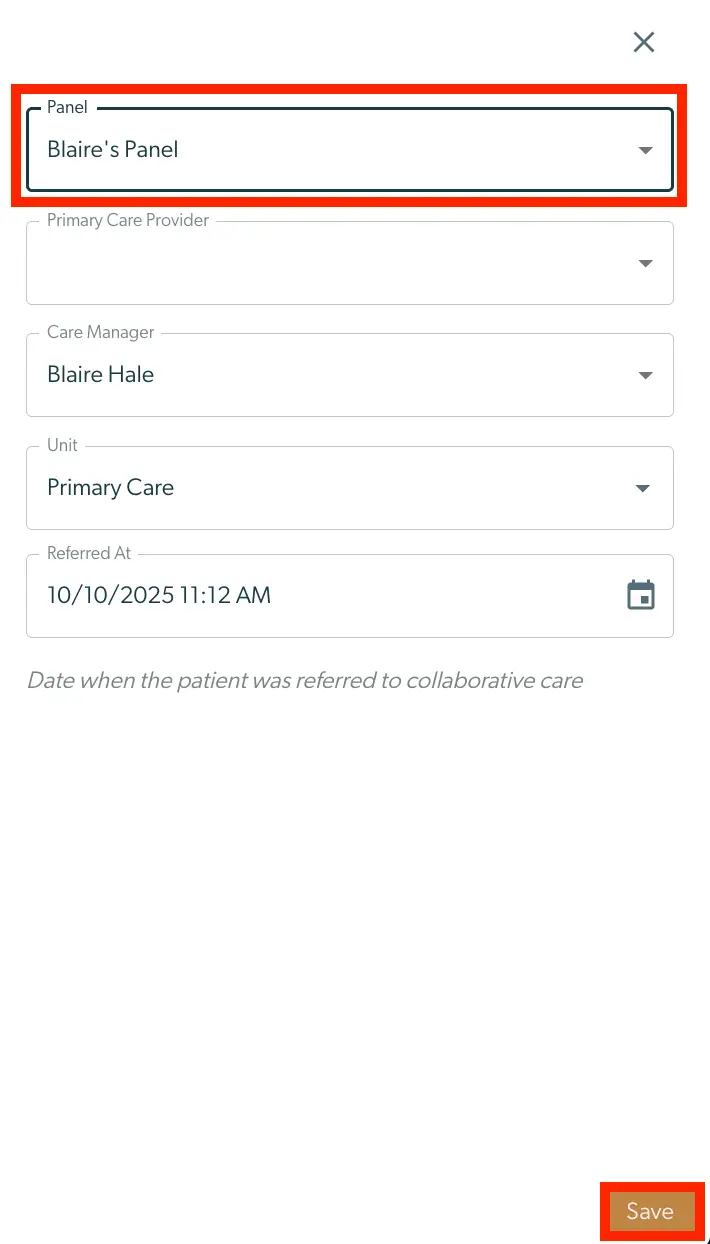
This screen is part of the user management feature in Mirah Collaborative Care, specifically for creating and adding care managers. It allows users to assign a care manager to a specific panel. The screen includes a dropdown menu labeled 'Panel' at the top, which is currently set to 'Blaire's Panel'. Below it, there are fields for 'Primary Care Provider', 'Care Manager', 'Unit', and 'Referred At'. The 'Care Manager' field is filled with 'Blaire Hale', and the 'Unit' field is set to 'Primary Care'. The 'Referred At' field displays a date and time, '10/10/2025 11:12 AM', indicating when the patient was referred to collaborative care. Each field has a dropdown arrow for selection, except for the 'Referred At' field, which has a calendar icon for date selection. At the bottom right corner, there is a 'Save' button to confirm and save the entered information.