
Vertical Navigation - Feature Guide

Overview​

Use the new left-hand navigation menu in Mirah to quickly find the features you need to manage patient care.
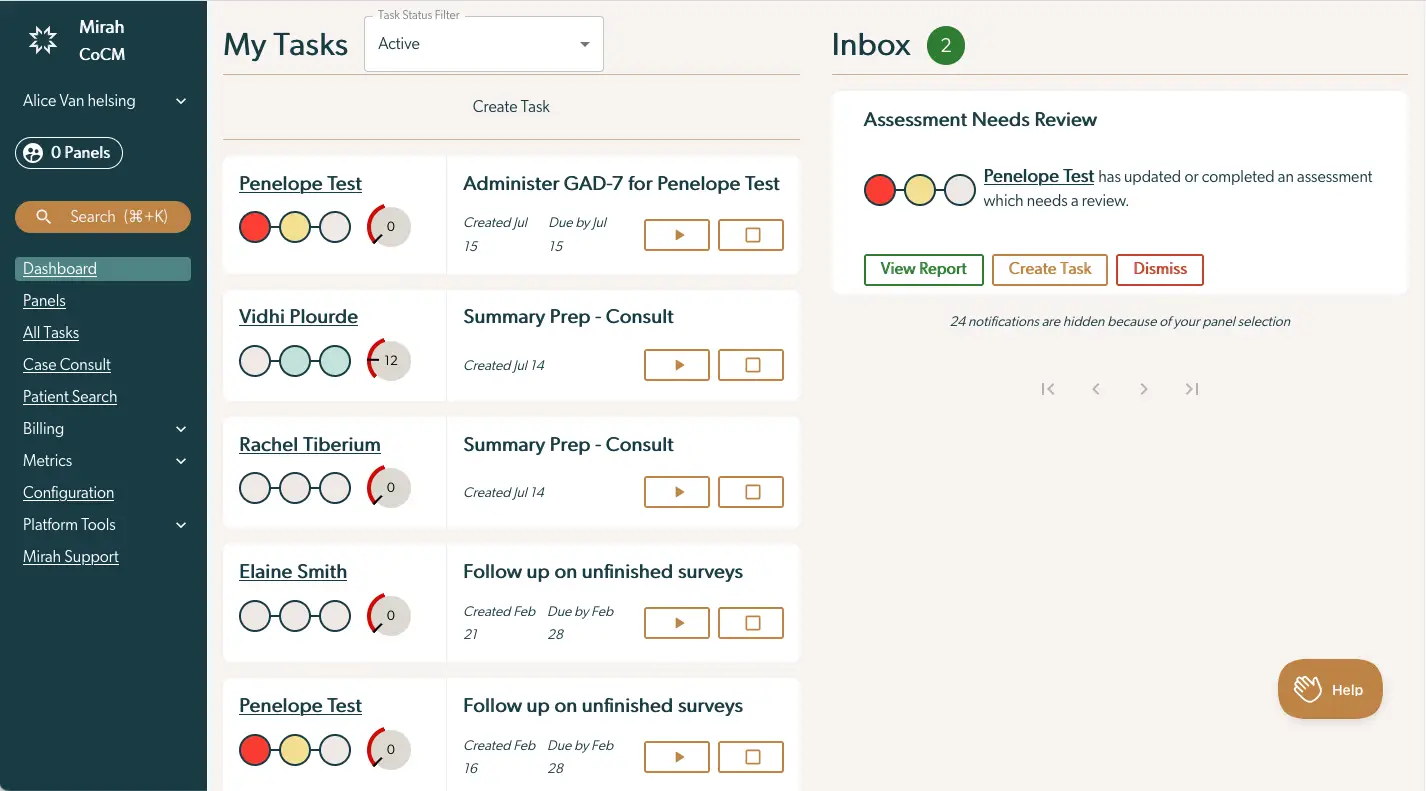
The screenshot displays the Mirah Collaborative Care interface with a focus on task management and notifications. On the left side, there is a vertical navigation menu featuring options such as Dashboard, Panels, All Tasks, Case Consult, Patient Search, Billing, Metrics, Configuration, Platform Tools, and Mirah Support. The user, Alice Van Helsing, is logged in, and there is a search bar with a shortcut hint (⌘ + K) for quick access. The main section is divided into two parts: 'My Tasks' and 'Inbox'. 'My Tasks' shows a list of tasks with details like the task name, creation date, due date, and action buttons for each task. Tasks include administering assessments and preparing summaries for various patients. Each task has a play button and a stop button for managing task progress. The 'Inbox' section highlights an assessment that needs review, with options to view the report, create a task, or dismiss the notification. The interface also indicates that 24 notifications are hidden due to panel selection, and navigation arrows are available for browsing through tasks or notifications. A 'Help' button is located at the bottom right corner for user assistance.

User Menu​

Manage your user preferences and account settings. Toggle test patient data on or off with Viewing Test Patients? . Control the visibility of personally identifiable information (PII) with Change PII Visibility . Click Log Out to exit Mirah.
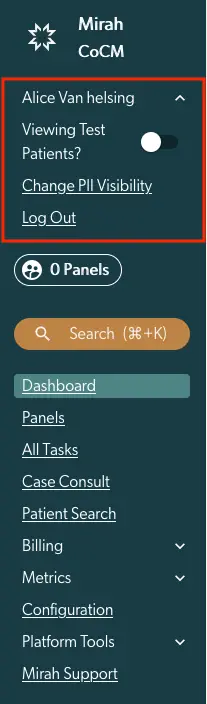
The screenshot displays the vertical navigation menu of the Mirah Collaborative Care platform. At the top, the Mirah CoCM logo is visible, followed by the user information section which includes the name 'Alice Van helsing' and a toggle switch labeled 'Viewing Test Patients?' to enable or disable viewing test patients. Below this, there are links for 'Change PII Visibility' and 'Log Out'. The navigation menu includes a search bar with a shortcut hint (⌘+K) for quick access. The menu items listed are 'Dashboard', 'Panels', 'All Tasks', 'Case Consult', 'Patient Search', 'Billing', 'Metrics', 'Configuration', 'Platform Tools', and 'Mirah Support'. Some menu items like 'Metrics' and 'Platform Tools' have dropdown arrows indicating expandable sections. The 'Dashboard' is highlighted, suggesting it is the current active page.

Find patient information using the Command Bar Search tool. You can find more info on how to use the command bar here.

The screenshot displays a search button located within the vertical navigation of the Mirah Collaborative Care platform. The button is oval-shaped with a brown background and features a magnifying glass icon followed by the word 'Search' and the keyboard shortcut '(⌘+K)' indicating that users can initiate a search using this shortcut. This button is designed to facilitate quick access to the search functionality, allowing users to efficiently find information or navigate to different sections within the platform.

Access frequently used features directly from the main navigation bar:

  • View your personalized overview on the Dashboard
  • Manage your patients using Panels search
  • Manage your assigned tasks in All Tasks
  • Initiate and review case consultations in Case Consult
  • Find patient information using Patient Search

When using patient search vs panel search, it is helpful to understand the differences:

  • The panel search shows one row for each enrollment in collaborative care. This means that patients who have never enrolled will not be visible, and patients who have been enrolled multiple times may appear more than once. This lets us ask questions about enrollments that we can’t ask about patients. For example: how long has it been since this patient was enrolled?
  • The patient search page lets you find patients in our system and display limited information about their current enrollment. It includes each patient exactly once, whether or not they have been enrolled zero, one or more times. Because of this limitation, it can’t help answer questions about particular times a patient has been enrolled. The screenshot displays the vertical navigation menu of the Mirah Collaborative Care platform. At the top, the Mirah CoCM logo is visible, followed by the user's name, Alice Van Helsing, with a dropdown arrow indicating additional options. Below, a button labeled '0 Panels' is present, which likely provides access to panel management features. The search bar, accompanied by a keyboard shortcut (⌘+K), allows users to quickly find specific items or features. The highlighted section contains links to key features: 'Dashboard' for an overview of activities, 'Panels' for managing care panels, 'All Tasks' for task management, 'Case Consult' for consulting on specific cases, and 'Patient Search' for locating patient information. These links are central to navigating the collaborative care functionalities. Additional sections like 'Billing', 'Metrics', 'Configuration', 'Platform Tools', and 'Mirah Support' are listed below, each with a dropdown arrow indicating expandable options.

Collapsible Navigation Groups​

Access less frequently used tools by expanding the collapsible groups in the left-hand navigation.

Billing​

View and manage your billing information. Use Billing Insights to review billing data. Generate and download monthly billing reports with Monthly Billing Report .
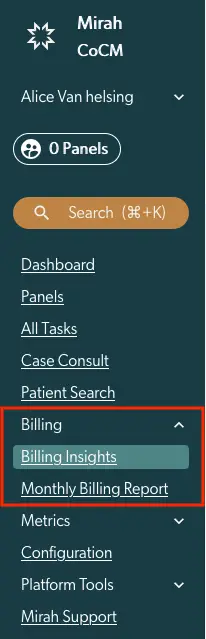
The screenshot displays the vertical navigation menu of the Mirah Collaborative Care platform, which is designed to facilitate measurement-based and collaborative care. At the top, the Mirah CoCM logo is visible, followed by the user's name, Alice Van Helsing, with a dropdown arrow indicating additional options. Below, a button labeled '0 Panels' is present, allowing users to manage their panels. The search bar, with a shortcut hint (⌘+K), is prominently placed for quick access to various features. The menu lists several sections: Dashboard, Panels, All Tasks, Case Consult, and Patient Search, each providing access to different functionalities within the platform. The 'Billing' section is expanded, revealing 'Billing Insights' and 'Monthly Billing Report' options, which are highlighted for emphasis. Additional sections include Metrics, Configuration, Platform Tools, and Mirah Support, each with potential sub-options indicated by dropdown arrows.

Metrics​

Track and analyze performance metrics to improve patient care. Review patient outcomes in Outcomes . Monitor overall institute performance in Institute Performance . Analyze your individual performance in My Performance .
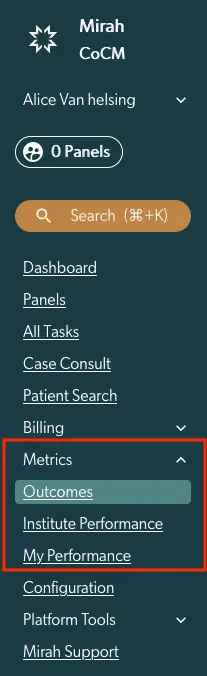
The screenshot displays the vertical navigation menu of the Mirah Collaborative Care platform, designed to facilitate measurement-based and collaborative care. At the top, the Mirah CoCM logo is visible, followed by the user's name, Alice Van Helsing, with a dropdown arrow indicating additional options. Below, a button labeled '0 Panels' is present, allowing users to access panel information. The search bar, with a shortcut hint (⌘+K), enables users to quickly find specific features or data. The menu lists several sections: Dashboard, Panels, All Tasks, Case Consult, Patient Search, and Billing, each providing access to different functionalities within the platform. The Metrics section is expanded, revealing sub-options such as Outcomes, Institute Performance, and My Performance, which offer insights into various performance metrics. Configuration, Platform Tools, and Mirah Support are also listed, providing access to settings, additional tools, and support resources. The Outcomes option is highlighted, indicating it is currently selected.

Platform Tools​

Access platform administration tools to maintain system integrity and manage data. Review failed login attempts with Failed Logins . Export data in bulk using Bulk Export .

The screenshot displays the vertical navigation menu of the Mirah Collaborative Care platform. At the top, the Mirah CoCM logo is visible, followed by the user's name, Alice Van Helsing, with a dropdown arrow indicating additional options. Below, a button labeled '0 Panels' is present, likely indicating the number of active panels or dashboards. The search bar, with a shortcut hint (⌘+K), allows users to quickly find features or data within the platform. The menu lists several navigation options: Dashboard, Panels, All Tasks, Case Consult, Patient Search, Billing, Metrics, Configuration, and Mirah Support. Each option serves as a gateway to different functionalities within the platform. The 'Platform Tools' section is expanded, revealing 'Failed Logins' and 'Bulk Data Export' options, which are highlighted in a red box, indicating their importance or recent selection. These tools are likely used for managing user access and exporting data in bulk, respectively.

Configuration​

Customize various aspects of Mirah to optimize the platform for your needs.
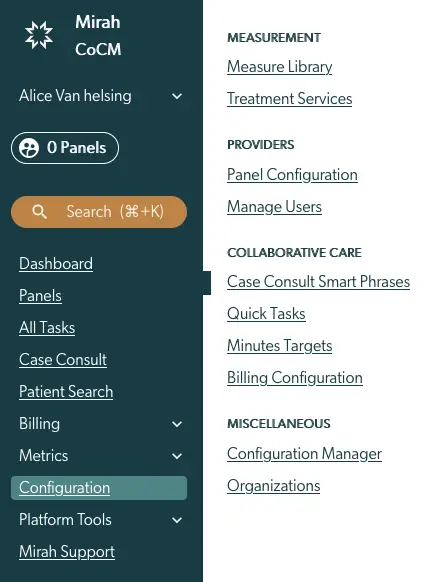
The screenshot displays the vertical navigation menu of the Mirah Collaborative Care platform, designed to facilitate measurement-based and collaborative care. On the left side, the menu includes options such as Dashboard, Panels, All Tasks, Case Consult, Patient Search, Billing, Metrics, Configuration, Platform Tools, and Mirah Support. The user, Alice Van Helsing, is logged in, and there is a button labeled '0 Panels' indicating the number of panels available. Below the user information, a search bar is present for quick access to features, with a shortcut key (⌘+K) indicated. The Configuration section is expanded, revealing subcategories on the right side, including Measurement, Providers, Collaborative Care, and Miscellaneous. Each category contains specific links such as Measure Library, Treatment Services, Panel Configuration, Manage Users, Case Consult Smart Phrases, Quick Tasks, Minutes Targets, Billing Configuration, Configuration Manager, and Organizations, which guide users to different functionalities within the platform.

Measurement​

Configure measurement tools and treatment services to accurately track and analyze patient progress. Manage your library of measurement tools with Measure Library . Configure available treatment services with Treatment Services .

Providers​

Manage users, panels, and permissions to control access to sensitive information. Configure provider panels with Panel Configuration . Manage users with Manage Users .

Collaborative Care​

Customize settings for collaborative care workflows to streamline communication and care coordination. Create and manage smart phrases with Case Consult Smart Phrases . Set up quick tasks with Quick Tasks . Define minutes targets with Minutes Targets . Adjust billing algorithms with Billing Algorithms .

Miscellaneous​

Access additional configuration options to further customize Mirah. Manage general institute configurations through Configuration Manager . Manage organizations through Organizations .

Video Demonstration of Vertical Navigation:​