How to manage the Dashboard
Accessing the Dashboard
The dashboard is the default tab you see when you log into Mirah. The dashboard shows you items that are most relevant to your day-to-day activities.
At any point, if you want to navigate back to the Dashboard page, you can click on the “Dashboard” link on the left hand side menu.
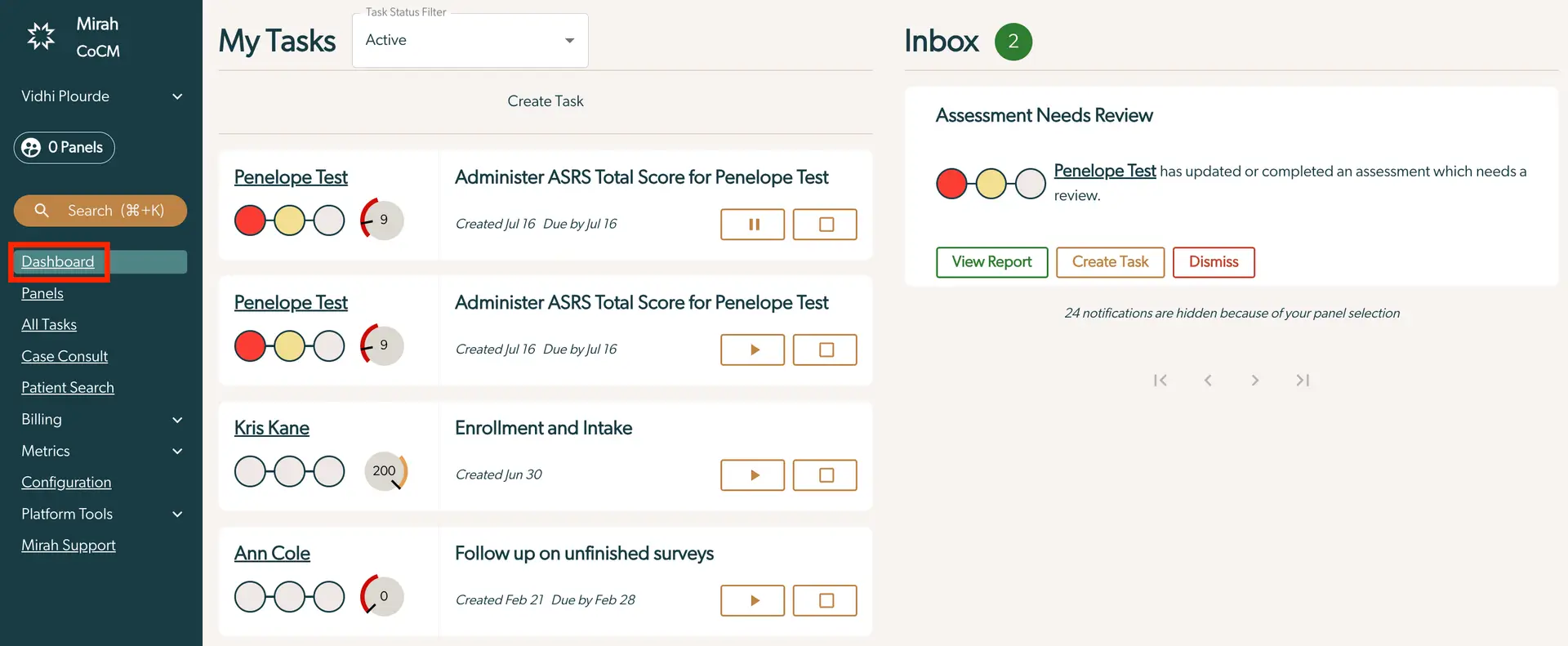
Information on the Dashboard
The dashboard separates activities into two distinct sections.
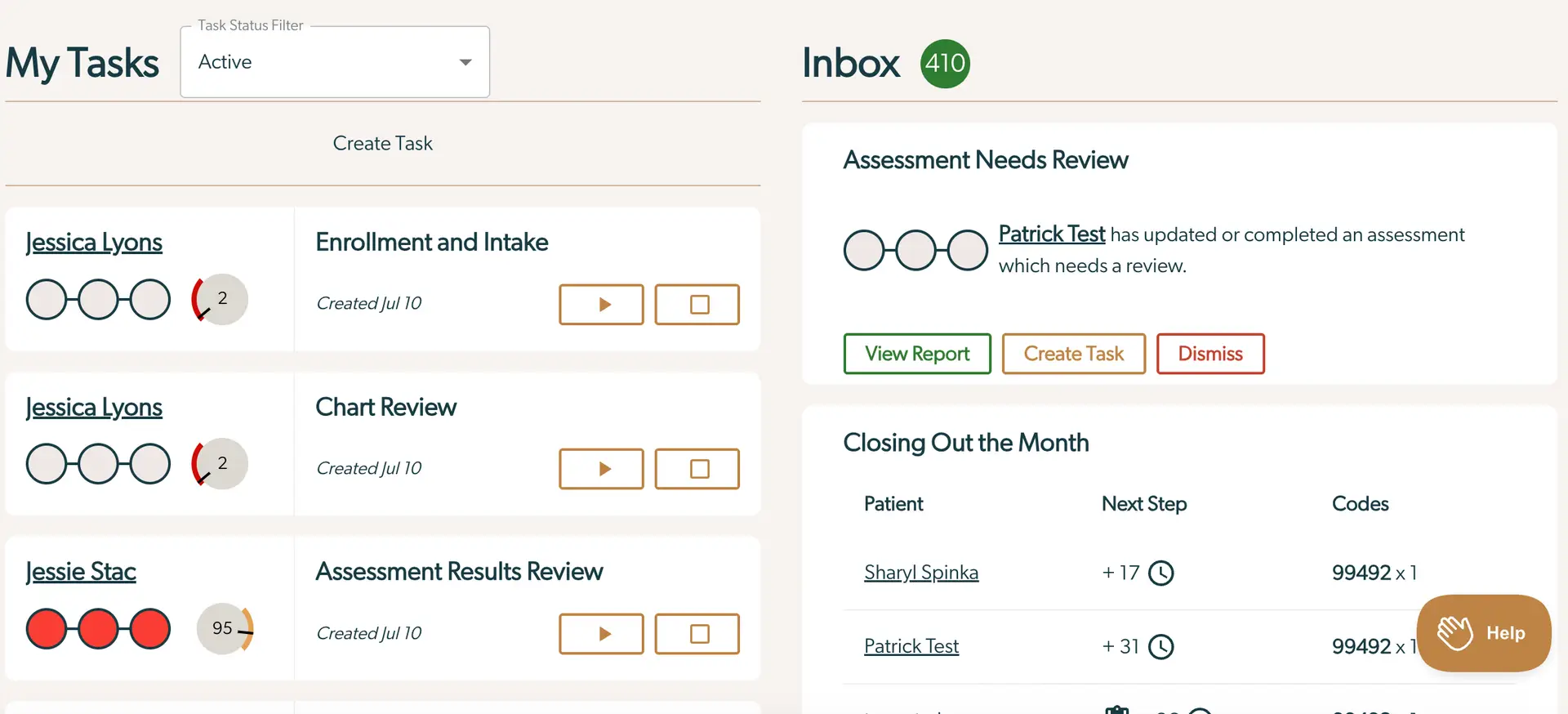
My Tasks - the section on the left shows all tasks assigned to you
- The "Task Status Filter" displays a drop down menu to filter between “Active” and “Done” tasks
- The “Create Task” button can be used to create a new task. New tasks will be added to the top of this task list
- In the client information box, the patient’s name is on the top-left
- If a patient is enrolled, you will see their status badge
- If the patient is unenrolled, this badge will be replaced with the status "Unenrolled"
- To the right of the status badge, you will see the total number of predicted billable minutes for the current month that have been logged against the patient
- To the right of the patient name will be the name of the task
- Below the name of the task is the date when the task was created. If the task has a due date, that will display next to the creation date.
- The “Continue” button can be pressed to continue the amount of time spent on the task
- The “Completed” button which can be pressed once the task has been completed
Findings Inbox - the section on the right shows any findings available for you to review
*Note - Findings are shared, so any action taken on a finding will apply for all users.
- To the right of the patient’s status badges, there will be the patient’s name and a description of what needs to be reviewed
- There are several buttons available in a finding. Clicking on these buttons will remove the finding from the list.
- The “View Report” button will take you to the patient’s Feedback Report. Clicking this button will immediately start tracking time and automatically create a task
- The “Create Task” button will create a new task pertaining to the patient and the assessment
- The “Dismiss” button, will dismiss the notification and remove it from your inbox