
How to edit an organization

Organizations in Mirah reflect the structure of your practice, and help you apply different measurement plans to different patients depending on how they're being treated. To see a list of the your organizations in Mirah, use the Organizations link in the institute menu:

The screenshot displays a dropdown menu under the label 'Test Hospital', which is part of the Mirah Collaborative Care interface. The dropdown menu includes several options: Failed Logins, Measure Library, Measurement Plans, Treatment Tracks, and Organizations. The Organizations option is highlighted, indicating it is the selected or focused item. This menu is used for navigating different sections related to hospital management and care optimization within the Mirah platform. The dropdown is located at the top of the screen, providing quick access to various administrative and care management features.

On that page you'll see a tree list of your organizations. Select the organization you want to edit from the list, and its details will be shown next to the list. If allowed, you'll see a button labeled "Edit Organization".

The screenshot displays the interface for managing organizations within the Mirah Collaborative Care platform. On the left side, there is a panel titled 'Organizations' listing various categories such as 'Addiction - All', 'Mental Health All', and 'Primary Care'. The 'Mental Health All' category is expanded to show subcategories including 'Mental Health Acute', 'Mental Health Example', and 'Mental Health Outpatient', with 'Mental Health Example' highlighted. To the right, details of the selected organization 'Mental Health Example' are shown, including fields for 'Name' with the value 'Mental Health Example', 'Short Name' with the value 'mhe', 'In Trial Period' with the value 'false', and 'Measurement Allowed' with a toggle switch indicating 'Measurement Based Care Allowed' is enabled. At the top right of this section, there is a prominent 'Edit Organization' button, which allows users to modify the organization's details. The top navigation bar includes links to 'Dashboard', 'Patients', and 'Analytics', with user and organization settings accessible via dropdowns labeled 'Gregory House' and 'Test Hospital'.

There are two reasons you might not see the Edit Organization button:

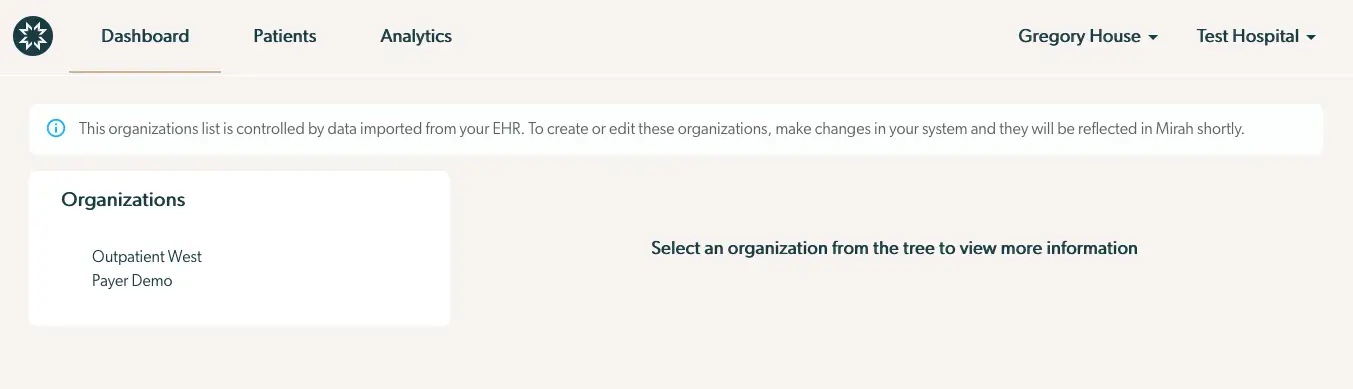
  • Your organizations are being imported from your EHR. In that case, you'll see a banner across the top of the page that looks like this:
    • *In order to make sure the data stays in sync, Mirah doesn't make changes to imported organizations. To create a new organization, create it in your EHR and Mirah will import it. The screenshot displays the 'Organizations' section within the Mirah Collaborative Care platform, which is part of the 'Getting Started with Mirah' feature. The top navigation bar includes tabs for 'Dashboard', 'Patients', and 'Analytics', allowing users to switch between different sections of the platform. On the right side of the navigation bar, there are dropdown menus for 'Gregory House' and 'Test Hospital', which likely allow users to switch profiles or organizations. Below the navigation bar, there is an informational message indicating that the organizations list is controlled by data imported from the user's EHR, and any changes made in the system will be reflected in Mirah shortly. The main content area is divided into two sections: on the left, a list titled 'Organizations' displays 'Outpatient West' and 'Payer Demo', which are selectable options. On the right, there is a prompt instructing users to 'Select an organization from the tree to view more information', indicating that more details will be available upon selection.
  • You aren't a superuser in Mirah. Only users with the superuser role are allowed to edit organizations.
    • If you can see the Edit Organization button, click it and you'll see a form like this: The 'Edit Organization' screen in Mirah Collaborative Care allows users to modify details of an organization within the system. At the top, there is a hierarchical dropdown menu labeled 'Parent Organization (optional)' where users can select or change the parent organization, with options like 'Addiction - All' and 'Mental Health All' visible. Below this, there are text fields for 'Name' and 'Short Name' where users can input or edit the organization's name, currently showing 'Mental Health Example (edited)' and 'mhe (e)' respectively. There are two checkboxes labeled 'In Trial Period' and 'Measurement Allowed', with the latter being checked, indicating that measurement is permitted for this organization. At the bottom right corner, there is a 'Save' button, which users can click to save any changes made to the organization's details.

The form requires the following pieces of data:

  1. The parent organization of your new organization. You can optionally group related organizations together, either to share measurement plans or to reflect the structure of your practice.
  2. The name of your new organization. This is what Mirah will usually display when describing the organization.
  3. The short name of your new organization. Mirah will sometimes show organization short names in places where longer names would be hard to read, like small dropdown menus.
  4. Whether or not the organization is in a trial period. Organizations in a trial period will automatically create care episodes when receiving appointment data from an integration, but will set those care episodes to not be participating in measurement based care. For more information see this article.
  5. Whether or not the organization has measurement allowed for care episodes within it. If the organization does not have measurement allowed selected, Mirah will not automatically send measurements to patients when we import appointments within this organization.

Once you've filled out the form, click Save, and changes to the organization will be reflected on the page:
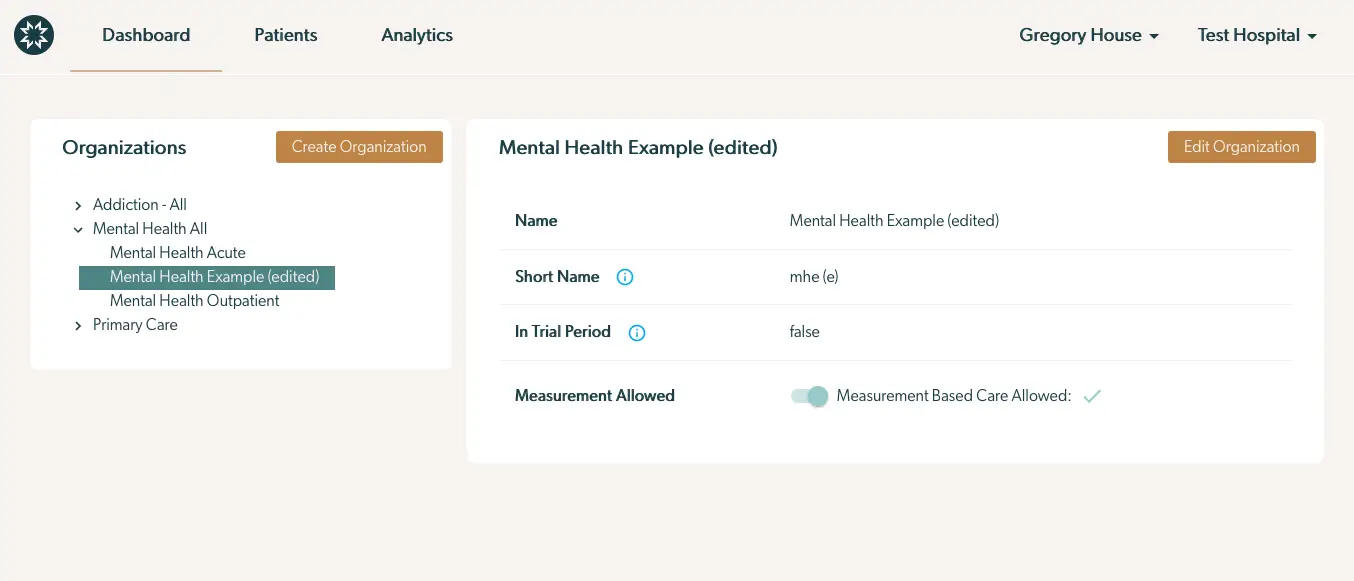
The screenshot displays the interface for editing an organization within the Mirah Collaborative Care platform. On the left side, there is a panel titled 'Organizations' listing various organization categories such as 'Addiction - All', 'Mental Health All', and 'Primary Care'. The 'Mental Health All' category is expanded to show subcategories including 'Mental Health Acute', 'Mental Health Example (edited)', and 'Mental Health Outpatient'. The 'Mental Health Example (edited)' is highlighted, indicating it is the selected organization. To the right, details of the selected organization are shown under the heading 'Mental Health Example (edited)'. The details include fields such as 'Name' with the value 'Mental Health Example (edited)', 'Short Name' with the value 'mhe (e)', 'In Trial Period' with the value 'false', and a toggle switch for 'Measurement Allowed' which is turned on, indicating 'Measurement Based Care Allowed' is enabled. At the top right of this section, there is an 'Edit Organization' button for making changes to the organization's details. The top navigation bar includes options for 'Dashboard', 'Patients', and 'Analytics', with user and organization information displayed as 'Gregory House' and 'Test Hospital' respectively.