
How to Configure Diagnosis Codes

Prior to assigning diagnosis codes to specific patients, you must configure the list of diagnoses available for your institute. These diagnoses will then be available for use elsewhere within Mirah.

Diagnoses can always be created manually, but they may also be imported from your existing EHR, if an integration that supports diagnosis codes is present.

1). To add a new diagnosis code, navigate to the Configurations Menu then select "Diagnoses."
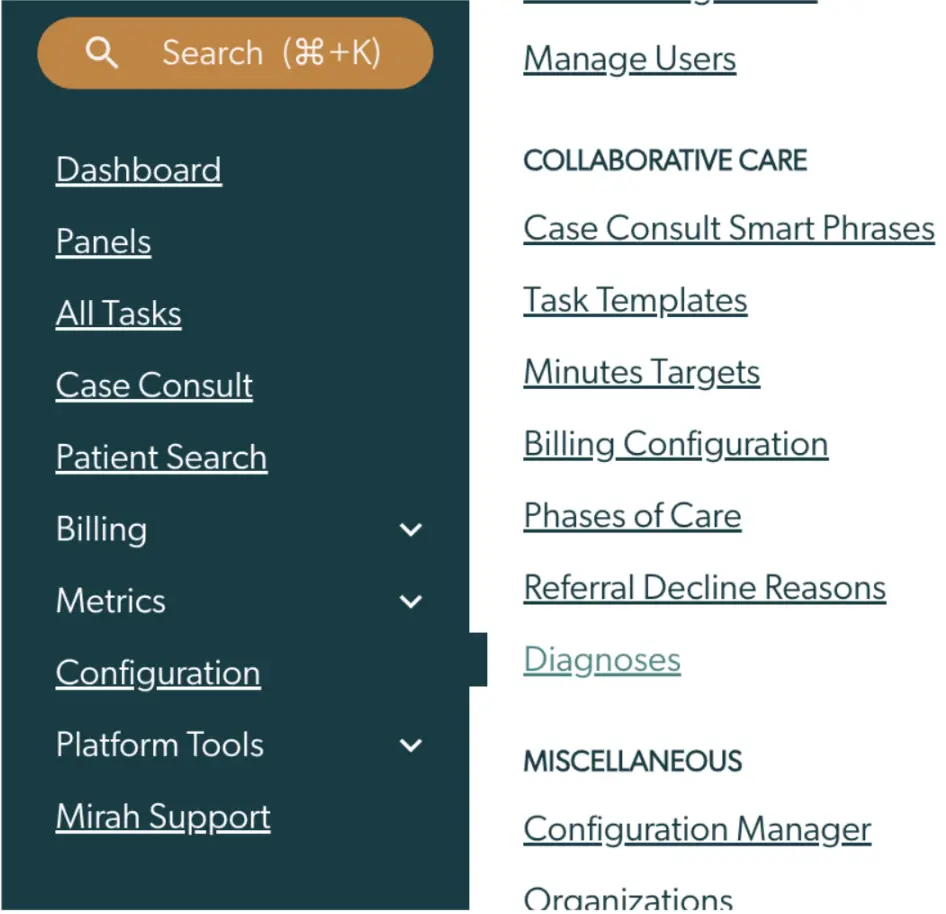
The screenshot displays a navigation menu from the Mirah Collaborative Care platform. On the left, there is a vertical menu with options such as Dashboard, Panels, All Tasks, Case Consult, and Patient Search. Below these, there are expandable sections for Billing, Metrics, Configuration, and Platform Tools, with Mirah Support at the bottom. On the right, there are links under categories like Collaborative Care and Miscellaneous. Under Collaborative Care, options include Case Consult Smart Phrases, Task Templates, Minutes Targets, Billing Configuration, Phases of Care, Referral Decline Reasons, and Diagnoses. Under Miscellaneous, there are links for Configuration Manager and Organizations. The search bar at the top left allows users to search the platform using a shortcut (⌘+K).

2). Click the gold button for “Add a Diagnosis."
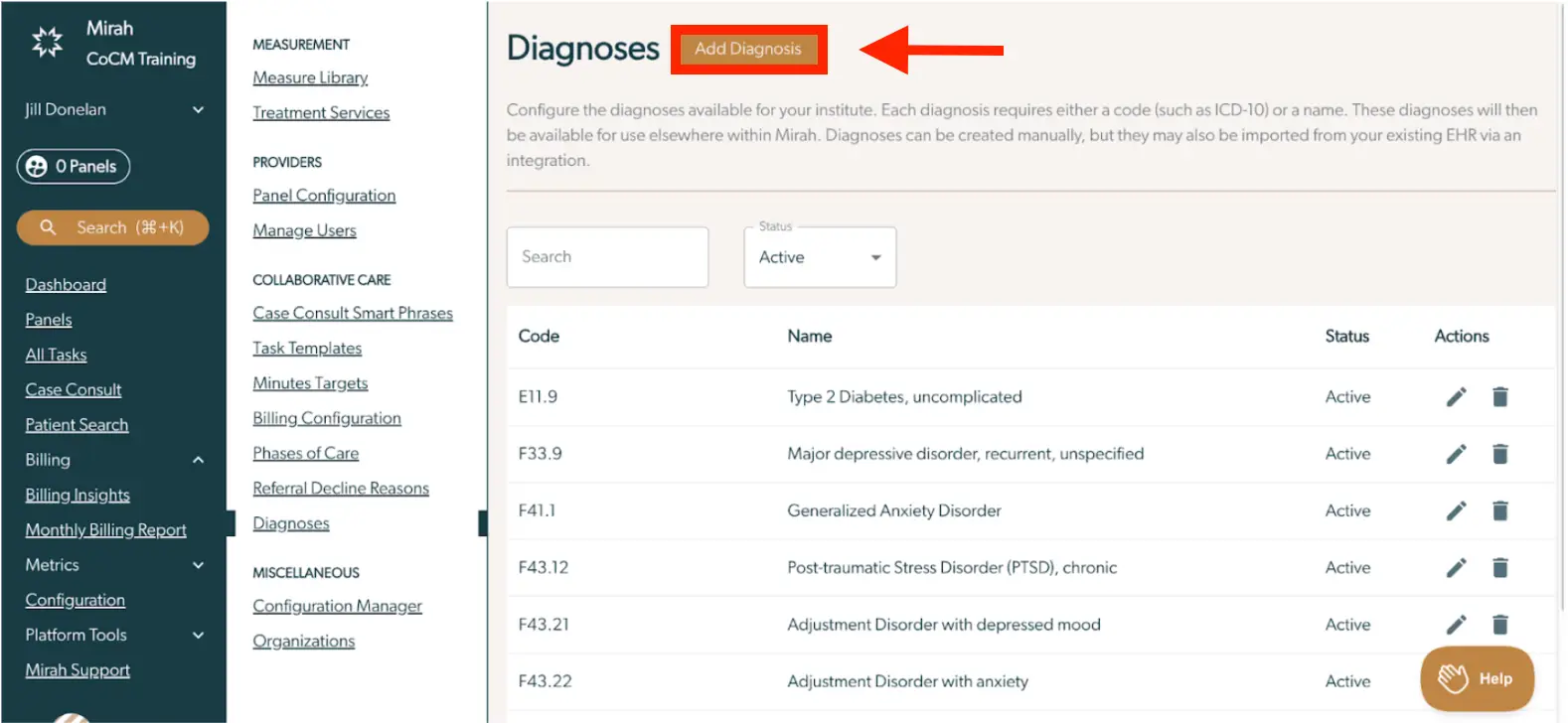
The screenshot displays the 'Diagnoses' configuration page in the Mirah Collaborative Care platform. This page allows users to configure diagnosis codes for their institution. At the top, there is a button labeled 'Add Diagnosis' in orange, located on the right side, which users can click to add new diagnosis codes. Below, there is a search bar for filtering diagnoses and a dropdown menu to select the status, currently set to 'Active'. The main table lists diagnosis codes with columns for 'Code', 'Name', 'Status', and 'Actions'. Each row in the table represents a diagnosis, showing its code, name, and status, with action icons for editing and deleting on the right. The left sidebar contains navigation links for various features such as Dashboard, Panels, Billing, and Configuration, with the 'Diagnoses' link highlighted under 'Collaborative Care'.

3). Enter the Diagnosis Code (usually the ICD10 or DSM5 alphanumeric code) followed by the name of the diagnosis. Click "Save." Each diagnosis requires either a code (such as ICD-10) and/or a name.
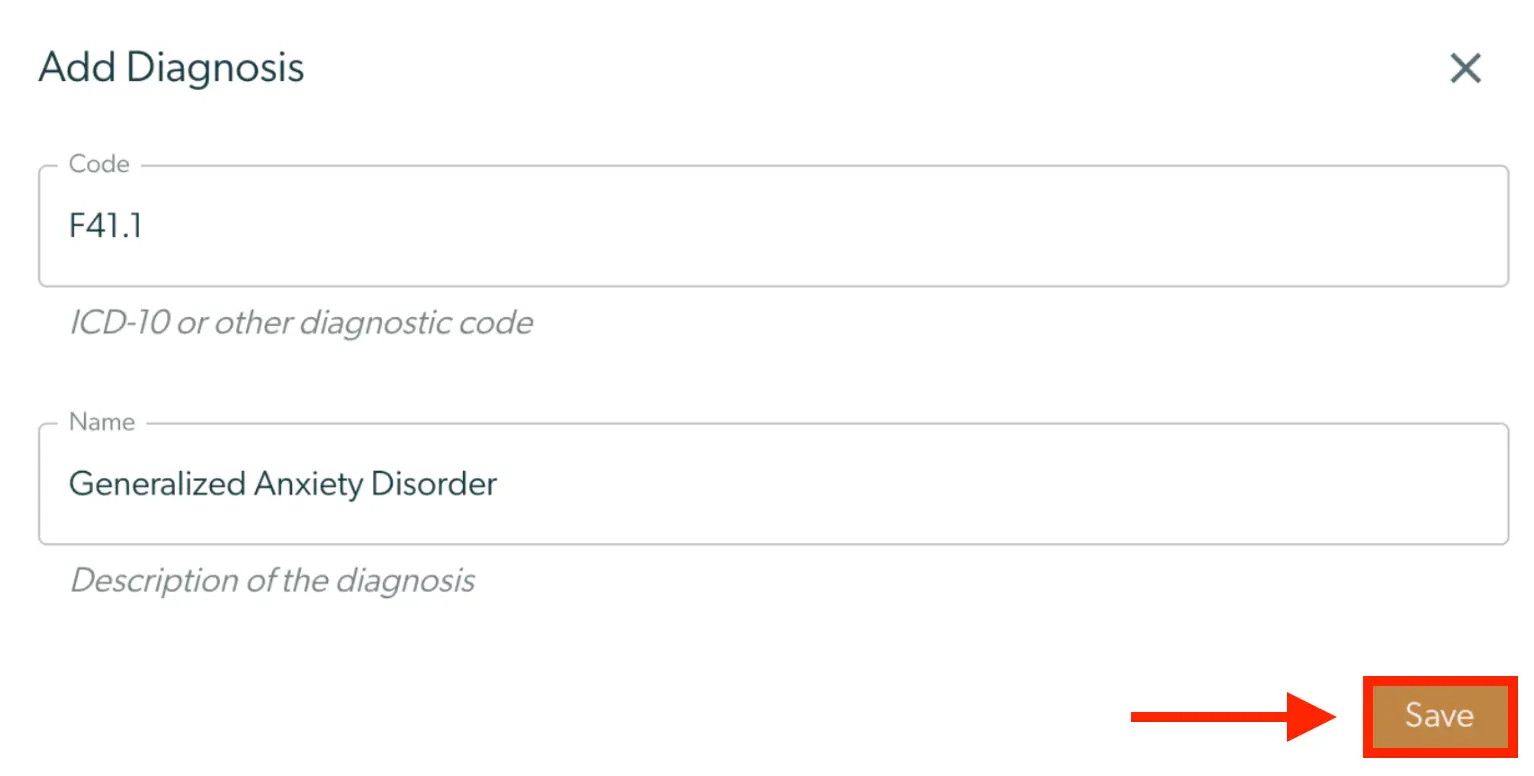
The 'Add Diagnosis' screen in Mirah Collaborative Care allows users to input and save a new diagnosis code. It features two main input fields: 'Code' for entering the ICD-10 or other diagnostic code, and 'Name' for specifying the name of the diagnosis, such as 'Generalized Anxiety Disorder'. Below each field is a placeholder text providing guidance on what to enter. In the bottom right corner, there is a 'Save' button, highlighted in orange, which users click to save the entered diagnosis information.

4). You will now see the new diagnosis listed in the Diagnosis list.
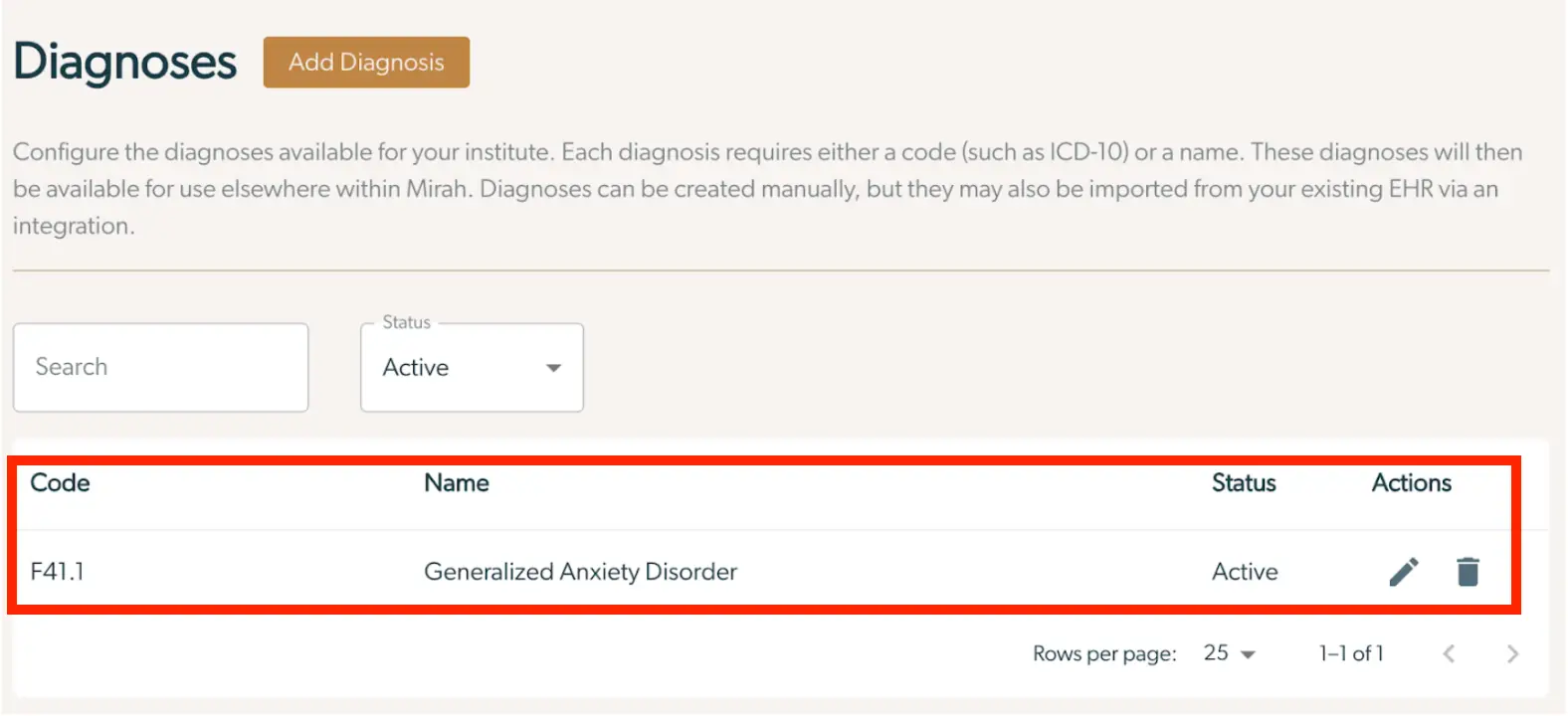
The screenshot displays the 'Diagnoses' configuration page in Mirah Collaborative Care, where users can manage diagnosis codes for their institute. At the top, there is a button labeled 'Add Diagnosis' for adding new entries. Below, a search bar allows users to search for specific diagnoses, and a dropdown menu labeled 'Status' lets users filter diagnoses by their status, with 'Active' currently selected. The table below lists diagnoses with columns for 'Code', 'Name', 'Status', and 'Actions'. The example entry shows the code 'F41.1' for 'Generalized Anxiety Disorder', marked as 'Active'. The 'Actions' column includes icons for editing and deleting the entry, located to the right of the row. At the bottom, there is a control for setting the number of rows displayed per page, currently set to 25, and navigation controls for the list.

5). Use the Action buttons to edit or retire diagnosis codes already in your diagnosis list.

The screenshot displays a section of the Mirah Collaborative Care interface for configuring diagnosis codes. It shows a table with columns labeled 'Code', 'Name', 'Status', and 'Actions'. The row contains the diagnosis code 'F41.1' with the name 'Generalized Anxiety Disorder', and the status is marked as 'Active'. In the 'Actions' column, there are two icons: a pencil for editing and a trash can for deleting the entry. These icons are located on the right side of the row. Below the table, there is a control for setting the number of rows displayed per page, currently set to 25, and navigation controls indicating '1-1 of 1'.