
Configuring Referral Decline Reasons DRAFT

1.) To configure an institute's "Referral Decline" reasons, please locate "Configuration" in the left panel.
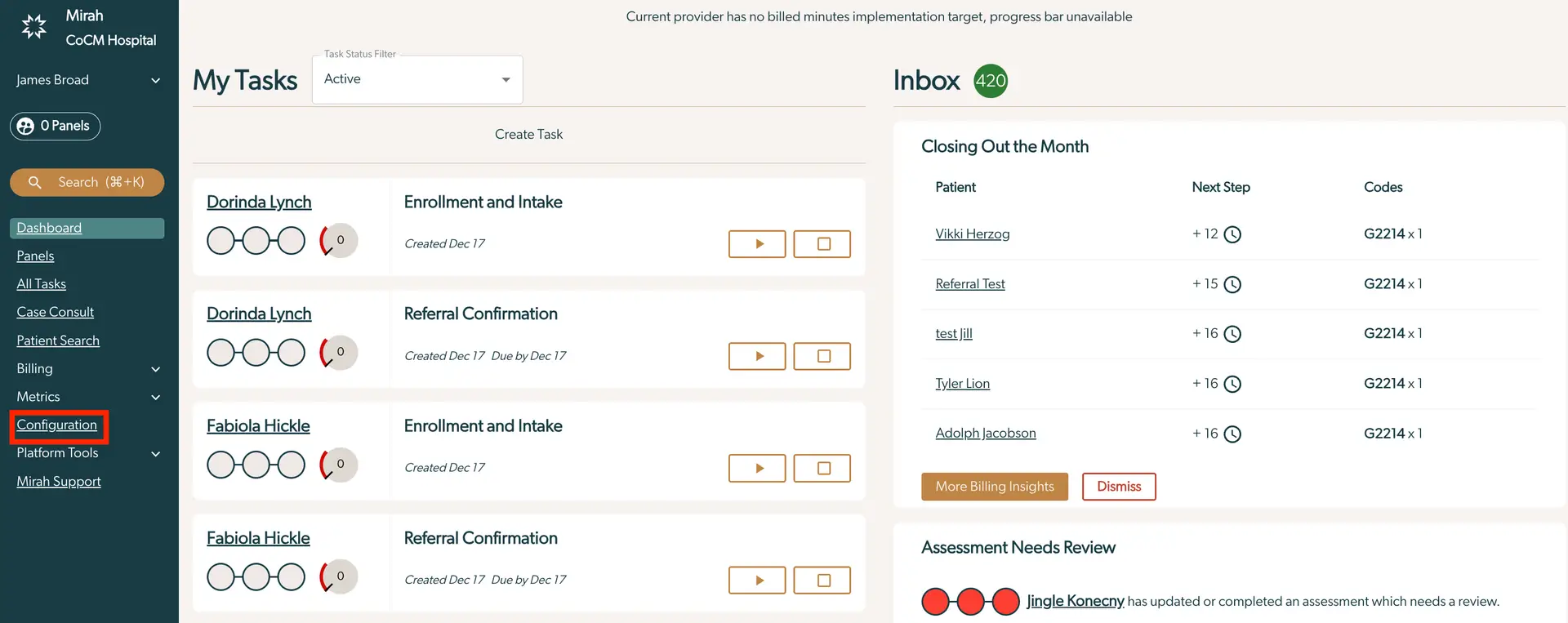
The screenshot displays the Mirah Collaborative Care interface, specifically focusing on task management and configuration. On the left sidebar, there are navigation options including Dashboard, Panels, All Tasks, Case Consult, Patient Search, Billing, Metrics, Configuration, Platform Tools, and Mirah Support. The Configuration option is highlighted. The main section is divided into 'My Tasks' and 'Inbox'. 'My Tasks' shows tasks related to 'Enrollment and Intake' and 'Referral Confirmation' for two individuals, Dorinda Lynch and Fabiola Hickle, with creation and due dates, and action buttons for play and pause. The 'Inbox' section lists patients under 'Closing Out the Month' with their next steps and associated codes. There are buttons for 'More Billing Insights' and 'Dismiss'. An 'Assessment Needs Review' section is also visible, indicating a completed assessment by Jingle Konecny that requires review.

2.) Select "Referral Decline Reasons."
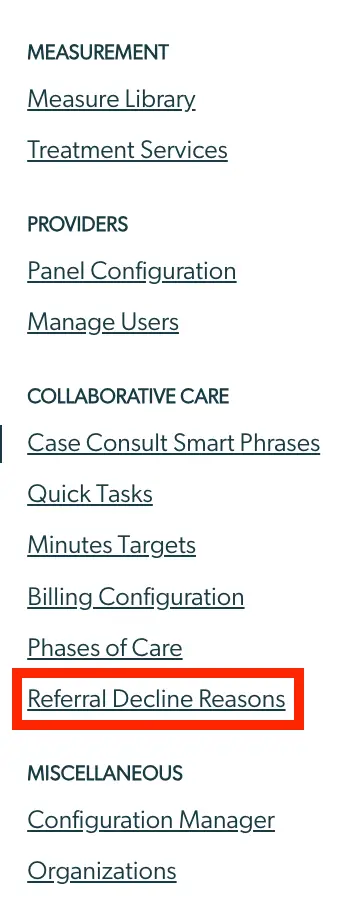
The screenshot displays a navigation menu from the Mirah Collaborative Care platform, focusing on configuring referral decline reasons. The menu is divided into sections: Measurement, Providers, Collaborative Care, and Miscellaneous. Under Measurement, there are options for 'Measure Library' and 'Treatment Services'. The Providers section includes 'Panel Configuration' and 'Manage Users'. The Collaborative Care section lists 'Case Consult Smart Phrases', 'Quick Tasks', 'Minutes Targets', 'Billing Configuration', 'Phases of Care', and 'Referral Decline Reasons', which is highlighted in red, indicating the current focus. The Miscellaneous section contains 'Configuration Manager' and 'Organizations'. The menu is designed to help users navigate different configuration and management options within the platform.

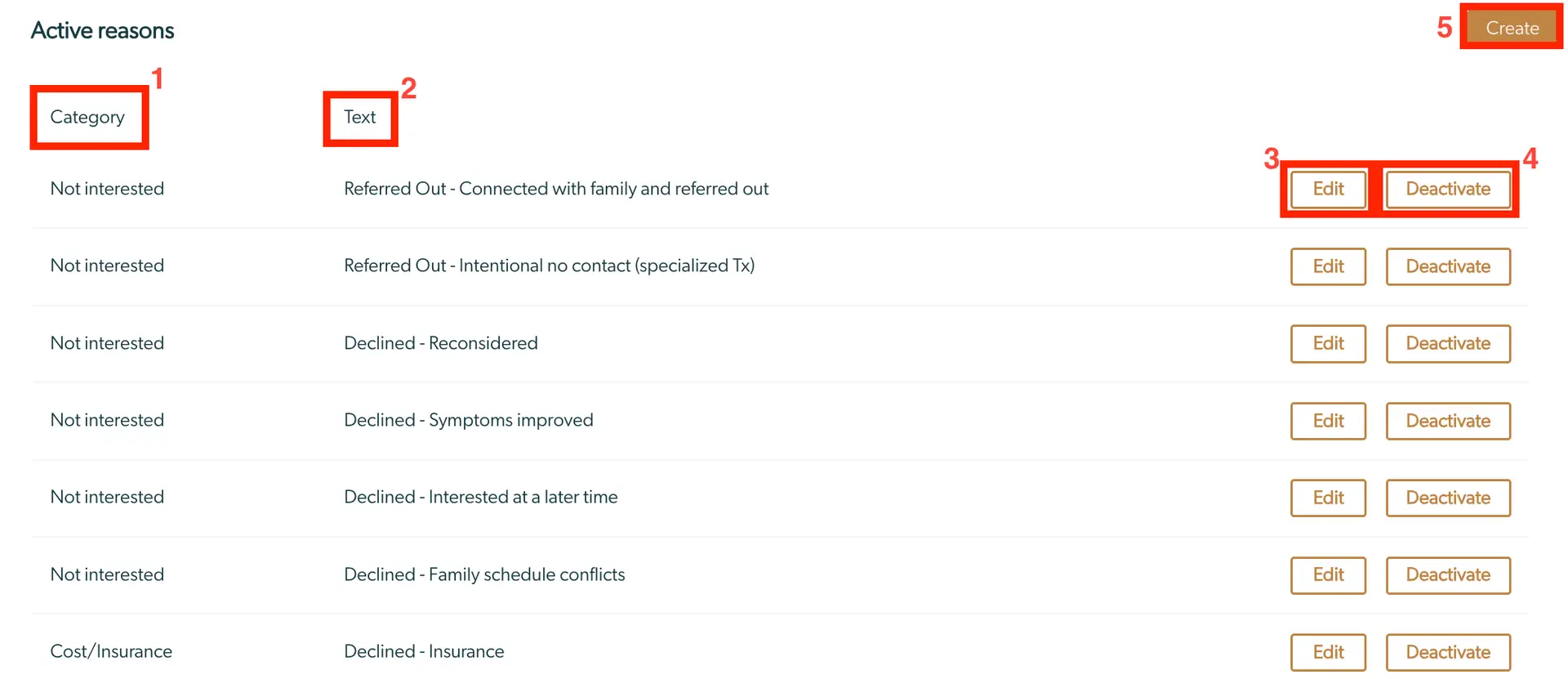
3.) This will bring users to the "Referral Decline Reasons" page. Here, users have the ability to view active and deactivated reasons. Additionally, there are four columns present.

  1. Category: The overall classification of this referral decline.
  2. Text: A more specific breakdown of this referral decline.
  3. Edit: Option to edit either the category or text of each reason.
  4. Deactivate: The ability to move the reason from "Active" to "Deactive."
  5. Create: Option to generate a new reason. The screenshot displays the 'Active reasons' section for configuring referral decline reasons in Mirah Collaborative Care. It features a table with two main columns: 'Category' and 'Text'. The 'Category' column lists reasons such as 'Not interested' and 'Cost/Insurance', while the 'Text' column provides specific details like 'Referred Out - Connected with family and referred out'. Each row has 'Edit' and 'Deactivate' buttons on the right side for modifying or deactivating the reasons. At the top right corner, there is a 'Create' button for adding new reasons.
Editing a "Referral Decline" Reason​

1.) Identify the reason you would like to adjust and select "Edit" to its right.

The screenshot displays a section of the Mirah Collaborative Care interface for configuring referral decline reasons. It shows two reasons: 'Not interested' and 'Referred Out - Connected with family and referred out'. To the right of each reason, there are two buttons: 'Edit' and 'Deactivate'. The 'Edit' button is highlighted in red, indicating it is the primary action, while the 'Deactivate' button is outlined in brown. These buttons allow users to modify or deactivate the referral decline reasons as needed.

2.) A pop-up screen will appear that includes the Category, Text and a "Save" button.
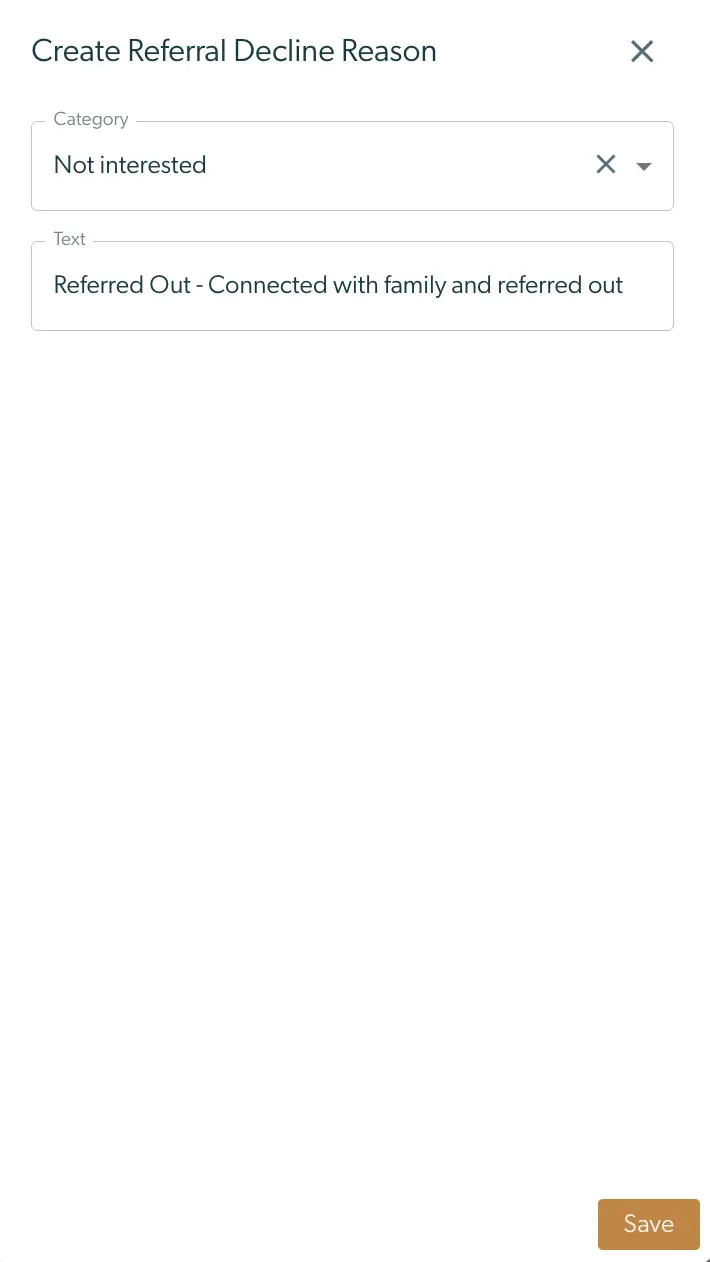
The 'Create Referral Decline Reason' screen allows users to configure reasons for declining referrals. It includes a 'Category' dropdown menu with the option 'Not interested' selected, and a 'Text' field containing the explanation 'Referred Out - Connected with family and referred out'. At the bottom right, there is a 'Save' button to confirm and save the entered information. The screen is designed to help users manage and document reasons for referral declines effectively.

3.) If you wish to change the Category, simply click the current category and a dropdown will appear with other options.
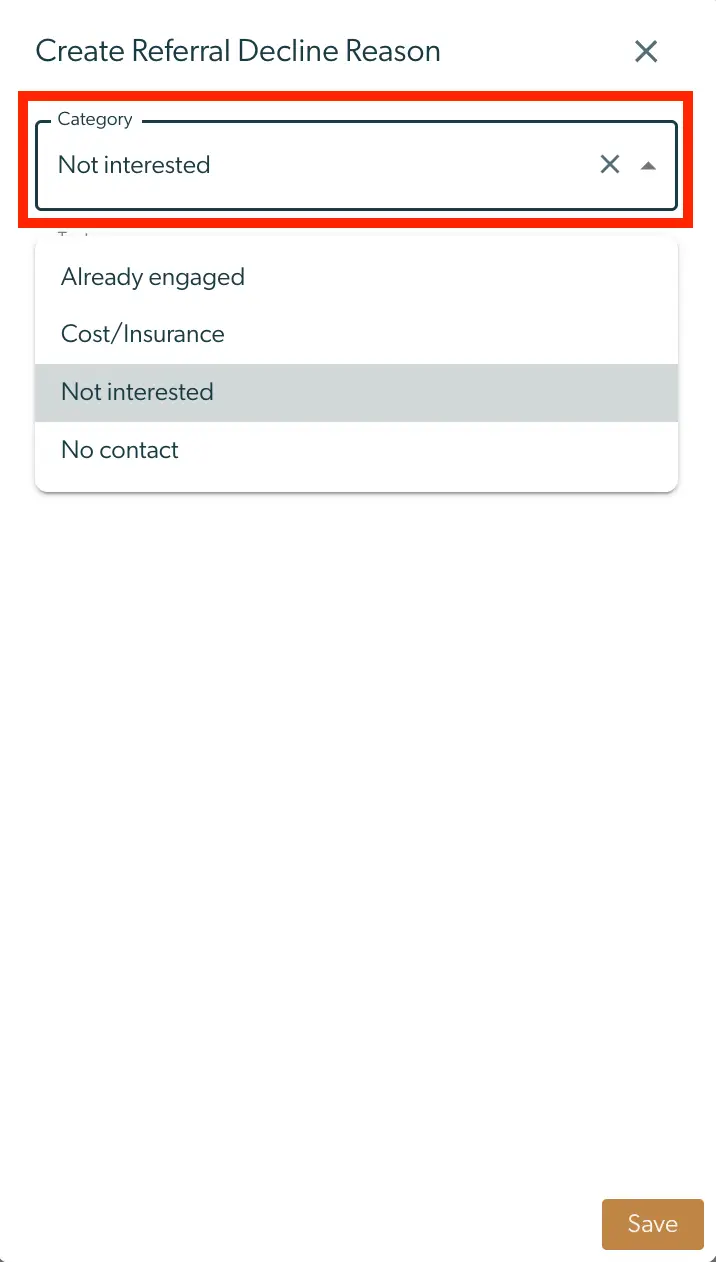
The screenshot shows the 'Create Referral Decline Reason' interface in Mirah Collaborative Care. At the top, there is a dropdown menu labeled 'Category' where users can select a reason for declining a referral. The dropdown is currently expanded, displaying options such as 'Already engaged,' 'Cost/Insurance,' 'Not interested,' and 'No contact,' with 'Not interested' highlighted. In the bottom right corner, there is a 'Save' button for confirming the selection.

4.) If a user would like to adjust the Text, simply select the text box and make the necessary changes. Ensure to select "Save" before exiting the pop-up screen.

The screenshot shows the 'Create Referral Decline Reason' interface in Mirah Collaborative Care. At the top, there is a dropdown labeled 'Category' with the option 'Not interested' selected. Below this, there is a text input field labeled 'Text' where users can enter additional details about the decline reason. At the bottom right corner, there is a 'Save' button, which allows users to save the entered information.

Deactivating a "Referral Decline" Reason​

1.) Identify the reason in which you would like to deactivate and simply click "Deactivate."

The screenshot displays a section for configuring referral decline reasons in the Mirah Collaborative Care platform. It shows two reasons: 'Not interested' and 'Referred Out - Connected with family and referred out'. To the right of each reason, there are two buttons: 'Edit' and 'Deactivate'. The 'Edit' button, located on the left, allows users to modify the reason, while the 'Deactivate' button, highlighted in red on the right, enables users to deactivate the reason.

2.) The reason will automatically move to the "Deactivated Reasons" section of the bottom of the screen. If you would like to Reactive a reason, select "Activate."

The screenshot displays the 'Deactivated reasons' section within the Mirah Collaborative Care platform, specifically for configuring referral decline reasons. It shows a table with two columns: 'Category' and 'Text'. Under 'Category', the reason 'Not interested' is listed, and under 'Text', it states 'Referred Out - Connected with family and referred out'. To the right of this entry, there is an 'Activate' button, outlined in orange, which allows users to reactivate the deactivated reason. At the top right corner, there is an option labeled 'Hide deactivated' with a downward arrow, indicating a dropdown menu to manage visibility of deactivated reasons.

  • *Note: Ensure to "Unhide deactivated" to make sure they are visible to users

Creating New "Referral Decline" Reasons​

1.) If users wish to create a new reason, select "Create" in the top right corner.

The screenshot displays a button labeled 'Create' which is used to initiate the process of configuring referral decline reasons within the Mirah Collaborative Care platform. This button is centrally located and is designed to be easily identifiable for users starting the setup process.

2.) A pop-up will surface with (1) "Category" and (2) "Text" fields. Accurately populate this information and select (3) "Save." This curated reason will now appear in "Active reasons."

The 'Create Referral Decline Reason' screen in Mirah Collaborative Care allows users to configure reasons for declining referrals. It features a dropdown menu labeled 'Category' for selecting the type of decline reason, and a text input field labeled 'Text' for providing a detailed explanation. The 'Save' button, located at the bottom right, is used to save the entered information.