
How to use Diagnosis Codes in CoCM

Patients may be assigned diagnosis codes in the Mirah platform. There are a few things to know about how diagnosis codes work in the Mirah platform:

  • Diagnoses in Mirah correspond with alphanumeric codes (eg: ICD-10) and/or diagnosis names (eg: Major Depressive Disorder, single episode, unspecified).
  • Diagnoses codes are specific to an episode of care and must be re-entered for each new enrollment.
  • Patients may be given 1 or more diagnosis codes for a given episode of care. Users may designate a primary and secondary diagnosis, if desired.
  • The diagnosis list must be configured prior to assigning diagnoses to patients. Only active diagnoses on the institute’s diagnosis list can be assigned to patients.

See here on how to create Diagnosis Codes.

To assign a diagnosis to a patient, navigate to that patient’s detail page and find the Diagnosis window (on the left side of the page):
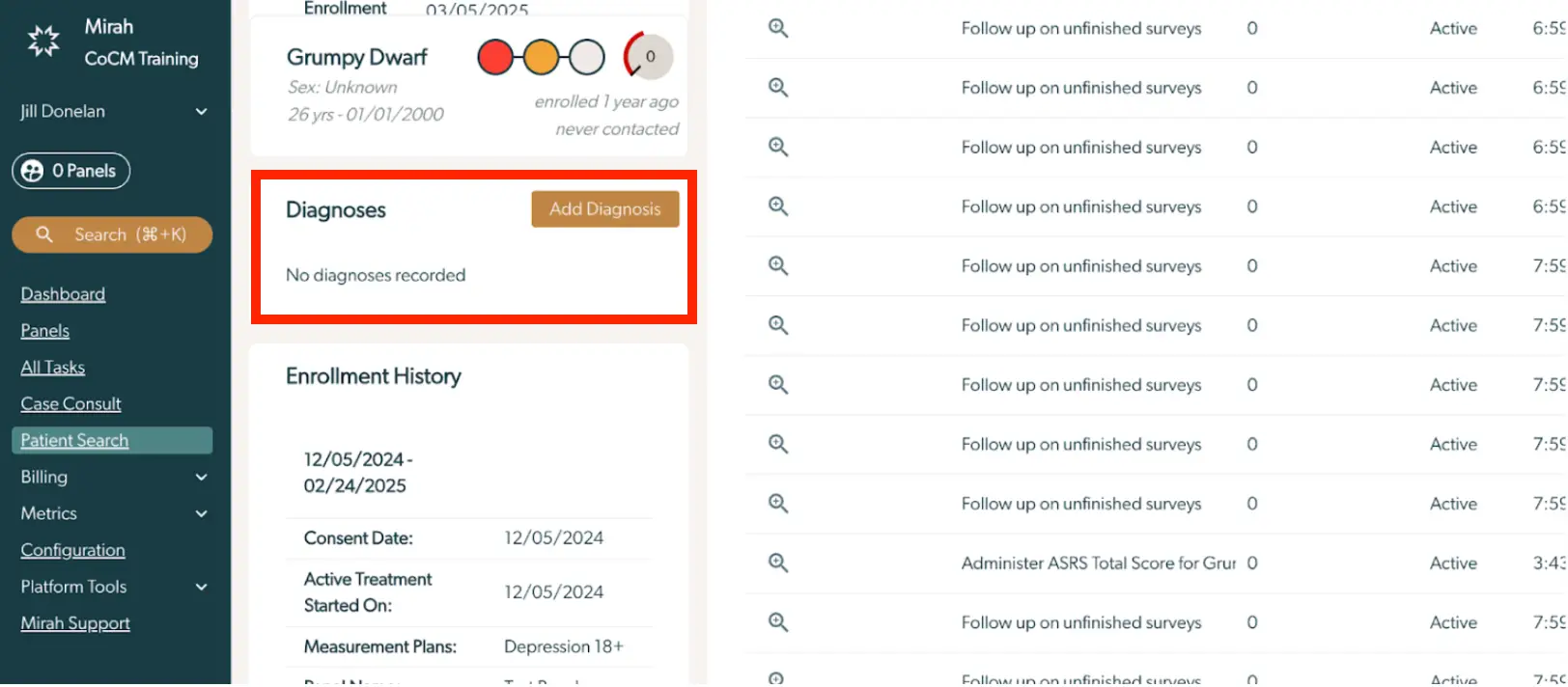
The screenshot displays the Mirah Collaborative Care interface, specifically focusing on the Diagnosis section for a patient. On the left, there is a navigation menu with options such as Dashboard, Panels, All Tasks, Case Consult, Patient Search, Billing, Metrics, Configuration, and Platform Tools. The main section shows patient details, including the name, sex, age, and enrollment status. Below this, the 'Diagnoses' section indicates that no diagnoses have been recorded, with an 'Add Diagnosis' button available for input, located to the right of the section title. The Enrollment History section lists dates and details related to the patient's treatment and measurement plans. On the right, there is a list of actions related to surveys, each with a magnifying glass icon for viewing details, and columns indicating the number of unfinished surveys, status, and a numerical value.

1). Click the Button for Add Diagnosis

2). Use the search field to find the required diagnosis– you may search by keyword for the alphanumeric code (eg: ICD 10) or the diagnosis name.

3). Select the correct diagnosis from the dropdown list. The designation field may be used to denote the Primary and Secondary diagnosis, if desired. You may enter as many diagnoses as desired for each episode of care.

4). If the required diagnosis is not yet in the diagnosis list, you may add it from this window by clicking on the dropdown menu item for “create …”.

5). You will then be prompted to create the diagnosis by adding the diagnosis code and/or diagnosis name. Click save to add the diagnosis to your institute’s diagnosis list and to this patient’s record.

The 'Add Diagnosis' screen in Mirah Collaborative Care allows users to input and save diagnosis codes. At the top, there is a search field labeled 'Search diagnoses by code or name' with a dropdown option to create a new entry, currently showing 'Create "diabetes"'. Below, under 'New Diagnosis', there are fields for 'Code', pre-filled with 'E11.9', and 'Name', showing 'Type 2 Diabetes, uncomplicated'. The 'Designation' field is set to 'None' with a dropdown for selection. At the bottom right, there are 'Cancel' and 'Save' buttons for discarding or saving the new diagnosis entry.

6). All active diagnoses for a patient are visible on their patient details page in the diagnosis field. Use the action icon to retire the diagnosis as needed.

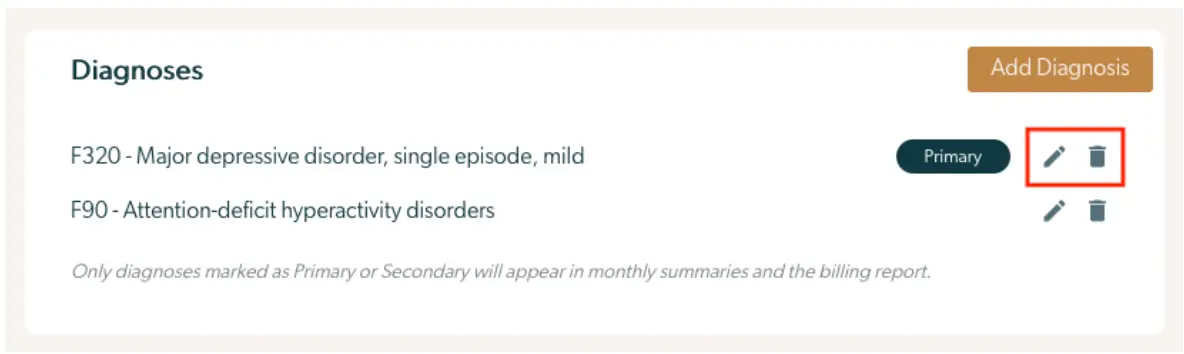
  • Once you've added diagnoses to a patient, you can edit or remove a diagnosis with these icons: The screenshot displays the 'Diagnoses' section of the Mirah Collaborative Care platform, where users can manage diagnosis codes. It lists two diagnoses: 'F320 - Major depressive disorder, single episode, mild' and 'F90 - Attention-deficit hyperactivity disorders'. Each diagnosis entry has an associated 'Edit' button, represented by a pencil icon, and a 'Delete' button, represented by a trash can icon, located to the right of the diagnosis. The 'F320' diagnosis is marked as 'Primary' with a label next to it. At the top right corner, there is an 'Add Diagnosis' button, which allows users to add new diagnoses. A note below the diagnoses states that only those marked as Primary or Secondary will appear in monthly summaries and billing reports.
  • Editing a diagnosis will bring up a dialog that lets you change its designation: The 'Edit Diagnosis' screen in Mirah Collaborative Care allows users to modify the designation of a diagnosis code. The screen displays the current diagnosis, 'F90 - Attention-deficit hyperactivity disorders,' and provides a dropdown menu labeled 'Designation' for selecting the type of designation. The options available in the dropdown are 'None,' 'Primary,' and 'Secondary.' Users can choose the appropriate designation for the diagnosis. At the bottom right of the screen, there are two buttons: 'Cancel' to discard changes and 'Save' to apply the changes.
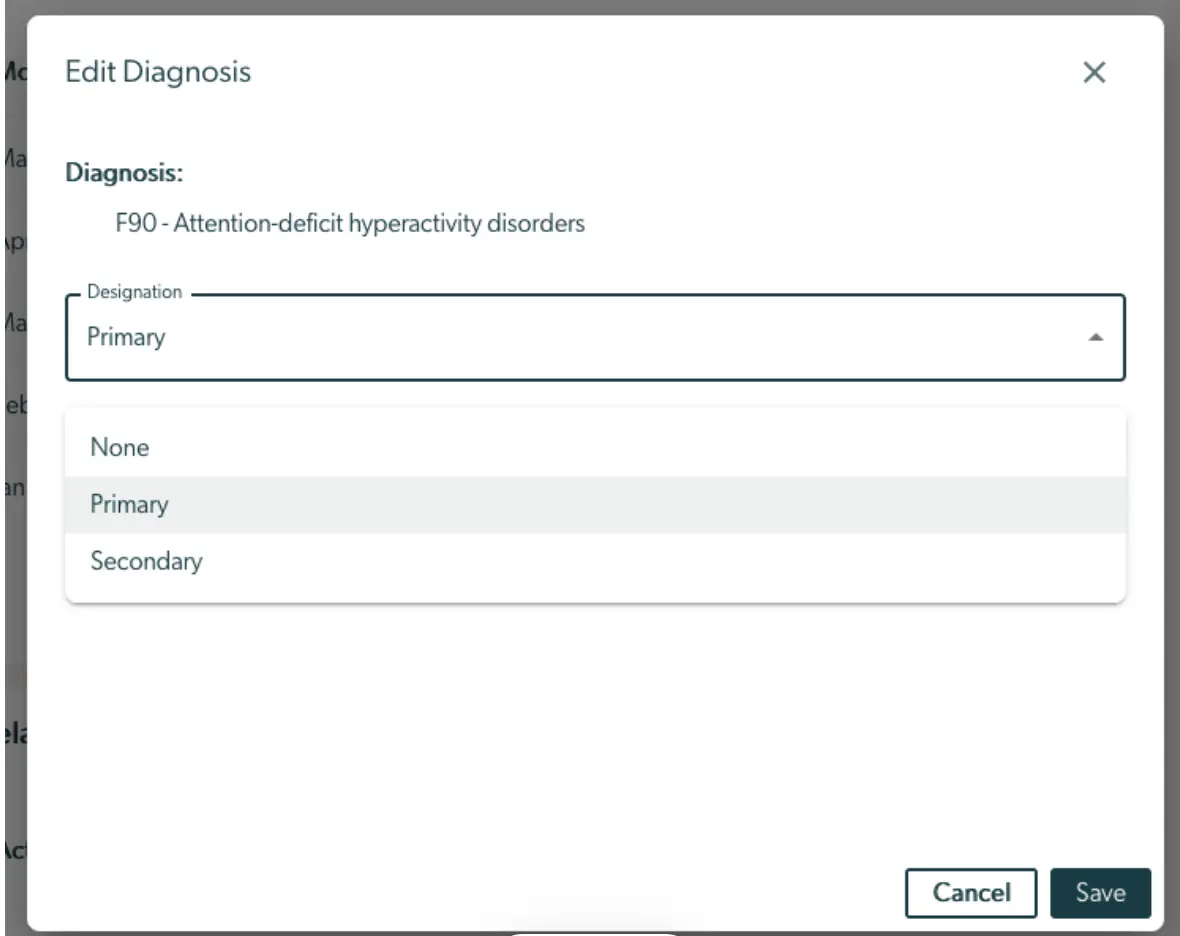
Note that a patient can only have one primary and one secondary diagnosis at a time. If you change a diagnosis to primary or secondary when the patient already has a primary or secondary diagnosis, the previous diagnosis will be automatically changed to a "None" designation.
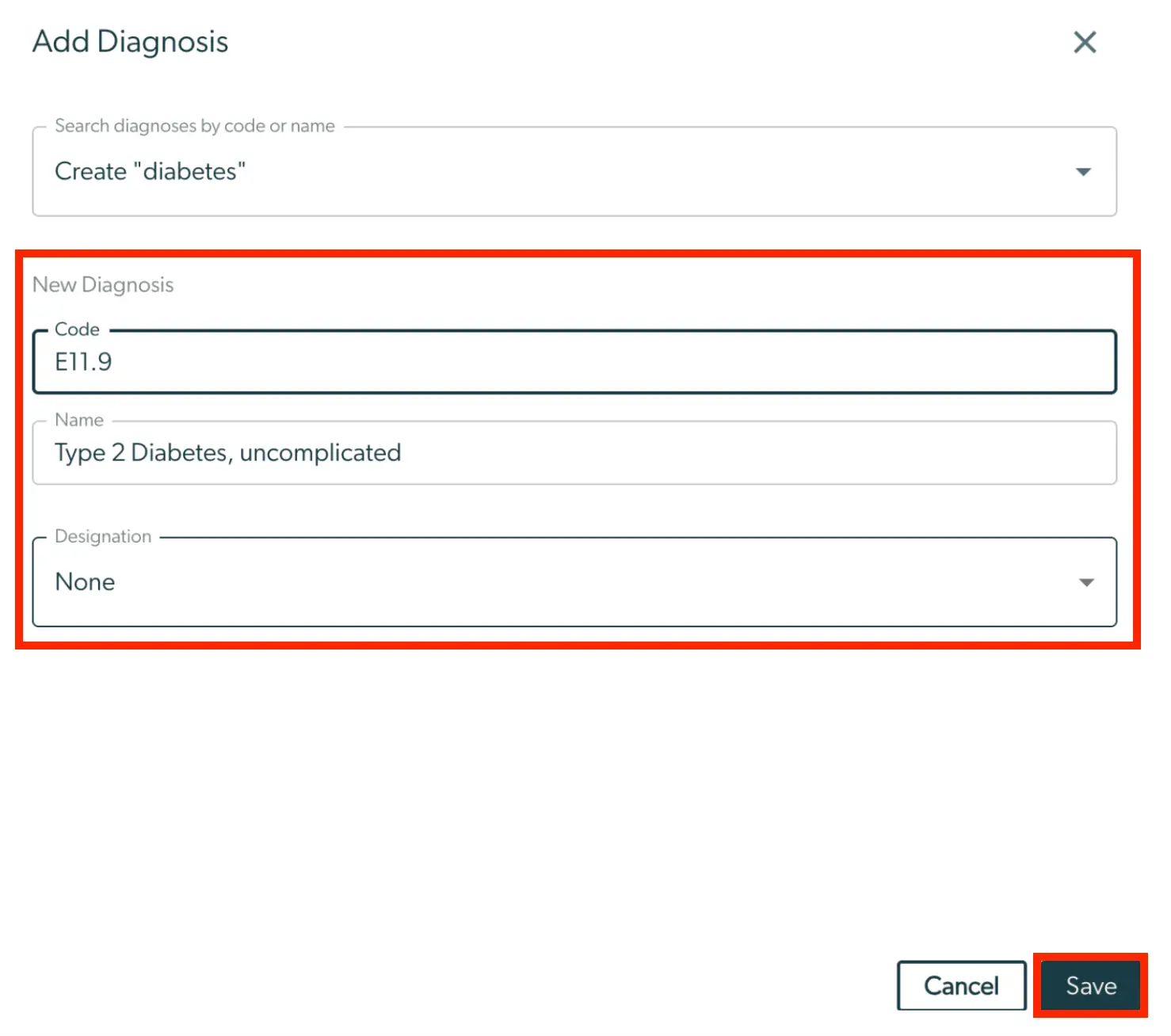
The 'Add Diagnosis' screen in Mirah Collaborative Care allows users to add a new diagnosis by searching for diagnoses by code or name. The search field is located at the top, where users can enter terms like 'diabetes.' Below, the 'New Diagnosis' section includes fields for 'Code,' 'Name,' and 'Designation.' The 'Code' field is filled with 'E11.9,' and the 'Name' field contains 'Type 2 Diabetes, uncomplicated.' The 'Designation' field is set to 'None' with a dropdown option. At the bottom right, there are 'Cancel' and 'Save' buttons, with 'Save' highlighted, allowing users to save the new diagnosis entry.

Diagnoses on the Monthly Billing Report​

The primary and secondary diagnosis (if recorded in Mirah) for each patient will automatically be added to the monthly billing report. Diagnoses not specified as None (neither primary or secondary) will not populate on the Monthly Billing Report.
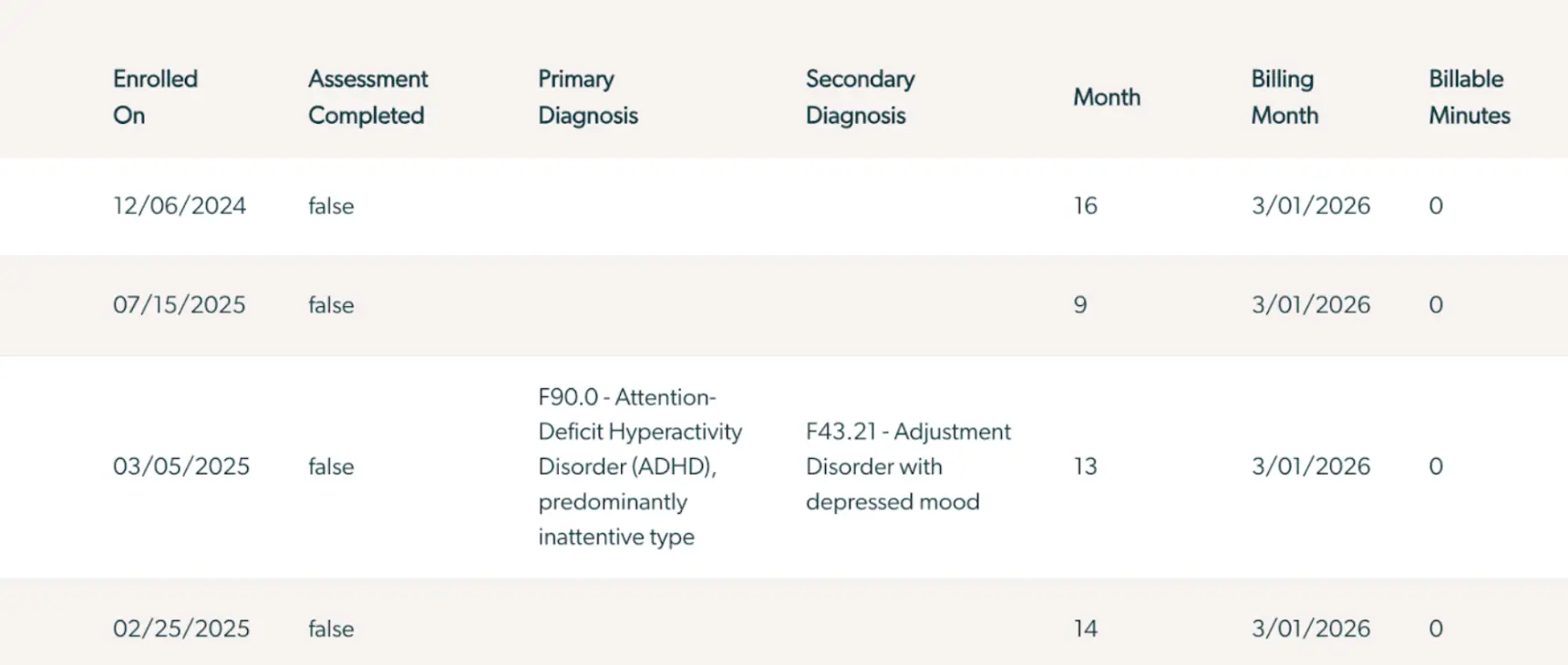
The screenshot displays a table from the Mirah Collaborative Care platform, used for managing diagnosis codes in the Collaborative Care Model (CoCM). The table includes columns labeled 'Enrolled On', 'Assessment Completed', 'Primary Diagnosis', 'Secondary Diagnosis', 'Month', 'Billing Month', and 'Billable Minutes'. Each row represents a patient's data entry, showing the enrollment date, whether the assessment is completed, primary and secondary diagnosis codes with descriptions, the month of care, billing month, and billable minutes. The data entries show various dates and diagnosis codes such as F90.0 for ADHD and F43.21 for Adjustment Disorder. The table is designed to help users track and manage patient care and billing information efficiently.