
Sending information to support via links

For security reasons, we request that you avoid sending patient names, dates of birth, and other Personal Identifiable Information to support. To send support a patient example you may be asked to send a "link" - please follow the steps below to get that link.

Please Note​

The beginning of this article is getting to the client page. The important part is once you're on the client page to click highlight and copy the link at the top.

It will be the following format with some more numbers and letters after the "/":

https://[institute shortcode].mirah.com/provider/patients/

Example​

For this example, let's say that we want to send the patient "Titus Pullo" to support

1). Log into your Mirah site

2). Search for Titus in the search bar on the "Patients" page
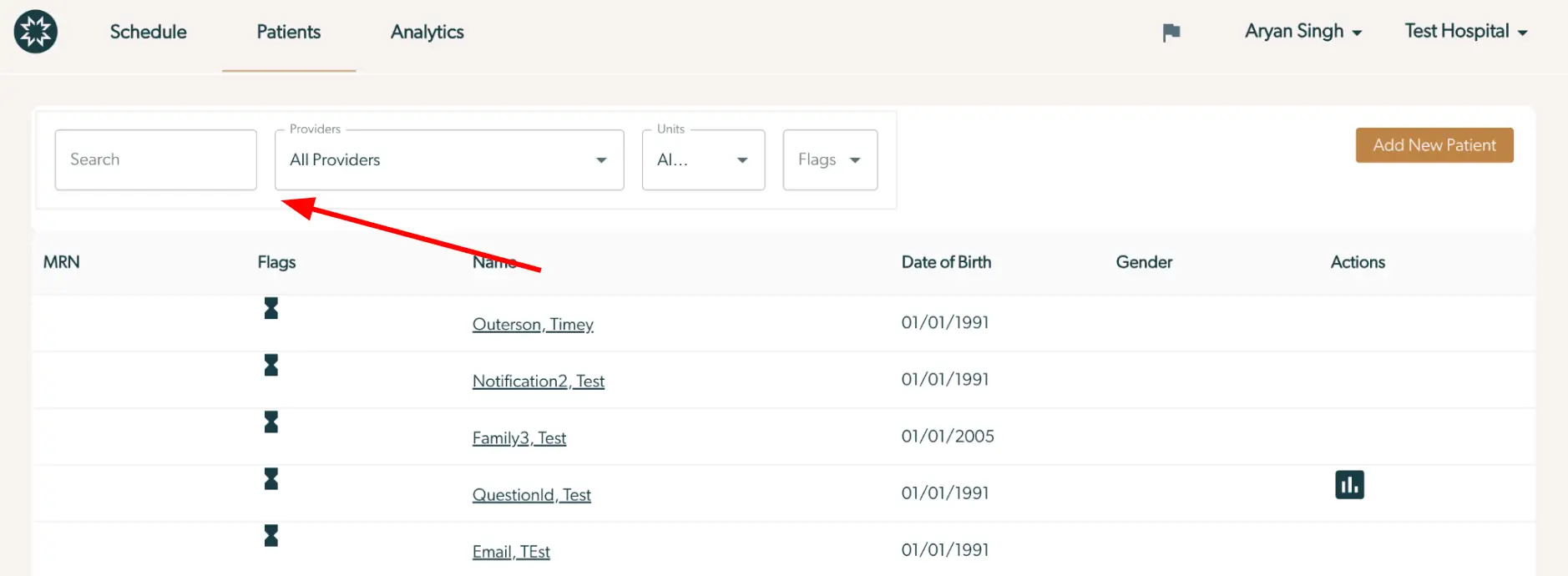
The screenshot displays the 'Patients' tab within the Mirah Collaborative Care platform, which is part of the user interface for managing patient information. At the top, there is a navigation bar with options for 'Schedule', 'Patients', and 'Analytics'. The 'Patients' tab is currently selected. Below the navigation bar, there is a search field for filtering patients, a dropdown menu labeled 'Providers' set to 'All Providers', another dropdown for 'Units', and a dropdown for 'Flags'. These filters help refine the list of patients displayed. On the right side, there is a button labeled 'Add New Patient' for adding new patient records. The main section of the screen shows a table with columns for MRN (Medical Record Number), Flags, Name, Date of Birth, Gender, and Actions. Each row represents a patient, with clickable names for more details. The 'Actions' column includes icons for further actions related to each patient, such as viewing analytics. The red arrow points to the 'Providers' dropdown, indicating its importance in filtering patient data.

3). Click on Titus's name; this will take you to his details page.
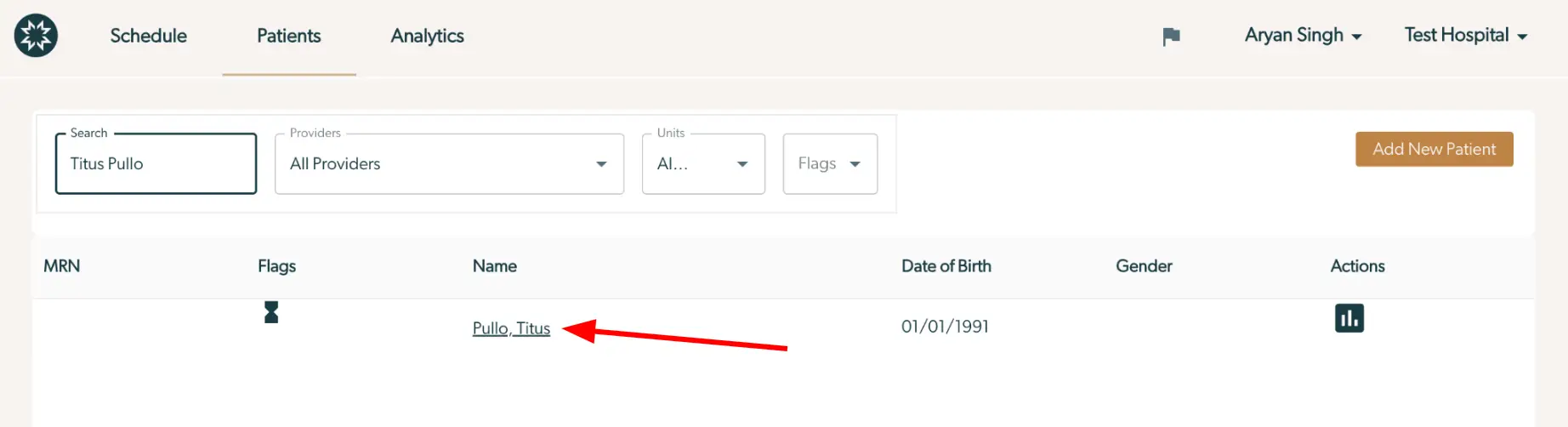
The screenshot displays the 'Patients' tab within the Mirah Collaborative Care platform, where users can manage patient information. At the top, there are navigation options for 'Schedule', 'Patients', and 'Analytics'. Below, there is a search bar with fields to filter patients by name, providers, units, and flags. The search field currently contains 'Titus Pullo'. The patient list shows columns for MRN, Flags, Name, Date of Birth, Gender, and Actions. The name 'Pullo, Titus' is highlighted, indicating a clickable link for more details. The 'Add New Patient' button is located on the right side of the search bar, allowing users to add new patient information. The user profile 'Aryan Singh' and the organization 'Test Hospital' are displayed at the top right corner.

4). Copy out the URL in your address bar
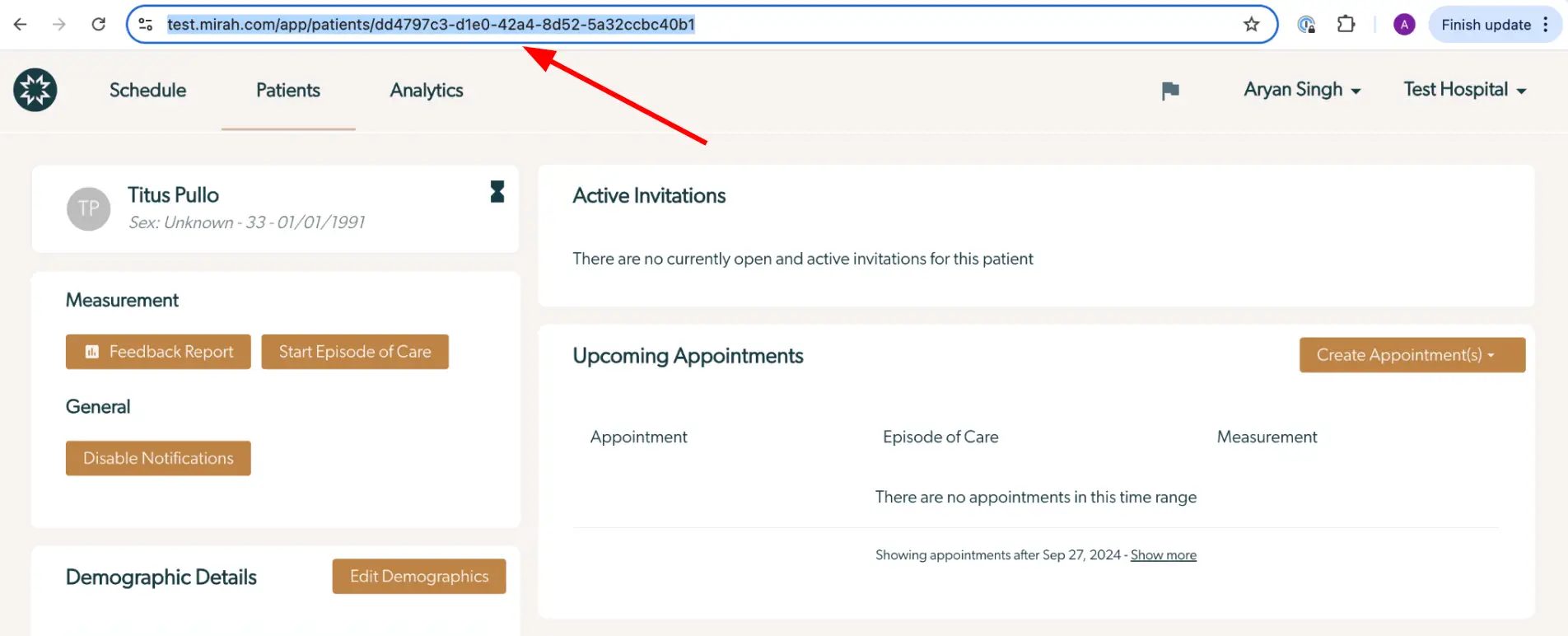
The screenshot displays the patient details page for Titus Pullo within the Mirah Collaborative Care platform. At the top, the navigation bar includes tabs for Schedule, Patients, and Analytics, indicating the main sections of the application. The page is focused on the patient Titus Pullo, showing demographic information such as sex, age, and date of birth. The Measurement section includes buttons for 'Feedback Report' and 'Start Episode of Care', which are located on the left side and are used to generate reports and initiate care episodes. The General section has a 'Disable Notifications' button for managing alerts. The Demographic Details section allows editing via the 'Edit Demographics' button. On the right side, the Active Invitations section states there are no current invitations, and the Upcoming Appointments section shows no scheduled appointments, with a 'Create Appointment(s)' button available for scheduling new ones. The page is accessed through a URL highlighted at the top, which is part of the process for sending information to support via links.

5). This is the link (URL) for Titus and can be sent to the support team. In this example the URL is

https://test.mirah.com/app/patients/dd4797c3-d1e0-42a4-8d52-5a32ccbc40b1