
How to Manage Patient Notifications

Why is my patient not receiving notifications?​

Check that Notification Preferences are set as expected. See instructions in Change Patient Notification Preferences section below.

Also verify that the expected form of contact (i.e. phone or email) is input for the patient.

If the patient texted STOP to Mirah texts, the way to start receiving texts again is find the message thread and text UNSTOP

Default Notification Settings for Patients​

  • Text or email, dependent on the information you input when you created patient (or info that comes over from EHR)
    • If both email and phone number are provided, clients will receive notifications both via email and text by default
  • Notifications can be customized to be text only, email only, both text and email, or notifications can be completed disabled, if desired (see Notification Preferences). Text and email are currently the only two methods of communication for sending notification to clients in Mirah.
  • Default is to have notifications about measures sent out 24 hours prior to a session and expire 72 hours after a session. These preferences can be modified in special cases, so make sure you know the notification preferences set up per the preferences of your organization. The preferences of your organization will be covered in pre-launch training
  • Mirah does not send notifications between 9PM and 8AM. Mirah determines the local time based on the timezone configured for the customer.

Changing Patient Notification Preferences​

The first opportunity patients have to customize their measures notifications occurs the first time they complete a measure. After finishing the survey, a screen will appear asking them to confirm their email and phone number. Then, the patient can select how they prefer assessments be sent to them, opting for email notifications, text notifications both, or none.
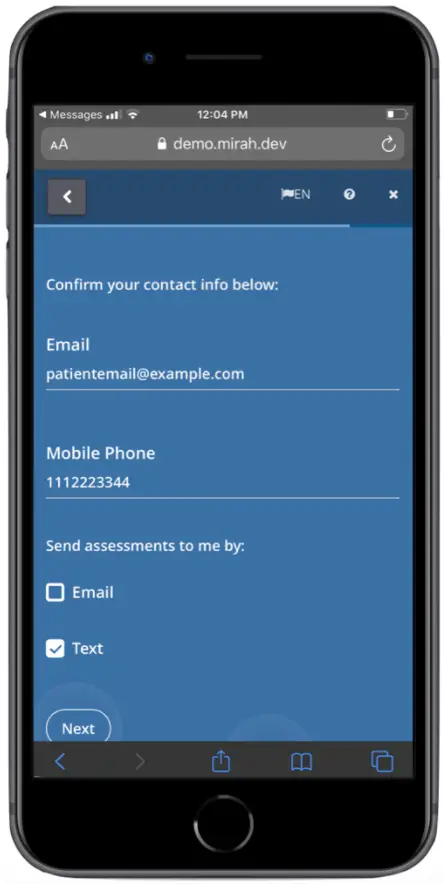
The screen is part of the Mirah Collaborative Care application, specifically for managing patient notifications. It prompts the user to confirm their contact information, displaying fields for 'Email' and 'Mobile Phone' with pre-filled values 'patientemail@example.com' and '1112223344' respectively. Below these fields, the user can select their preferred method for receiving assessments, with options for 'Email' and 'Text'. The 'Text' option is currently selected, indicated by a checked box. At the bottom of the screen, there is a 'Next' button, which allows the user to proceed to the next step in the process. The button is located centrally at the bottom of the screen. The top of the screen includes navigation elements such as a back arrow, language selection marked by 'EN', and a close button represented by an 'X'.

If a patient wishes to change their notification preferences after completing their first measure, it is easy for providers to make a change using the Patient Details page.

1). First, click the “Edit Demographics” button on the left side of the screen.
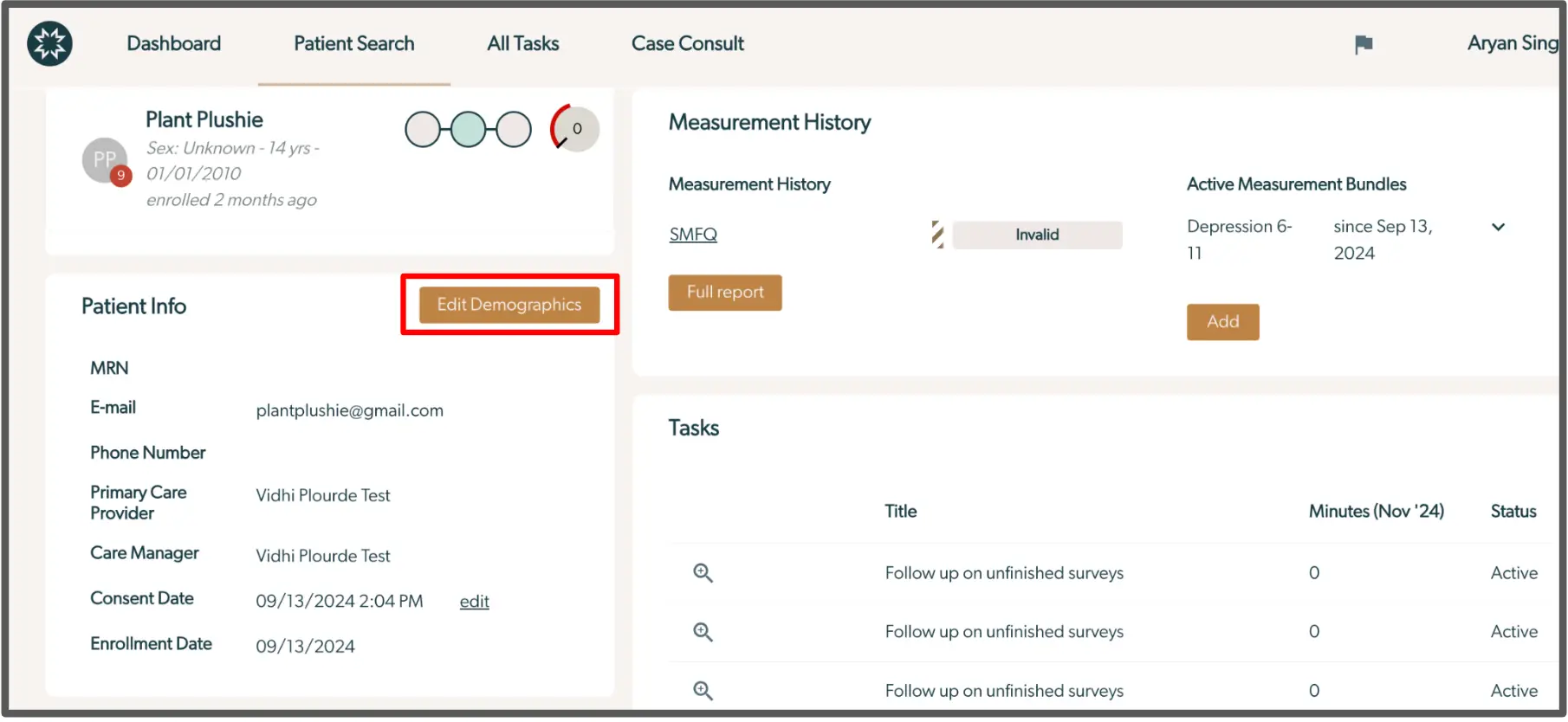
The screenshot displays the patient management interface for Mirah Collaborative Care. At the top, there is a navigation bar with options for Dashboard, Patient Search, All Tasks, and Case Consult. The user profile is shown on the right with the name Aryan Singh. The main section is divided into two columns. On the left, under 'Patient Info', details such as MRN, email, phone number, primary care provider, care manager, consent date, and enrollment date are listed. The 'Edit Demographics' button is prominently highlighted in orange, located above the patient information section. On the right, the 'Measurement History' section shows the measurement history status as 'Invalid' and includes an 'Active Measurement Bundles' section with details about depression measurement since September 13, 2024, and an 'Add' button below it. Below these sections, there is a 'Tasks' section listing tasks with titles like 'Follow up on unfinished surveys', each showing zero minutes for November 2024 and marked as 'Active'.

2). Then, scroll down to view the “Notification Preference” field, and adjust the notification settings for the patient.
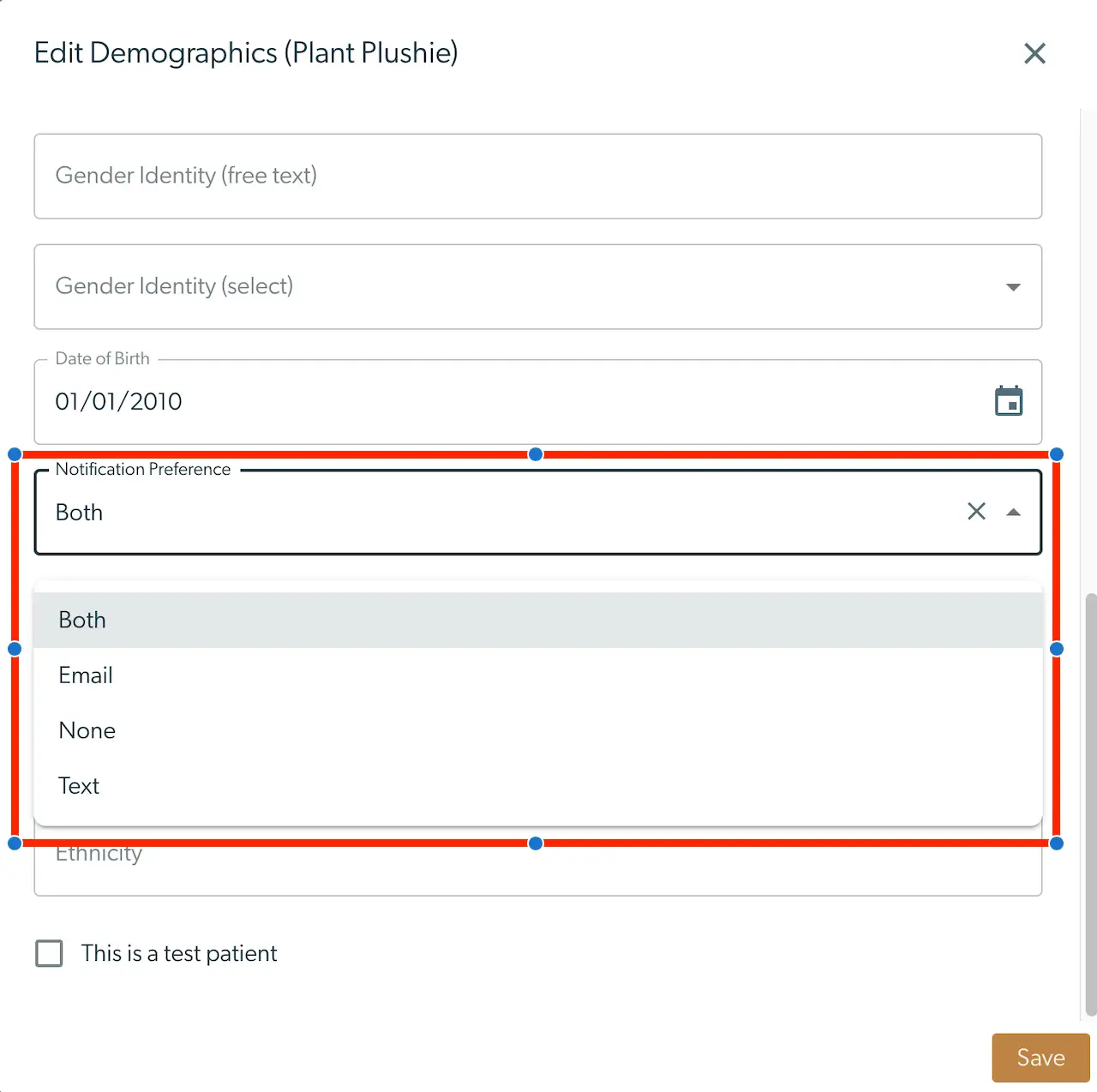
The screenshot displays the 'Edit Demographics' screen for a patient named Plant Plushie within the Mirah Collaborative Care platform. This screen allows users to input and modify demographic information for a patient. It includes fields for 'Gender Identity (free text)' and 'Gender Identity (select)' where users can either type in or select the gender identity from a dropdown menu. The 'Date of Birth' field is pre-filled with the date 01/01/2010 and includes a calendar icon for date selection. The 'Notification Preference' field is expanded to show options for how the patient prefers to receive notifications, including 'Both', 'Email', 'None', and 'Text'. The selected option is 'Both'. Below these fields, there is a checkbox labeled 'This is a test patient' which can be checked to indicate the patient is for testing purposes. At the bottom right corner, there is a 'Save' button to save any changes made to the patient's demographic information.

Disabling Patient Notifications​

If a provider wishes to disable notifications for a patient, they simply click “Disable Notifications” on the patient’s Details page. This may be desirable if your organization utilizes kiosks/tablets and expects a client to fill out the assessment while waiting for their appointment to begin, for example.
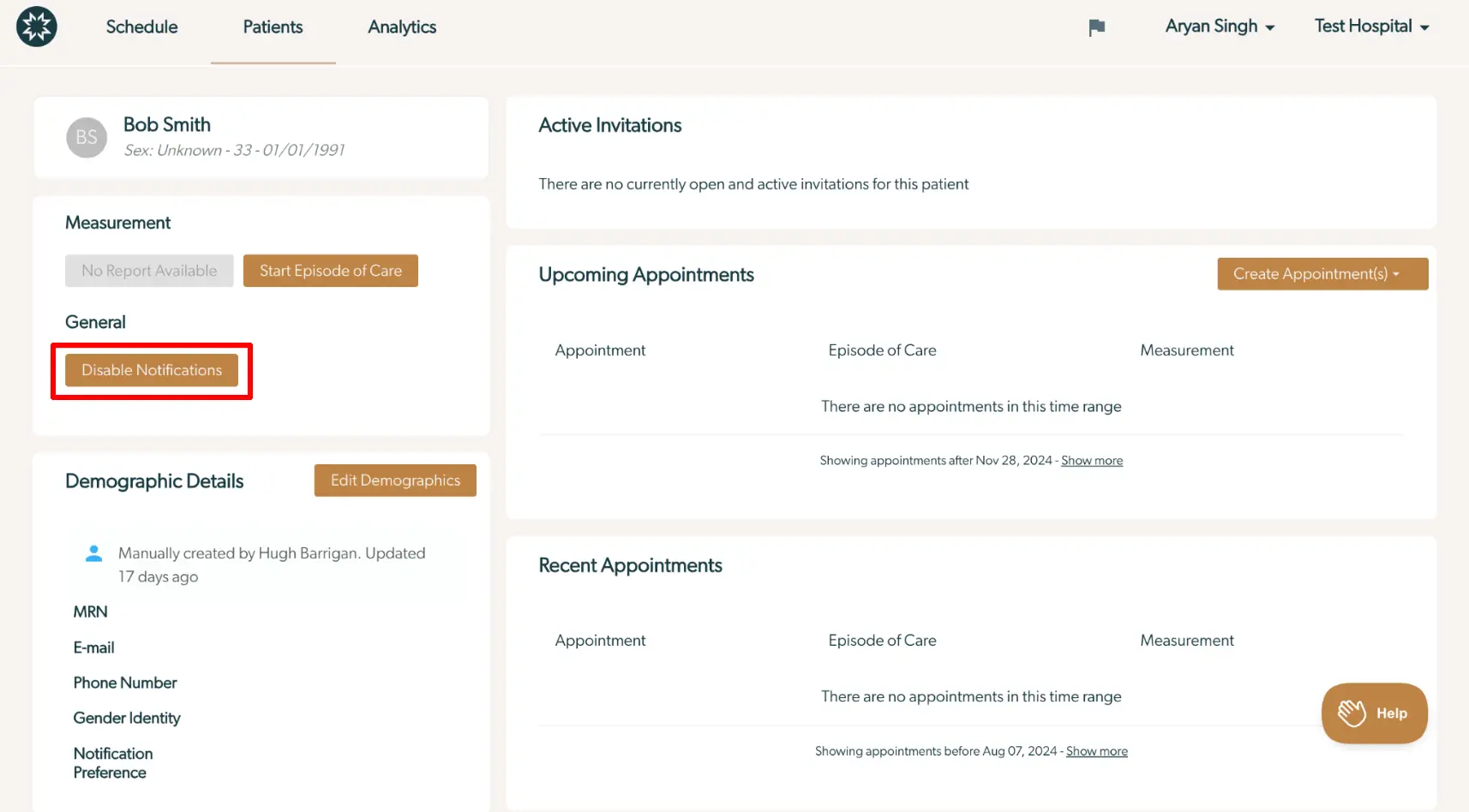
The screenshot displays the patient management interface for Bob Smith within Mirah Collaborative Care. At the top, the navigation bar includes options for Schedule, Patients, and Analytics. The patient's profile section shows Bob Smith's name, sex, age, and date of birth. Under Measurement, there is a button labeled 'Start Episode of Care' which is used to initiate a new care episode. In the General section, the 'Disable Notifications' button is highlighted in red, allowing users to turn off notifications for this patient. The Demographic Details section includes fields for MRN, Email, Phone Number, Gender Identity, and Notification Preference, with an 'Edit Demographics' button for updating these details. The Active Invitations section indicates there are no open invitations for the patient. Upcoming Appointments and Recent Appointments sections show no scheduled appointments, with options to 'Create Appointment(s)' located at the top right of the Upcoming Appointments section. The Help button is located at the bottom right corner of the screen.

Re-Sending Notifications to Patients and Non-Receipt of Measures for Patients​

First, double check that the patient's email and phone number are correctly entered into Mirah. If not, change their email or phone number by clicking “Edit Demographics.”

If their information is correct, please ask them to check email “junk” folders, and any other filtering folders in their email inbox (for email cases). If they are still unable to locate the invitation, there is an option to re-send the notification to clients.

In CoCM, on the patient record, re-send notifications by clicking the "Resend All Notifications" button.
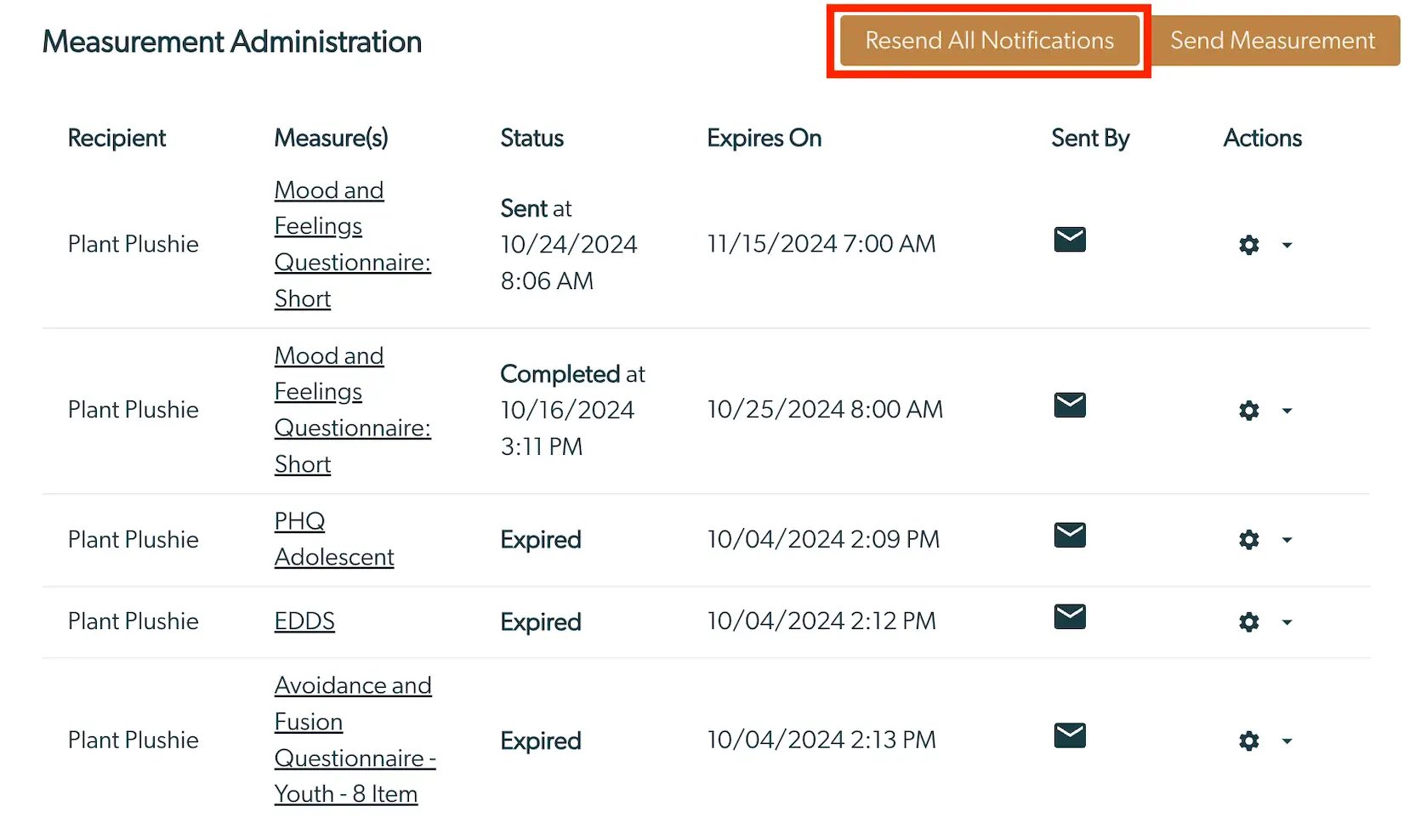
The screenshot displays the 'Measurement Administration' section of the Mirah Collaborative Care platform, which is used for managing patient notifications related to various assessments. The table lists the recipient 'Plant Plushie' and includes columns for 'Measure(s)', 'Status', 'Expires On', 'Sent By', and 'Actions'. Each row corresponds to a different assessment, such as 'Mood and Feelings Questionnaire: Short', 'PHQ Adolescent', 'EDDS', and 'Avoidance and Fusion Questionnaire - Youth - 8 Item'. The 'Status' column indicates whether the assessment has been sent, completed, or expired, along with the relevant dates and times. The 'Expires On' column shows the expiration date and time for each assessment. The 'Sent By' column features an envelope icon, indicating the method of notification. The 'Actions' column includes a gear icon for settings and a dropdown menu for additional options. At the top right of the screen, there are two buttons: 'Resend All Notifications' and 'Send Measurement', which allow users to resend notifications or send new measurements, respectively.

If the patient has still not received the invitation after trying these steps, please contact support@mirah.com.