
How to Request Mirah Security Reports

Mirah is SOC 2 Type II + HITRUST compliant.

You can access a copy of the report by reaching out to your Customer Success Manager (CSM). Your CSM will contact Mirah's security and compliance department, who will give you access to OneTrust, a web-based application that is used to share security and compliance documentation.

You will receive an email fromOneTrust with instructions on how to login and access Mirah's SOC 2 report. Once you receive the email, follow these steps:

1). Click the "View Documents" button in the email you receive. The button will redirect you to a webpage where you can register for access to Mirah's Assurance Portal. *Note - the link expires 7 days after the email is received.
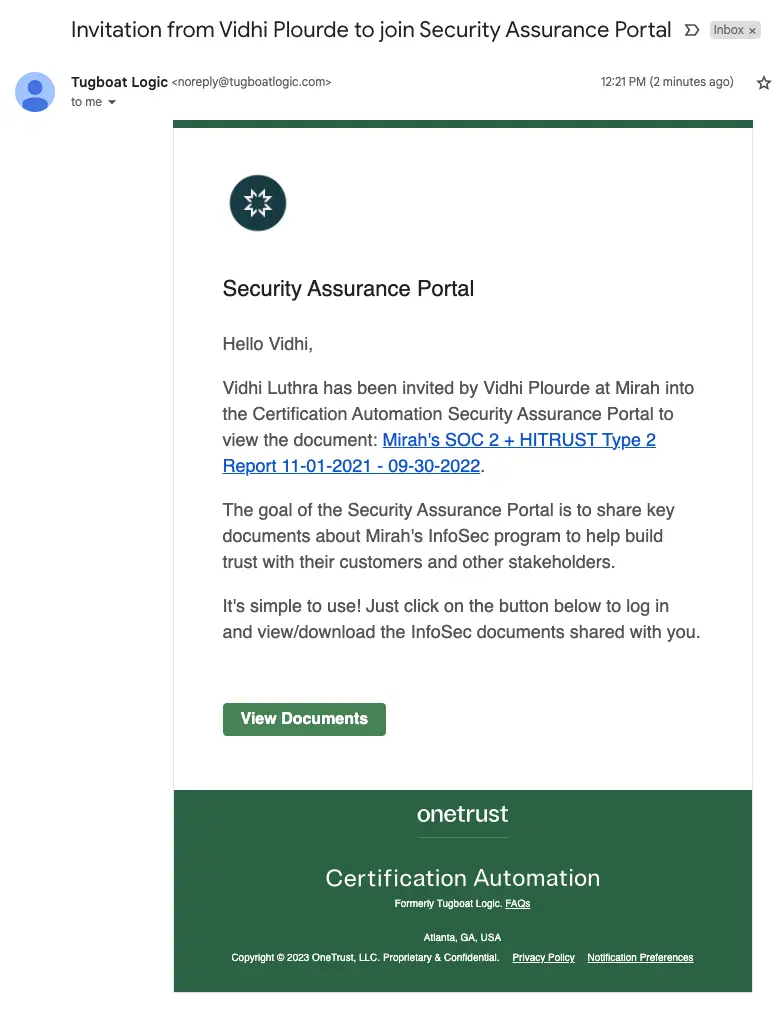
The screenshot displays an email invitation from Vidhi Plourde to join the Security Assurance Portal, sent by Tugboat Logic. The email is addressed to Vidhi and informs them of an invitation to the Certification Automation Security Assurance Portal at Mirah to view a specific document titled 'Mirah's SOC 2 + HITRUST Type 2 Report 11-01-2021 - 09-30-2022'. The purpose of the Security Assurance Portal is to share key documents about Mirah's InfoSec program to build trust with customers and stakeholders. The email instructs the recipient to click the 'View Documents' button located at the bottom of the email to log in and view or download the shared InfoSec documents. The footer of the email includes the OneTrust logo, the text 'Certification Automation', and links to FAQs, Privacy Policy, and Notification Preferences.

2). Create a password for your new account, then click the "Submit" button. On the next screen, you will be given the option to update the name on your account. Add your first and last name, then click the "Next button.

The screen is a sign-in interface for Mirah Collaborative Care, prompting users to set a new password. It includes two text fields: 'Please provide a new password' and 'Confirm your password', where users can enter and confirm their new password. Below these fields is a green 'Submit' button centered on the page, which users click to proceed after entering their passwords. Beneath the 'Submit' button, there is a horizontal line with the word 'or' in the center, indicating an alternative sign-in method. At the bottom, there is a 'Sign in with Google' button featuring the Google logo, allowing users to authenticate using their Google account.The screenshot displays a 'Sign In' page where users are prompted to provide additional information. The page includes two text fields labeled 'First Name' and 'Last Name', both marked with a red asterisk indicating they are required fields. The 'First Name' field is filled with the name 'James', and the 'Last Name' field is filled with the name 'Smith'. Below these fields, there is a green button labeled 'Next', which is used to proceed to the next step in the sign-in process. The button is centrally located at the bottom of the form.

3). You may see a pop up asking if you would like Platform Guidance and Activity settings turned on for your account. You can ignore this option for now by clicking on "No thanks, remove guidance" on the bottom of the message.
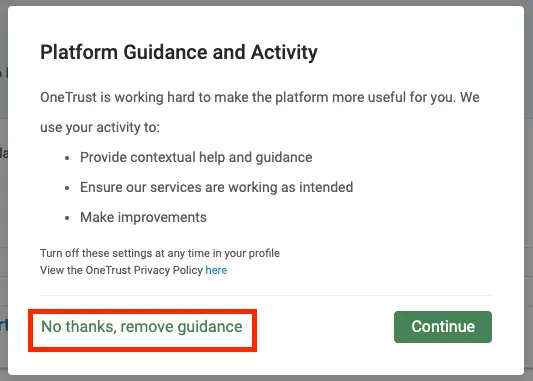
The screenshot displays a dialog box titled 'Platform Guidance and Activity' which informs the user about how their activity is used to enhance the platform experience. It mentions that activity data is used to provide contextual help and guidance, ensure services are working as intended, and make improvements. Users are given the option to turn off these settings in their profile. The dialog includes a link to view the OneTrust Privacy Policy. At the bottom of the dialog, there are two buttons: 'No thanks, remove guidance' located on the left, which allows users to opt-out of guidance, and 'Continue' located on the right, which allows users to proceed with the guidance.

4). You will see the most recent document(s) listed in the Security Assurance Portal. Click "Download" next to the applicable report to download the file.
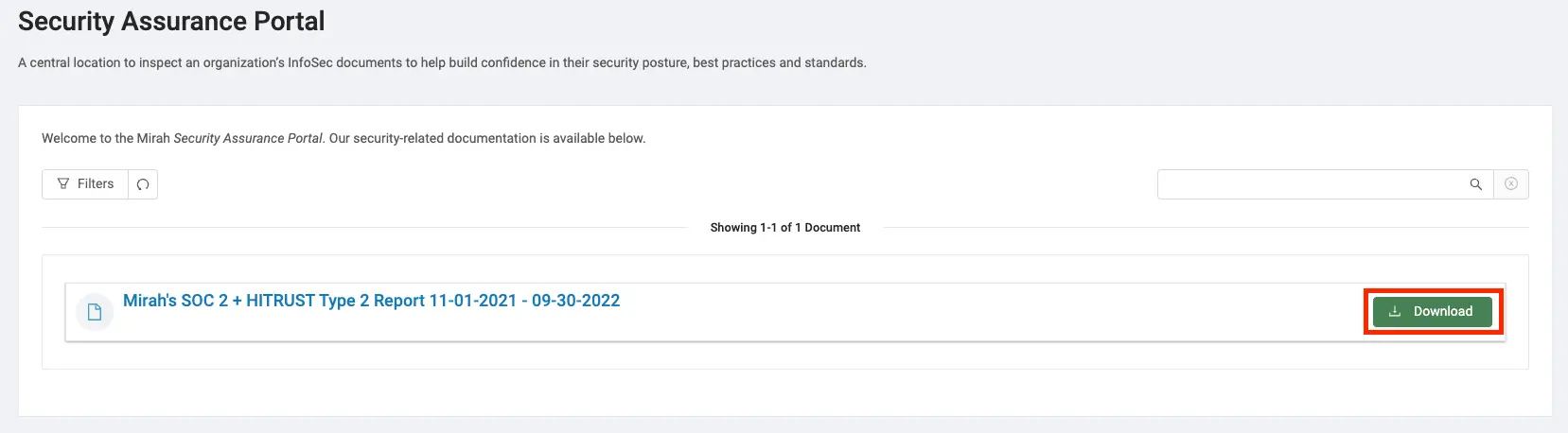
The Security Assurance Portal screen is designed to provide users with access to an organization's InfoSec documents, enhancing confidence in their security posture, best practices, and standards. At the top, there is a welcoming message indicating the availability of security-related documentation. Below this, users can find a 'Filters' button on the left side, which allows them to refine the document list, and a search field on the right side for quick document lookup. The main section displays a single document titled 'Mirah's SOC 2 + HITRUST Type 2 Report 11-01-2021 - 09-30-2022', with a document icon next to it. To the right of the document title, there is a green 'Download' button, outlined in red, enabling users to download the report directly.