
Outcomes Framework - Tutorial

The goal of this tutorial is to get you exploring your data to create metrics. Before deciding on permanent metrics, take the time to explore your data and learn how it works.

To get going, here are some high level concepts in the framework to get you started:​

  • Effectiveness Metrics are metrics that measure how treatment episodes have progressed at a fixed point in time. For example, ‘% of patients who achieved remission by the end of month 3 of treatment episode’. The third month of the treatment episode is the fixed point of time. This is the recommended type of metrics to start with. Learn more about metric types here.
  • Treatment Episode Response denotes the extent to which a patient improves during treatment episode, regardless of the presence or absence of symptoms at the baseline measurement. It will be one of the ways used to count the number of ‘successes’ in your outcomes set. More information on these characteristics can be found here.
  • Treatment Episode Remission denotes the return to a non-clinical level of symptoms. It will also be used to count the number of ‘successes’ in your outcomes set. More information on these characteristics can be found here.

Most of our customers primarily measure success on the PHQ-9 and GAD-7. If this does not apply to you, you will need to identify the primary scale for your first metric.

If you already know how to find the Outcomes Dashboard and open the menu to create a metric, skip to Selecting a Preset Metric. If not, read below first.​

1). Measurement-Based Care: Log into the Mirah platform. You should see an "Outcomes" tab at the top of the page. Clicking on it will bring you to the Outcomes Dashboard. If this is your first time your organization has used the Outcomes Framework, you will see a message telling you that you have no metrics.
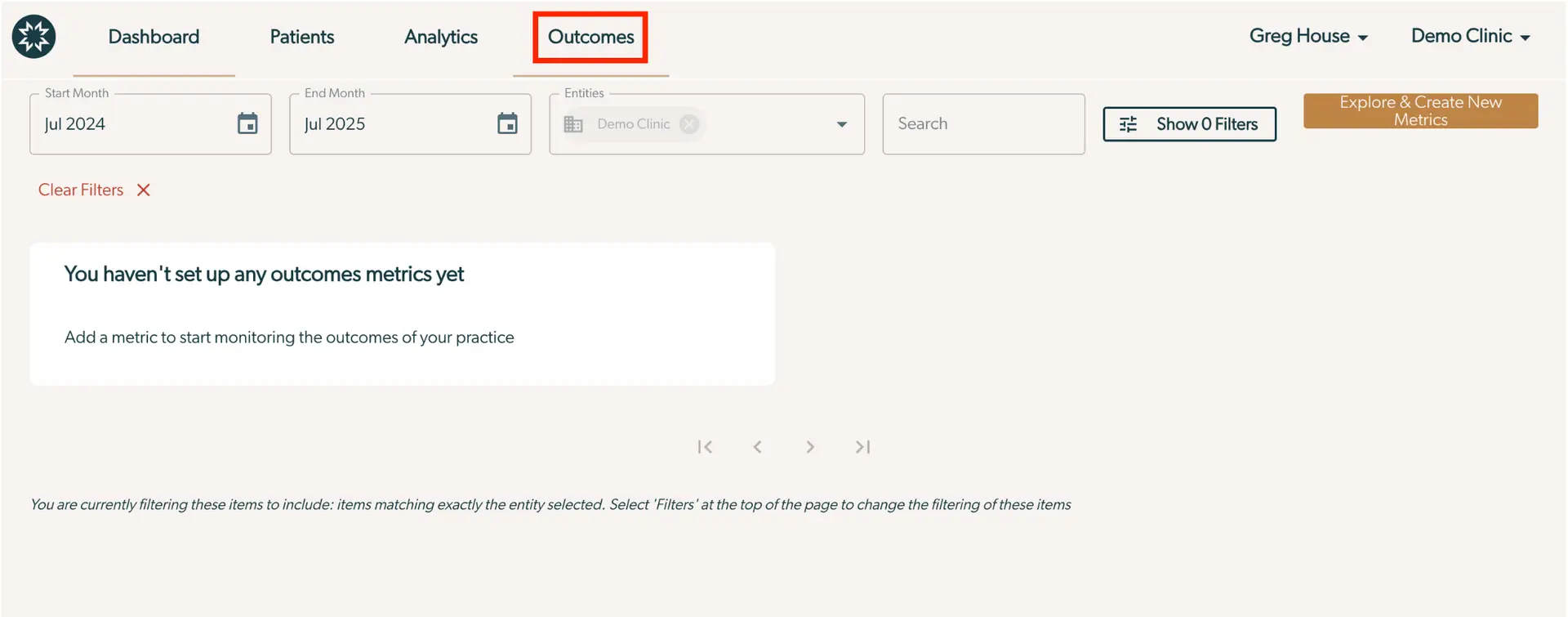
The screenshot displays the Outcomes section of the Mirah Collaborative Care platform, which is part of the Reporting & Analytics feature. The top navigation bar includes tabs for Dashboard, Patients, Analytics, and Outcomes, with Outcomes highlighted to indicate the current section. The user profile is shown on the right with the name Greg House and the selected clinic, Demo Clinic. Below the navigation, there are filter options for Start Month, End Month, and Entities, with fields set to July 2024, July 2025, and Demo Clinic respectively. A calendar icon is present next to the date fields for easy selection. A 'Clear Filters' option is available to reset the filters. The main area of the screen displays a message stating 'You haven't set up any outcomes metrics yet' with a prompt to add a metric to start monitoring practice outcomes. To the right, there is a button labeled 'Explore & Create New Metrics' for adding new metrics. The 'Show 0 Filters' button is located next to the search field, allowing users to view applied filters. Pagination controls are at the bottom, with arrows for navigating through pages. A note at the bottom explains the current filtering status and how to change it.

2). Collaborative Care: Log into the Mirah platform. On the vertical menu, click on the dropdown menu to the right of "Metrics" and select the "Outcomes" tab. Clicking on it will bring you to the Outcomes Dashboard. If this is your first time your organization has used the Outcomes Framework, you will see a message telling you that you have no metrics.
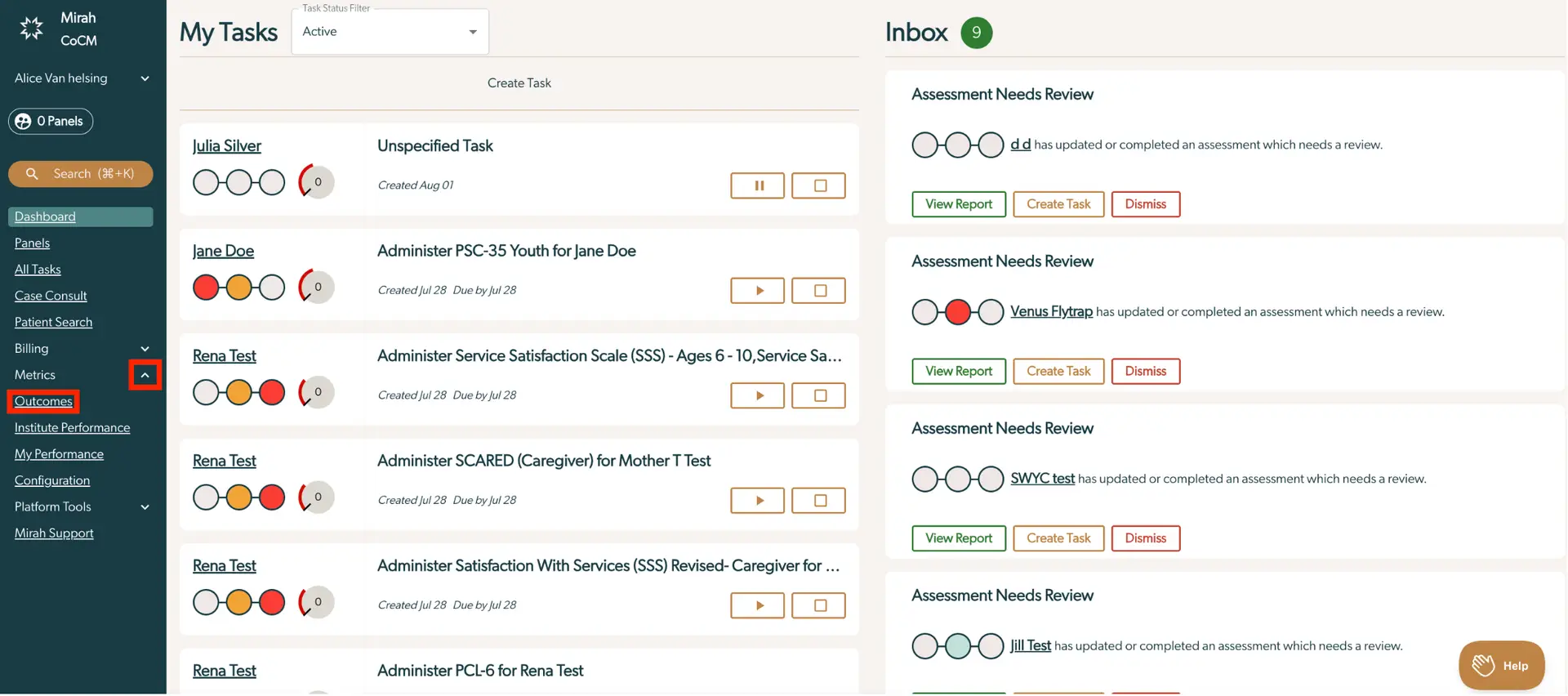
The screenshot displays the Mirah Collaborative Care interface, focusing on task management and assessment review. On the left side, a vertical navigation menu includes options such as Dashboard, Panels, All Tasks, Case Consult, Patient Search, Billing, Metrics, Outcomes, Institute Performance, My Performance, Configuration, Platform Tools, and Mirah Support. The Outcomes section is highlighted, indicating the current focus. The main area is divided into two sections: 'My Tasks' and 'Inbox'. 'My Tasks' shows a list of tasks assigned to Alice Van Helsing, with details like task name, creation date, due date, and status indicators. Each task has buttons for play, pause, and stop, located on the right side of the task entry. The 'Inbox' section lists assessments that need review, with each entry showing the assessment name, status indicators, and buttons for 'View Report', 'Create Task', and 'Dismiss', located on the right side of each entry. The 'Help' button is located at the bottom right corner of the screen.

3). Measurement-Based Care AND Collaborative Care: Click “Explore & Create New Metric” pictured in the top right hand corner of your screen to set up your first metric.

The screenshot displays a section of the Mirah Collaborative Care platform focused on reporting and analytics within the Outcomes Framework tutorial. It includes fields for selecting a start month and end month, both set to July 2024 and July 2025 respectively, with calendar icons for date selection. There is an 'Entities' field showing 'Demo Clinic' with an option to remove it. A dropdown menu is available for further entity selection. A search field is present for filtering data. The 'Show 1 Filter' button is located next to the search field, allowing users to manage filters. On the far right, the 'Explore & Create New Metrics' button is highlighted in orange, enabling users to delve into and generate new metrics.

Please note that in the past we has supported an option to download data in CSV format; however, this option to no longer available.