
Patients - Managing Measurement Bundles

The following guide details how to manage the measurement bundles of a patient through adding and removing them in their measurement history.

How to Remove a Measurement Bundle​

1.) Navigate to the patient record's record. Find the "Measurement History" section on the page.
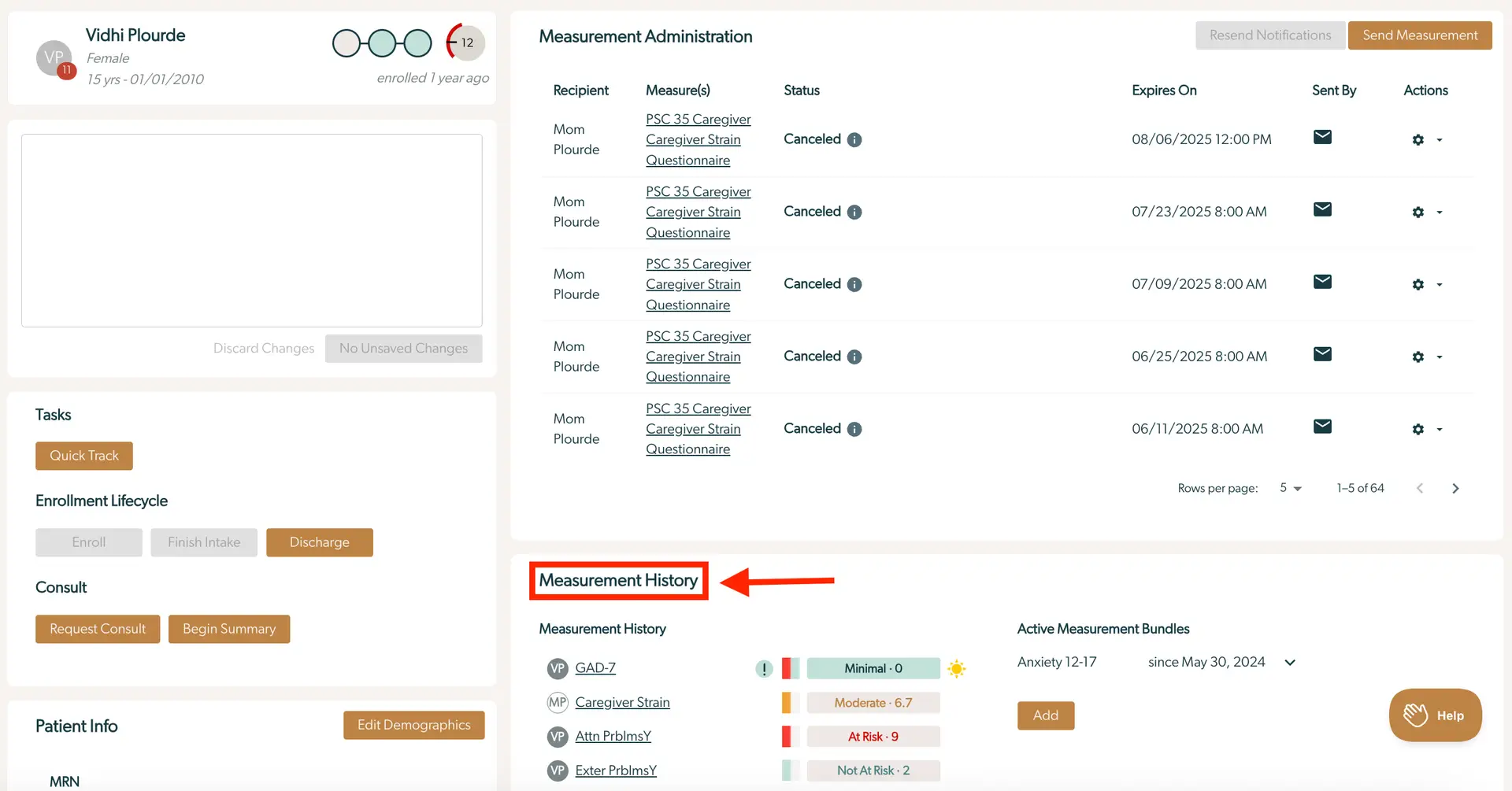
The screenshot displays the patient management interface for Vidhi Plourde, a 15-year-old female enrolled a year ago. The top left section shows the patient's name, gender, age, and enrollment date, along with a visual representation of her progress. Below this, there is a text box for notes with buttons labeled 'Discard Changes' and 'No Unsaved Changes'. The left panel includes sections for 'Tasks' with a 'Quick Track' button, 'Enrollment Lifecycle' with buttons for 'Enroll', 'Finish Intake', and 'Discharge', and 'Consult' with 'Request Consult' and 'Begin Summary' buttons. The 'Patient Info' section has an 'Edit Demographics' button. The right side of the screen is dedicated to 'Measurement Administration', listing recipients, measures, status, expiration dates, and actions for each measurement bundle. The 'Send Measurement' button is located at the top right, next to 'Resend Notifications'. Below, the 'Measurement History' section shows various assessments with their scores and risk levels, and the 'Active Measurement Bundles' section lists ongoing bundles with their start dates. The 'Add' button is located at the bottom right, next to a 'Help' button.

2.) To remove the current bundle, click the down arrow on the right of the relevant bundle, click "Remove", and finally click "Remove [bundle name] bundle". See photos below.

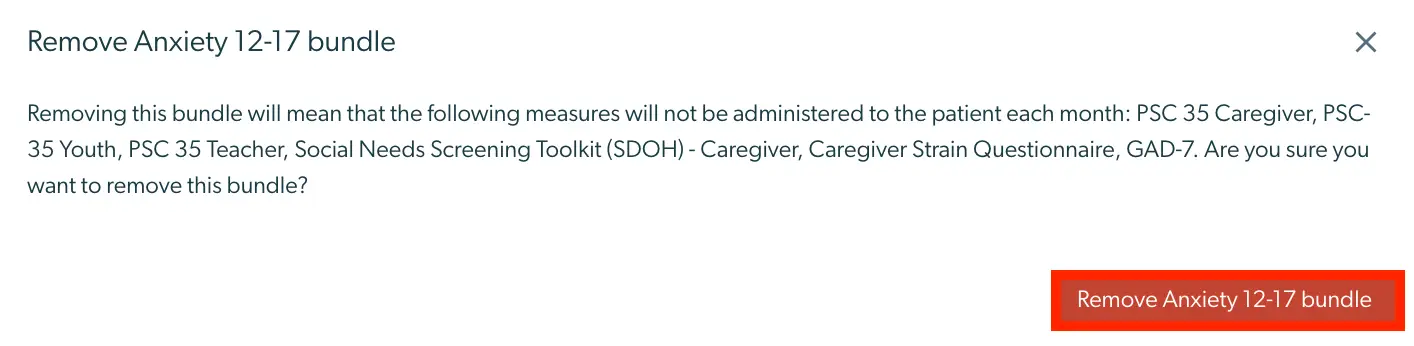
The screenshot displays the 'Measurement History' section of the Mirah Collaborative Care platform, which is part of the Patients feature for managing measurement bundles. On the left side, there is a list of various measurement types such as GAD-7, Caregiver Strain, Attn PrblmsY, and others, each accompanied by a visual indicator of the measurement status, such as 'Minimal', 'Moderate', 'At Risk', 'Not At Risk', 'Not Impaired', 'Impaired', 'Administered', and 'Does Not Want'. These indicators are color-coded for quick reference, with colors like green, orange, and red denoting different levels of concern. On the right side, under 'Active Measurement Bundles', there is a listing for 'Anxiety 12-17' with a date indicating it has been active since May 30, 2024. Below this, there is an 'Add' button for adding new measurement bundles. A dropdown arrow is located next to the active measurement bundle, allowing users to expand or collapse additional details. At the bottom left, there is a 'Full report' button for accessing more comprehensive data.The screenshot displays the 'Active Measurement Bundles' section within the Mirah Collaborative Care platform, specifically for managing measurement bundles related to patients. It shows a bundle titled 'Anxiety 12-17' with a start date of May 30, 2024. The bundle includes monthly measures such as PSC 35 Caregiver, PSC-35 Youth, PSC 35 Teacher, Social Needs Screening Toolkit (SDOH) - Caregiver, Caregiver Strain Questionnaire, and GAD-7. There is a 'Remove' button located to the right of the bundle details, allowing users to delete the bundle from the active list. Below the bundle details, there is an 'Add' button, which is used to add new measurement bundles.The screen is a confirmation dialog for removing the 'Anxiety 12-17 bundle' from a patient's measurement plan. It informs the user that removing this bundle will stop the administration of several measures to the patient each month, including PSC 35 Caregiver, PSC-35 Youth, PSC 35 Teacher, Social Needs Screening Toolkit (SDOH) - Caregiver, Caregiver Strain Questionnaire, and GAD-7. The dialog asks the user to confirm if they are sure about removing the bundle. There is a prominent red button labeled 'Remove Anxiety 12-17 bundle' located at the bottom right corner of the dialog for confirming the action. A close button, represented by an 'X', is located at the top right corner of the dialog for canceling the action.

How to Add a Measurement Bundle​

1). In the Measurement History Section, you will see the "Active Measurement Bundles". Click "Add" then search for and select the desired bundle and click "Add" again. See photos below.

The screenshot displays the 'Measurement History' section on the left, listing various assessments such as GAD-7, Caregiver Strain, and Attn PrblmsY, each with an associated status and score indicating the patient's risk level or impairment. The statuses are color-coded for quick reference, with labels like 'Minimal', 'Moderate', 'At Risk', 'Not Impaired', and 'Impaired'. On the right, the 'Active Measurement Bundles' section shows a bundle named 'Anxiety 12-17' with a start date of May 30, 2024. Below this section is an 'Add' button, highlighted in orange, allowing users to add new measurement bundles. At the bottom left, a 'Full report' button is available for generating detailed reports.The screenshot displays the 'Active Measurement Bundles' section within the Mirah Collaborative Care platform, specifically for managing measurement bundles related to patients. The screen shows a dropdown menu labeled 'Bundle' which allows users to select different measurement bundles. The dropdown is located centrally within a highlighted red box. Above the dropdown, the text 'Anxiety 12-17 since May 30, 2024' indicates the active measurement bundle and its start date. To the right of this text is a downward-facing arrow, suggesting additional options or a menu. Below the dropdown, there is a greyed-out 'Add' button, indicating that a selection must be made from the dropdown before the button becomes active.The screenshot displays the 'Active Measurement Bundles' section of the Mirah Collaborative Care platform, specifically for managing measurement bundles related to patients. At the top, it shows the currently selected bundle 'Anxiety 12-17' with a start date of 'since May 30, 2024'. Below, there is a dropdown menu labeled 'Bundle' where users can select different measurement bundles. The dropdown menu includes options such as 'Depression 6-11', 'Depression 12-17', 'Anxiety 4-5', 'Anxiety 6-11', 'Anxiety 12-17', 'ADHD 4-5', 'ADHD 6-11', 'ADHD 12-17', 'Depression 18+', and 'Anxiety 18+'. The dropdown arrow is located to the right of the input field, allowing users to expand and view the list of available bundles.The screenshot displays the 'Active Measurement Bundles' section of the Mirah Collaborative Care interface, where users can manage measurement bundles for patients. The screen shows an active bundle labeled 'Anxiety 12-17' with a date indicating it has been active since May 30, 2024. Below, there is a 'Bundle' input field containing the text 'Depression 12-17', which can be modified or removed using the 'X' button next to it. A dropdown arrow is present for additional options related to the bundle. The 'Add' button, located at the bottom left of the bundle input field, allows users to add the specified bundle to the active measurement list.The screenshot displays the 'Active Measurement Bundles' section within the Mirah Collaborative Care platform, specifically for managing patient measurement bundles. It lists two measurement bundles: 'Anxiety 12-17' and 'Depression 12-17', each followed by the date they became active, 'since May 30, 2024' and 'since Jul 14, 2025' respectively. Each bundle has a dropdown arrow next to the date, indicating additional options or details can be accessed. Below the list, there is an 'Add' button in brown color, located at the bottom left, which allows users to add new measurement bundles.

The correct bundle will now appear in the "Measurement History" section. To the right of the measurement title, information includes the date when it was added as an active bundle.

Please note: Any notifications that have already been sent out to patients cannot be unsent. After this change, notifications will be sent to patients according to the updated "Active Measurement Bundle" list. Although you can modify measurement bundles whenever you would like, bundle changes also do not affect invitations that have already been scheduled but not yet sent (usually 24 hours in advance).