
Patients - How to discharge a patient

Once a patient has completed treatment you may choose to discharge them from receiving services. Mirah’s Collaborative Care platform supports discharging your patients.

Discharging a Patient​

1.) Navigate to the patient’s record

2.) Click on the “Discharge” button
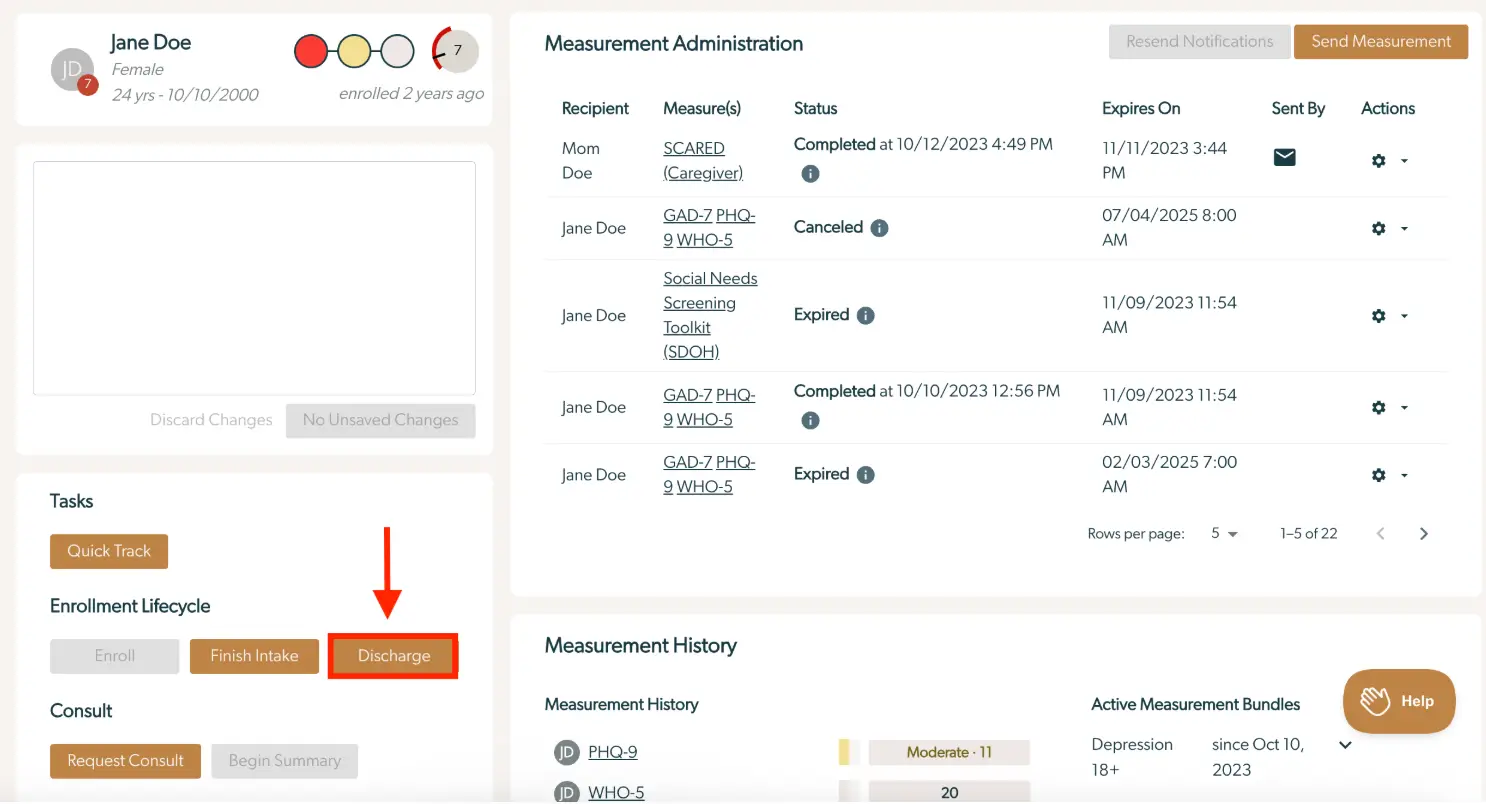
The screenshot displays the patient management interface for Jane Doe, a 24-year-old female enrolled two years ago. At the top left, her profile information is shown, including her initials, age, and enrollment duration. Below this, there is a blank section for notes with options to 'Discard Changes' or confirm 'No Unsaved Changes'. On the right, the 'Measurement Administration' section lists various assessments with details such as recipient, measure(s), status, expiration date, and sender, along with action icons for each entry. The 'Send Measurement' button is located at the top right of this section. Below the profile, the 'Tasks' section includes a 'Quick Track' button, and the 'Enrollment Lifecycle' section features 'Enroll', 'Finish Intake', and 'Discharge' buttons, with 'Discharge' highlighted in red. The 'Consult' section offers 'Request Consult' and 'Begin Summary' options. At the bottom, the 'Measurement History' section provides a summary of past assessments with scores and a timeline of active measurement bundles. A 'Help' button is located at the bottom right corner.

3.) Populate the "Reason" and any additional information in the "Additional Notes" field

4.) Click "Discharge"
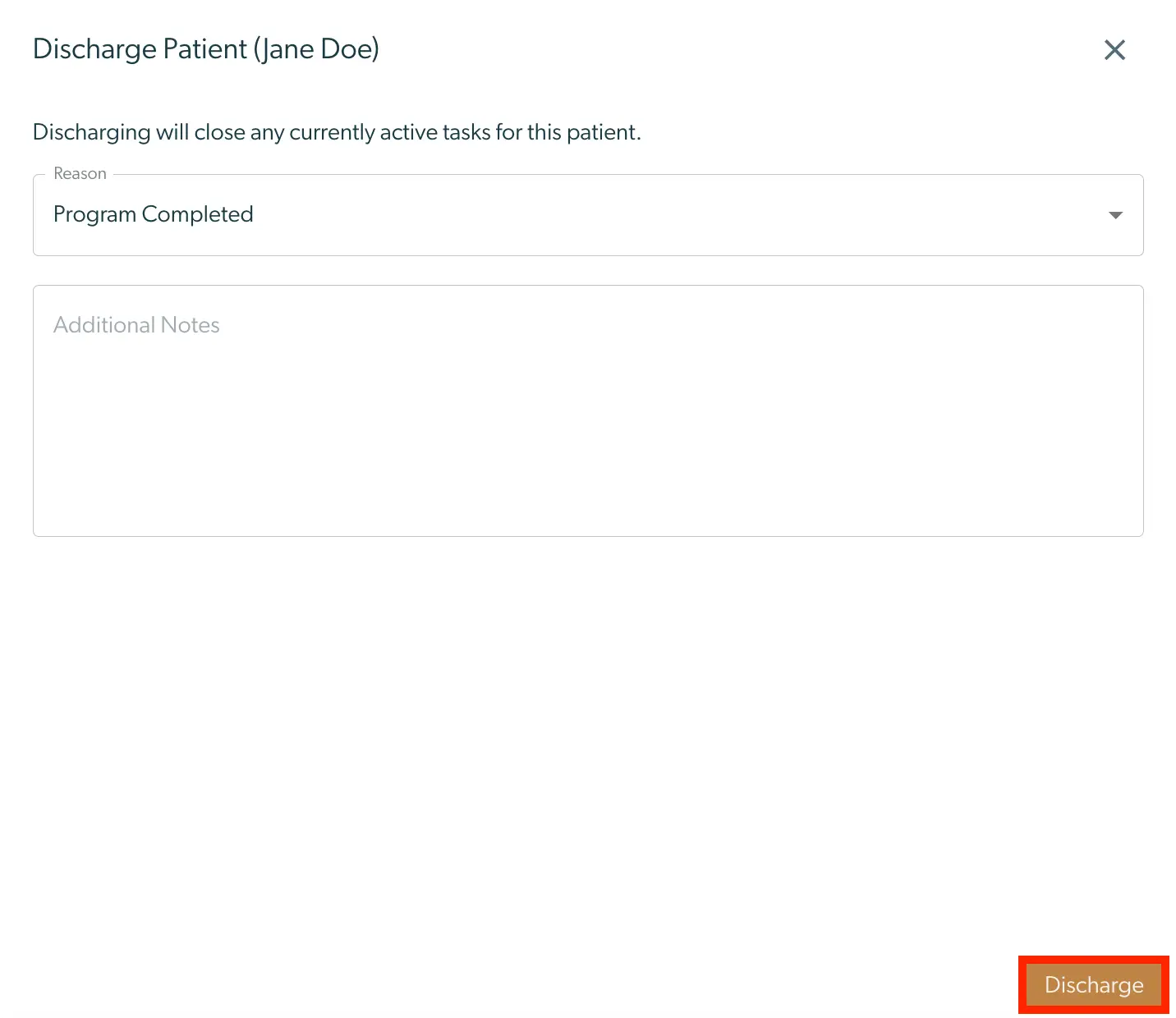
The 'Discharge Patient' screen is designed to facilitate the process of discharging a patient named Jane Doe from the care program. At the top, the screen displays the title 'Discharge Patient (Jane Doe)' indicating the patient's name. Below the title, there is a note stating that discharging will close any currently active tasks for this patient. The screen includes a dropdown menu labeled 'Reason' with the option 'Program Completed' selected, allowing the user to specify the reason for discharge. Beneath the dropdown, there is a text box labeled 'Additional Notes' where users can input any supplementary information regarding the discharge. In the bottom right corner, there is an orange 'Discharge' button, which when clicked, finalizes the discharge process.

Patient Enrollment History​

Once a patient has been discharged, you can review history of an enrollment.

1.) On the patient record, scroll down to the Enrollment History.

2.) To view details about the past enrollment, click "Details" on the related enrollment.
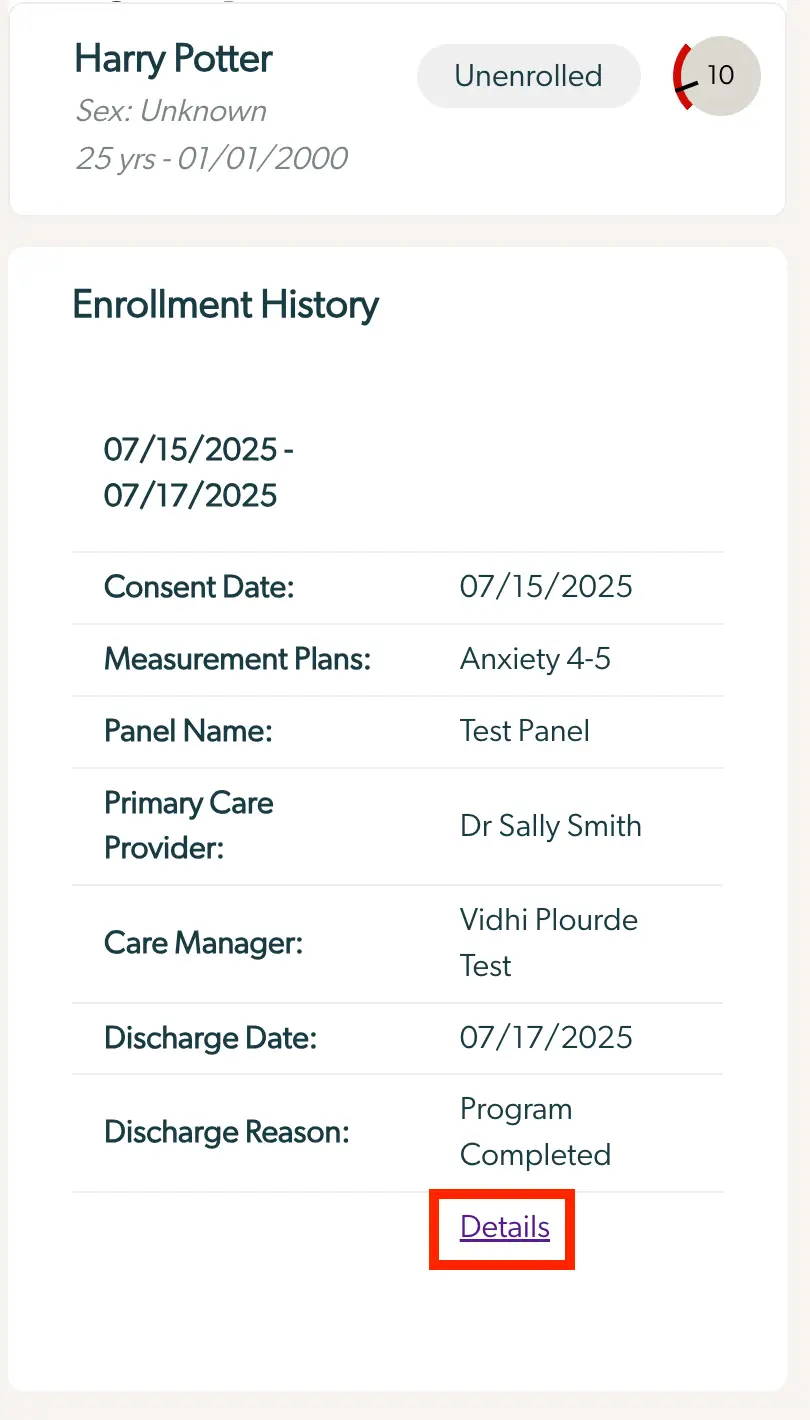
The screenshot displays a section of the Mirah Collaborative Care interface focused on patient discharge details. At the top, the patient's name, Harry Potter, is shown with demographic information including sex as unknown, age as 25 years, and birthdate as 01/01/2000. The enrollment status is marked as 'Unenrolled' with a circular progress indicator showing the number 10. Below, the Enrollment History section lists the enrollment period from 07/15/2025 to 07/17/2025. It includes details such as Consent Date on 07/15/2025, Measurement Plans labeled as Anxiety 4-5, Panel Name as Test Panel, Primary Care Provider as Dr. Sally Smith, and Care Manager as Vidhi Plourde Test. The Discharge Date is noted as 07/17/2025 with the Discharge Reason being 'Program Completed'. At the bottom right, there is a 'Details' link, which likely provides more information about the discharge process.