Patients - How to add a new patient

If your organization’s EHR is not integrated with Mirah you will need to create patient records when enrolling patients into collaborative care.

Steps to add a patient:​

1.) Log into Mirah and click on the “Patient Search” tab

2.) Click the “Add New Patient” button
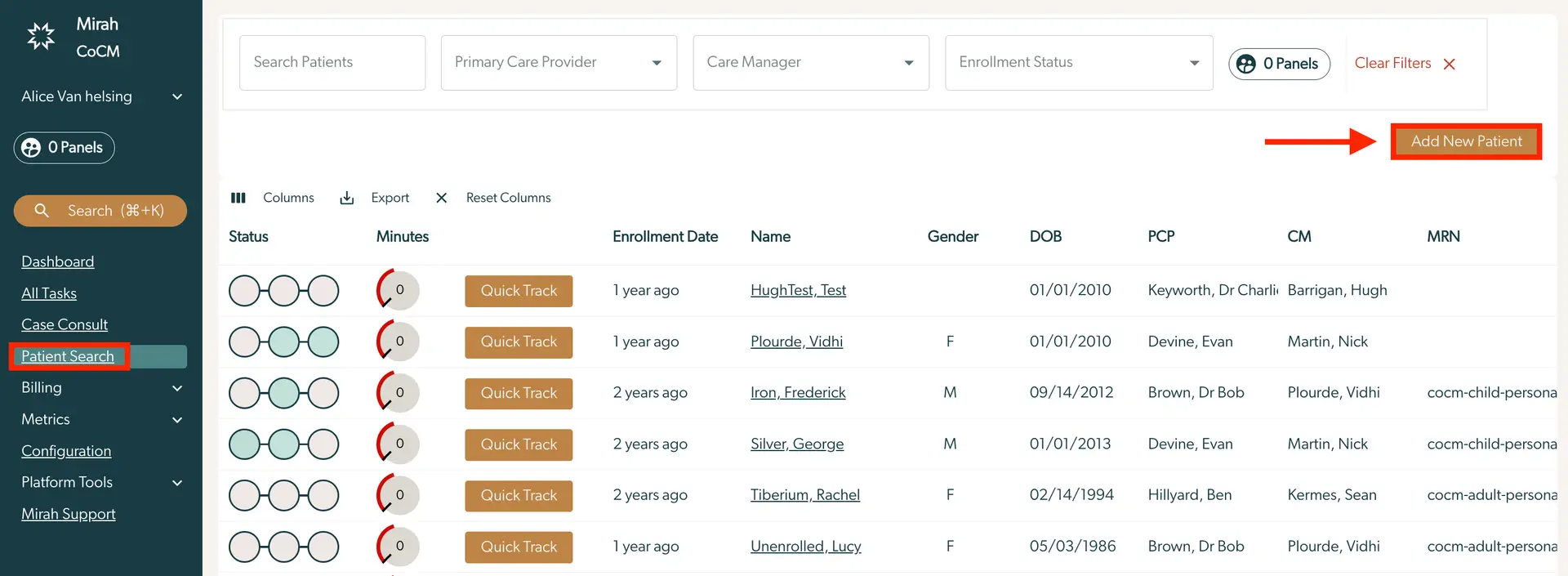
The screenshot displays the 'Patient Search' page within the Mirah Collaborative Care platform, where users can manage patient information. The left sidebar includes navigation options such as Dashboard, All Tasks, Case Consult, Patient Search, Billing, Metrics, Configuration, Platform Tools, and Mirah Support. The main section features a search bar for finding patients, along with dropdown filters for Primary Care Provider, Care Manager, and Enrollment Status. The '0 Panels' button and 'Clear Filters' option are located next to the search bar. Below, a table lists patients with columns for Status, Minutes, Enrollment Date, Name, Gender, DOB (Date of Birth), PCP (Primary Care Provider), CM (Care Manager), and MRN (Medical Record Number). Each row provides specific details for individual patients. The 'Add New Patient' button is prominently displayed in the upper right corner, allowing users to add new patient information.

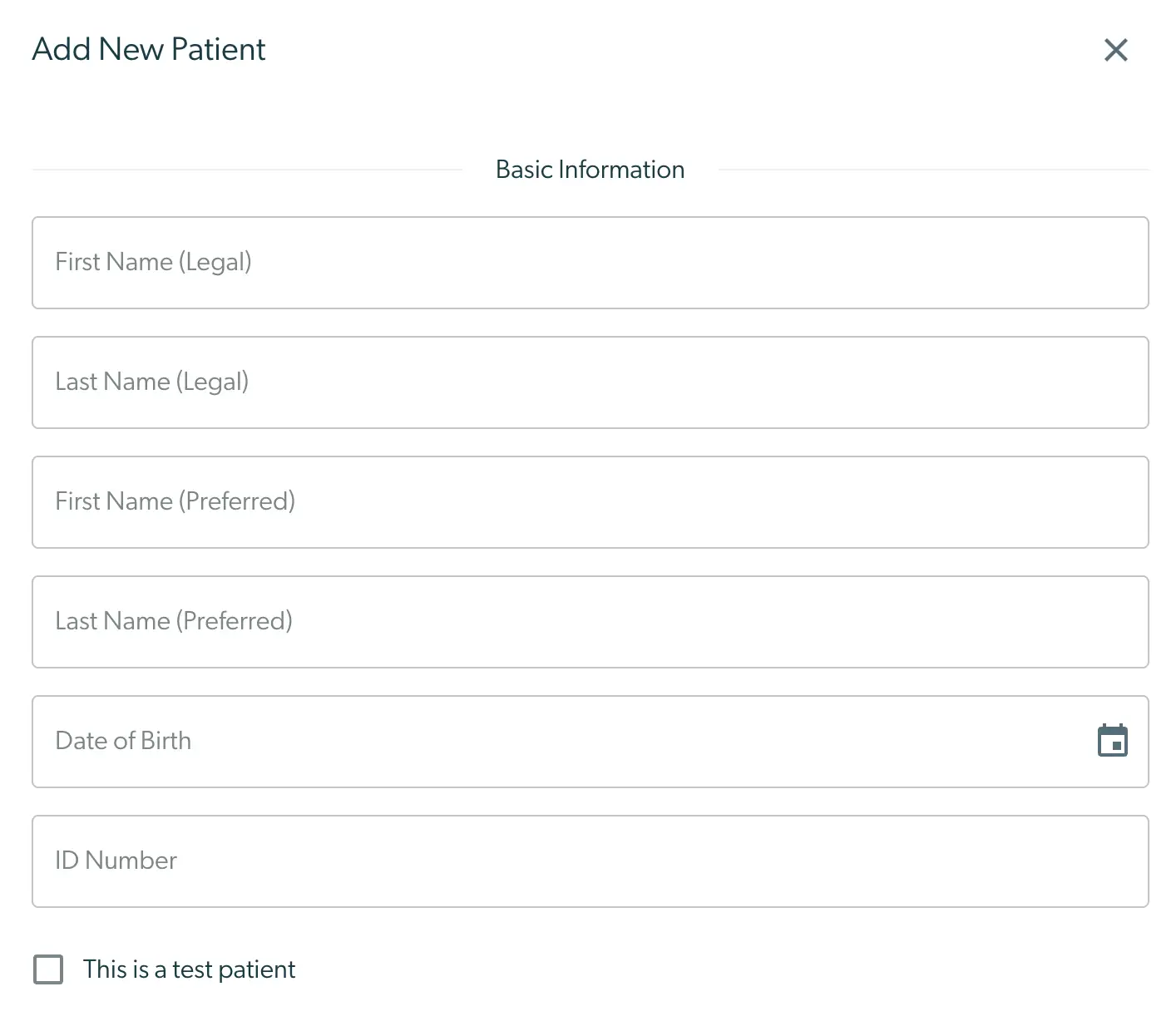
3.) Fill out the patient details. To be able to help you identify this patient later, we suggest filling out as much information as possible, especially MRN. The following fields are required to create a new patient record:

  1. Last Name
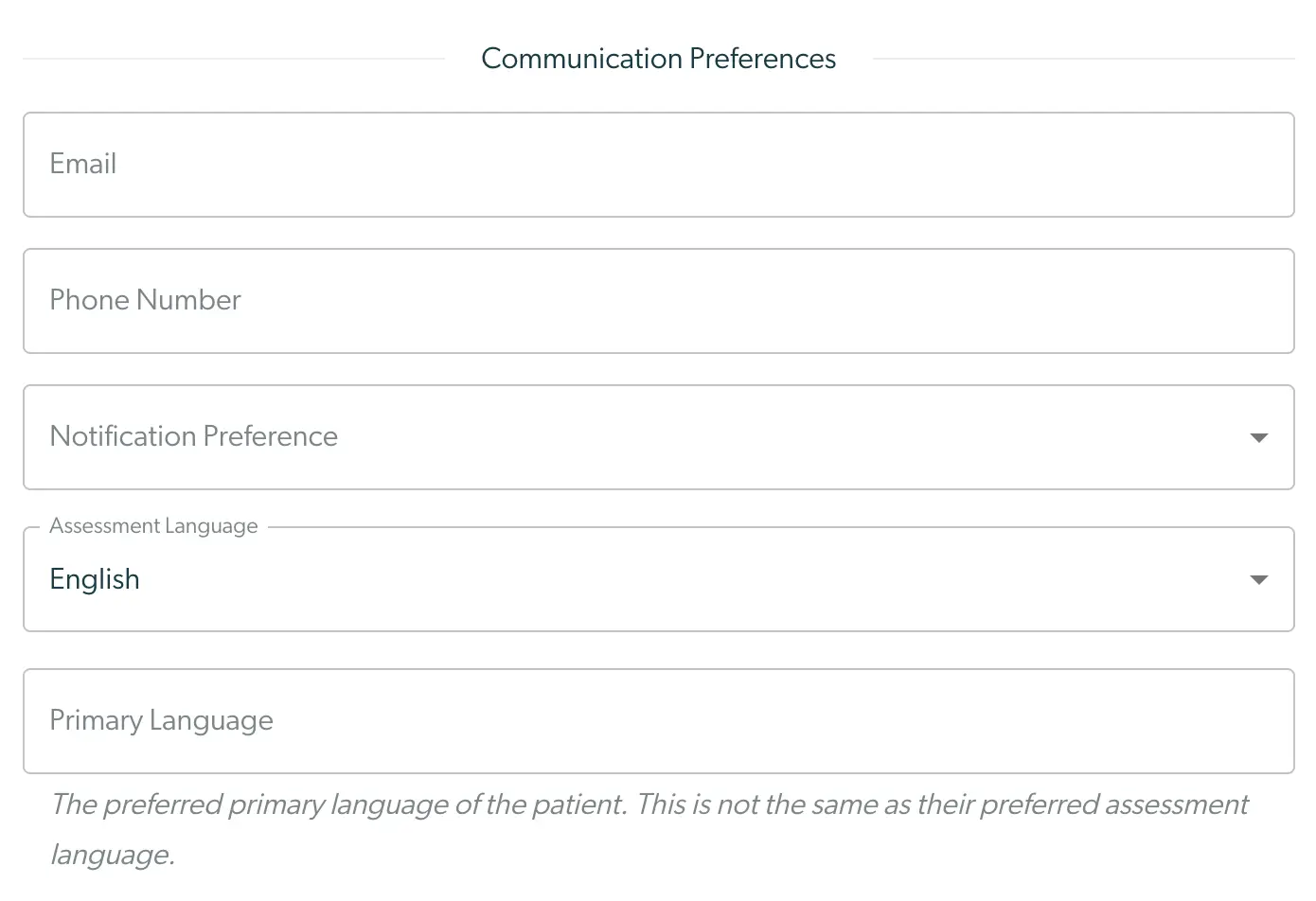
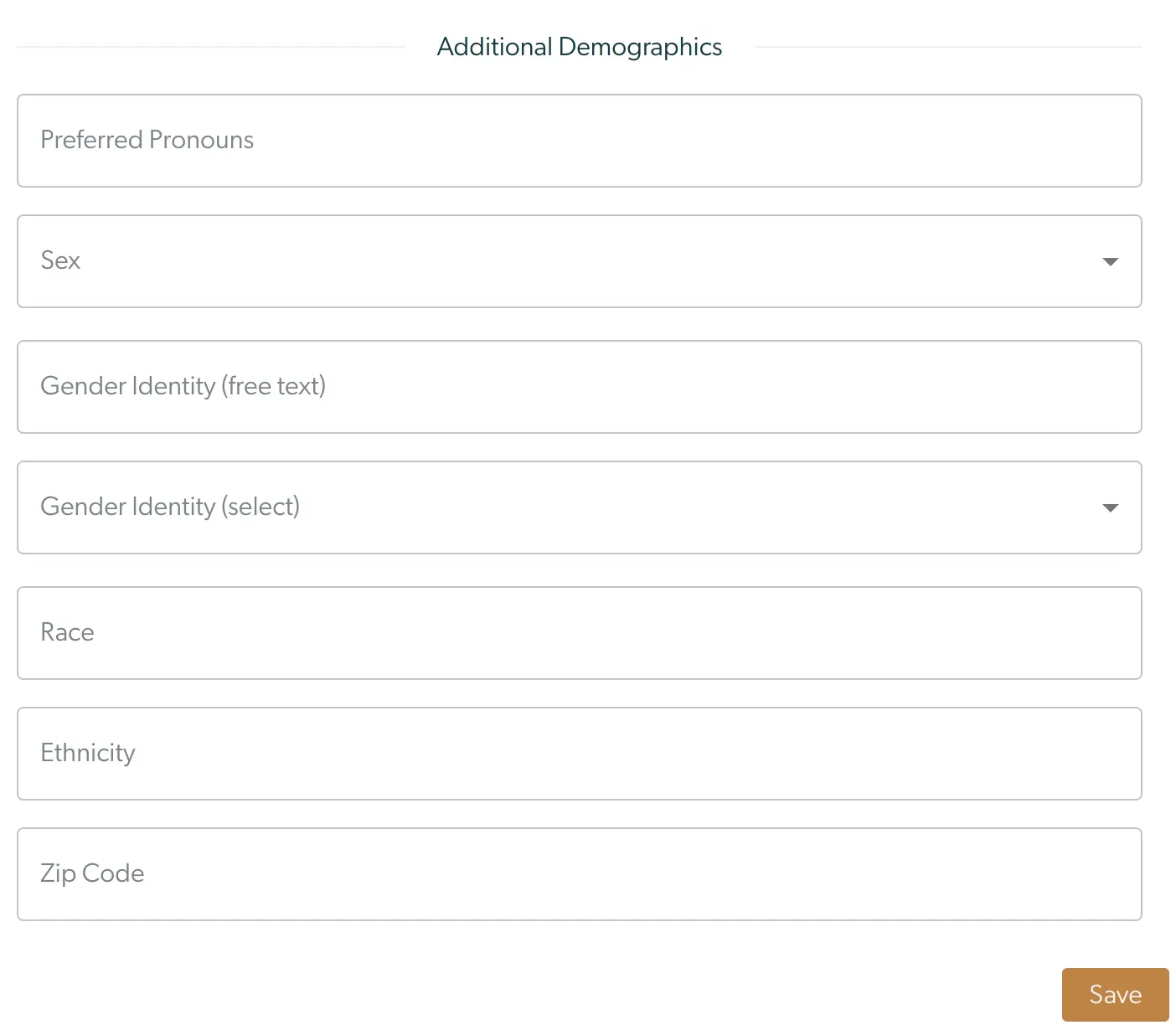
  2. Date of Birth The 'Add New Patient' screen in Mirah Collaborative Care is designed for entering a new patient's basic information. It includes fields for First Name (Legal), Last Name (Legal), First Name (Preferred), Last Name (Preferred), Date of Birth, and ID Number. Each field is a text input box, except for the Date of Birth, which has a calendar icon on the right for selecting a date. At the bottom, there is a checkbox labeled 'This is a test patient' to indicate if the entry is for testing purposes. The screen is part of the patient management workflow, allowing users to input and manage patient data efficiently.The screenshot displays the 'Communication Preferences' section of the Mirah Collaborative Care platform, used when adding a new patient. It includes fields for entering the patient's Email and Phone Number, both of which are text input fields. Below these, there is a dropdown menu for selecting the Notification Preference, allowing users to choose how the patient prefers to receive notifications. The Assessment Language is set to 'English' by default, with a dropdown menu for selecting other languages if needed. Lastly, there is a text input field for the Primary Language, accompanied by a note clarifying that this is the patient's preferred primary language, which may differ from their preferred assessment language.The 'Additional Demographics' screen in the Mirah Collaborative Care platform is designed for entering detailed demographic information about a patient. It includes fields for 'Preferred Pronouns', 'Sex' with a dropdown menu for selection, 'Gender Identity (free text)' for manual entry, 'Gender Identity (select)' with a dropdown menu, 'Race', 'Ethnicity', and 'Zip Code'. Each field is intended to capture specific demographic data to support personalized care. At the bottom right corner of the screen, there is a 'Save' button, which allows users to save the entered information.

4.) Click "Save"

5.) You will automatically be redirected to the new patient’s detail page