Patients - How to add a related person

A related person is typically a caregiver, parent or teacher that is related to a pediatric patient. For certain measures, surveys are sent to the patient and/or the related people.

Once you are on a patient page you will have the ability to add a related person.

1.) View the “Related People” section to the right on the patient's details page

2.) Click on the “Add a Related Person” button on the right of the screen
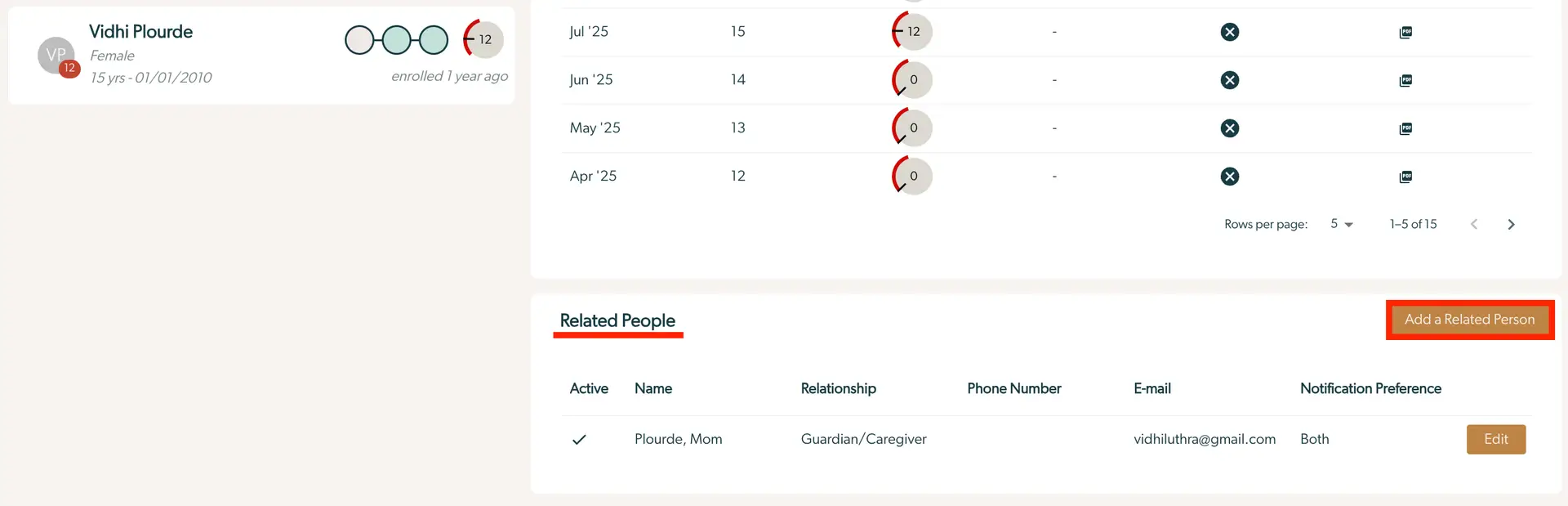
The screenshot displays the patient profile for Vidhi Plourde, a 15-year-old female enrolled a year ago. The top section shows her name, gender, age, and enrollment date, along with a visual representation of her progress. Below, there is a table listing her assessment scores from April to July 2025, with options to view or download reports. The bottom section titled 'Related People' lists individuals associated with the patient, including their active status, name, relationship, phone number, email, and notification preference. The 'Add a Related Person' button is prominently located at the top right of this section, allowing users to add new related individuals. The 'Edit' button next to each entry enables modifications to existing related person details.

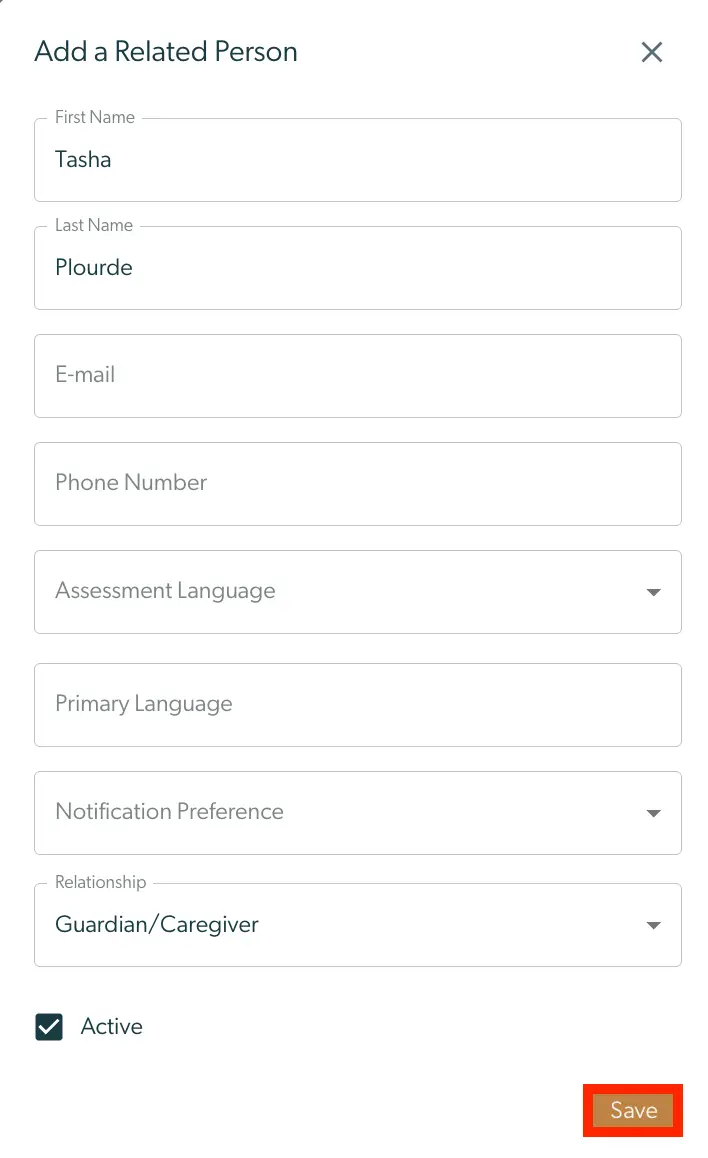
3.) Fill out the related person details. The following fields are required to create a related person:

  1. Last Name
  2. Relationship

4.) Click “Save”

The 'Add a Related Person' screen allows users to input details for a person related to a patient within the Mirah Collaborative Care system. The screen includes fields for First Name, Last Name, E-mail, Phone Number, Assessment Language, Primary Language, Notification Preference, and Relationship, with the option to select 'Guardian/Caregiver' from a dropdown menu. There is a checkbox labeled 'Active' to indicate the status of the related person. The 'Save' button, located at the bottom right corner, is used to save the entered information.